
Closing, reopening and deleting an operation
Close an operation at the end of the day and see its summary, send QRT for an activation, reopen it for a forgotten QSO, or delete it.
FreeUpdated for HamQSO 0.1.19
On this page
When you are done transmitting, close the operation: it takes no more QSOs, the animated finale plays and from then on the operation opens on its Summary, with the DX Replay. If you forgot a QSO you can reopen it, and if you no longer need it you can delete it. All of this is free.
Closing an operation
Operations with an end can be closed: portable outings, activations, contests and operations of type Other. A Station log is always open: it never closes, neither by hand nor by itself.
- Open the operation (see The operation page) and pick the Log section.
- Above the QSOs there is the row "When you close: summary and DX Replay". Tap Close operation.
- The operation closes at once, with no question, and the page moves to the Summary. If the operation has QSOs, the finale plays first (see below).
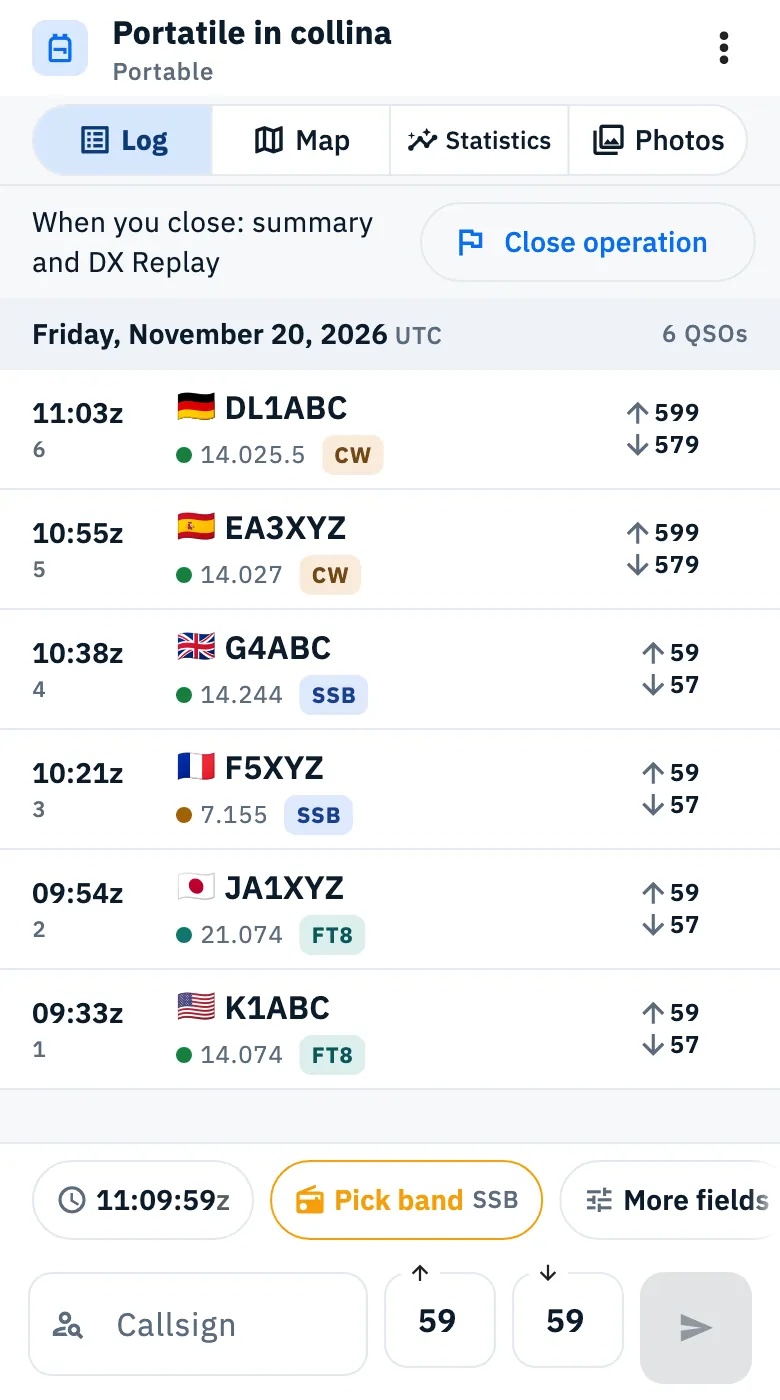
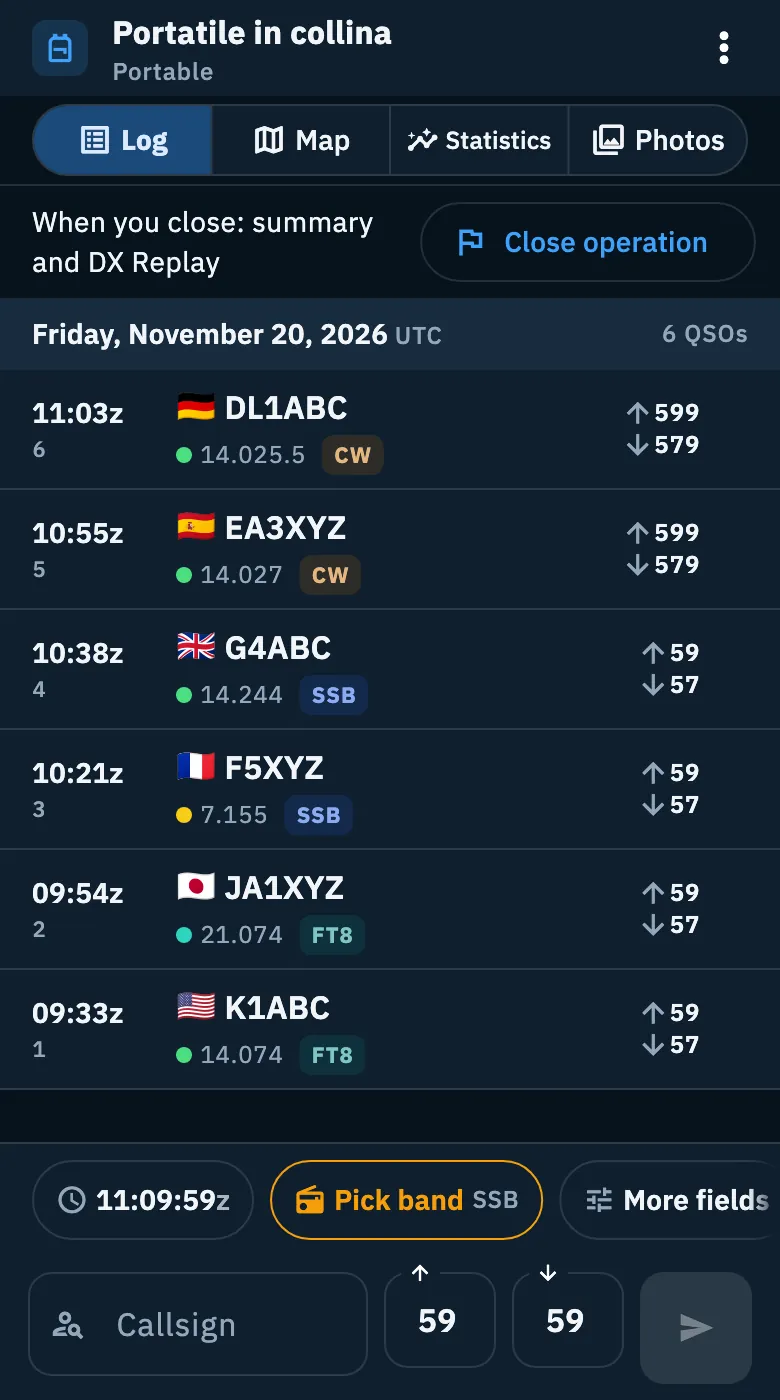
You can also close in other ways:
- on the operation page tap ⋮ (More actions), then Close operation;
- in the Operations list tap ⋮ on the card (or long-press it), then Close operation. From the list the operation closes at once, without the finale and without sending QRT;
- when you create a new operation while this one is still open, the app asks "… is still open": tap Close … and continue (for a spotted activation Close and send QRT). Here too there is no finale (see Creating an operation).
When you close the operation in use, no other one takes its place: no operation is in use until you log a QSO in an operation or reopen one. If you close an operation that was not the one in use, the one in use does not change. The QSOs of the closed operation stay as they are.
An operation without QSOs closes all the same: no finale, and the Summary says "No QSOs".
Closing an activation with QRT
For the xOTA activation in use, with at least one reference, the row at the top of the Log says how long you have been on the air, for example "On the air for 1 h 12 min", or "Not spotted yet" if the app has not spotted it yet. The button is still Close operation, and you also find it in the ⋮ menu and in the I'm on the air sheet (see Activating a POTA park or a SOTA summit).
If the app has spotted the activation (for example with the automatic re-spot, see Automatic re-spot and QSY), it asks before closing, because it also sends QRT:
- Tap Close operation.
- Read the question "Close the operation?". For each reference (up to three, then "and 2 more" and so on) you see the count:
- "32 QSOs on US-1234: valid activation."
- or, with a warning icon, "7 QSOs on US-1234: a valid activation needs 10. 3 QSOs to go."
- Below it says what happens: "I'll send QRT on POTA: for those looking for you the activation is over. Then the operation closes and you see the summary with the DX Replay. You can reopen the operation, the QRT stays." Offline you also see "You are offline: the QRT goes out when the network is back."
- Tap Close operation to confirm, or Keep going to go back to the log.
If the activation was not spotted there is no QRT to send: the operation closes at once, like the others.
After the finale (at once, if the operation has no QSOs) a message tells how the QRT went:
| Message | What it means |
|---|---|
| "Operation closed: QRT sent to POTA." | The QRT went out. |
| "Offline: the QRT goes as soon as the network is back, within an hour." | The QRT is queued and goes out by itself when the network is back (see Spots sent while offline). |
| "Operation closed. QRT not sent to POTA." | Sending failed: tap Retry. |
| "Operation closed." | There was no QRT to send. |
This question is only for the activation in use. An activation that is not the one in use closes with the plain Close operation, without QRT.
The finale
When you close from the operation page and the operation has QSOs, the finale plays: about seven seconds full screen, always on a dark background, even with the light theme.
- The globe starts from your station and draws the arcs of the QSOs.
- At the top the numbers climb: QSOs, Countries and ODX. If your locator is missing or the location of the farthest QSO is estimated, the ODX has "≈" in front.
- At the bottom the name of the operation appears with up to three milestones (or the farthest QSO); if there are more milestones, "and 1 more milestone" or "and 2 more milestones".
- In a window wider than tall the milestones are in a column on the right.
- If you reduced animations in the system, you see the last frame at once, still, with the numbers and the milestones.
The same finale also plays with Generate summary of a Station log.
To move on:
- Tap the screen to skip to the end (on a keyboard Esc, Enter and Space work too).
- At the end tap again, or See the summary: you get to the Summary (see Operation summary, milestones and photos).
If the finale does not load within a few seconds, the app goes back to the Summary by itself. If no QSO has a location to place on the globe, the finale closes by itself.
After the first finale the app may ask "Want to know when a summary is ready?": tap Continue to give the notification permission, or Not now (it asks again at the next closing, only once). You can change your mind any time in Alerts, switch Summaries (see Getting notifications).
Automatic closing
You don't need to remember to close: an operation left open closes by itself when the UTC day of its last QSO is over and at least 12 hours have gone by without QSOs. The closing also happens on the server, so even with the app closed, and the closing time is the time of the last QSO, the same on all your devices.
- The Summary says "Closed by itself after 12 hours without QSOs".
- The Operations list shows the card "Your summary is ready" and, if you turned on the Summaries notifications, the notification arrives too. For an old log, for example imported from a file, the closing happens silently.
- An operation without QSOs never closes by itself, nor does an archived operation or a Station log.
- A 48-hour contest or an activation across UTC midnight is not cut short: the 12 hours count from the last QSO logged.
- If the server closed the operation while one of your devices without network was still logging, when those QSOs arrive the operation reopens by itself and closes again later with the same rule.
Reopening an operation
Forgot a QSO? Reopen the operation and log it.
- Open the closed operation and pick the Log section. Where the QSO bar was you find "Operation closed" and "For more QSOs, reopen it".
- Tap Reopen operation.
- "Operation reopened: it is the one in use again." appears and the QSO bar is back.
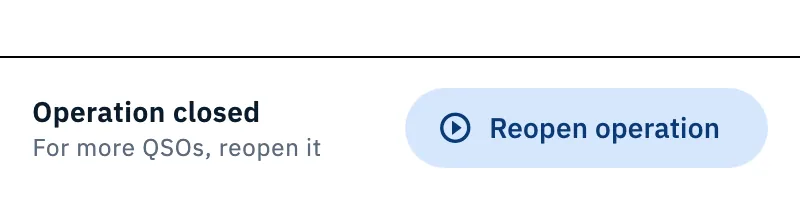
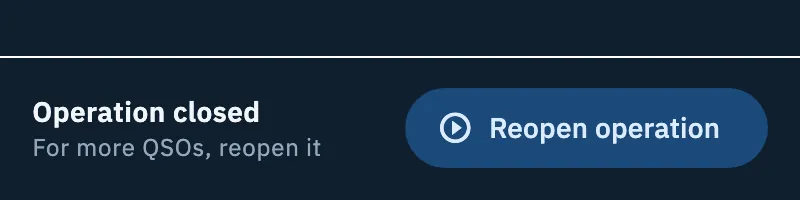
Reopen operation is also in the ⋮ menu of the page and in the ⋮ menu of the card in the list. In the Summary the sentence "No more QSOs are logged here. If you reopen it, the summary updates when you close it again." reminds you that the summary is made again at the next closing.
When it cannot be reopened:
- xOTA activations of another day: an activation reopens only on the UTC day of its last QSO. From the next day its Log is read-only: no bar at the bottom and no Reopen operation in the menu, so activation days don't mix. For the QSOs of a new day create a new operation (see Creating an operation).
- Archived operations: first tap ⋮ and Restore, then reopen it (see Organizing your operations).
Deleting an operation
- On the operation page tap ⋮, then Delete operation (or ⋮ on the card in the list).
- "Delete the operation?" opens.
- Without QSOs you only read "The operation goes to the trash for 30 days."
- With QSOs you read, for example, "It holds 34 QSOs. What should happen to them?" and choose:
- They go to the trash too: the operation and its QSOs go to the trash;
- Move them to another operation ("The operation goes to the trash, the QSOs stay in the log"): then pick the destination in Move to, where you find the other operations, most recent first, with the number of their QSOs. This choice is there only if you have other operations.
- Tap Delete (or Cancel to leave everything as it is).
If you were on the operation page, "Operation deleted" appears and you go back to the list. QSOs sent to the trash can be restored from the Trash within 30 days, and restoring one brings its operation back too (see Deleting QSOs and the trash). The Trash lists only QSOs: an operation deleted without QSOs, or after moving them, has no command to come back.
Phone, tablet and desktop
Closing, reopening and deleting work the same on phone, tablet, desktop and web. Only the place of the rows changes:
- Phone: the Close operation row is at the top of the Log section, the Reopen operation bar at the bottom of the same section.
- Tablet: the Log is in the left column, with the closing row above it and the reopening bar below.
- Desktop: the closing row sits above the QSO bar, in the Log section, even while you type.
Troubleshooting
"Could not complete the action, try again" Closing, reopening or deleting failed. Tap the command again; if it happens again, leave the operation page and open it again.
"It can't be deleted: 3 QSOs are confirmed in HamQSO." The operation holds QSOs confirmed in HamQSO and cannot be deleted: in the dialog Delete stays off. You can archive it.
I can't find "Reopen operation" The operation is an xOTA activation of a past UTC day, or it is archived: see "When it cannot be reopened" above.
I can't find "Close operation" It is a Station log, which never closes; or the operation is archived (Restore it first); or you are on another section (the row is only in the Log); or, on a phone or tablet, the on-screen keyboard is open. In the last two cases the command is still in the ⋮ menu.
The QRT did not go out If the message says "QRT not sent", tap Retry. If you were offline, the QRT goes out by itself as soon as the connection is back.