
Reading propagation
See which HF bands are open by day and night, the solar indices, VHF openings and the grey line at your QTH, and share them as an image.
FreeUpdated for HamQSO 0.1.19
On this page
The Propagation page shows at a glance how the bands are doing right now: a summary sentence, the state of the geomagnetic field, six solar indices, the HF bands by day and by night, VHF openings and the grey line at your QTH. The data comes from N0NBH's bulletin (hamqsl.com).
Opening the page
You can get there from several places:
- Open the DX section: at the top of the spot list there is the propagation row, with the sun icon, solar flux and K index (for example "SFI 145, K 2") and the summary sentence. Tap it.
- Open Profile and tap the large Propagation card ("See which bands are open").
- On the page of an operation, open the ⋮ menu and choose Band conditions.
These lead there too:
- the command palette: Go to: Propagation (see Finding anything with the command palette);
- the result of a coverage test where "No skimmer heard you": tap Check propagation (see Reading the test result);
- the link
hamqso.app/app/propagation, which opens the page over the DX section.
On the web, in a wide window, the side bar has a Propagation item, and the top bar of the window shows the indices (for example "SFI 145 K 2"): a click opens the page. In this layout the row at the top of the spot list is not shown, because the indices are already in the top bar.
The summary and the geomagnetic field
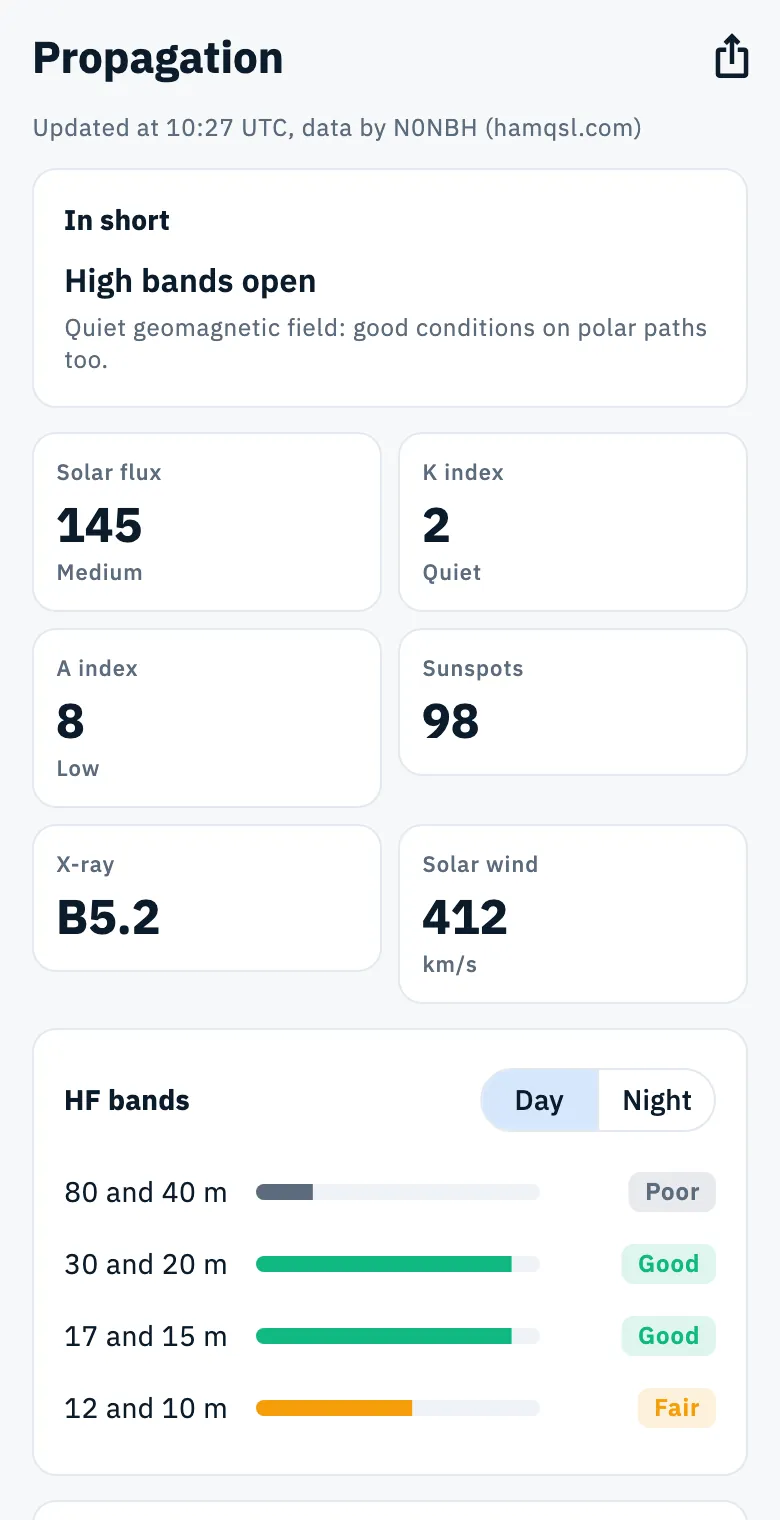
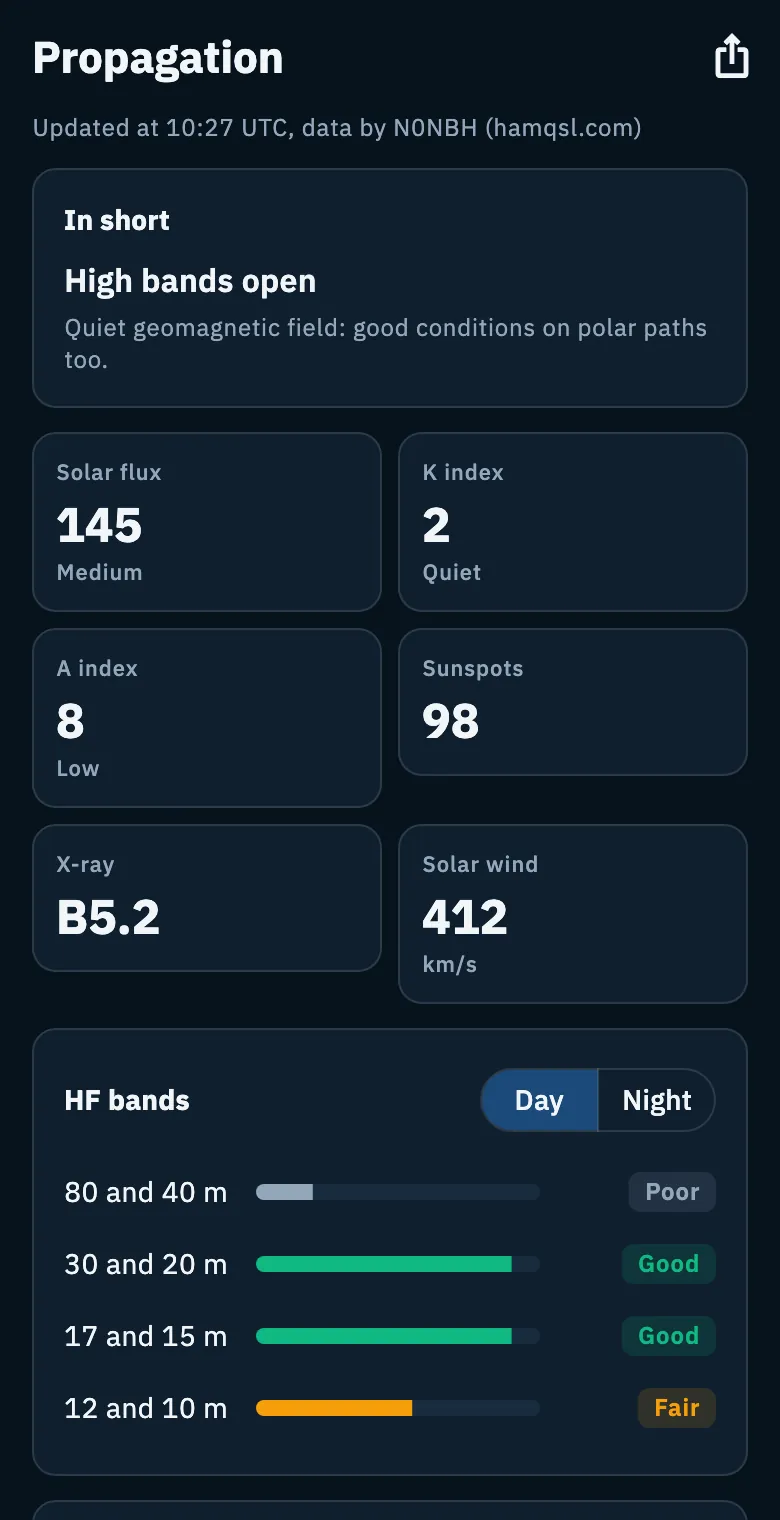
At the top of the page, below the line "Updated at … UTC, data by N0NBH (hamqsl.com)", the In short card sums everything up in one sentence:
| Sentence | When it appears |
|---|---|
| "Geomagnetic storm: HF disturbed" | K index 5 or more |
| "High bands open" | 12 and 10 m good, or 12 and 10 m and 17 and 15 m both at least fair |
| "Mid bands open, high bands weak" | 17 and 15 m at least fair, or 30 and 20 m good |
| "Only the low bands are open" | 80 and 40 m at least fair, and none of the conditions above |
| "Poor propagation" | None of the above |
The sentence uses the day forecast when the sun is above the horizon at your QTH right now (the position of your station's locator), otherwise the night one. Without a locator the app takes day as 7:00 to 19:00 of the device's time.
Below the sentence, a smaller line describes the geomagnetic field from the K index:
- K below 3: "Quiet geomagnetic field: good conditions on polar paths too."
- K 3: "Unsettled geomagnetic field: possible trouble on polar paths."
- K 4: "Active geomagnetic field: polar paths are hard."
- K 5 or more: "Geomagnetic storm: polar paths closed, noisy HF."
The solar indices
Below the summary there are six tiles: the name of the index, its value in large type and, for the first three, its level.
| Index | What it shows | Level |
|---|---|---|
| Solar flux | The solar flux (SFI) | High from 150, Medium from 100, Low below |
| K index | Geomagnetic activity of the last hours | Storm from 5, Unsettled from 3, Quiet below |
| A index | Geomagnetic activity of the day | High from 30, Medium from 10, Low below |
| Sunspots | The sunspot number | — |
| X-ray | The X-ray class as N0NBH publishes it (for example B5.2) | — |
| Solar wind | The solar wind speed, rounded, in km/s | — |
The level thresholds are the app's own, made for a quick reading. When the bulletin has no value, you see "—" instead.
HF bands by day and by night
The HF bands card gives N0NBH's forecast for four band groups: 80 and 40 m, 30 and 20 m, 17 and 15 m, 12 and 10 m.
- Find the HF bands card.
- The switch at the top starts on Day or Night depending on the time at your QTH now.
- Tap the other value to see the other half of the day, for example to plan an evening session. Your choice stays while you are on the page.
- For each group, read the bar and the colored label.
| Label | Color | Meaning |
|---|---|---|
| Good | Green, bar almost full | Band open |
| Fair | Amber, bar half full | Openings possible |
| Poor | Grey, short bar | Band closed or nearly so |
| "—" | Empty bar | No data for that group |
The switch changes only this card: the summary sentence stays the one for the current time at your QTH.
VHF openings
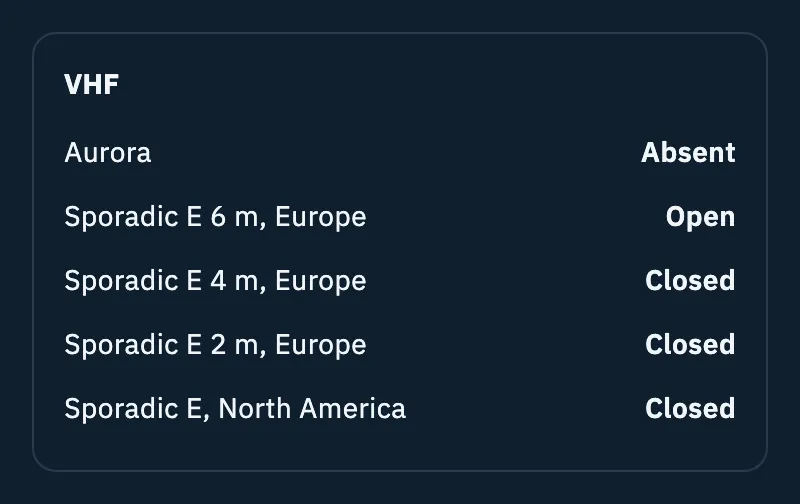
The VHF card tells you whether there is aurora or sporadic E right now:
| Row | Values |
|---|---|
| Aurora | Present or Absent |
| Sporadic E 6 m, Europe | Open or Closed |
| Sporadic E 4 m, Europe | Open or Closed |
| Sporadic E 2 m, Europe | Open or Closed |
| Sporadic E, North America | Open or Closed |
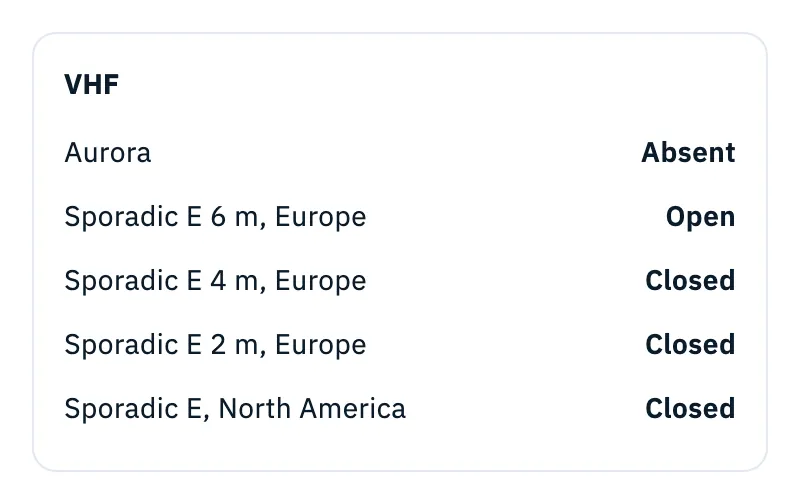
It is a yes-or-no indication from the bulletin, with no precise areas or frequencies. When the bulletin says nothing about a phenomenon, its row shows Absent or Closed.
The grey line
The grey line is the border between day and night: when it passes over your QTH, at sunrise and sunset, long paths often open better.
On phones and tablets the Grey line card shows a world map with the night shaded and your QTH as a blue dot. The map is a picture of right now: it does not pan or zoom.
Below the map a sentence tells you the next event at your locator and how long until it, always in UTC:
- "Sunset at JN63 at 16:42 UTC, grey line in 2 h 10 min."
- "Sunrise at JN63 at 05:58 UTC, grey line in 25 min."
If the sun does not rise or set at your QTH today (polar day or night) you see "At your QTH the sun does not rise or set today.".
The sentence and the map update by themselves once a minute while the page is open.
Without a locator
The position of your QTH comes from your station's locator. If you have not set it, instead of the sentence you see "Set your locator in Settings to see sunrise and sunset at your QTH.".
- Tap Set your locator below the sentence.
- Your profile opens with the cursor already in the locator field: type your locator (see Your profile: name, callsign and locator).
- Go back to Propagation: the sentence and your QTH are already updated.
The globe on the web
On the web the grey line is a globe at the top of the page, full width, dark in every theme.
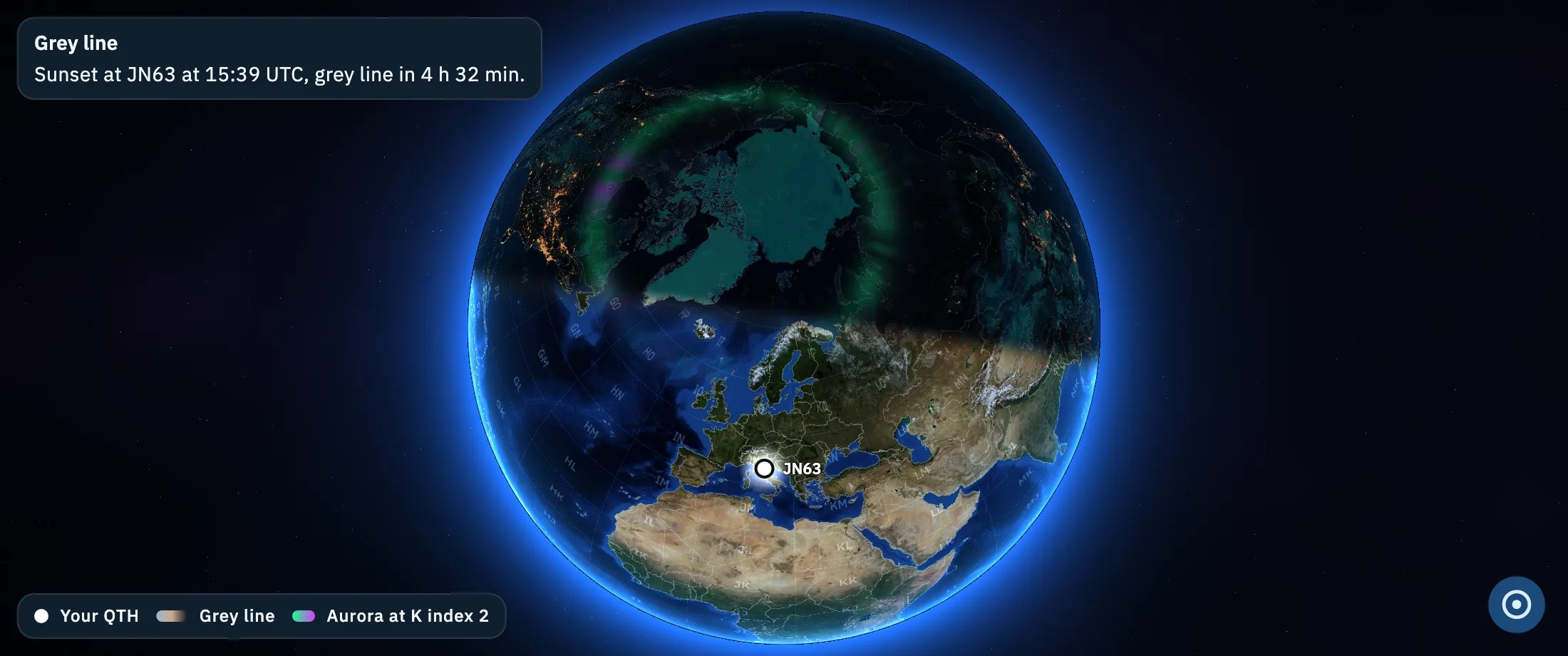
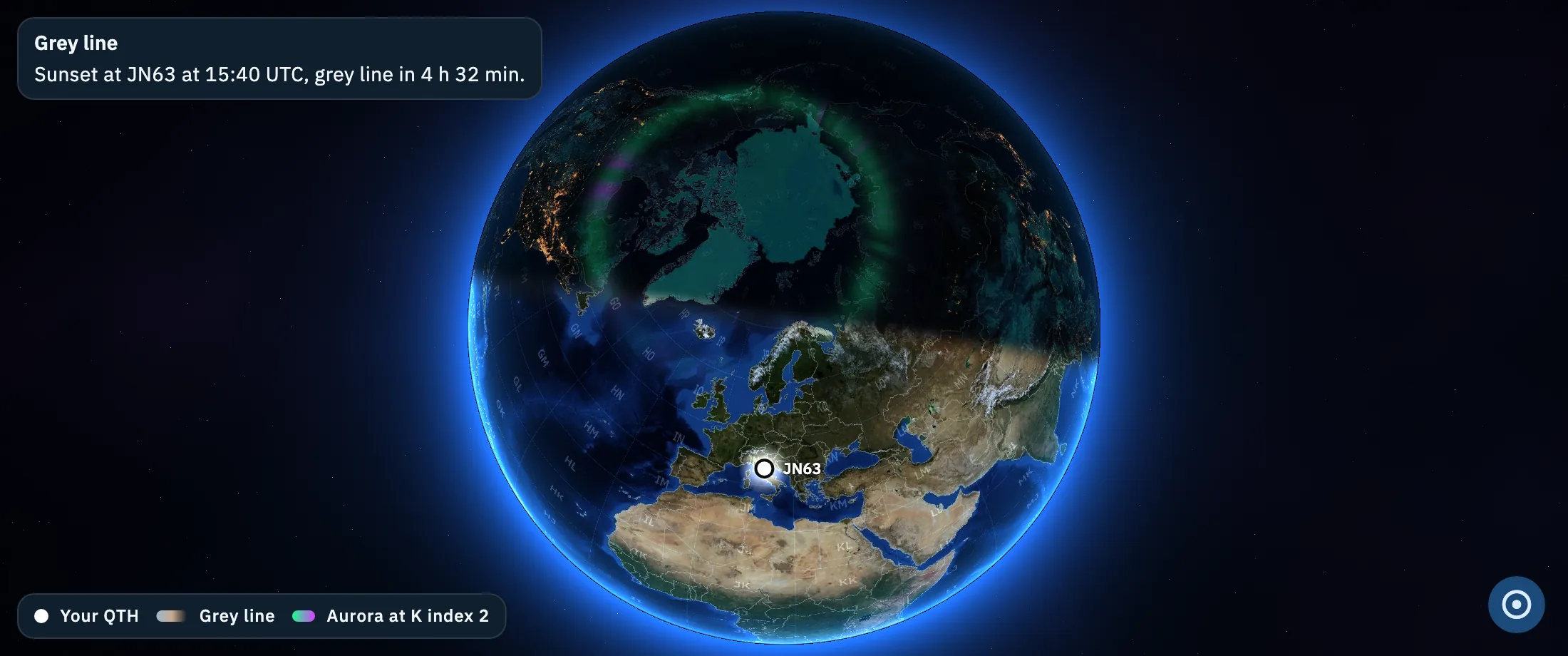
- Turn the globe by dragging it with the mouse and zoom in with the wheel. Close up it stops at the finest detail of the Earth photo.
- At the top left there are the Grey line title, the sentence of the next sunset or sunrise and, without a locator, the Set your locator button.
- At the bottom left the legend: Your QTH, Grey line and Aurora at K index …, which marks the aurora drawn on the globe from the bulletin's K index.
- At the bottom right the Show your QTH button (without a locator, Show the grey line) brings the globe back to its starting view, on the grey line nearest to you.
- If you change your locator, the globe moves by itself to the new grey line.
- Drag the border between the globe and the cards to give more room to one or the other: the size is remembered.
If the browser cannot draw the Earth photo, the globe is a plain sphere without aurora.
Sharing propagation
You can send today's propagation to a chat or a social network as an image.
- In the top bar of the page, tap the share icon (Share propagation). The icon is there only when the app has data.
- The sheet shows a preview of the image.
- Tap Share image and choose where to send it. While the image is being made, the button shows a spinner.
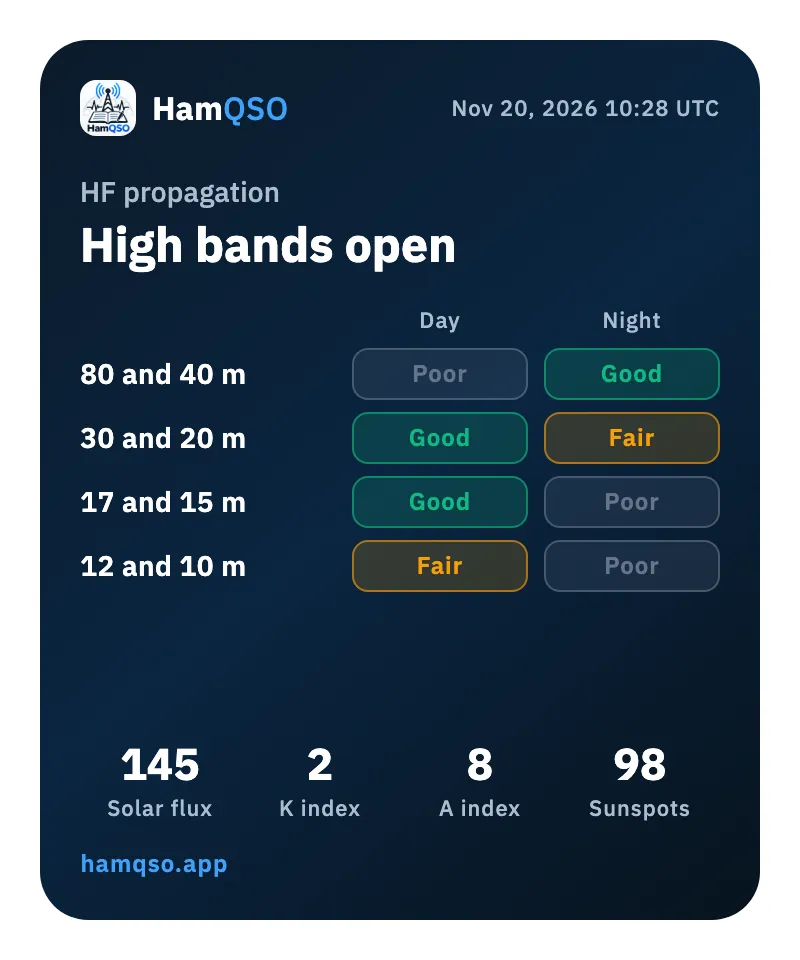
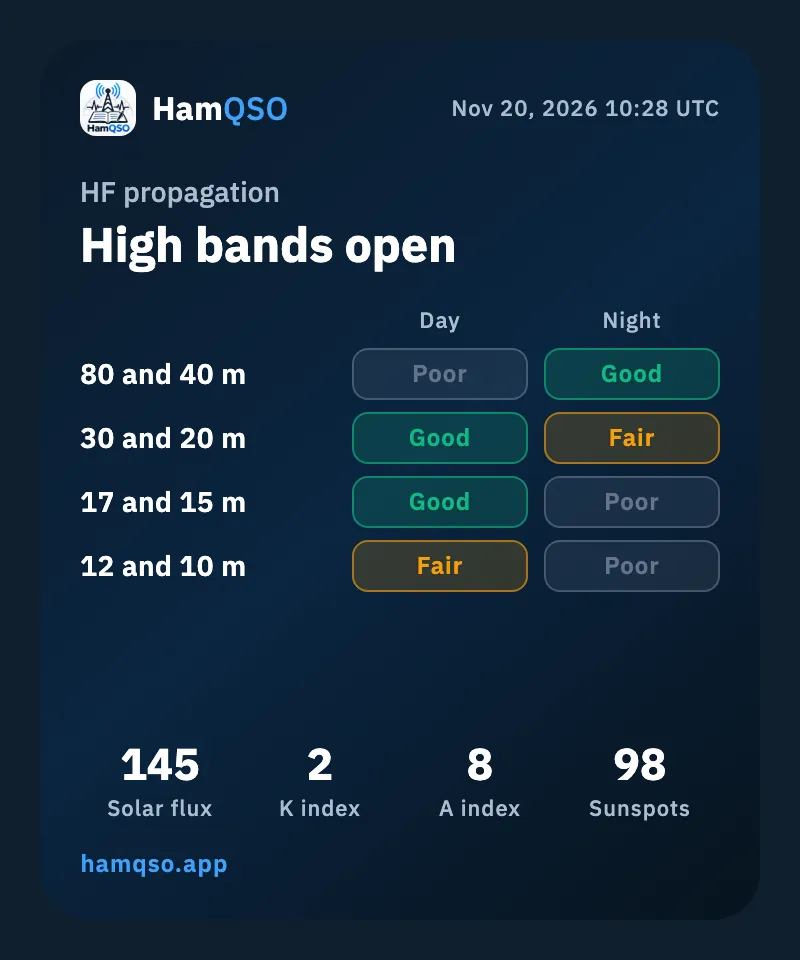
The image holds the title HF propagation, the UTC date and time of the bulletin, the summary sentence, the four HF groups by day and by night, solar flux, K index, A index, sunspots and the hamqso.app address. A text goes with it, such as "HF propagation today: High bands open. Solar flux 145, K index 2.", followed by "Live conditions and spots on HamQSO:" and the link to the Propagation page.
You share only the general forecast: your position is not in it.
Refreshing the data
The app reads the bulletin when it opens.
- On phones and tablets, pull the page down to read it again.
- If the network comes back while the page is open, the data refreshes by itself.
Offline
The last bulletin read stays saved on your device (on the web, in the browser). Offline, the page still shows it, with a notice at the top, for example "Data from 14:20, 2 h ago: they refresh when you are online.". In this notice the time is your device's time, not UTC. The row at the top of the DX Cluster also adds the age of the data to the summary sentence.
When the network comes back you do not need to do anything. For everything that works offline see Using HamQSO offline.
Phone, tablet and web
| Where | How the page is laid out |
|---|---|
| Phone | One column: summary, solar indices, HF bands, VHF, grey line with the map |
| Tablet | Two columns: summary and indices on the left, HF bands, VHF and grey line on the right |
| Web | The grey line globe at the top; below it the summary with the six indices in a strip, then the HF bands and VHF cards side by side (one under the other in a narrow window) |
Free and Pro
The Propagation page and sharing are free for everyone, with no subscription.
Troubleshooting
The page shows a crossed-out cloud and "Can't reach the service. Check your connection." The app has never read a bulletin on this device and cannot reach it now. Check your connection and tap Retry. If the message is "The service returned an error. Try again shortly." or "Received invalid data.", the problem is on the side of the bulletin service: wait a few minutes and tap Retry.
The data is old. You are offline: the notice at the top tells you the time and age of the data. It refreshes by itself when the network comes back; on phones and tablets you can also pull the page down.
The grey line sentence asks you to set your locator. Your QTH comes from your station's locator: tap Set your locator and type it in your profile.
The share sheet says "I couldn't create the image". Nothing went out. Tap Retry, or Go to the text to share only the text, which has the same link.
The bands are shown as open but I hear nobody. It is N0NBH's general forecast, not for your path. To find out where your signal really goes, run a coverage test.