
Choosing the programs you follow
Turn POTA, SOTA and WWFF on or off in xOTA, and keep the catalog of every reference on your device to search it without a network.
FreeUpdated for HamQSO 0.1.19
On this page
In the xOTA section you can keep only the programs you care about: POTA, SOTA, WWFF or any mix of them. On top of that, the app keeps the catalog of every park, summit and area in the world on your device, so searching for a reference works even where there is no network.
Choosing the programs
- Open the xOTA section.
- Scroll the row of tabs at the top to the end and tap Programs, the outlined button with the sliders icon.


- The xOTA programs page opens, with a switch for each program, its logo and its full name.
- Turn on the programs you want to follow and turn off the others.
- Go back: the tabs and the list are already updated.
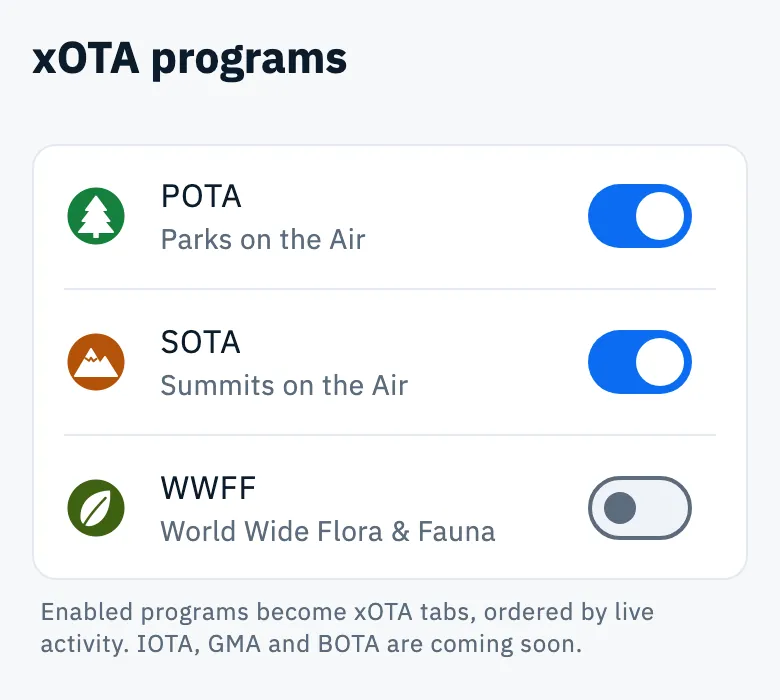
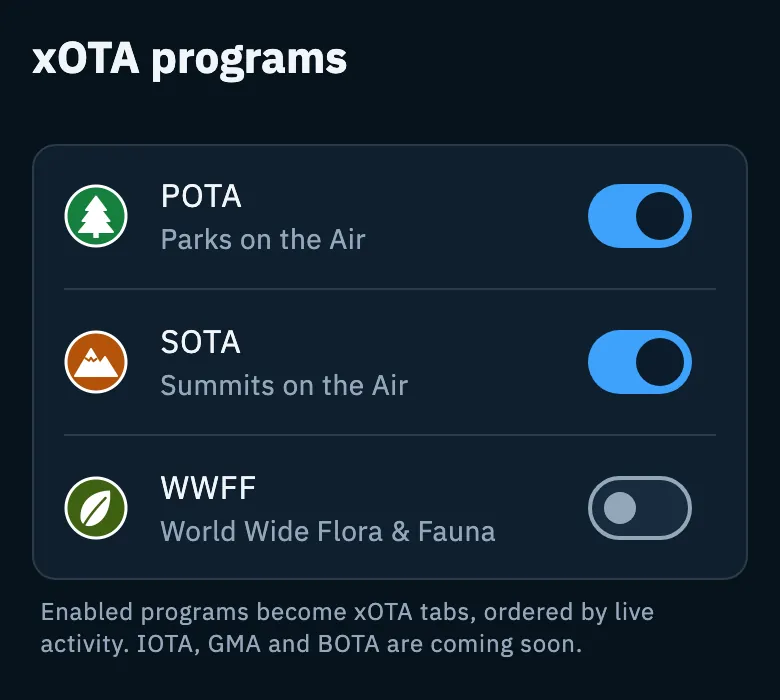
| Program | Name on the page | At first |
|---|---|---|
| POTA | Parks on the Air | on |
| SOTA | Summits on the Air | on |
| WWFF | World Wide Flora & Fauna | on |
What changes when you turn a program off
- The program leaves the xOTA tabs. Each enabled program is a tab, ordered by live activity (the one with the most spots comes first), after the All tab.
- The xOTA list downloads only the spots of the enabled programs; the same goes for the activations map (see Activations on the map and globe).
- If you were looking at the tab of the program you turned off, the list goes back to All.
The app remembers the last tab you opened, also when you open it again.
Your choice is saved on this device and applies right away. On another device you choose the programs separately. Turning a program off only changes what you see in xOTA: it does not touch your log or your alerts.
Under the list the page says that IOTA, GMA and BOTA are coming soon: for now you cannot follow them.
The reference catalog on your device
The catalog holds every POTA park, SOTA summit and WWFF area in the world. With the catalog on your device, reference search, Near you and reference names work without a network too, for example on top of a summit (see Finding and choosing references). With a network, search asks the server; the catalog is used when the network is missing or the server does not answer, and to show reference names without asking for them again.
You do not need to do anything to get it:
- it downloads by itself shortly after the app starts (after about 30 seconds), as soon as you are online;
- on mobile data it downloads by itself only if it is 10 MB or less; above that it waits for Wi-Fi or a network cable;
- it updates by itself every three months. The app checks at start, when the network comes back and when you return to the app; if the catalog has not changed, it is not downloaded again.
To see it:
- Open Profile.
- Tap Settings.
- At the top you find the Reference catalog section.
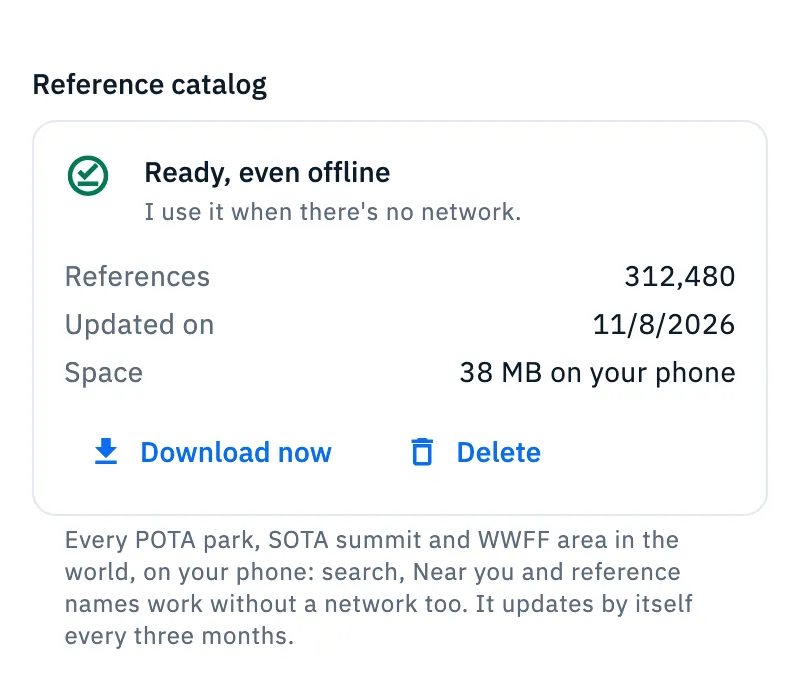
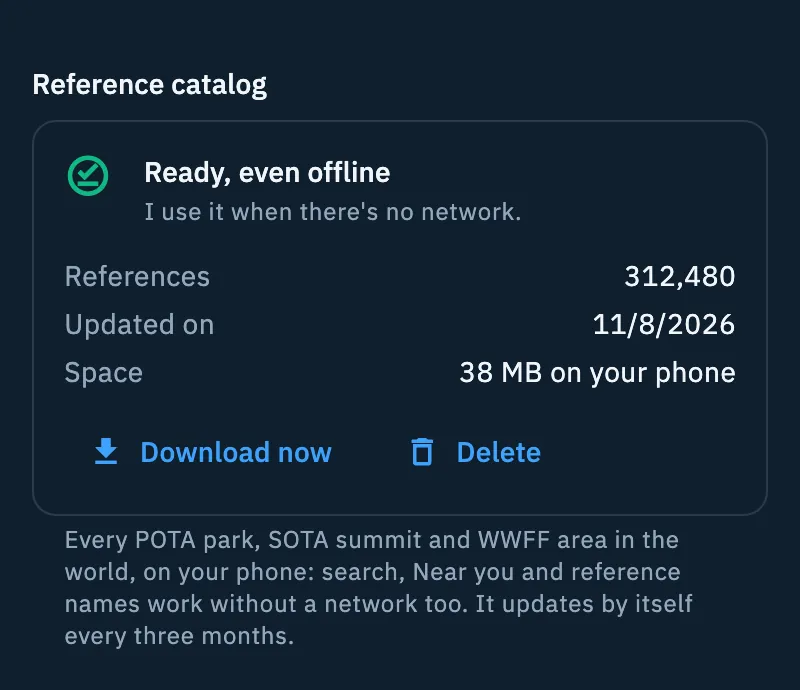
When there is a catalog, the card shows:
| Fact | What it says |
|---|---|
| References | how many references it holds |
| Updated on | when you downloaded it, or the app found it unchanged |
| Space | how much room it takes, for example "38 MB on your phone" ("in your browser" on the web) |
Downloading or updating it now
Tap Download now. The download starts right away, also on mobile data and also above 10 MB. You can keep using the app: it finishes by itself. Without a network the button is disabled and next to it you read "Needs a connection".
Deleting it
- Tap Delete.
- The app asks "Delete the catalog?" and tells you how much space you free.
- Tap Delete to confirm, or Keep it to leave it as it is. Keep it is already selected, so Enter never deletes by mistake.
If you had a catalog, after deleting the bar "Catalog deleted: 38 MB freed." appears (with the space freed).
If you tap Delete during a download, the dialog says the download stops; if you confirm, the catalog does not download by itself until you tap Download now.
The states of the card
| Title | When | What you can do |
|---|---|---|
| "Not downloaded yet" | The catalog has never been downloaded: "It downloads by itself as soon as you're online." | Download now |
| "Not downloaded yet" with "Waiting for Wi-Fi: this download is 38 MB, over 10 MB." | You are on mobile data and the download is over 10 MB (the text says how big it is) | Download now to get it anyway; Delete if you already have a catalog |
| "Downloading the catalog…" | Download running, with the bar and the MB received of the total | Delete to stop it |
| "Getting search ready…" | The file has arrived and the app is sorting the references: it takes a few seconds | wait |
| "Ready, even offline" | The catalog is on your device | Download now, Delete |
| "Deleted" | You deleted it | Download now |
Free and Pro
Choosing the programs and the reference catalog are free.
Phone, tablet and web
Both work the same on phone, tablet, desktop and web. On tablet and desktop the xOTA programs page and Settings keep a comfortable reading width. On the web the catalog is saved in your browser: the card says "in your browser" instead of "on your phone". The browser does not tell whether you are on mobile data, so on the web the catalog downloads by itself on any network, with no 10 MB limit.
Troubleshooting
"Update failed": the last update did not go through, but the catalog you have stays and still works ("I'm keeping the catalog you have: it still works."). The reason is shown below:
- "You were offline. I'll try again by myself when you're back online.": nothing to do.
- "The catalog server isn't responding. I'll try again by myself later.": the app tries again by itself; you can also tap Download now later.
"Download failed": the first download did not go through and there is no catalog on your device yet. Until it arrives, reference search uses the network ("Without the catalog, reference search uses the network."). The reason is one of the two above.
The catalog stays on "Not downloaded yet" with "Waiting for Wi-Fi: …": connect to Wi-Fi, or tap Download now to download it on mobile data.
I cannot turn a program off: it is the last one on. Turn another one on first.
To use the app without a network in general, see Using HamQSO offline. To follow activations in xOTA, see Following activations on the air.