
Linking eQSL.cc and HRDLog
Link eQSL.cc with your user and QTH, choose the QTH and card message of each station profile, and link HRDLog with your upload code.
FreeUpdated for HamQSO 0.1.19
On this page
When you link eQSL.cc, your QSOs are uploaded to your account and the confirmations come back to your log with their cards. When you link HRDLog, your QSOs go to your log on HRDLog.net. This page also shows how to choose the eQSL.cc QTH and the card message. Linking them is free.
What all services have in common (the Linked services page, the link outcomes, unlinking) is in Linking QRZ.com, LoTW, eQSL.cc and HRDLog.
Linking eQSL.cc
- Open Profile and tap Linked services.
- Tap the eQSL.cc card.
- In the Account section, type your eQSL.cc user name and Password.
- If your eQSL.cc user has more than one QTH and you already know which one to use, type the eQSL.cc QTH nickname (optional). The help under the field reminds you: "Required if your eQSL.cc user has more than one QTH".
- Tap Link.
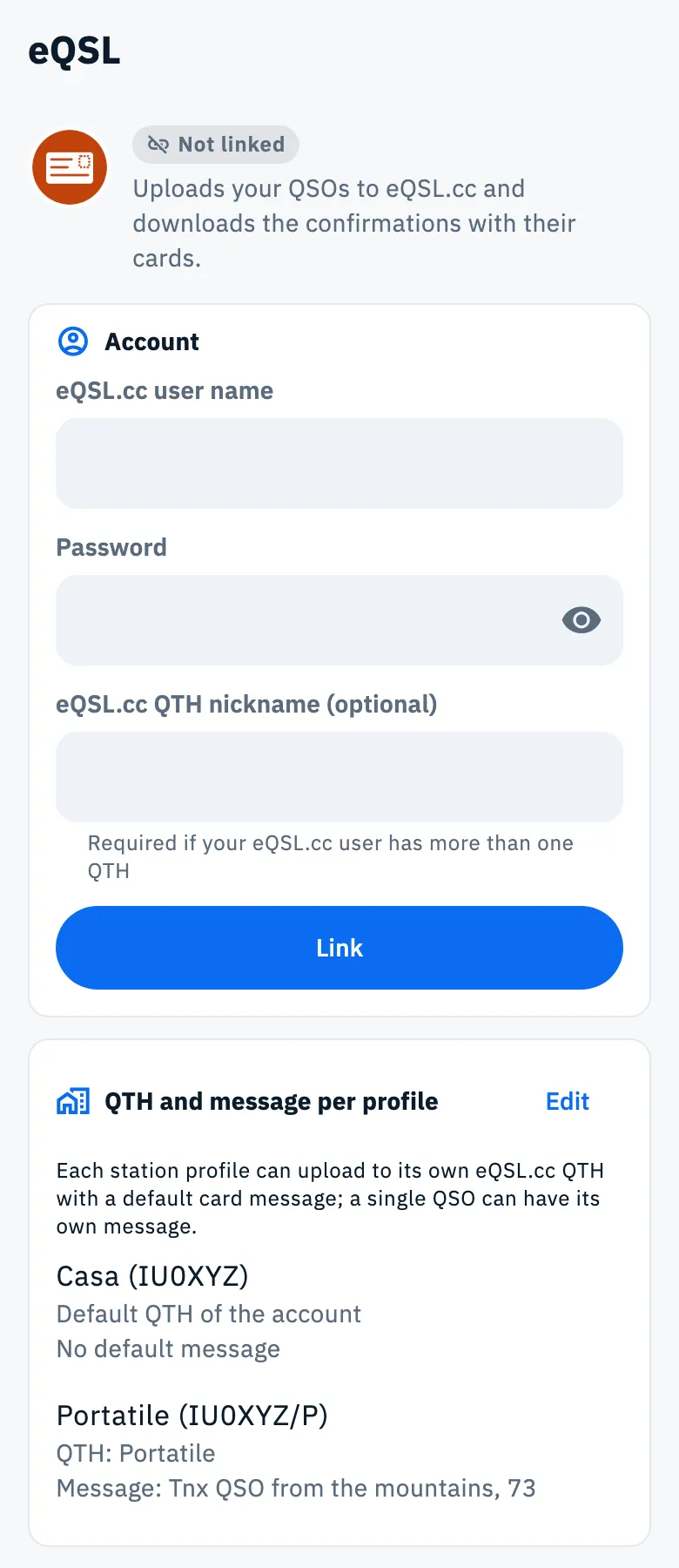
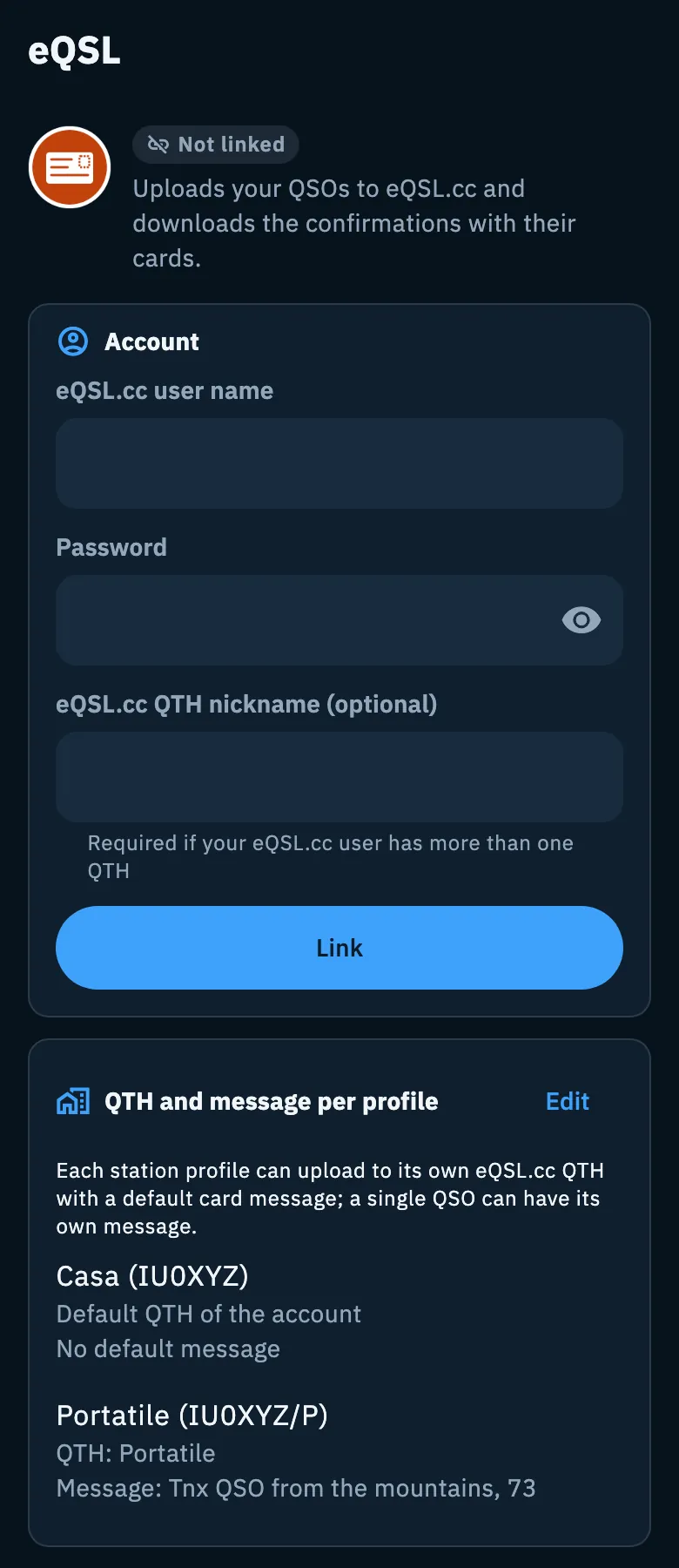
If eQSL.cc accepts the credentials, the Account section shows "Linked as" followed by your user name, and the Unlink button. The credentials stay only on this device.
If you have more than one QTH on eQSL.cc
eQSL.cc keeps several QTHs under the same user (for example home and portable, or different periods), and without the QTH nickname it does not accept uploads. If you did not type the nickname and eQSL.cc asks for one, HamQSO reads your QTHs that are active right now from eQSL.cc:
- Only one active QTH: the app uses it by itself and writes it in the Default QTH nickname field.
- Two or more active QTHs: Choose the eQSL.cc QTH opens, with the text "Your eQSL.cc user has more than one active QTH. Choose the one to link.". Each row shows the nickname, the place and locator, and the period ("From … to …"). Tap the right QTH: the link starts again by itself with that QTH, which becomes the default QTH. Cancel closes without changing anything.
- The QTHs cannot be read, or none is active: the message "Your eQSL.cc user has more than one QTH: type the nickname of the QTH to use (you find it on eqsl.cc under My Profile)" appears and the cursor goes to the nickname field. Type it as it is on eqsl.cc and tap Link again.
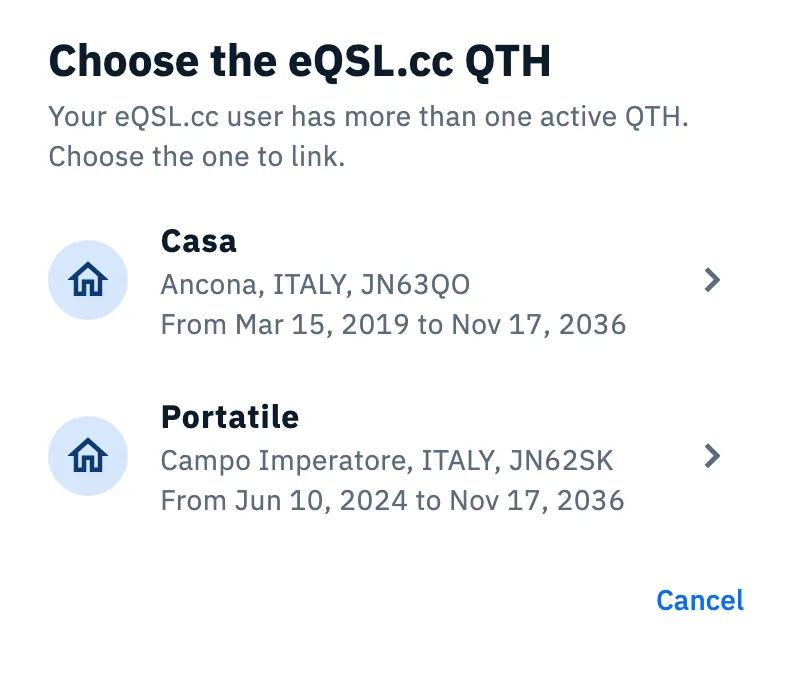
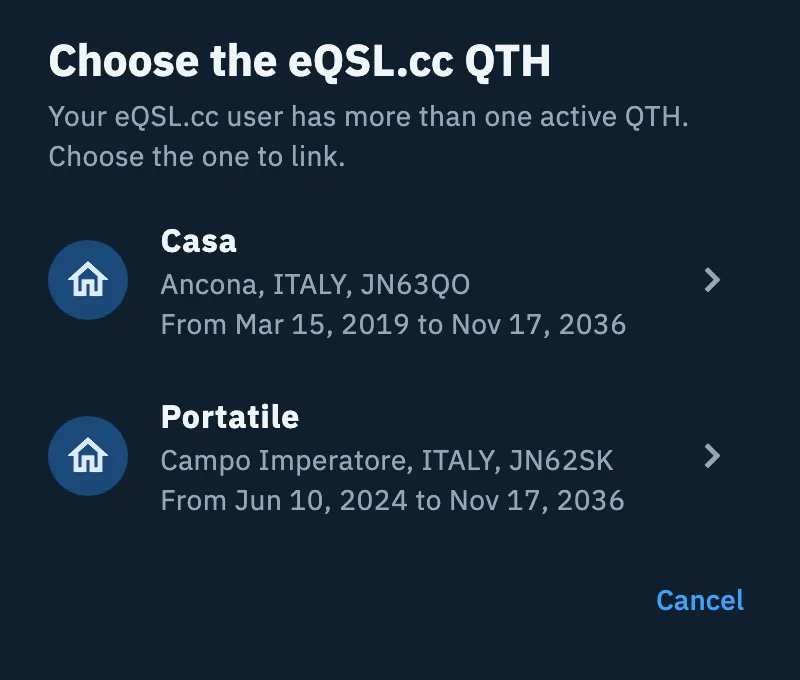
On a phone the choice opens in a sheet from the bottom; on tablet, desktop and web, when the screen is large enough, in a window in the middle.
The default QTH
With eQSL.cc linked, the Account section has the Default QTH nickname field: "Used when the station profile names none.". To change it, type the new nickname, exactly as it is on eqsl.cc, and press Enter.
QTH and message for each station profile
Each station profile can upload to its own eQSL.cc QTH and have a default card message. On the eQSL.cc page, the QTH and message per profile section shows, for each profile (name and callsign):
- "QTH: …" with the profile's nickname, or "Default QTH of the account" if the profile names none;
- "Message: …" with the profile's message, or "No default message".
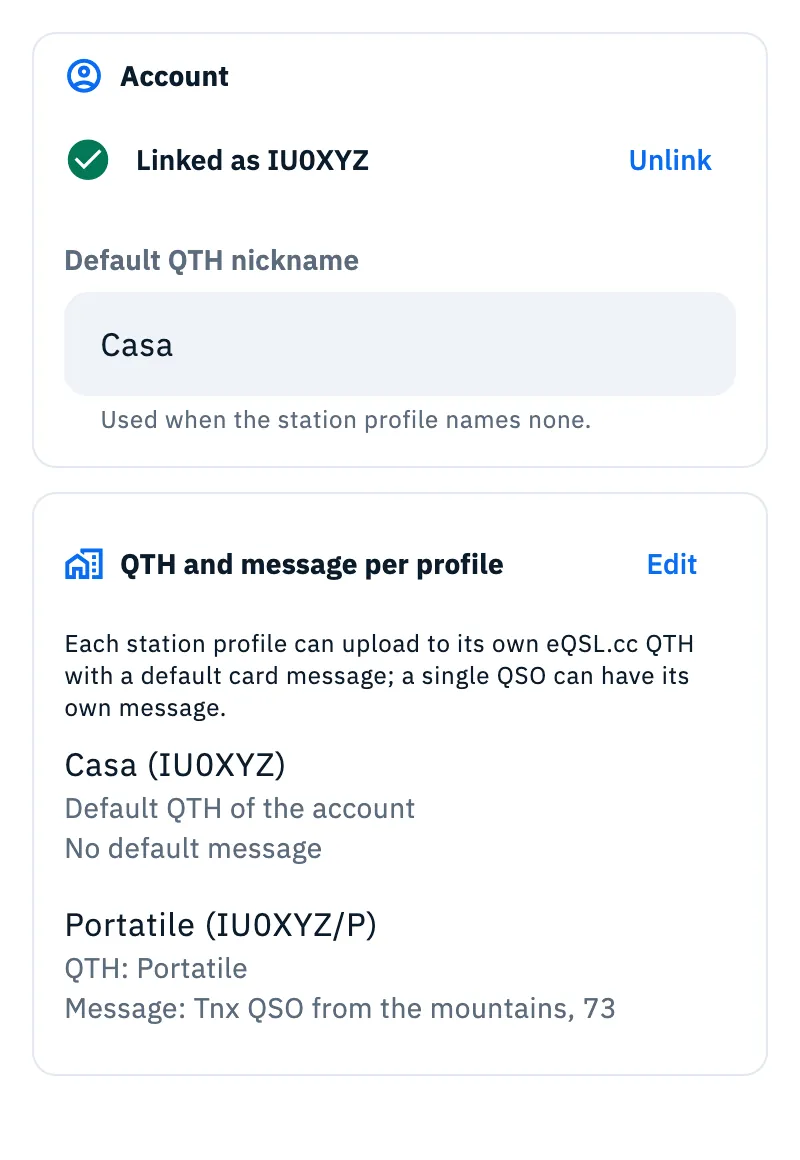
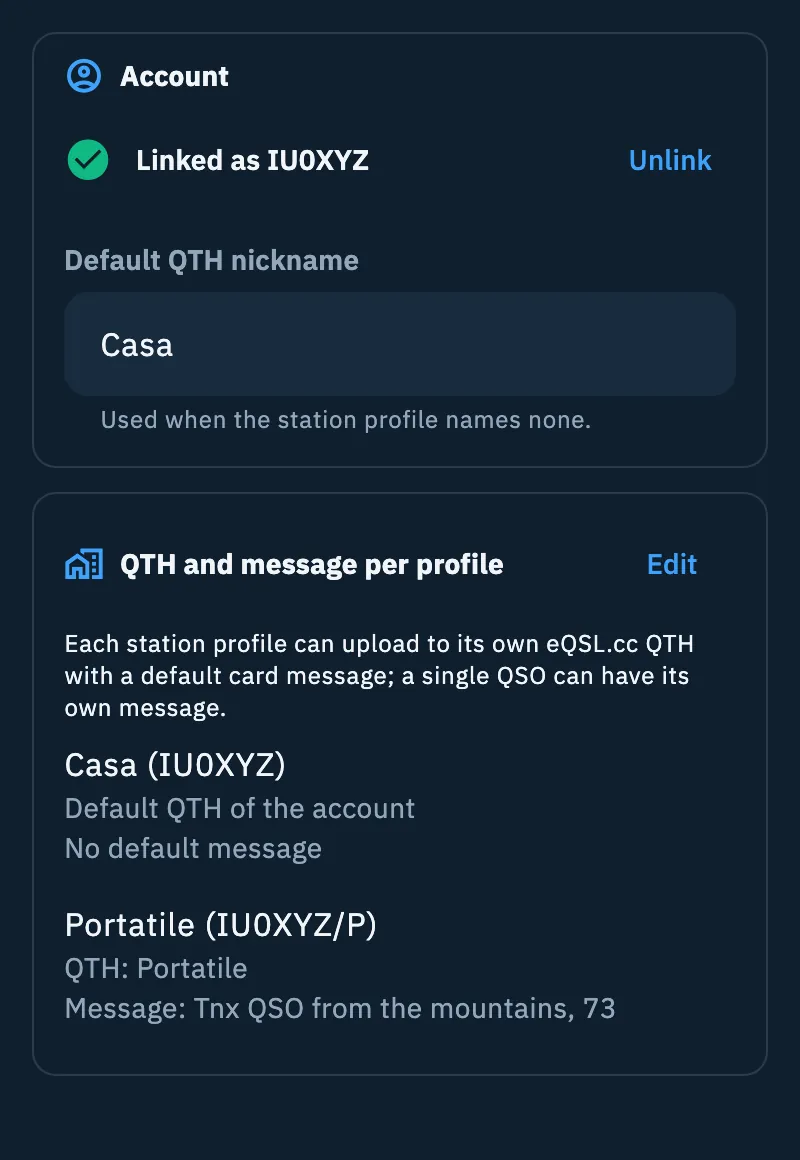
To change them:
- In the QTH and message per profile section, tap Edit. The Station profiles open.
- Open the profile and, in the eQSL section, type the eQSL.cc QTH nickname (empty: "Empty: your eQSL.cc account default") and the Message on the eQSL.cc card.
- Tap Save.
When you log a QSO, the profile's message is copied into the QSO. You can change it for a single QSO: in the QSO's edit form, Notes section, change the eQSL.cc message field. If you have no station profile yet, the section says "Create a station profile first.". Station profiles are explained in Station profiles, editing a QSO in Opening and editing a QSO.
Linking HRDLog
HRDLog is linked with your callsign and your upload code, not with your password.
- Open Profile, tap Linked services and then the HRDLog card.
- In the Account section, type the Callsign you are registered with on hrdlog.net. Letters become upper case by themselves.
- Type the Upload code. "HRDLog emails it to you when you sign up. It is not your HRDLog password."
- Tap Link.
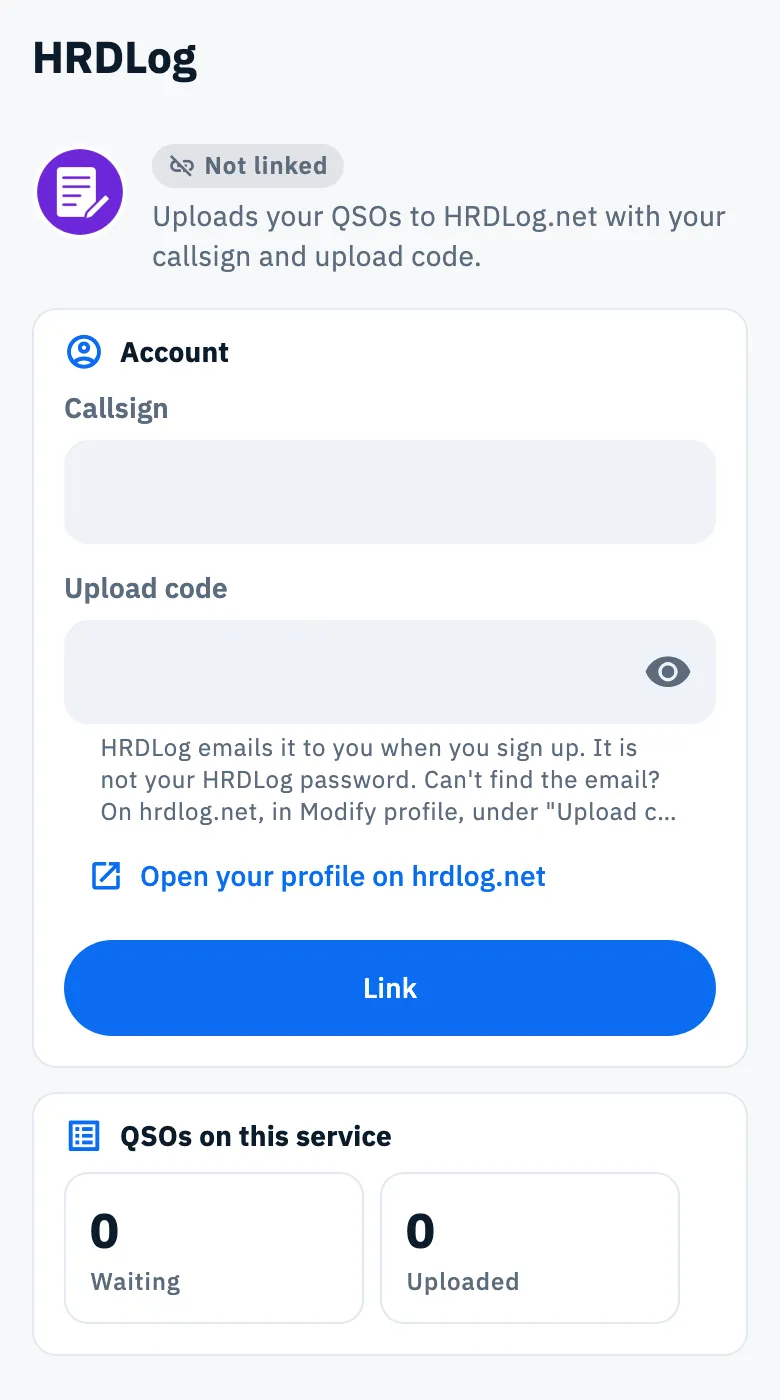
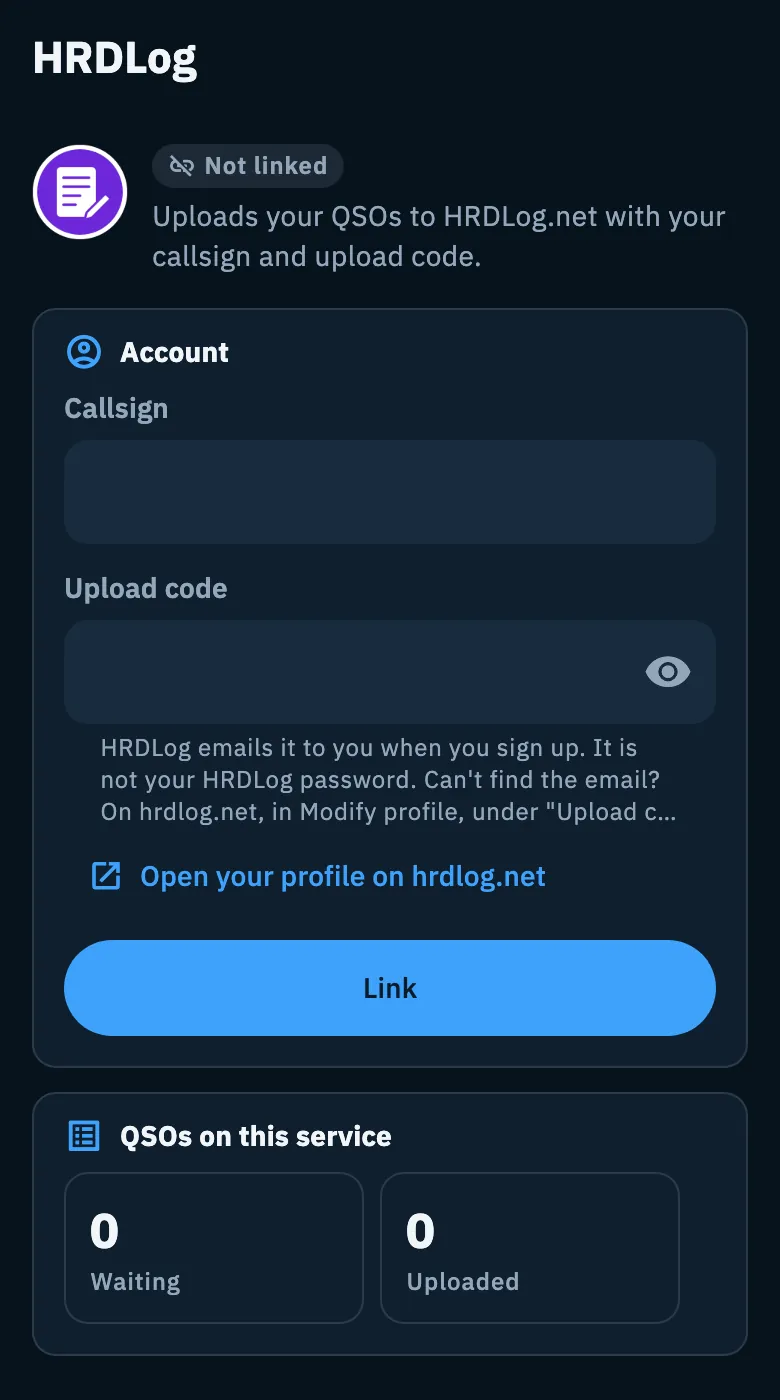
If you can't find the email with the code, tap Open your profile on hrdlog.net: on hrdlog.net, in Modify profile, under "Upload code" choose "Resend my code" and press Send.
If HRDLog refuses the link, the fields stay as you typed them: fix only the wrong one and tap Link again. Once linked, the section shows "Linked as" with your callsign and the Unlink button.
What each service does
| eQSL.cc | HRDLog | |
|---|---|---|
| Uploads new QSOs | Yes | Yes |
| Updates a QSO edited or deleted after the upload | No: fix it by hand on eqsl.cc | Yes |
| Downloads confirmations | Yes, with the cards | No |
A QSO without a band is not uploaded to eQSL.cc.
When an upload starts, waiting QSOs and how to unblock them: Automatic uploads and waiting QSOs. The cards you receive: Cards received from eQSL.cc.
Troubleshooting
"eQSL.cc has stopped: the QTH is missing". The service state is "QTH missing": the password is right, but your eQSL.cc user now has more than one QTH and the account has no nickname. Tap Choose the QTH: the app reads the QTHs again; if only one is active it uses it by itself, if there are more it offers the choice, and if it cannot read them it takes you to the Default QTH nickname field. You can also type the nickname there and press Enter: the service is checked again with that QTH.
"Your eQSL.cc user has more than one QTH: type the nickname of the QTH to use (you find it on eqsl.cc under My Profile)". The app could not read your QTHs. Copy the nickname from eqsl.cc (My Profile) into the nickname field and tap Link.
"HRDLog doesn't know this callsign. Check that it's the one you registered with on hrdlog.net." The callsign does not match an HRDLog account: fix it.
"The upload code is not right. HRDLog found the callsign but not the code. …" You typed your HRDLog password or a wrong code. Use the code HRDLog emailed you; if you can't find it, ask for it again from your profile on hrdlog.net ("Resend my code").
"HRDLog does not answer. Try again shortly." (the same message for eQSL.cc). It is a network or service problem, not a credentials one: try again later.
The other answers (refused credentials, a service that stops after linking) are in Linking QRZ.com, LoTW, eQSL.cc and HRDLog.