
Using the connected radio
The radio bar in every section: frequency and mode of your radio, the spot it is on, next and previous spot, quick log and switching radio.
Free and ProUpdated for HamQSO 0.1.19
On this page
When your radio is connected over CAT, HamQSO keeps it at hand: a bar at the bottom of the screen shows the radio's frequency and mode, tells you which spot you are on, moves you to the previous or next spot and logs a QSO with one tap. The rest of the app (spot lists, log, spot form) uses the connected radio by itself.
To connect the radio the first time, see Connecting your radio.
The connected radio in My station
As soon as the radio is connected, a row with a green dot appears at the top of My station (above the Radios and Antennas tabs): «IC-7300 connected via USB cable», with the frequency read from the radio and the mode below. The connection is written as USB cable, rigctld or flrig.
- Open My station.
- Tap the row at the top: on a phone the radio's page opens, on a tablet its detail on the right.
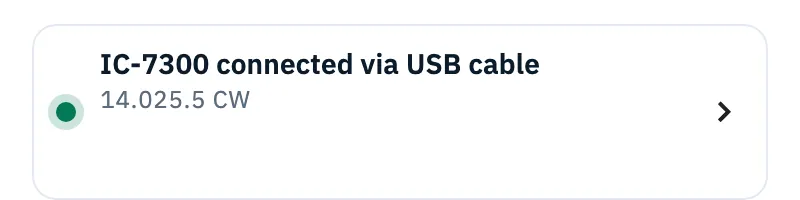
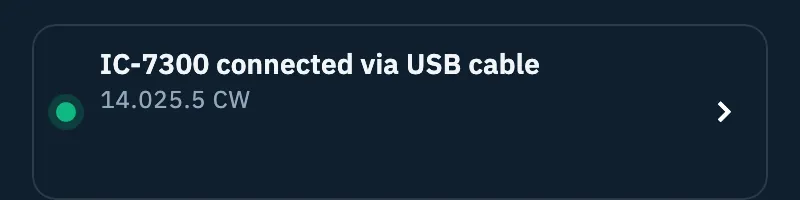
Until the radio has sent its frequency, only the first line is shown. With no radio connected, the row is not there. On the web on a computer, where radios, antennas and detail sit side by side, this row is not shown: you see the connected radio in its detail and in the radio bar.
The radio bar
The radio bar appears by itself as soon as the radio connects, and goes away when the radio disconnects (also when the connection drops).
- Phone: at the bottom of every section, above the navigation bar.
- Tablet: at the bottom of the content, to the right of the side bar.
- Web on a computer: at the bottom of the content, next to the side bar.


From left to right:
| Item | What it does |
|---|---|
| ◀ | Previous spot: takes the radio to the next spot lower in frequency. |
| Green dot | Pulses at every frequency change, so you see at a glance that the radio is moving. |
| Frequency and mode | The radio's frequency in MHz, with every digit (never rounded), and the mode (for example USB, CW, DATA). Until the radio has sent its frequency it says Connected. |
| On | The callsign (and the reference, if any) of the spot the radio is on. Tap the line to open the spot. |
| ▶ | Next spot: takes the radio to the next spot higher in frequency. |
| Log button | Opens the QSO entry. |
Opening the radio panel
- Tap the bar, or swipe it up.
- The radio panel opens (the frequency "flies" from the bar to the display), with meters, dial and modes: see The radio panel.
Logging a QSO from the bar
- Tap the log button, the last one on the right. Its tooltip says Log a QSO on the radio frequency, or Log a QSO with JA1XYZ when the radio is on a spot.
- The QSO entry opens with the radio's frequency and mode. When the radio is on a spot, the spot's callsign and reference are already filled in.
For the rest see Logging a QSO.
When the radio is "on" a spot
The bar shows On when the radio's frequency is close to the frequency of a spot in the DX or xOTA list, within a tolerance that depends on the mode:
| Spot mode | Tolerance |
|---|---|
| CW | 0.5 kHz |
| Phone (SSB) | 1.5 kHz |
| Digital and others | 1 kHz |
| AM and FM | 3 kHz |
| FT8, FT4, JS8 | 0.1 kHz from the calling frequency |
When several spots are equally close, the most recent wins. The same spot is also highlighted in its list.
Previous and next spot
With ◀ and ▶ you browse the band without opening each spot.
- Tap ▶ (Next spot) or ◀ (Previous spot).
- The radio goes to the spot's frequency and mode, and the bar shows On with its callsign.
To jump further:
- Press and hold ▶ or ◀.
- Spots higher up (or Spots lower down) opens with up to 5 spots in that direction: frequency, callsign, mode and reference.
- Tap the one you want: the radio goes there.
The spots are those of the list on screen (DX or xOTA), with the filters you have on: in another section, the last list you looked at counts. When there is no spot in a direction, its button is off.
Keyboard arrows on the web
On the web on a computer (a browser window at least as wide as a tablet) you can also move the radio with the arrows, with the radio connected and outside text fields:
| Keys | What they do |
|---|---|
| ← | Previous spot |
| → | Next spot |
| Alt + ← (⌥ + ← on a Mac) | Frequency down one tuning step |
| Alt + → (⌥ + → on a Mac) | Frequency up one tuning step |
- The tuning step is the one chosen in the radio panel (10 Hz, 100 Hz, 1 kHz or 5 kHz). It goes back to 1 kHz every time the app starts.
- Hovering over ◀ or ▶, the tooltip says where you are going, for example «Next spot: W5XYZ», with the key next to it, and the line «Frequency up by 1 kHz» with Alt + →.
- After a step, the step used (for example «+1 kHz») shows for a moment next to the mode; with a 10 Hz or 100 Hz step the frequency also shows the hertz digits for a few seconds.
- When there is no spot in that direction, the bar says «No spot higher up» or «No spot lower down» in place of On, and the button gives a small shake.
- When the focus is on an item with its own arrows (for example the globe or a table), the arrows stay with it.
All the shortcuts are in Keyboard shortcuts.
The radio in other screens
With the radio connected, other parts of the app use it by themselves:
- Spot lists: the spot the radio is on is highlighted. The filter bar shows the Radio band (20m) filter: tap it to see only the spots of the radio's band; while it is on, it follows the radio when you change band. See Filtering spots by band and mode.
- Tapping a spot: the radio goes to the spot's frequency. See Tuning the radio from spots.
- QSO entry: frequency and mode come from the radio, with Follow the radio. See Frequency, band and mode of a QSO.
- Spot form: starts from the radio's frequency and mode (From the radio, Use the radio). See Spotting a station.
- Operation: the connected radio becomes the radio of the current operation, at every connection. When you disconnect it, the operation keeps the last radio.
With no radio connected, the Radio band filter and Follow the radio are not there.
Using another radio
On a device only one radio is in use at a time: the one CAT controls.
From the radio's page
- Open My station and tap a radio with CAT on this device that is not in use.
- Tap Use this radio.
- With HamQSO Pro the connected radio disconnects, the new one connects and you see «IC-705 in use on this device.».
From the radio panel
- Open the radio panel from the bar.
- Tap the ⇄ icon (Switch radio) at the top.
- In the list of radios with CAT, the one in use has a green check; below each radio is its connection. Tap another radio: the app disconnects the connected radio and connects the one you chose.
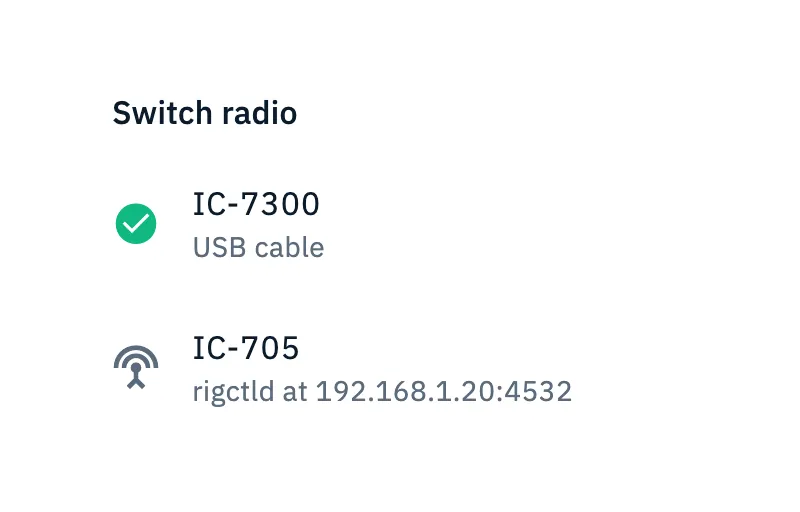
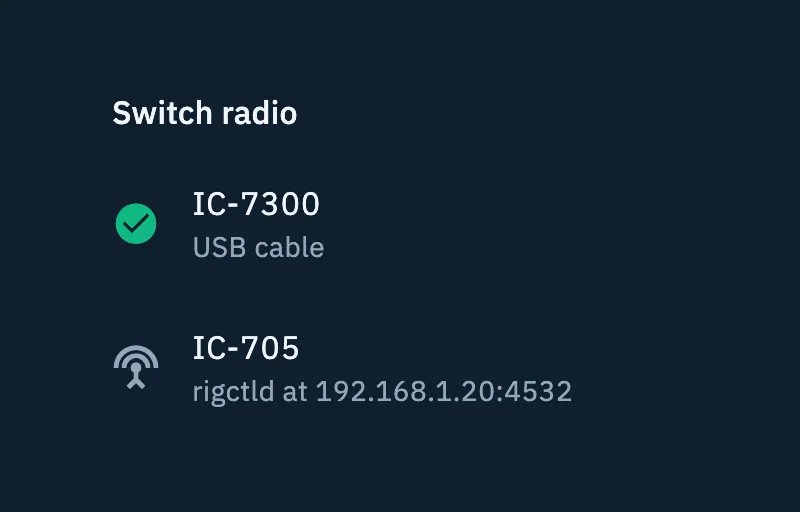
The Switch radio icon is there only when this device has at least two radios with CAT.
From the choice in an operation
When you pick a radio with CAT as the Radio in an operation's settings, it also becomes the radio in use and, with HamQSO Pro, it connects. See Creating an operation.
Automatic reconnection
After the first successful connection, the radio in use reconnects by itself every time you open the app, if it is on and reachable.
- If the radio is off or away, the app says nothing: when it is ready, reconnect it from its page with Connect.
- Disconnect turns automatic reconnection off until you tap Connect again.
Free and Pro
Without Pro these features stay visible, with the Pro badge, and a tap opens the paywall:
- On the radio's page, the CAT link on this device section has the Pro label and at its top a note says «Your IC-7300 tunes itself to the spots.» (or «Radio control is part of HamQSO Pro.» when the model is not known). Tap it to see HamQSO Pro.
- Connect opens the paywall; with Pro active the radio connects.
- Connect via CAT, on a radio with no connection, carries the Pro badge and opens the «CAT comes with HamQSO Pro» sheet.
- Use this radio makes the radio the one in use but does not connect it, and opens the «Your IC-705 is ready» (or «Your radio is ready») sheet. If you get Pro from there, the radio connects. From the radio choice in an operation this sheet shows once per session.
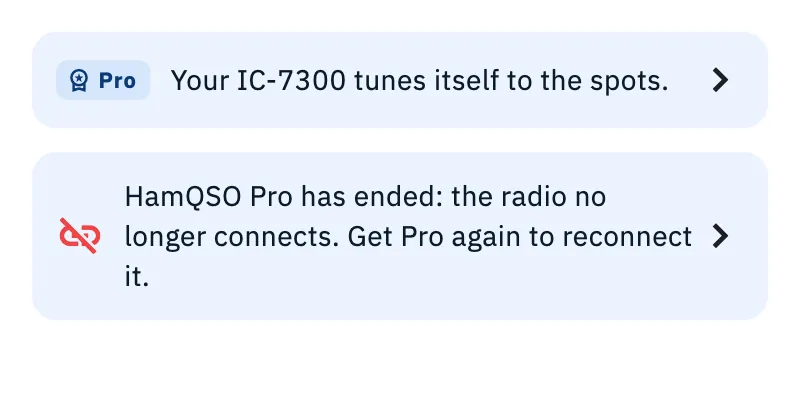
If HamQSO Pro ends while the radio is connected, the radio disconnects and the radio's page shows «HamQSO Pro has ended: the radio no longer connects. Get Pro again to reconnect it.». Tap it to open the paywall. The connection settings stay: when you are back on Pro the radio reconnects by itself. See What HamQSO Pro includes.
Troubleshooting
The radio bar is not there. The bar shows only with the radio connected. Open My station, tap the radio and check that it says Connected via …; if it does not connect, see When the radio does not answer.
◀ or ▶ is off. The list on screen has no spot below or above the radio. Check the list's filters (band, mode) or open the other list.
«On» does not show. The radio is not close enough to the frequency of a spot in the list (see the tolerance table), or the spot is hidden by the filters.
The arrows do not move the radio. The arrows work only on the web on a computer, with the radio connected (the shortcuts help says so: «Only with the radio connected.»). If you are typing in a field, or the focus is on the globe or a table, the arrows go to them: click outside and try again.
The bar says «No spot higher up» (or «No spot lower down»). You are already on the last spot of the list in that direction.
I can't find «Switch radio». You need a second radio with CAT on this device: add the connection to the radio in My station (see Connection types: USB, rigctld and flrig).
«HamQSO Pro has ended: the radio no longer connects.» Your subscription ended: tap the note to get Pro again. See Managing your subscription.