
The Log section
Find your way in the Log on phone, tablet and web: the operation list, the log menu, the sign-in suggestion and the offline notice.
FreeUpdated for HamQSO 0.1.19
On this page
The Log section holds all your QSOs, grouped in operations: your home station, a POTA activation, a contest. This page shows what you see when you tap Log, what is in the Log menu and how the section changes on phone, tablet and web.
Opening the log
- Tap Log in the bottom bar (on a tablet and on the web, in the side bar; on the web also the 3 key).
- The Operations list always opens.
- To log in the operation in use, tap Log on its card: it opens with the callsign field ready.
- To look at an operation, tap its card.
From top to bottom the list shows:
| Part | What it does |
|---|---|
| Operations | The title, with the sync status and the ⋮ Log menu button. On a phone there is also Spot (see Spotting a station). |
| Search field | Searches by "Name, callsign, reference or tag"; Filter opens sorting and filters. See Organizing your operations. |
| Cards on top | When there are any: "N QSOs are waiting for you" with See (Recovering QSOs waiting for you), "Your week on the air" or "Your month on the air" and "Your summary is ready" (Operation summary). Tap a summary to open it; the cross removes it. |
| All QSOs | Your whole log in one list, with the total number of QSOs. See Browsing and searching your log. |
| Station logs (always open) | The logs of your home, club or section station: they have no end and never close. |
| In use | First the operation in use, with Log, then the ones left open. |
| Closed | The operations that have ended. |
| Archived (n) | The link to the archived operations, when there are any. |
| New operation | The button at the bottom right: see Creating an operation. |
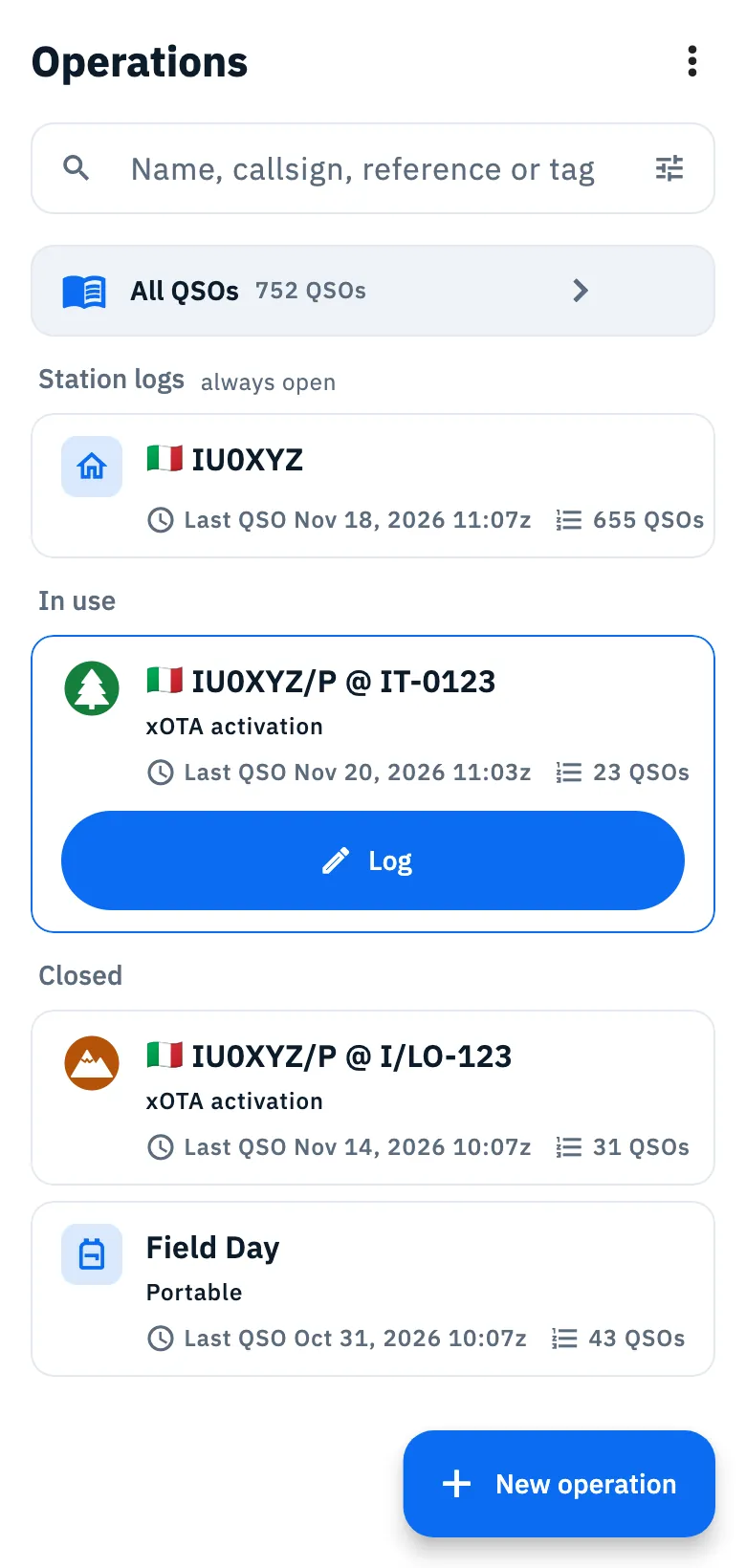
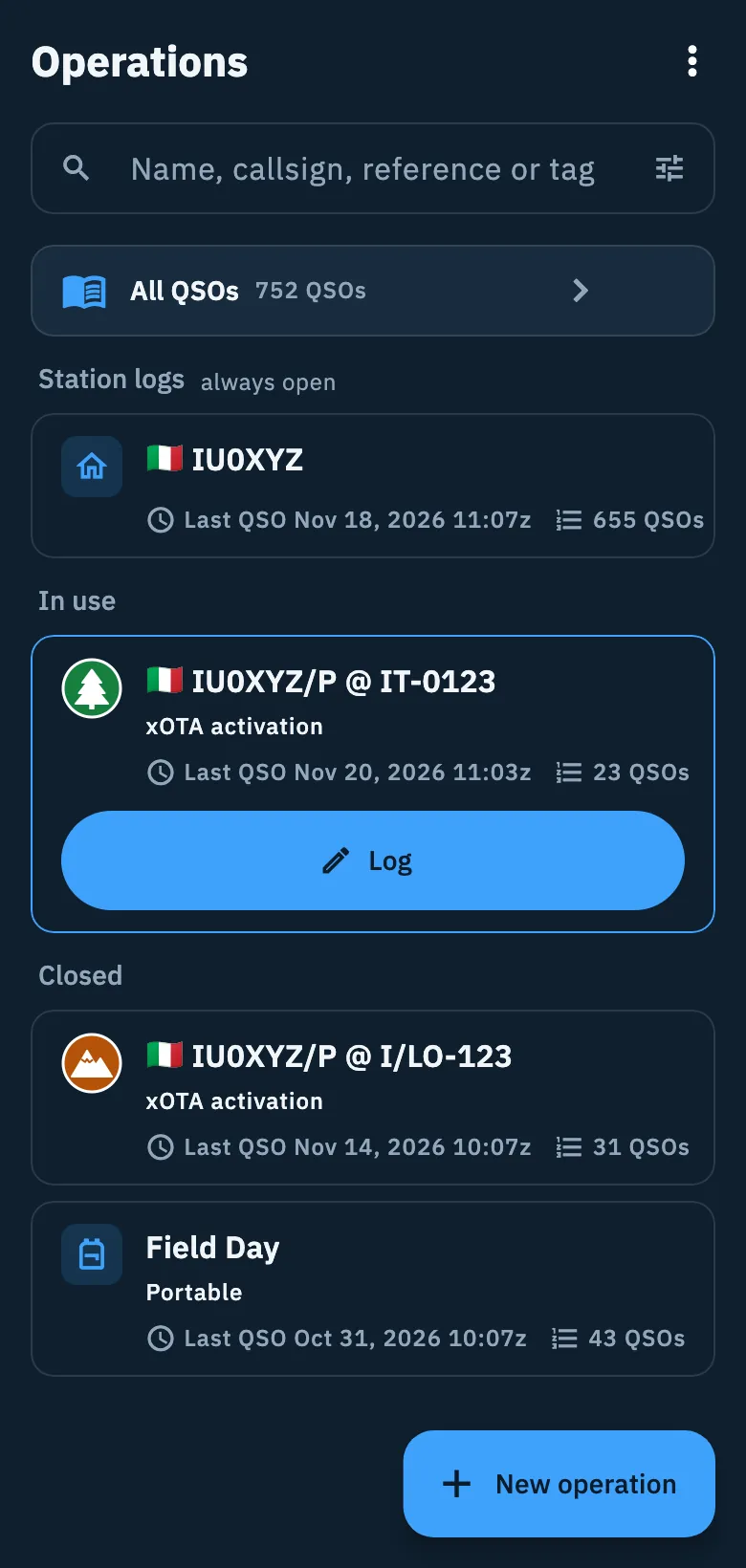
With no operation yet the list says "No operations yet" and offers Import an existing log (see Importing an ADIF file) next to the New operation button.
When you switch to another section and come back to Log, you find the page and the place where you were.
The log menu
The ⋮ button next to the Operations title opens the actions for the whole log. Each operation also has its own menu on its card, for example to export only its QSOs.
- Open Log.
- If you are looking at an operation on a phone, go back to the list with the back arrow.
- Tap ⋮ (Log menu) and pick an item.
| Item | What it opens |
|---|---|
| Log overview | The numbers of your whole log: see Log summaries and statistics. |
| Import ADIF | Importing an ADIF file: see Importing an ADIF file. |
| Export ADIF | Exporting your log: see Exporting your log as ADIF. |
| Linked services | QRZ.com, LoTW, eQSL.cc and HRDLog: see Linking your services. |
| Trash | Deleted QSOs, to restore them: see Deleting QSOs and the trash. |
| Logbook settings | The settings of your log: see Logbook settings. |
Phone, tablet and web
| Where | What it looks like |
|---|---|
| Phone | One thing at a time: the list or the open operation. Go back to the list with the arrow at the top or the phone's back button. |
| Tablet | The list on the left and the open operation on the right. Until you open one, the right side says "Pick an operation from the list to see its log". |
| Narrow tablet (for example an iPad in portrait) | When you open an operation, the list folds away to give it room. Bring it back with Show the list in the operation header and fold it again with Hide the list. |
| Web, window at least 1200 pixels wide | The list on the left, the operation in the middle and the selected QSO's detail beside it. The list starts 280 pixels wide (320 in windows from 1600 up); drag its edge to make it wider or narrower, and the width is remembered. |
| Web, narrower window | As on a tablet or a phone, depending on the width. |
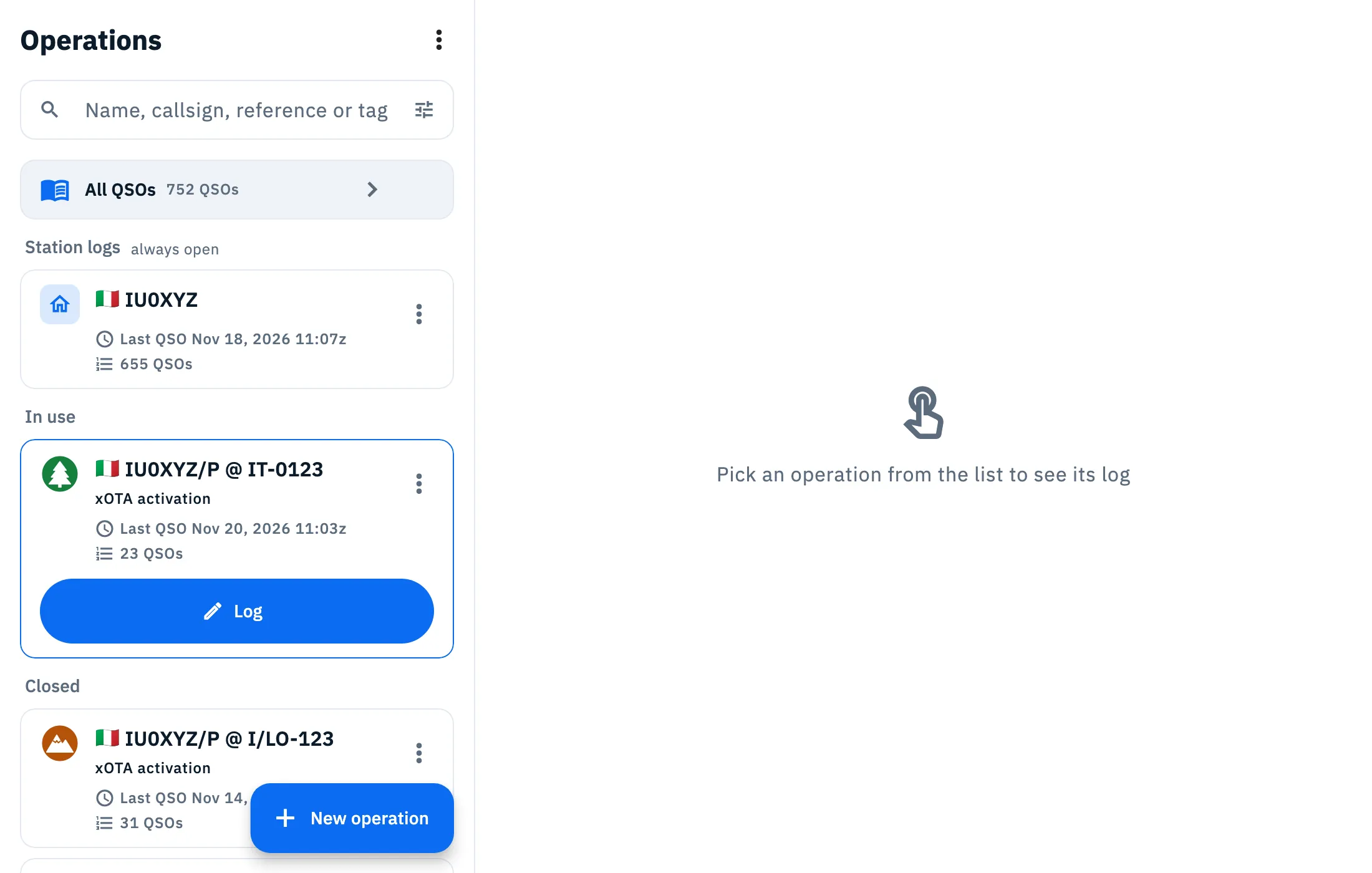
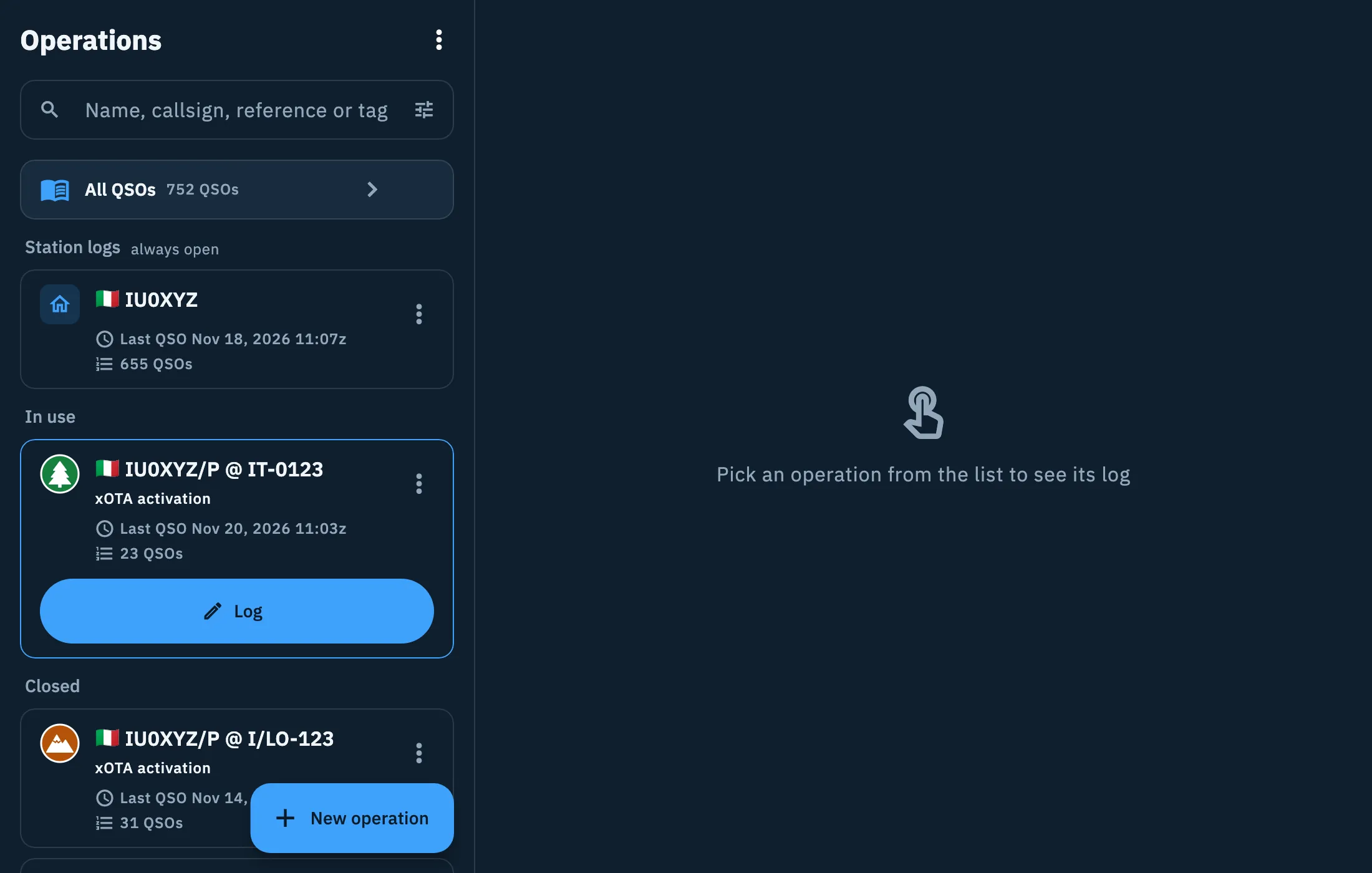
On the web the page address follows what you have open (the operation and the QSO): a saved link or a reload opens the same operation and QSO again, and the browser's Back button returns to the previous operation. In a wide window, outside a text field:
- / puts the cursor in the search: the QSO filter of the open operation, otherwise the operations search.
- N opens New operation.
All keys are in Keyboard shortcuts.
Sign in so you don't lose your log
If you use HamQSO without an account, after your first 5 QSOs a line appears under All QSOs: "Don't lose your log", "Keep it on any device". It blocks nothing: it reminds you that once you sign in, your log follows your account to a new phone and the QSOs you already logged stay yours.


- Tap Sign in: a panel opens and explains why it helps.
- Choose Continue with Apple (on iPhone and iPad, and on the web when available) or Continue with Google. On Android there is only Google; on the web Google shows its own button.
If you'd rather not now, tap the cross (Not now).
The suggestion appears only once on this device: after you close it, or the next time you open the app, it does not come back. You can always sign in from the Profile: see Signing in and saving your log.
Offline
The log works without network: QSOs are saved on the device and reach the cloud when the network is back (see Using HamQSO offline). In two cases a notice appears above the operations search:
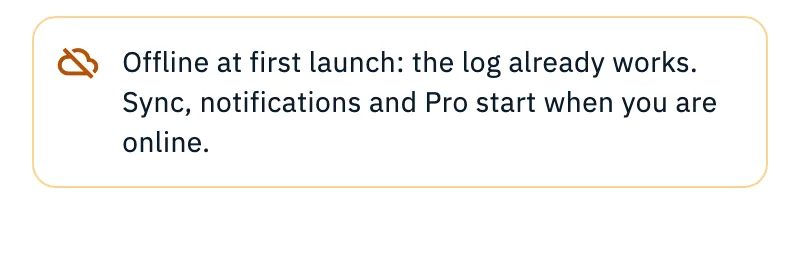
- on a first launch without network: "Offline at first launch: the log already works. Sync, notifications and Pro start when you are online."
- on the web, when you opened the page without network from the copy saved in your browser: "Opened from the copy in your browser: QSOs saved here are available and new ones are saved. They reach the cloud when the network is back."
You don't need to do anything: log as usual. The notice goes away by itself when the network is back.
QSOs coming from QRZ.com
If you turned on Add QSOs from QRZ.com automatically, while the log is on screen a bar may appear at the bottom: "12 QSOs added from QRZ.com" or "Import from QRZ.com finished". Tap See to open All QSOs with the QSOs that came from QRZ.com. See Importing from QRZ.com.
Troubleshooting
- "Couldn't read the log": the operation list did not load. Tap Retry.
- I can't see the ⋮ menu button: on a phone you are looking at an operation. Go back to the list with the back arrow.
- I can't find the list on my tablet: with an operation open on a narrow screen the list is folded. Tap Show the list.
- "All operations are archived": your operations are there, but in the archive. Tap Archived (n) at the bottom of the list.
- I can't see the Log button on a card: it is only on the card of the operation in use. Open the operation you need by tapping its card.