
Browsing and searching your log
Read the rows of your log and find a QSO in All QSOs by callsign, prefix, band, mode, period, country, operation, origin, upload or confirmation.
FreeUpdated for HamQSO 0.1.19
On this page
Every QSO of your log is a row with UTC time, frequency, mode, callsign and reports. To find one again, by callsign, prefix, band, mode or date, open All QSOs: your whole log in one list, with a search and filters.
Reading a row of the log
The same rows appear in the Log section of an operation and in All QSOs. QSOs are grouped by UTC day, newest first: the day header shows the date, "UTC" and how many QSOs that day has; on a phone and a tablet it stays at the top while you scroll through its QSOs. The day changes at 00:00 UTC, not at your local midnight.
| In the row | What it means |
|---|---|
| Time, for example "16:11z" | The time of the QSO in UTC. |
| Number under the time | The progressive number of the QSO in the operation, from the oldest. Only in an operation's log, not in All QSOs. |
| Colored dot and frequency | The band color and the exact frequency, never rounded (see Frequency, band and mode of a QSO). Without a frequency you see the band. |
| Mode | SSB, CW, FT8… When the mode was estimated by the app and still needs checking, the mode badge is amber and the screen reader says "Mode to confirm". |
| Callsign with flag, name | The station you worked and its name, when known. |
| Green mark next to the callsign | "Confirmed in HamQSO": the QSO is also in the other station's log. The row shows only the icon; its tooltip and the screen reader say "Confirmed in HamQSO". |
| ↑ and ↓ arrows with numbers | RST sent (↑) on top and RST received (↓) below. |
| eQSL mark | The state of the QSO's eQSL HamQSO. |
| Cloud with an arrow | "Not synced yet": the QSO has not been synced yet, for example because you are offline (see Your log on all your devices). |
On a row you can:
- Tap it to open the QSO (see Opening and editing a QSO).
- Swipe it to the left to delete it, or long press it for the menu with Send eQSL HamQSO, Select and Delete QSO. A QSO "Confirmed in HamQSO" cannot be deleted. The trash and undo are explained in Deleting QSOs and the trash.
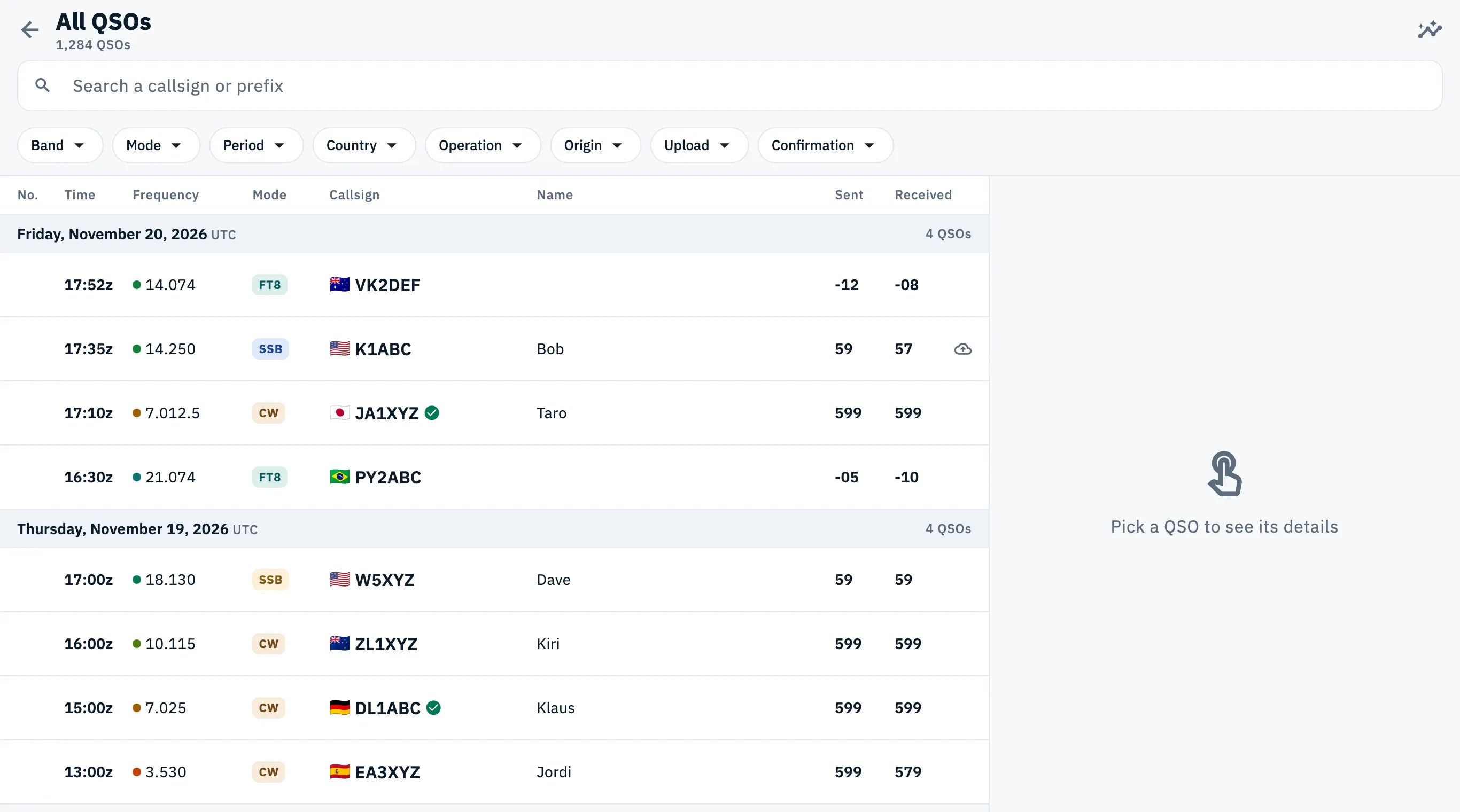
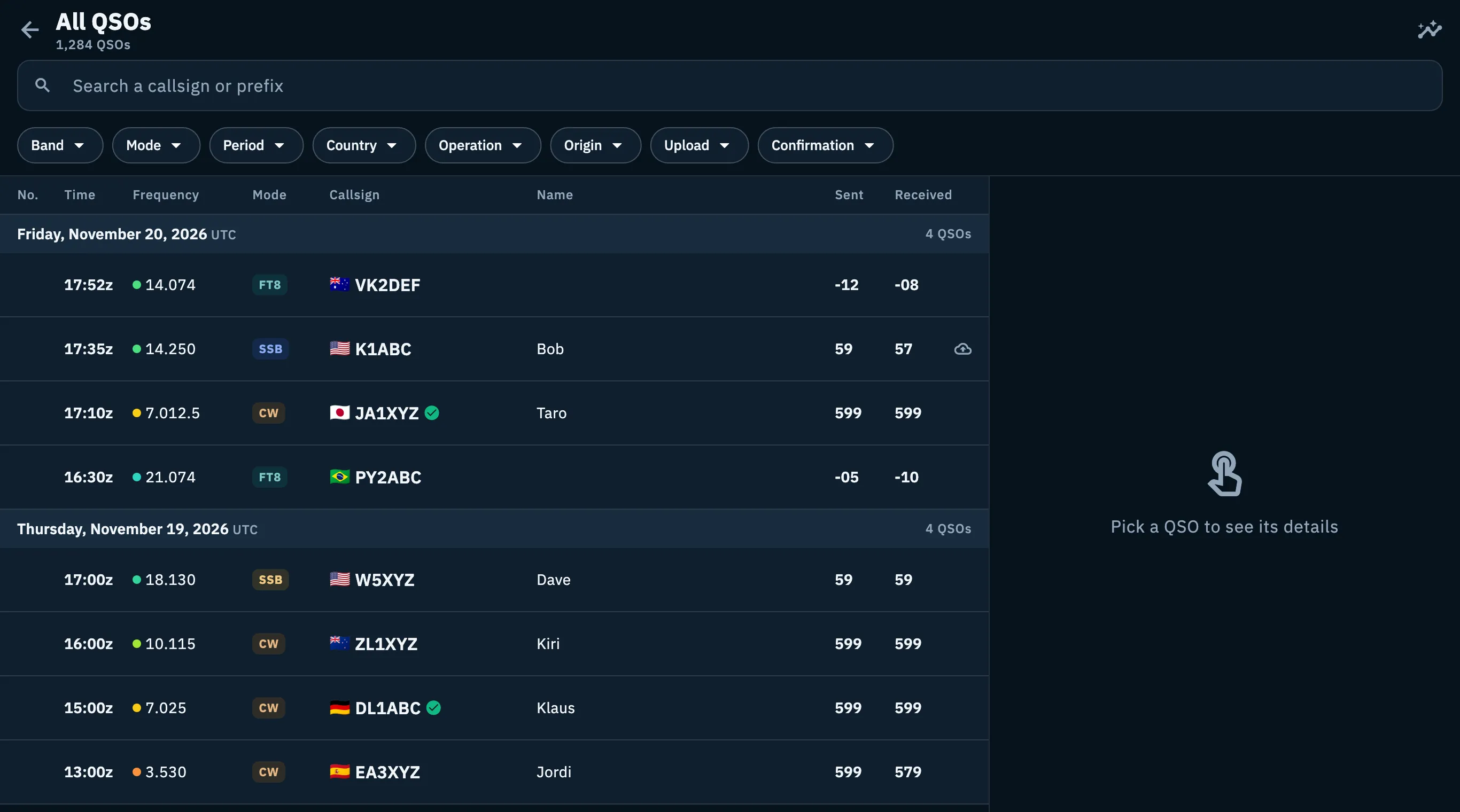
On a tablet, in an operation's log, and in All QSOs when the list is at least 640 pixels wide, each QSO fits on one line, in columns under the fixed titles No., Time, Frequency, Mode, Callsign, Name, Sent and Received (in All QSOs the No. column stays empty). The row of the QSO open beside the list is tinted.
Opening All QSOs
- Tap Log.
- In the list of operations tap the All QSOs card at the top: it also shows how many QSOs your log has.
- The whole log opens, by UTC day, newest first. Under the title you see how many QSOs match your search and filters.
- Scroll: older QSOs load by themselves as you get near the end.
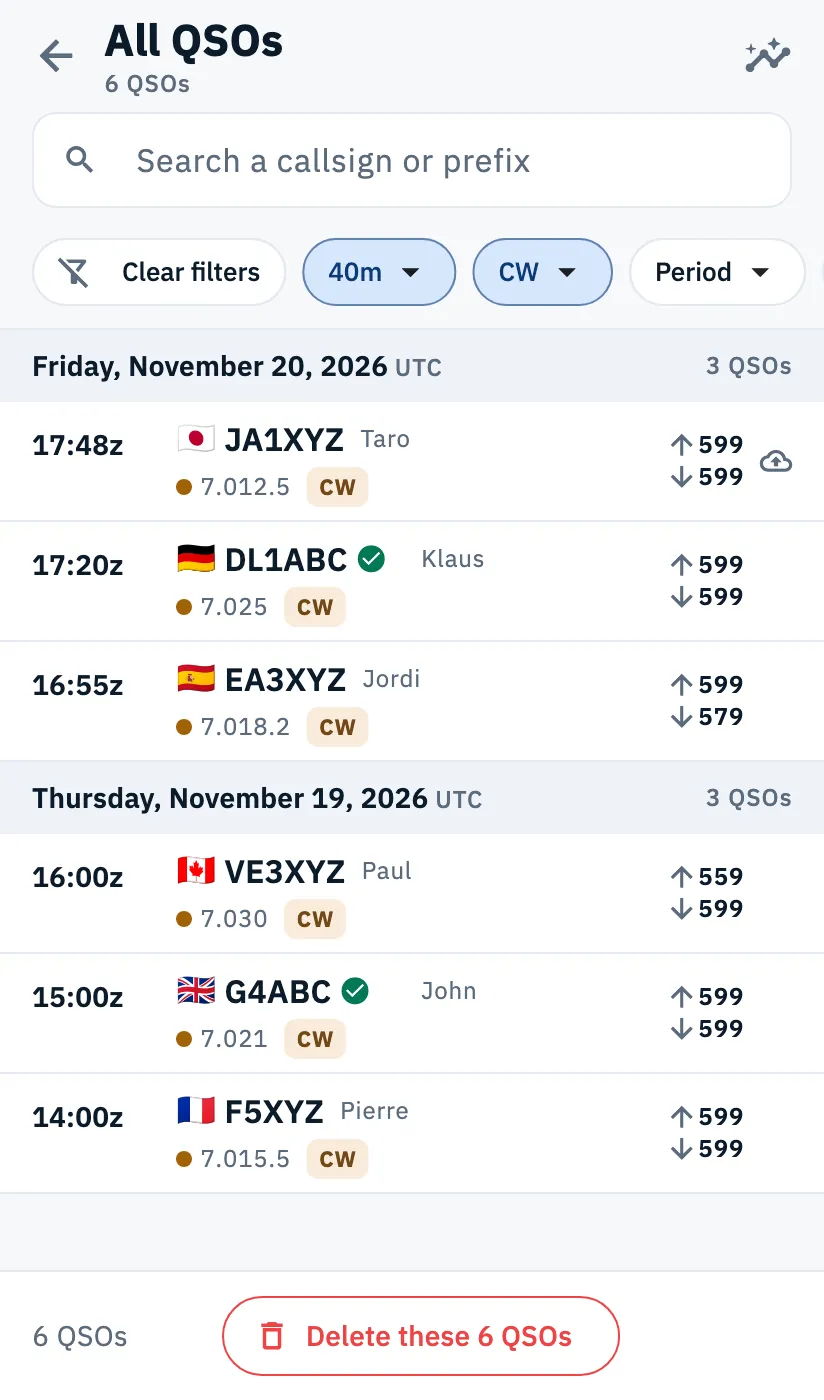
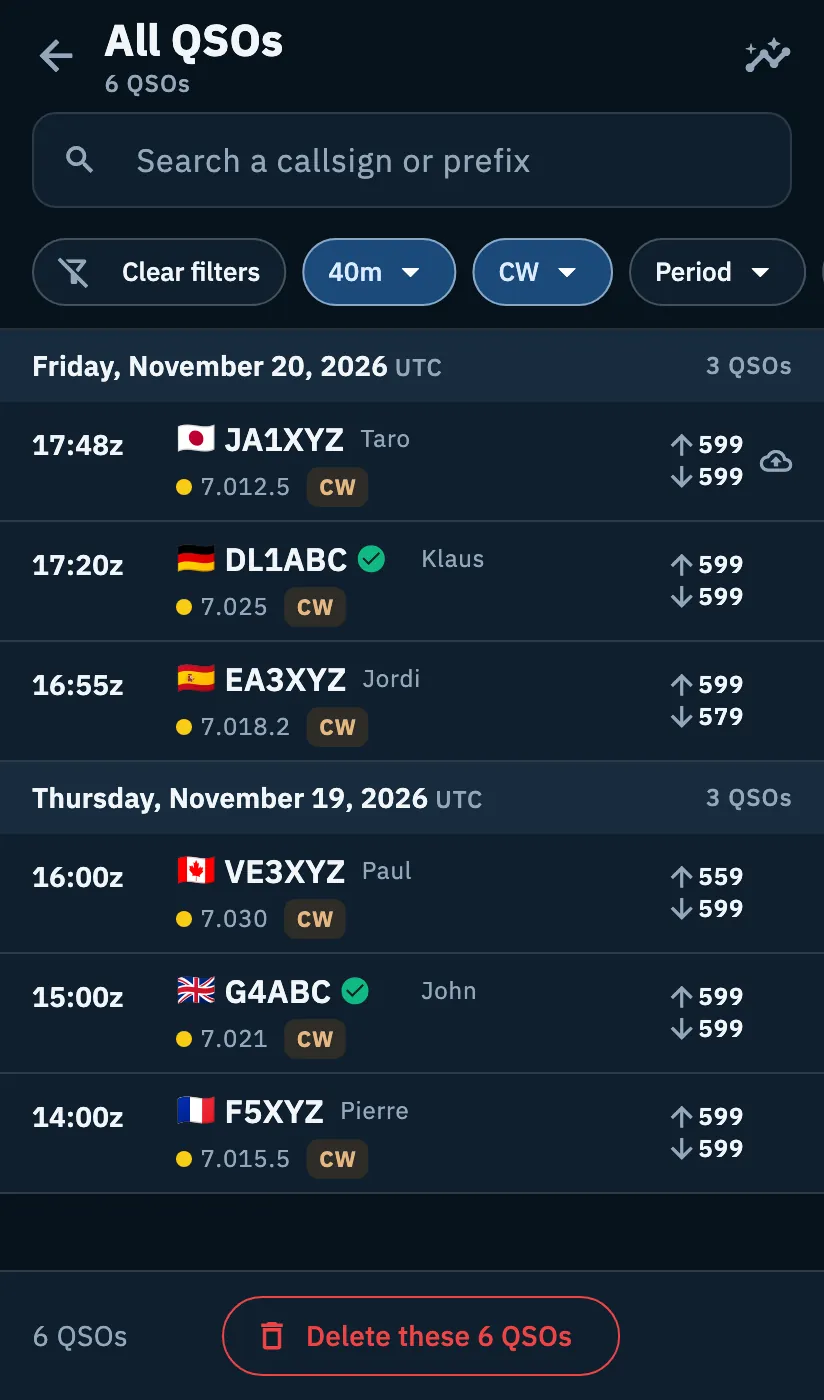
At the top you also find:
| Button | What it does |
|---|---|
| Back arrow | Goes back to the list of operations. |
| Select (checklist icon) | Lets you pick the QSOs to send an eQSL HamQSO to: see Sending eQSLs. |
| Log overview (chart icon) | Opens the numbers of your whole log: see Log summaries and statistics. |
The list updates by itself when QSOs arrive from sync, an import, an upload or a confirmation, without jumping back to the top.
All QSOs also opens already filtered from other places of the app: from the command palette ("Find JA1XYZ in the log"), from See after a download from QRZ.com (origin "From QRZ.com", see Importing from QRZ.com) and from a contest, on its dates.
Searching a callsign or prefix
- In All QSOs tap the "Search a callsign or prefix" field.
- Type the start of the callsign: letters become uppercase by themselves.
- The list updates as you type, after a short pause.
- To empty the field tap the ✕ (Clear search).
The search finds the callsigns that start with what you type: "DL1" finds DL1ABC. It also looks at the callsign without prefixes and suffixes, so "DL1" also finds EA8/DL1ABC/P. It does not search the name, QTH or notes.
From the list of operations
If you typed a callsign in the operations search ("Name, callsign, reference or tag"), you don't need to open All QSOs separately:
- Open Log and type the callsign in the search field, for example JA1XYZ.
- Under the operations found, the row Search JA1XYZ in all QSOs appears. It is there even when no operation matches ("No operation found").
- Tap it: All QSOs opens already filtered on that callsign.
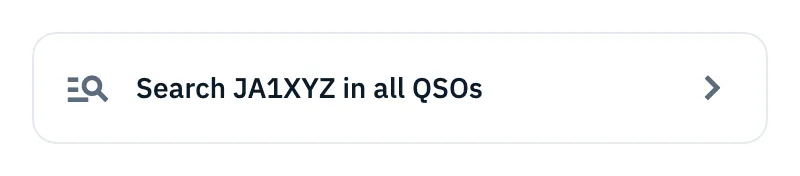

The row appears only when what you type has the shape of a callsign: at least 3 characters, with letters and digits (a prefix such as IU2 is enough).
Filtering All QSOs
Under the search there is a row of filters that scrolls sideways. Filters add up with each other and with the search.
- Tap a filter, for example Band.
- Pick a value: the filter is highlighted and shows the chosen value instead of its name.
- To remove one filter tap it again and pick Any.
- To remove them all tap Clear filters, the first of the row when at least one filter is on. The callsign search stays.
| Filter | Choices |
|---|---|
| Band | From 160m to 23cm. |
| Mode | SSB, CW, FT8, FT4, FM, AM, RTTY, PSK31, JS8, SSTV. |
| Period | "Today (UTC)", "Last 7 days", "Last 30 days", "This year" or "Pick dates" for a range from a calendar, shown as "Nov 1, 2026 – Nov 15, 2026". Days are UTC days. |
| Country | The countries you worked, most worked first, with their number of QSOs and a "Search a country" field. You can type the name in your language or in English. |
| Operation | Your operations, most recent first, with their number of QSOs and a "Search an operation" field. |
| Origin | "Logged here" (by hand, from a spot or from the radio), "Imported from a file" (ADIF), "Recovered from HamQSO" (see Recovering QSOs waiting for you), "From QRZ.com". |
| Upload | "Not uploaded", "Uploaded", "With errors": the upload state on any of your linked services (see Automatic uploads and waiting QSOs). |
| Confirmation | "Confirmed" ("By QRZ.com, eQSL.cc, LoTW or HamQSO") or "Not confirmed". The services chosen for confirmations in the logbook settings count; if you chose none, any service counts. |
With at least one filter or a search on, the bottom of the page shows how many QSOs were found and Delete these N QSOs: see Deleting QSOs and the trash.
On tablet and on the web
On a tablet and on the web in a wide window (from 840 pixels), All QSOs shows the list on the left and the QSO on the right. Until you tap one, the right side says "Pick a QSO to see its details".
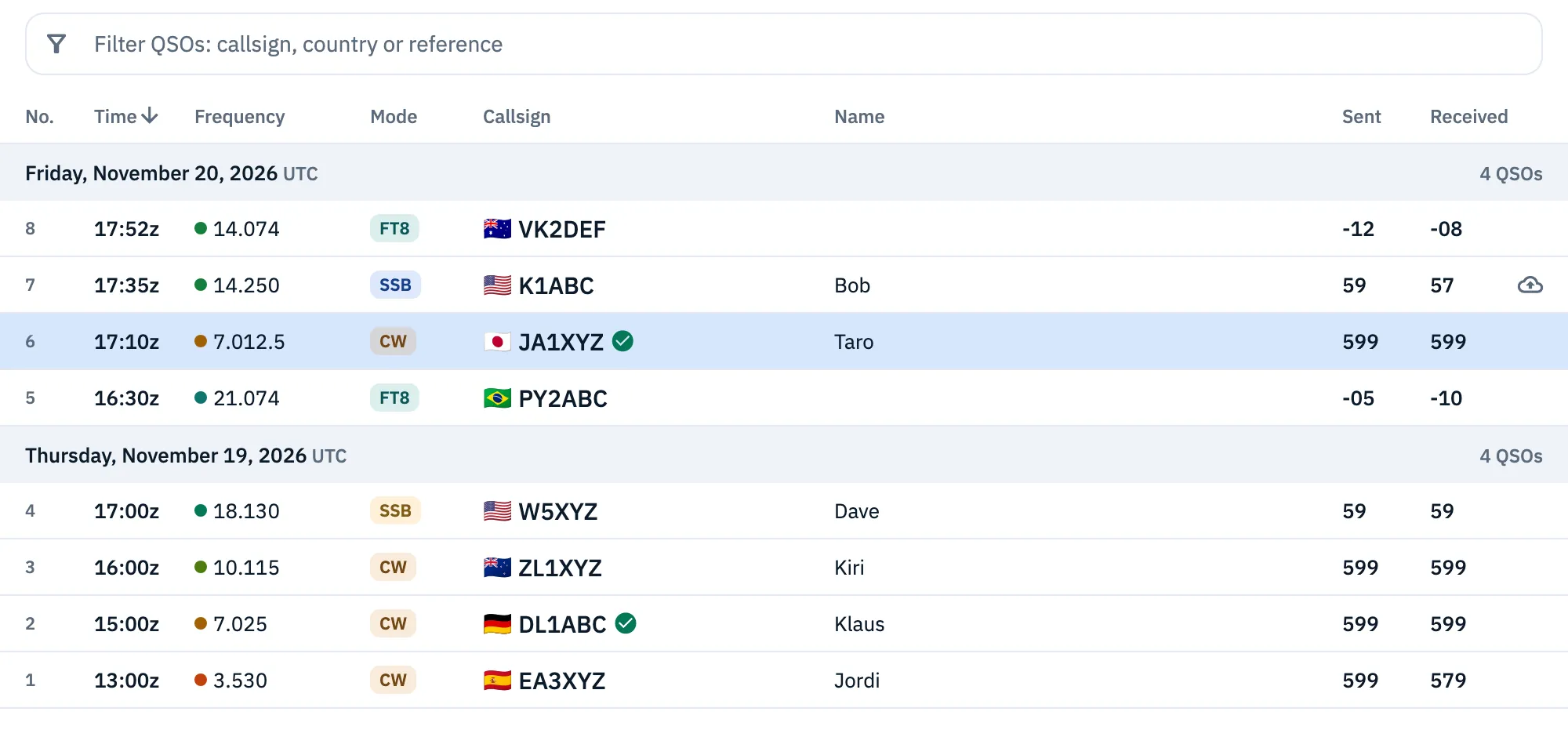
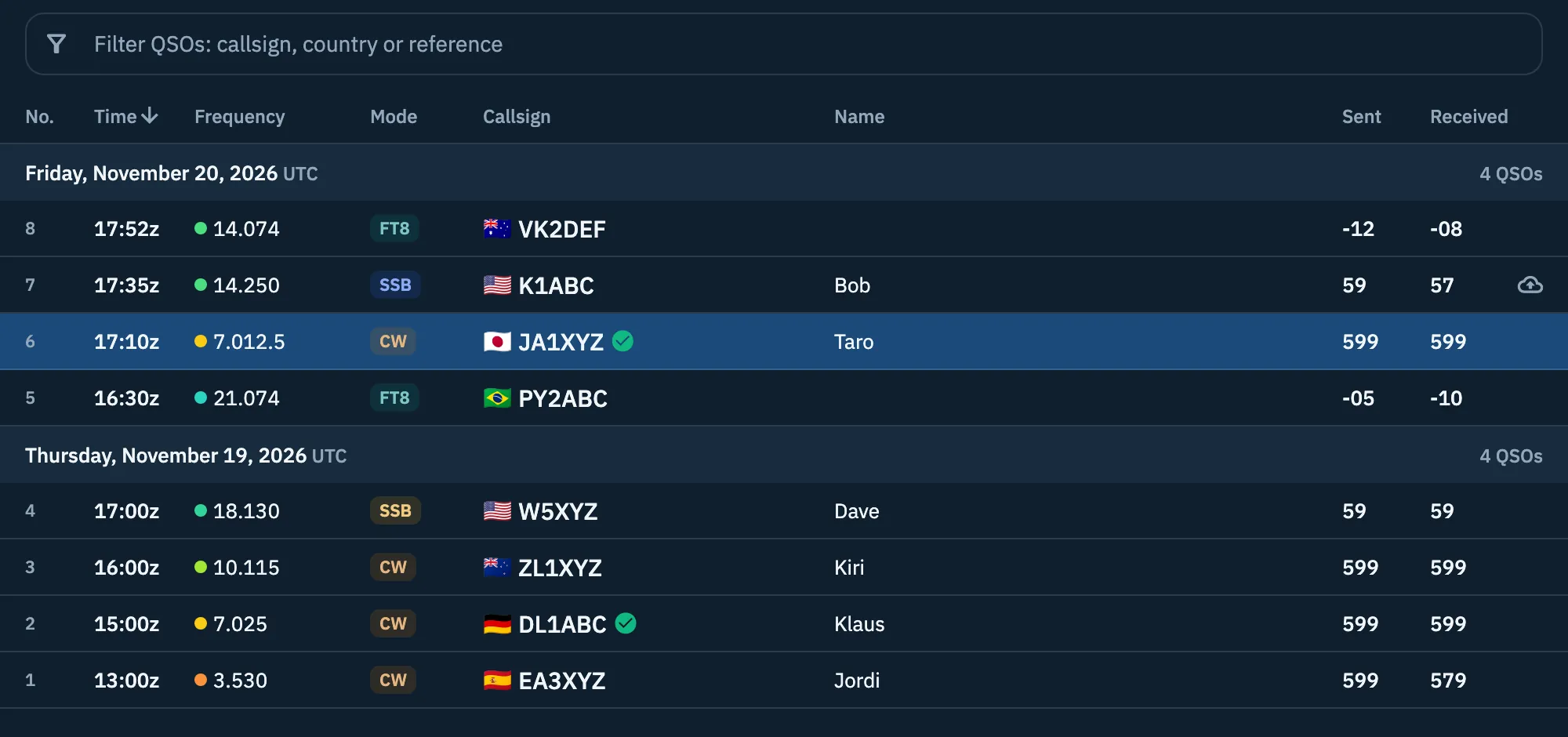
On the web, in a window at least 840 pixels wide, the Log section of an operation is a table:
- Click a column title to sort on that column; a second click turns the order round. Callsign, name and mode start from A; time, frequency and numbers from the highest.
- Sorted by time or by number, QSOs stay under their UTC days; sorted by another column they become a single list.
- Click a QSO to open it in the inspector beside the table.
- To filter, use the "Filter QSOs: callsign, country or reference" field above the titles (key /). It finds the QSOs whose callsign, country (also in your language) or reference contains that text: "IT-0123" or just "0123". Enter in the field moves to the first QSO found.
While the table has the focus:
| Keys | What it does |
|---|---|
| ↑ ↓ or K J | Previous or next QSO. When a QSO is open in the inspector, the inspector follows the selection. |
| Enter | Open the QSO in the inspector. |
| Delete or ⌫ | Move the QSO to the trash, with Undo. |
| Ctrl + Z (⌘ + Z on a Mac) | Undo the last deletion. |
Columns adapt to the width: under 700 pixels the name goes, under 620 the progressive number (it always stays in a contest), under 560 the two reports share one RST column, as "599/579". All shortcuts are in Keyboard shortcuts.
Troubleshooting
- "Couldn't read the log": the list did not load. Tap Retry.
- "Your log is still empty": you have no QSOs yet. Open an operation and log your first QSO (Logging a QSO), or import an ADIF file (Importing an ADIF file).
- "No QSOs found" / "No QSO matches your search and filters.": widen the search or tap Clear filters (the button is there when at least one filter is on; empty the search with the ✕).
- I search a name or a town and find nothing: the All QSOs search only looks at the start of the callsign. On the web the filter of an operation's table also searches country and reference.
- "No results" in the Country or Operation list: no country or operation contains the text typed in its search field.
- "No QSO with “…”" in the table on the web: no QSO of the operation contains that text; click the ✕ in the field to see them all.
- A QSO is under the wrong day: log days are UTC days. A QSO at 00:30 in Italy in summer is at 22:30 UTC of the day before, and sits under that day.