
eQSL settings: what your card says
Choose automatic sending, the QTH, radio, antenna and power on the card, the default message, your email and the notification of the eQSLs you receive.
FreeUpdated for HamQSO 0.1.19
On this page
In eQSL settings you decide whether your eQSL HamQSO leave by themselves, what the card says (QTH, radio, antenna, power and message), whether whoever receives it sees your email, and whether you get a notification when you receive one. The model of the card is chosen elsewhere: see Choosing your card.
Opening the settings
- Open Profile and tap the eQSL HamQSO card (see What HamQSO eQSL is). In a computer window there is also the eQSL HamQSO item in the side menu.
- Tap the eQSL settings gear. On phone and tablet it is at the top right of the page bar; on the web, in a computer window, it is at the end of the row of tabs, next to the default model.
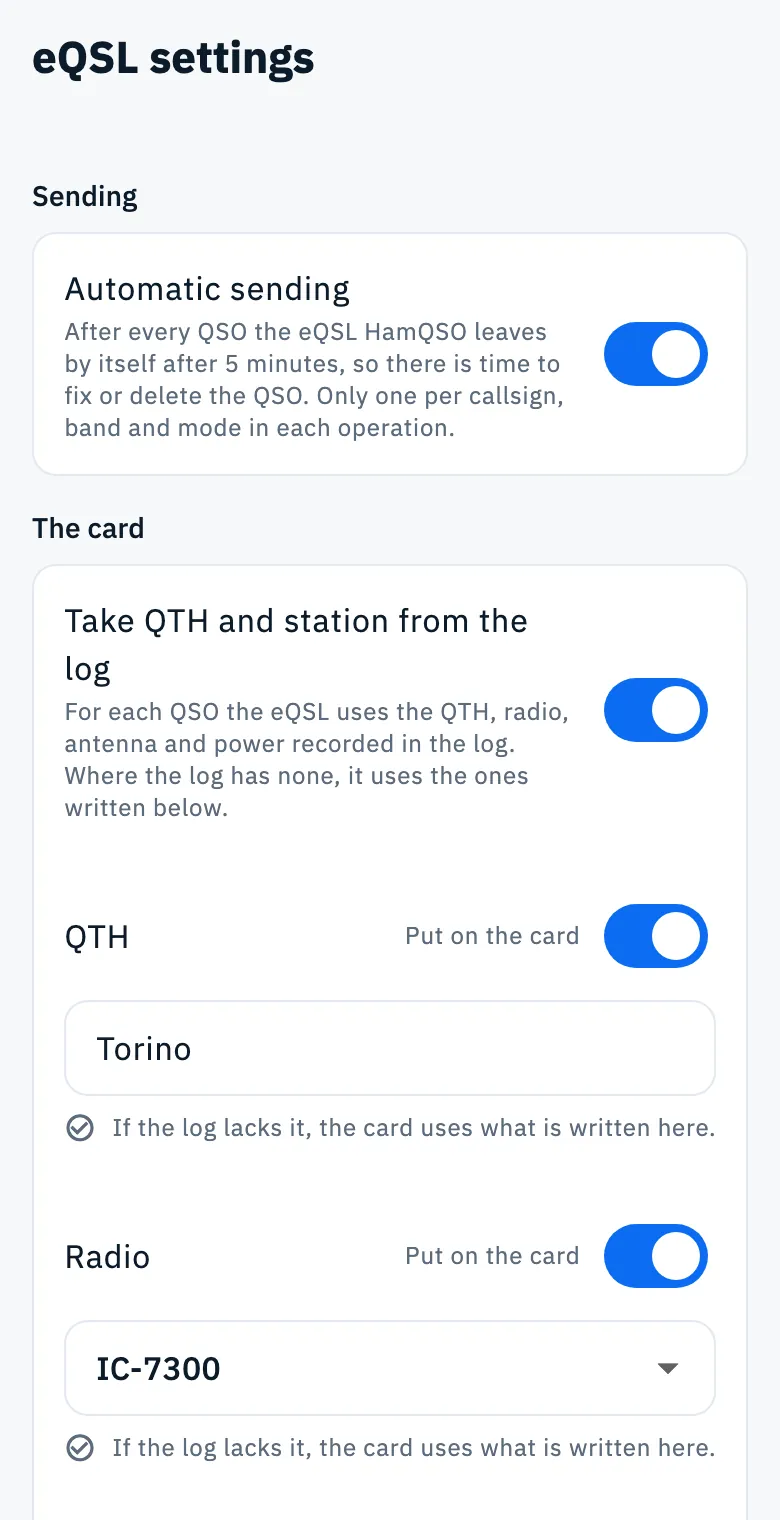
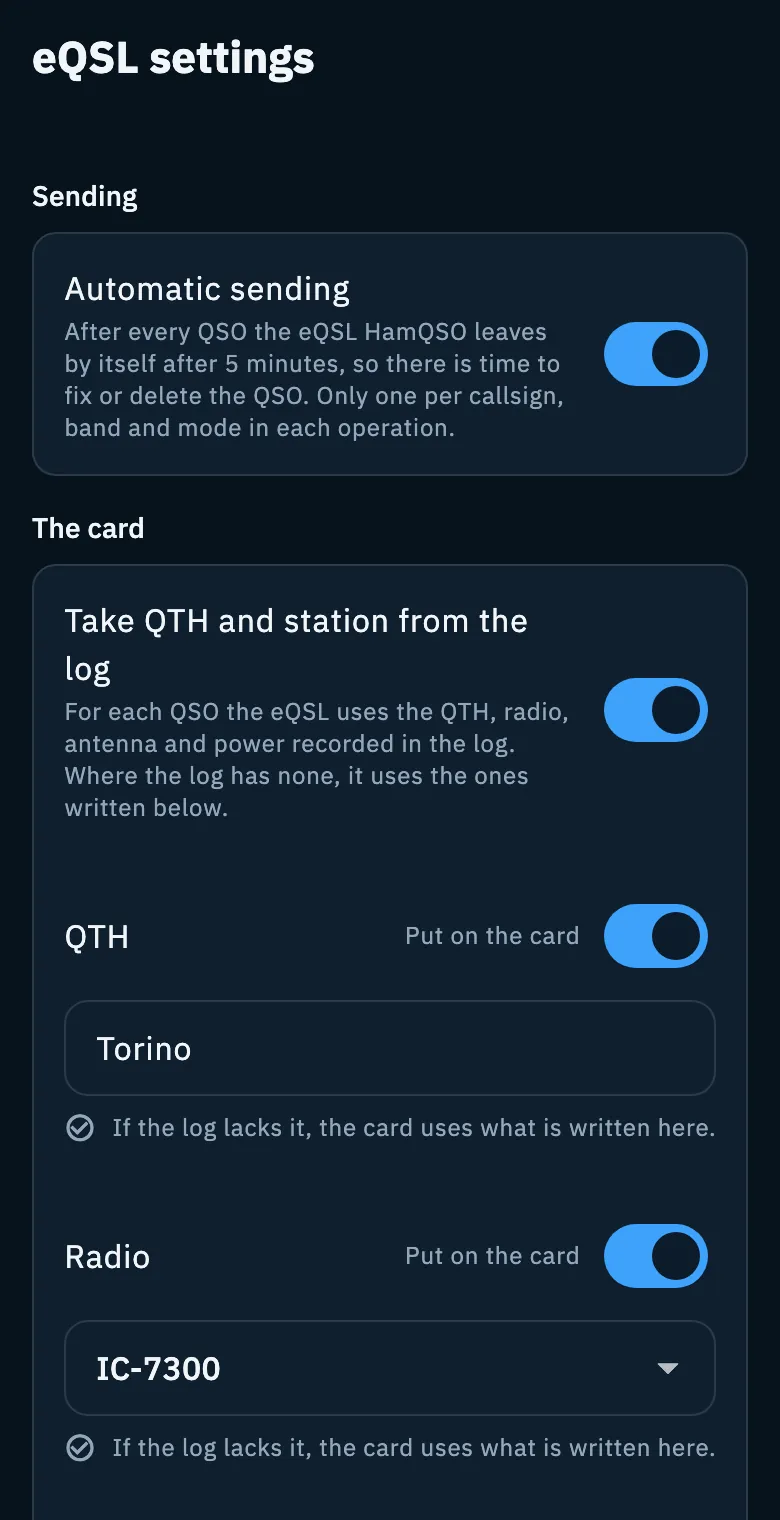
The page has three groups: Sending, The card and When you receive one.
How they are saved
The settings live on the server, in your account: they are the same on all your devices, and they need the network and being signed in.
- A switch or a chosen radio is saved at once.
- A text (QTH, antenna, power, message) is saved when you close the keyboard with Enter or leave the field. Spaces at the start and end are removed; an empty field means "nothing".
- If saving fails, the top of the page shows in red "I can't save. Try again." and the setting stays as it was on the server. A switch or the radio goes back at once; a text field instead may still show the new text, which is not saved.
Sending
Automatic sending (on by default): "After every QSO the eQSL HamQSO leaves by itself after 5 minutes, so there is time to fix or delete the QSO. Only one per callsign, band and mode in each operation." Off: "Off: you send the eQSL yourself, from the QSO detail or from the log.". All the details are in Sending eQSLs.
QTH and station on the card
The The card group has four lines: QTH, Radio, Antenna and Power. On the card they go "on the front, where the model has room, and on the back under your callsign".
Take QTH and station from the log
It is the first switch of the group, on by default.
- On: "For each QSO the eQSL uses the QTH, radio, antenna and power recorded in the log. Where the log has none, it uses the ones written below." So the eQSL of a QSO made portable shows the station of that QSO, and what you write here is used only for the QSOs that lack that value.
- Off: "Off: every eQSL uses the QTH, radio, antenna and power written below."
To record radio, antenna and power in your QSOs see Creating an operation and My station: radios and antennas.
The four lines
- QTH: write the place as you want it to appear. At first it is the city of your default station profile (see Station profiles).
- Radio: not typed, chosen from the menu among the radios saved in My station, or No radio. If a radio chosen before is no longer among the saved ones (for example you renamed it), it stays at the end of the menu, so you do not lose it. If you have no saved radios yet, the line says "You have not saved a radio in My station yet." with the Add radio button, which opens My station (see Adding a radio).
- Antenna: free text, for example "Dipole 40 m".
- Power: free text. "Write it as you want to see it, for example 100 W."
QTH, antenna and power keep 80 characters at most.
Each line has the Put on the card switch. Off, the line does not go on the card but its value stays written (or chosen) for when you turn it back on; meanwhile the field cannot be edited.
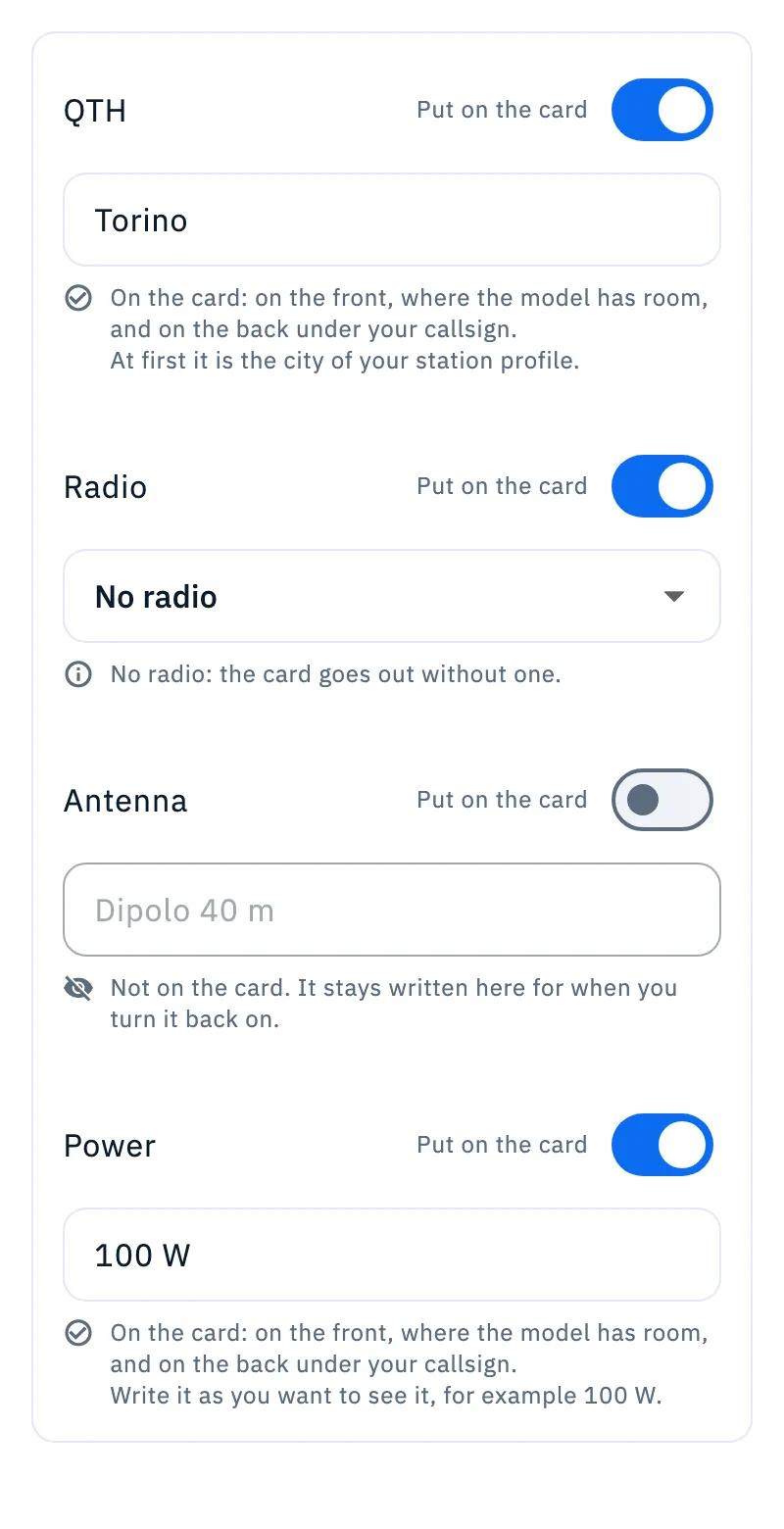
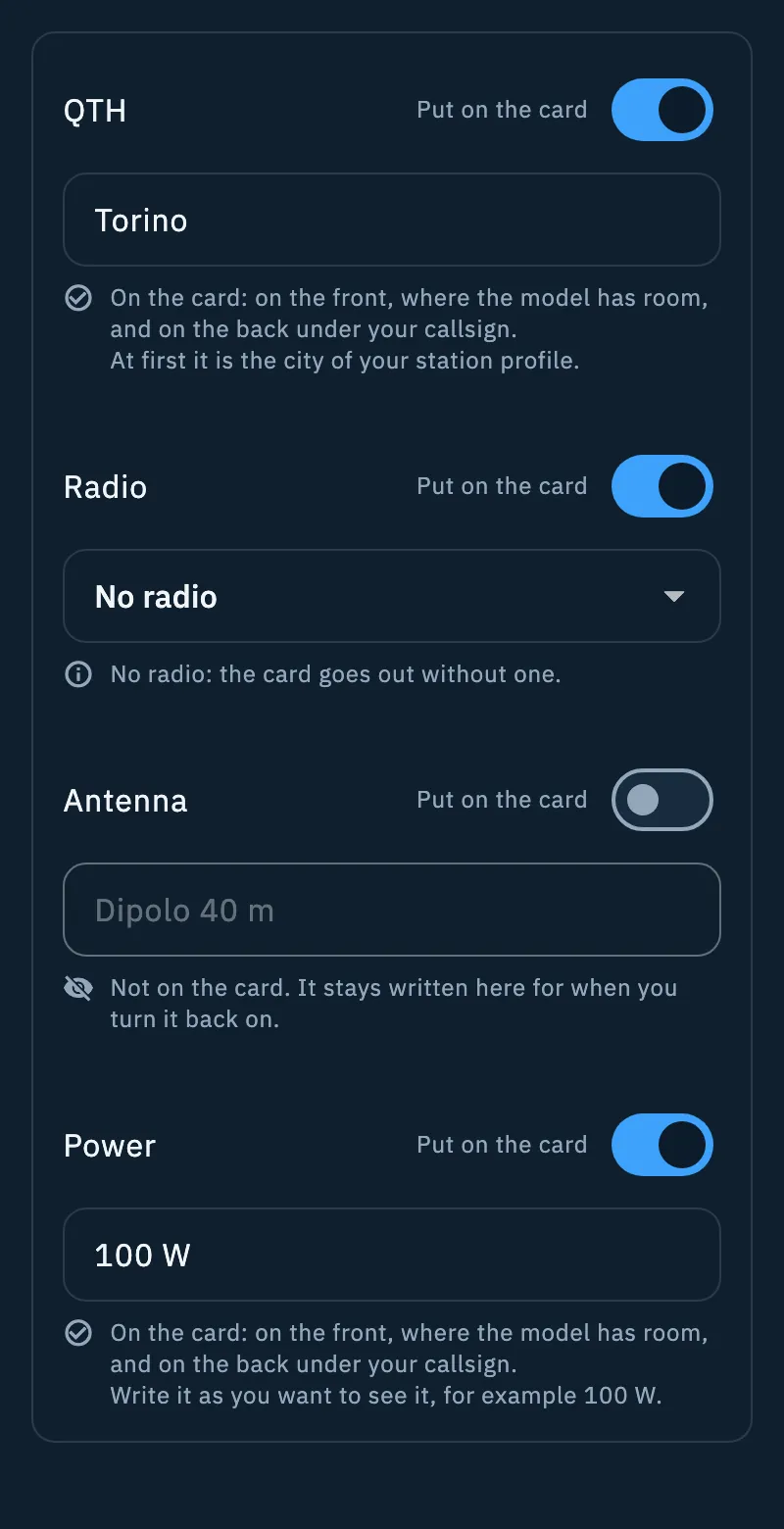
Under each line a sentence says what happens on the card:
| Situation | What the app says |
|---|---|
| Put on the card off | "Not on the card. It stays written here for when you turn it back on." (for the radio: "It stays chosen here…") |
| From the log, with a value written here | "If the log lacks it, the card uses what is written here." |
| From the log, nothing written here | "If the log lacks it, nothing goes on the card." |
| Not from the log, with a value | "On the card: on the front, where the model has room, and on the back under your callsign." |
| Not from the log, empty | "Empty: the card goes out without a QTH." (and the same for antenna and power); for the radio "No radio: the card goes out without one." |
Message, email and language
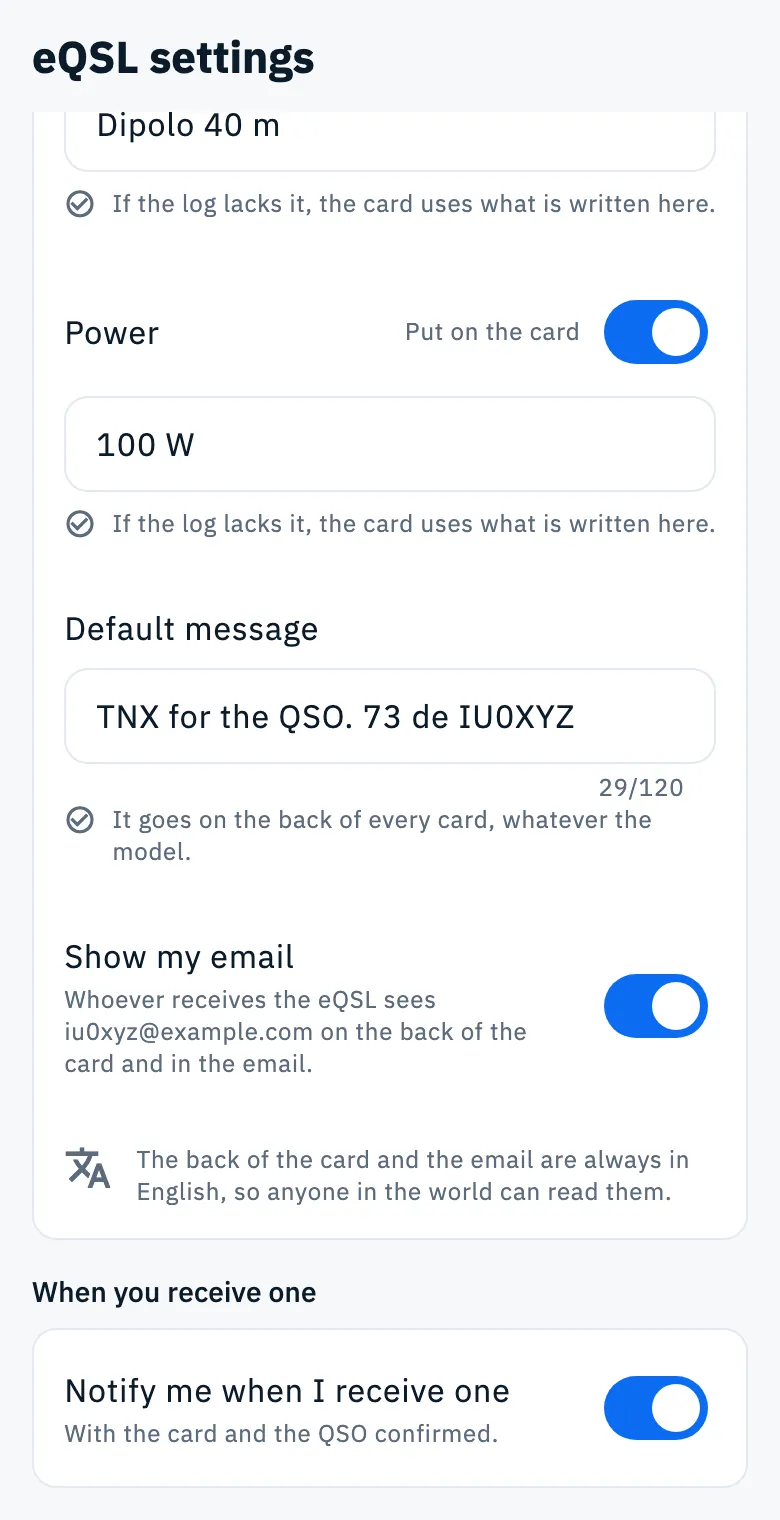
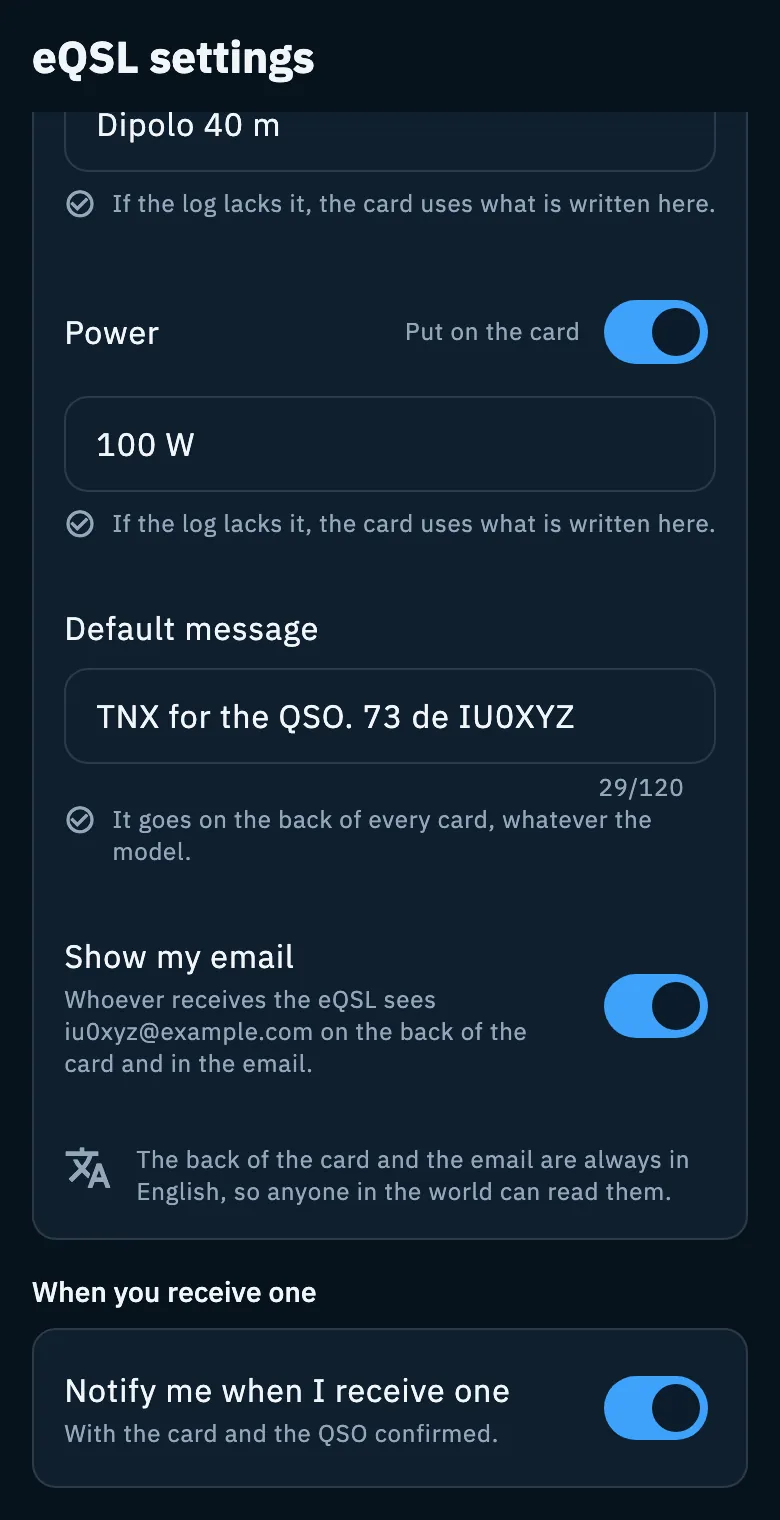
Default message: the text that goes on the back of every card, whatever the model. Type it in the field (the grey example is "TNX for the QSO. 73!"): 120 characters at most, counted under the field. Empty: "Empty: the card goes out without a message."
Show my email (on by default):
- On: whoever receives the eQSL sees your address on the back of the card and in the email. The sentence under the switch writes the address in full.
- Off: "Off: nobody sees your address." The same sentence reminds you which address the recipient would see if you turn it back on.
- If your account has no address, the app says "There is no email address in your account.".
Language of the card: it cannot be chosen. "The back of the card and the email are always in English, so anyone in the world can read them." The default message goes on the card as you write it: if you want anyone to read it, write it in English.
When you receive one
Notify me when I receive one (on by default): when another HamQSO user sends you an eQSL, you get a notification "with the card and the QSO confirmed". Off, the eQSL still reaches your Collection, without a notification. See Received cards, collection and series and Getting notifications.
All the settings at a glance
| Setting | What it does | Default |
|---|---|---|
| Automatic sending | Sends the eQSL of every QSO 5 minutes after the QSO | On |
| Take QTH and station from the log | Uses the data of the QSO, and the ones written here only where they are missing | On |
| QTH | The place on the card | The city of your default station profile |
| Radio | A radio of My station or No radio | None |
| Antenna, Power | Free text | Empty |
| Put on the card (each line) | Takes the line off the card without deleting it | On |
| Default message | Text on the back, up to 120 characters | Empty |
| Show my email | Your address on the back and in the email | On |
| Notify me when I receive one | A notification for each eQSL received | On |
All the eQSL settings are free, and the page is the same on phone, tablet, desktop and web.
Troubleshooting
- "I can't load the settings." The page did not reach the server. Check the network and that you are signed in (see Signing in and saving your log), then tap Retry.
- "I can't save. Try again." The last change did not reach the server. When the network is back, leave the page and open it again: you see what is really saved, and from there make the change again.
- "You have not saved a radio in My station yet." under Radio. You have no saved radios: tap Add radio and save one in My station; when you come back the menu shows it.
- The card shows a QTH different from the one written here. With Take QTH and station from the log on, the QTH recorded in the QSO wins. Turn the switch off if you always want the one written here.
- You cannot edit a field. Its Put on the card switch is off: turn it back on.