
Finding anything with the command palette
On the web, open a page, find a callsign in your log, create an alert or tune the radio by typing, with Ctrl+K or ⌘K.
Free and ProUpdated for HamQSO 0.1.19
On this page
In the web app the command palette is a single field where you type what you are looking for: a callsign, a frequency, a reference or the name of a page. The palette recognizes what you typed and offers only the commands that fit.
Opening the palette
- Press Ctrl+K (on a Mac ⌘+K). It works even while you are typing in another field.
- Or click the Search callsign, frequency, command… field in the top bar. In a window narrower than 1200 pixels a magnifier icon takes the place of the field: click it.
- Type. The text turns uppercase as you type, and the results update at every letter.
With nothing typed: the pages
As soon as it opens, the palette lists where you can go, in this order:
- Go to: DX, Go to: xOTA, Go to: Log, Go to: Alerts, Go to: Profile: the sections of the side bar.
- Go to: Propagation and Go to: Globe.
- Share the live page: opens the sharing of your live page. If you have not set your callsign yet, it explains that the link comes from your callsign and offers to set it.
- Go to: Settings and Go to: Your profile.
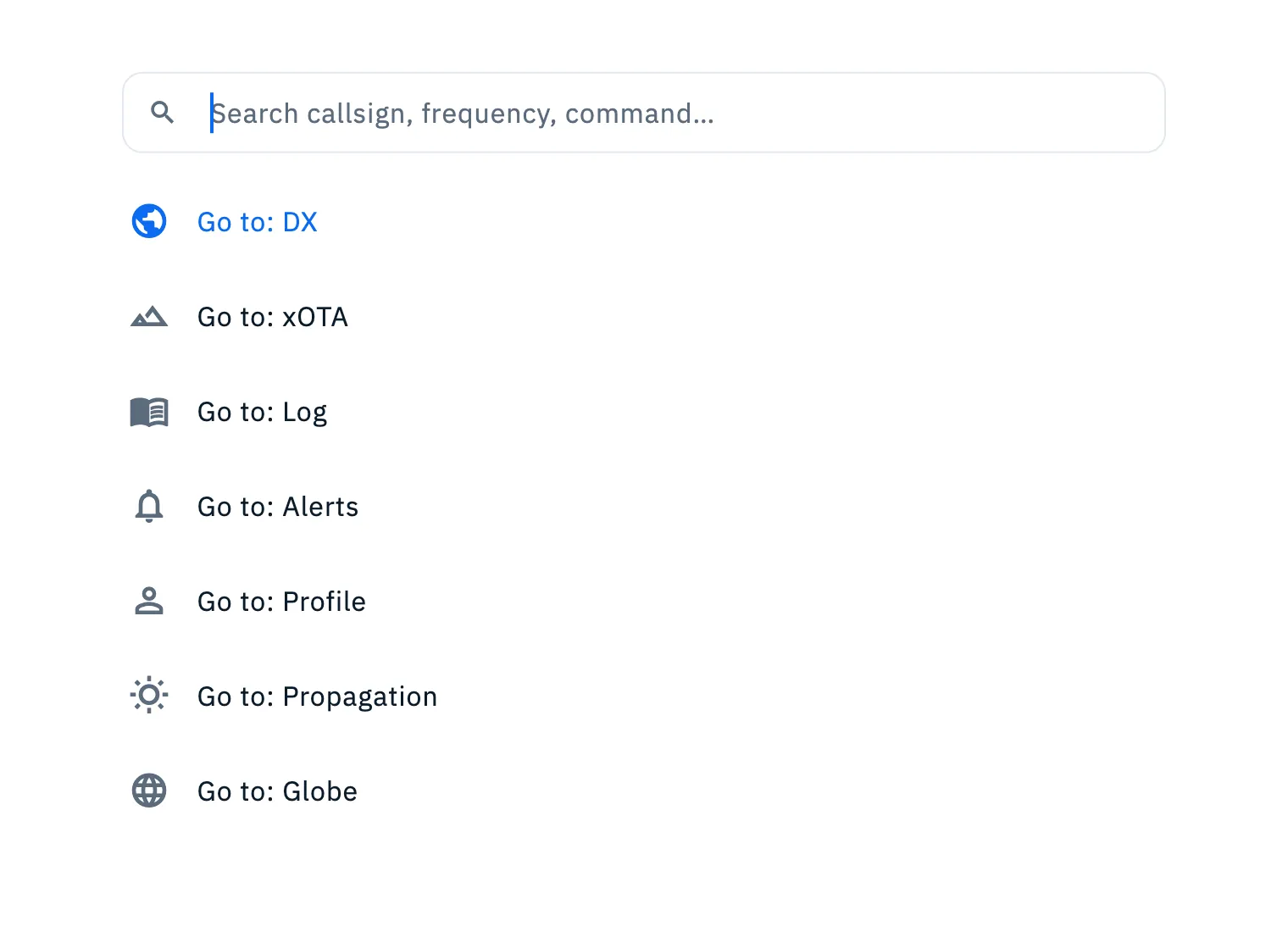
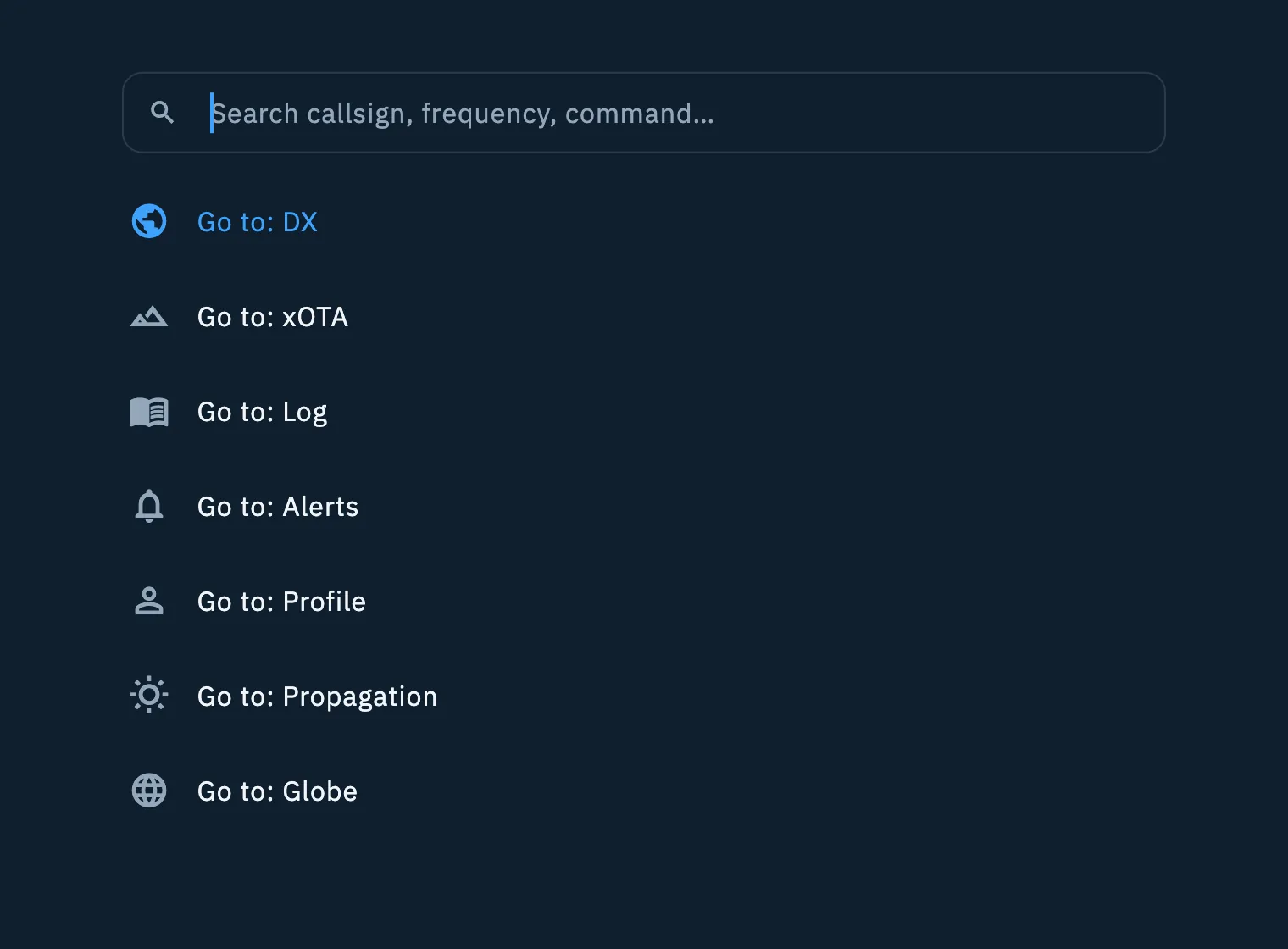
If you type a word that is not a callsign, a frequency or a reference (for example "prop"), only the lines that contain it are left: "prop" leaves Go to: Propagation.
A callsign
Type a callsign, portable ones too (for example JA1XYZ or EA8/DL1ABC/P). The palette offers:
| Command | What it does |
|---|---|
| Find JA1XYZ in the log | Opens All QSOs already filtered on that callsign (see Browsing and searching your log). |
| Create an alert for JA1XYZ | Opens Build the alert with the callsign already filled in (see Creating an alert). |
| Open JA1XYZ on QRZ.com | Opens the callsign's page on QRZ.com in the browser. |
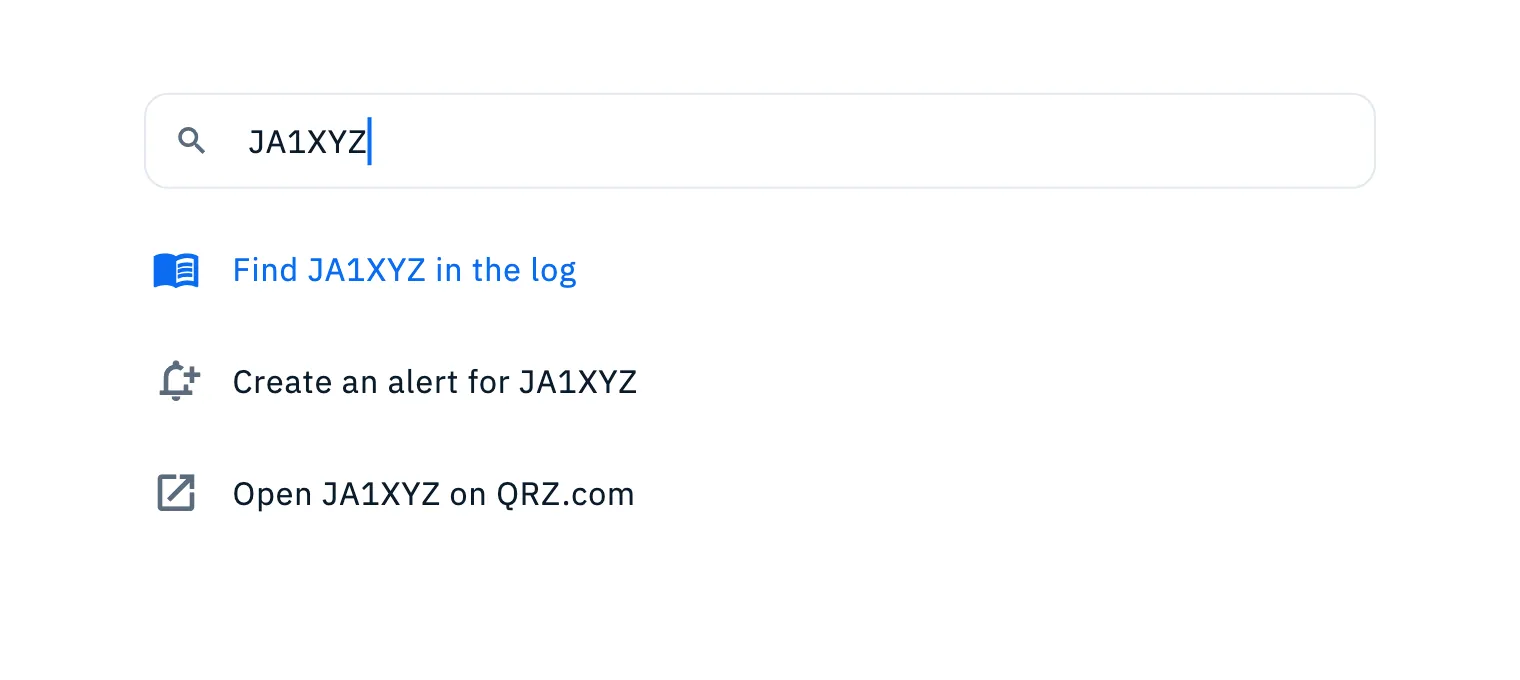
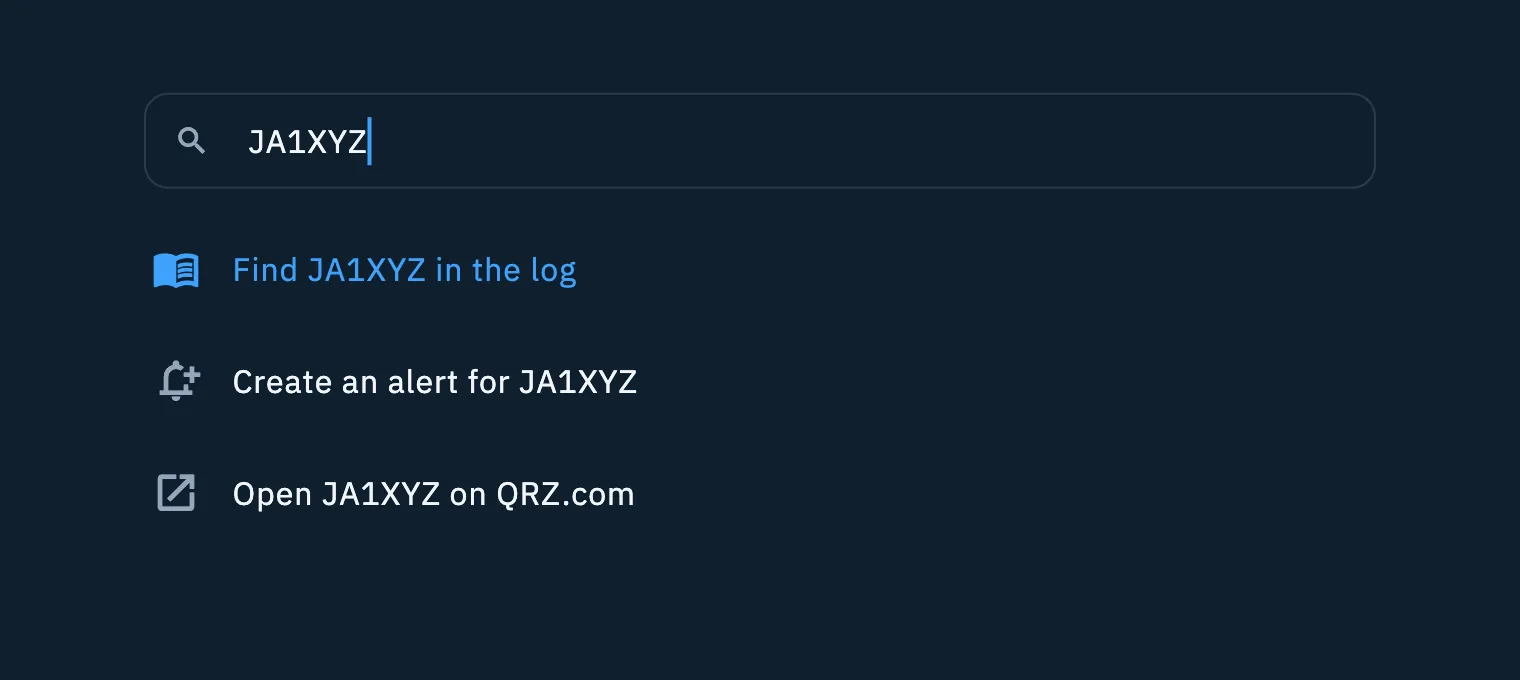
For the palette a callsign is any text without spaces made of letters and digits, with at least one letter and one digit, also in several parts separated by /.
A reference
Type a POTA, SOTA or WWFF reference, for example US-1234, I/LO-123 or IFF-0123. The palette offers Create an alert for US-1234, which opens Build the alert with the reference already filled in.
A frequency
Type a frequency in kHz, as everywhere in the app: 14074 is 14.074 MHz. For decimals a comma works too (14025,5).
- With a radio connected the palette offers Tune the radio to 14.074 MHz: press Enter and the radio goes to that frequency.
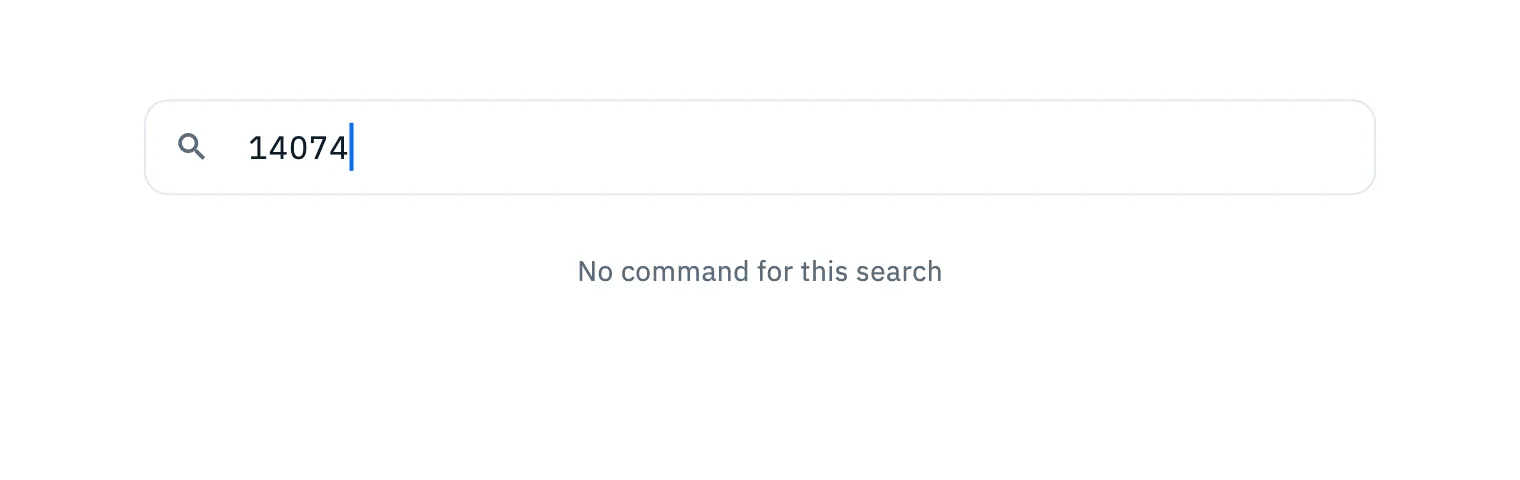
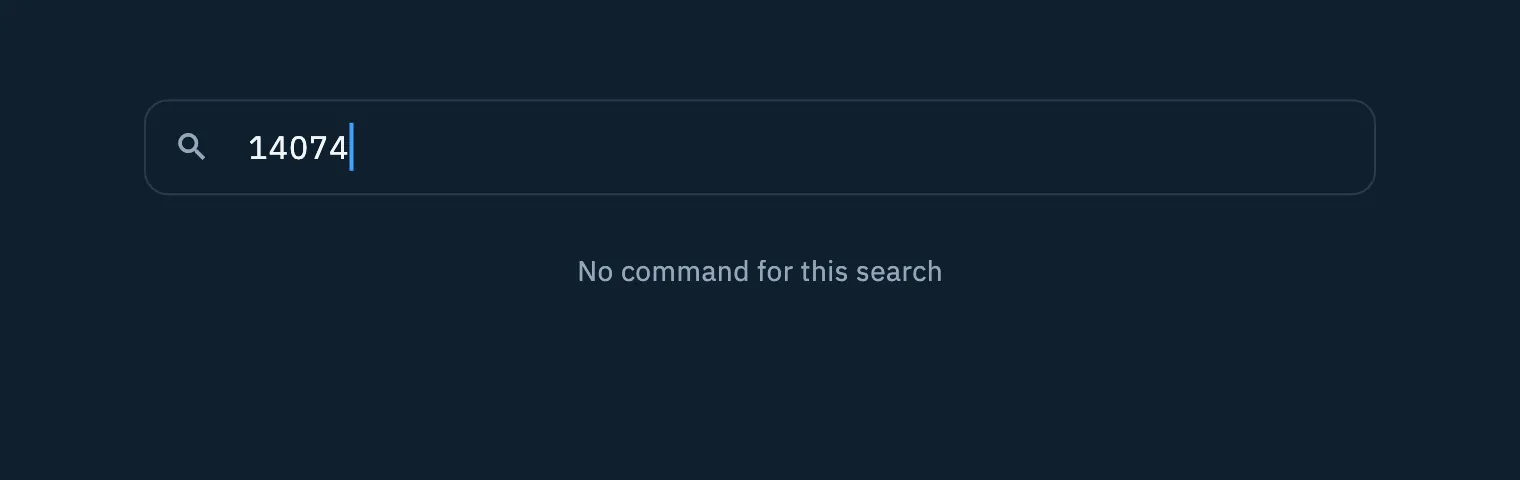
- With no radio connected a frequency has no commands and you see No command for this search.
To connect your radio see Connecting your radio.
Choosing a result
| Key | What it does |
|---|---|
| ↑ ↓ | Previous or next result |
| Enter | Opens the highlighted result (the first one at the start) |
| Esc | Closes the palette |
You can also click a line. The palette closes and the command runs on the page underneath. All the app's keys are in Keyboard shortcuts.
Free and Pro
The palette is free. Its commands open features that follow their own rules:
Troubleshooting
- "No command for this search": the text matches nothing. Check how you typed it. If it is a frequency, type it in kHz (14074, not 14.074) and connect the radio: with no radio connected a frequency has no commands.
- I wanted a page but I see the commands of a callsign: a text without spaces with letters and digits together is read as a callsign. Type only part of the page's name, without digits.
- The number I typed is read as a frequency: any number between 100 and 250,000,000 is read as a frequency in kHz.
- Ctrl+K does nothing: the palette is only in the web app, in a window at least 840 pixels wide. Make the browser window wider.