
Frequency, band and mode of a QSO
Type the frequency in kHz, pick band and mode, let the QSO follow your radio and understand the frequency and mode warnings.
Free and ProUpdated for HamQSO 0.1.19
On this page
Frequency, band and mode of the QSO sit in a chip of the log bar. You change them in place, with no sheet to confirm: band and mode follow the frequency you type and, with a radio connected, the QSO follows the radio by itself.
The frequency chip
In the row of chips of the bar, right after the time, is the frequency chip. It shows:
- the frequency in MHz, with every digit and never rounded (for example
14.074or14.025.5). Without a frequency it shows the band (20m) or Pick band; - the mode (SSB, CW, FT8…). For phone, when the mode comes from the radio or from the frequency, you see the sideband: USB or LSB;
- an icon telling where the frequency comes from: an antenna when it comes from the connected radio, a radio in the other cases, a question mark when a value is estimated.
The chip turns orange when both band and frequency are missing, when a value is estimated or when there is a frequency or mode warning (see below).
When you start a new QSO, frequency and mode are filled in for you: first from the connected radio, then from the spot you started from, then from the last QSO, then from the band and mode of the operation settings and last from the start ones of the logbook settings.
Changing frequency, band and mode
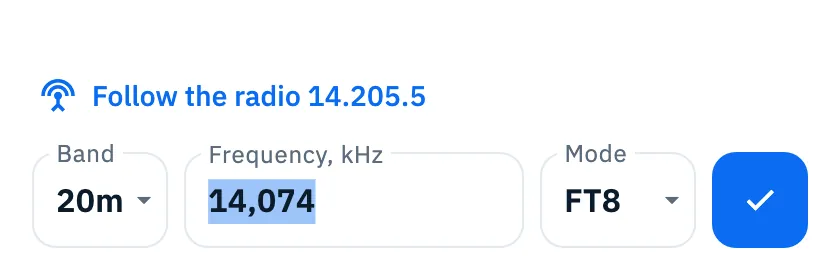
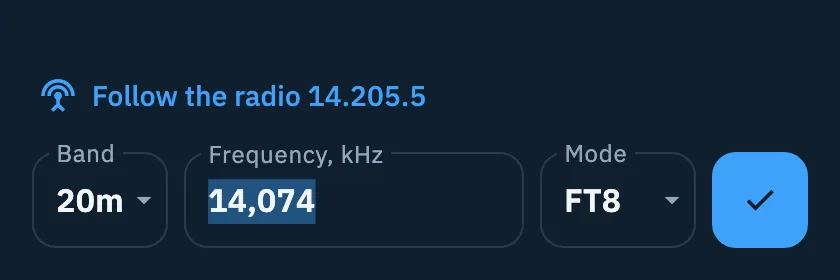
- Tap the frequency chip. The frequency row opens, with the cursor already in the field and the value selected: the first digit replaces it.
- Type the frequency in the Frequency, kHz field. Every digit updates the QSO at once: the band follows the frequency and, where the band plan says so, the mode too (CW in the CW segment, FT8, FT4 or JS8 on their calling frequencies, USB, LSB or FM in the phone segment).
- Or tap Band and pick the band from the menu, when you do not know the exact frequency.
- Tap Mode and pick the mode, if needed.
- Tap Done (a check mark on a narrow screen), tap the chip again or tap outside the row to close it. If you have already typed a callsign, Enter also saves the QSO; without a callsign it only closes the row.
The bands of the menu are 160m, 80m, 60m, 40m, 30m, 20m, 17m, 15m, 12m, 10m, 6m, 4m, 2m, 70cm and 23cm. The modes are SSB, CW, FT8, FT4, FM, AM, RTTY, PSK31, JS8 and SSTV. A band or a mode that is not in the list (for example 630m from a typed frequency) appears at the top of the menu, already picked; with USB or LSB, SSB is checked.
| What you do | What happens |
|---|---|
| Type a frequency | Band and mode follow the frequency. The mode changes only where the band plan is clear; in mixed segments it stays as it was |
| Pick a band other than the frequency's | The frequency is cleared and the QSO keeps only the band. A frequency outside every band stays instead |
| Pick a mode | The mode changes; the RST reports you did not type by hand switch to those of the new mode |
| Empty the field | The starting values come back: closing the row never loses a frequency |
| Press Esc | The values of when you opened the row come back and the row closes (with a menu open, Esc only closes the menu) |
The mode follows the band plan of the IARU region of the operation's station (the callsign you transmit with). When the region is unknown, the app only recognizes the segments every region shares.
How frequencies are typed
In the fields you type the frequency in kHz; in lists and details you read it in MHz, in the radio's format: 14.025.5 is 14,025.5 kHz. The app never rounds a frequency.
- Use the point for the decimals of the kHz, with one digit after it:
14025.5. While you type, the app adds the thousands separators by itself (14,025.5); a comma just typed also counts as the decimal mark, because some number pads show only one of the two. - A number under 1000 counts as MHz:
14is 14,000 kHz,7.1is 7,100 kHz, so the band is right at the second digit. The 2200 m and 630 m bands are the exception and stay in kHz (136,475). - The radio's frequency comes in with all its digits: a radio on 14,205,520 Hz reads
14,205.52in the field.
Following the radio
With a radio connected via CAT and a QSO at the current time, frequency, band and mode of the QSO follow the radio: turn the dial and the chip changes, with the antenna icon. When the radio is in a data mode outside the FT8 and FT4 frequencies, the app cannot tell which one it is and the QSO keeps its own mode.
As soon as you change the frequency, band or mode by hand, the bar stops following the radio, so the radio never overwrites what you typed. To resume:
- Tap the frequency chip.
- Tap Follow the radio. When the row is narrow (on a phone) it is a button above the row showing the radio's frequency, for example Follow the radio 14.205.5; when the row is wide it is the antenna icon inside the field.
In a past QSO, with a date and time picked by hand, the radio does not change the values: you type them. When you go back to the current time the bar follows the radio again, unless you had changed the values by hand.
To connect the radio see Connecting your radio and Using the connected radio.
Frequency and mode warnings
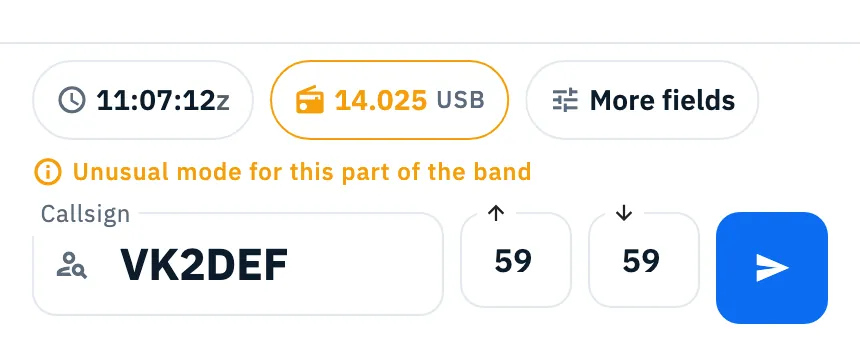
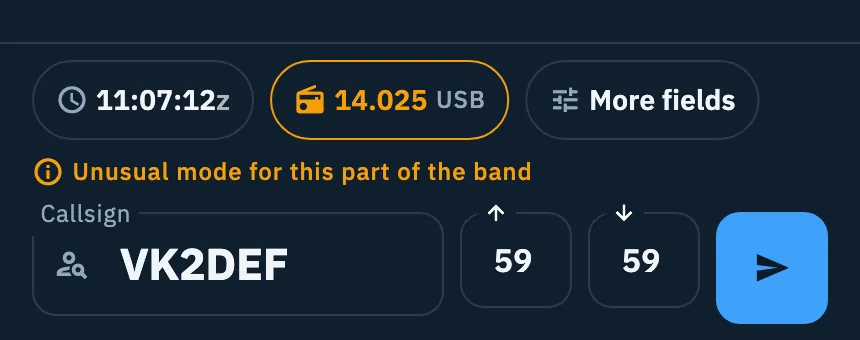
Two warnings can appear in orange between the chips and the callsign. Neither blocks saving: fix the frequency or the mode, or save anyway.
| Warning | When |
|---|---|
| «Frequency outside the amateur bands: check it or pick the band» | The frequency is in no amateur band. It appears when you close the frequency row, not while you type |
| «Unusual mode for this part of the band» | Phone or data in the CW-only segment, or data in the phone segment, by the band plan of the station's region. Mixed segments and calling frequencies give no warning |
A QSO with a frequency outside every band is saved without a band, with the frequency only, and is exported to ADIF without a band.
No band and no frequency
If you send with a callsign but no band and no frequency, the QSO is not lost: the frequency row opens with the message «Pick the mode if needed, then the band: the QSO is saved right away.»
- Pick the mode, if needed.
- Pick the band from the Band menu: the QSO is saved at once. If you type the frequency instead, tap Done or press Enter to save it.
Mode to confirm
When the mode comes from a spot that does not say it, the app estimates it from the band plan. The chip shows the question mark and «Mode to confirm» appears with the row. Pick the mode from the Mode menu, or type a frequency the band plan recognizes, and the mode is no longer estimated. If you save anyway, the QSO keeps the mode marked as estimated: see Terms and conventions.


In the full form
In More fields too the frequency is at the top, under the callsign, with band and mode and, below it, where the frequency comes from (the radio, the spot or the last QSO). Tap it: the same row opens right under it, with only the check mark instead of Done; Follow the radio, when needed, is under the row or in the field. Here Enter only closes the row: you save the QSO from the bar. For the other fields see Logging a QSO.
Phone, tablet and desktop
- Phone and tablet: the row opens above the chips, towards the log; the chip does not move. On a narrow screen Done is only a check mark and Follow the radio is a button above the row.
- Desktop window: the bar is at the top and the row opens under the chips. Press Alt+F to open or close it wherever the cursor is, unless a window covers the bar; the key counts by position, so on a Mac it is Option+F. See Keyboard shortcuts.
Troubleshooting
- The chip is orange: band and frequency are missing, the mode is to confirm or there is a warning above the callsign. Open the row and check frequency and mode.
- «Frequency outside the amateur bands: check it or pick the band»: check the digits (in kHz:
14074, not140740). If the frequency is right, save: the QSO stays without a band. - «Unusual mode for this part of the band»: usually a mode left over from the previous QSO. Pick the right mode, or save if it really is that one.
- «The band is missing: enter the frequency or pick the band»: type the frequency or pick the band in the row, then save again.
- The QSO no longer follows the radio: you changed frequency, band or mode by hand. Open the row and tap Follow the radio. If the button is not there, the bar is already following the radio or the radio is not connected: see When the radio does not answer.
- The radio does not change the values of a past QSO: that is intended; go back to the current time to follow it.