
Using HamQSO offline
What keeps working without a network, what waits on your device and how everything goes out by itself when the network is back.
FreeUpdated for HamQSO 0.1.19
On this page
HamQSO works without a network too: QSOs are saved on your device, spots and other sends wait in a queue, and the lists show what they had saved. When the network is back, everything goes out by itself, with nothing for you to tap.
How the app knows whether you are online
HamQSO tells three situations apart:
| State | When it happens | What you see |
|---|---|---|
| Online | The device is connected and internet answers. | Nothing: everything works as usual. |
| Offline | No connection at all: airplane mode, no signal. | The band "Offline: …"; in spot lists, "Offline". |
| No internet | You are connected to a network, but internet does not answer: for example a public Wi-Fi waiting for you to sign in on its page. | The band "Connected without internet: …"; in spot lists, "No internet". |
There is nothing to do: when a connection comes up the app really tries to reach internet, and it checks again by itself when the connection changes and when you come back to the app. On a network without internet it also checks every 30 seconds. Where you see Retry (for example on the sign-in screen), tap it to check right away.
On iPhone, iPad and Android the app also knows whether you are on Wi-Fi or a cable rather than mobile data: it uses this for big downloads such as the reference catalog (above 10 MB it waits for Wi-Fi, see Choosing the programs you follow). On the web the browser's state counts, and the network always counts as Wi-Fi.
The "Offline" and "Back online" band
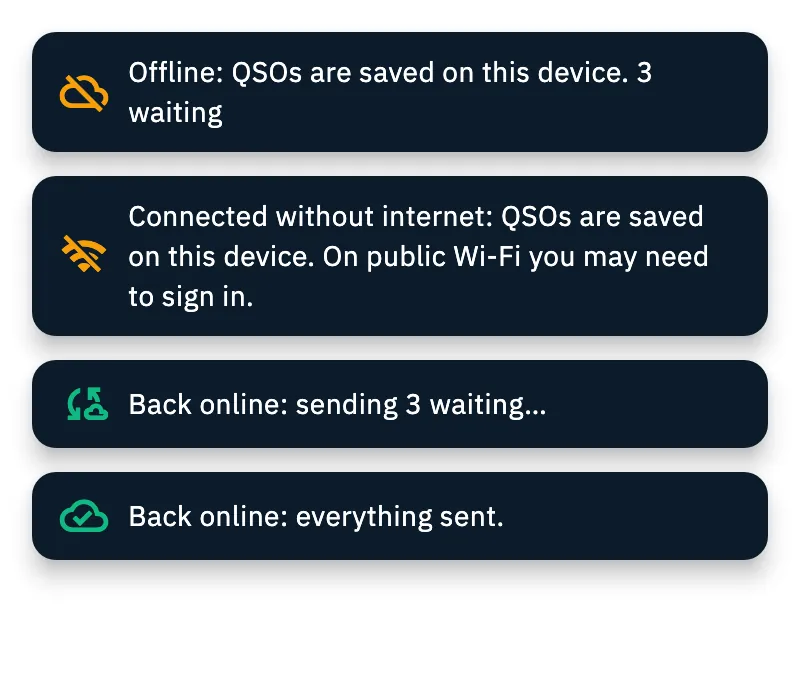
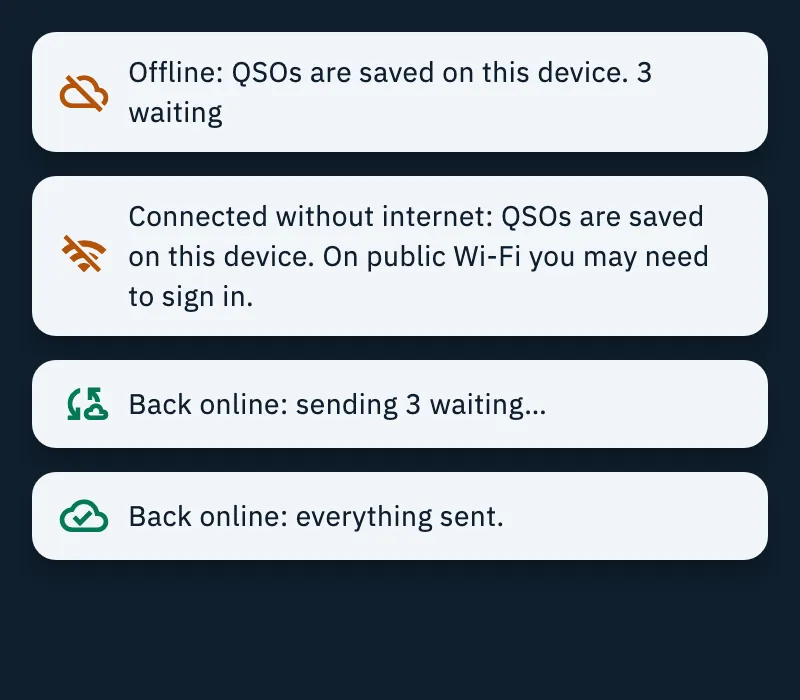
There is no fixed icon reminding you that you are offline: the app tells you once, with a dark band at the top of the screen (on the web, under the top bar). The band stays for 4 seconds; tap it to close it sooner.
| Band | When it appears |
|---|---|
| "Offline: QSOs are saved on this device." (on the web: "…in this browser.") | The network dropped. If something is waiting, the count follows, for example "3 waiting". |
| "Connected without internet: QSOs are saved on this device. On public Wi-Fi you may need to sign in." | You are on a network that does not reach internet: if it is a public Wi-Fi, open its sign-in page. |
| "Back online: sending 3 waiting…" | The network is back and things are going out: the count goes down as they succeed. |
| "Back online: everything sent." | Nothing is waiting any more. |
Screen readers announce the band as a status message; it never takes the focus, so it does not interrupt what you are typing.
What works offline
| Part of the app | Offline |
|---|---|
| Log | Works fully: you log, edit and delete QSOs, which are saved on the device and sync when the network is back (see Your log on all your devices). |
| Spot lists (DX Cluster, POTA, SOTA, WWFF) | Show the last saved list, with its age. |
| Maps | A map opened offline is replaced by "Map not available offline" with "QSOs and distances are still here. The map comes back when you are online.". A map already on screen when the network drops stays visible. |
| Spot detail | The spot's own data stays; in place of the rest you see "Park details not available offline" (or "Summit details…"), with "What the spot says is above. The rest arrives when you are online.". |
| Callsign lookup | "Callbook not reachable offline. I'll try again by myself." |
| Buttons that open web pages or need the network | Stay in place, turned off, with "Needs a connection" under them. |
| Spots, re-spots and I'm on the air | Go into the queue and go out when the network is back (see Spots sent while offline). |
| Signing in | "You're offline: you need a connection to sign in.", with Retry. |
If you are offline and have not signed in yet (at first launch, for example), above the operations in Log you read "Offline at first launch: the log already works. Sync, notifications and Pro start when you are online.".
When the network is back every part reloads by itself: lists, maps, details and lookups do not need to be opened again.
The spot list offline
The app saves on the device the last list it received for DX Cluster, POTA, SOTA and WWFF, up to 300 spots per list. On the web it saves it in the browser.
- Open the list at least once while online.
- Offline, open it again: you see the saved spots and, above them, "Offline: list updated 18 min ago. It refreshes when the network is back.". Instead of "Live" the list says "Offline" or "No internet".
- When the network is back the list goes live again by itself, with no tap.
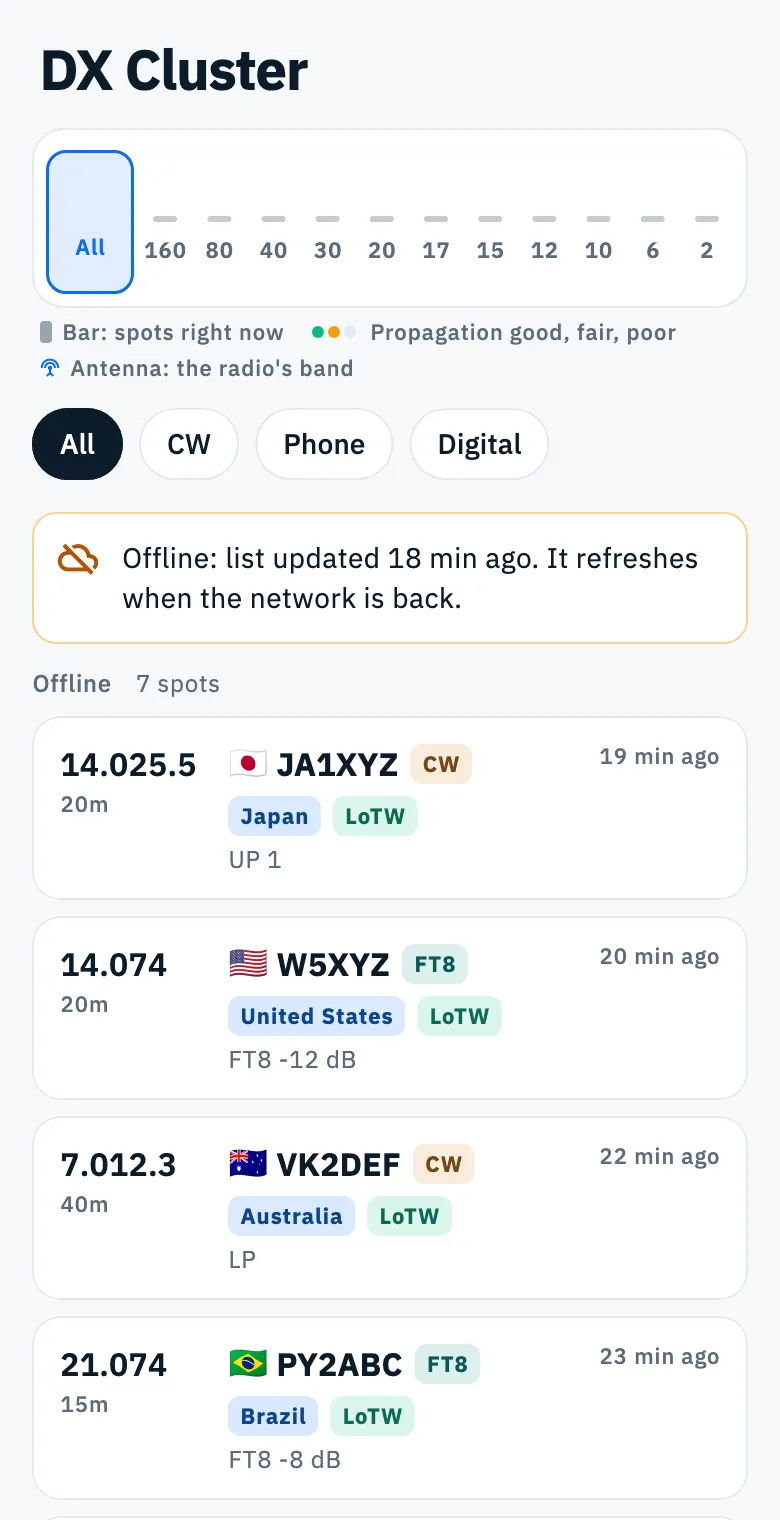
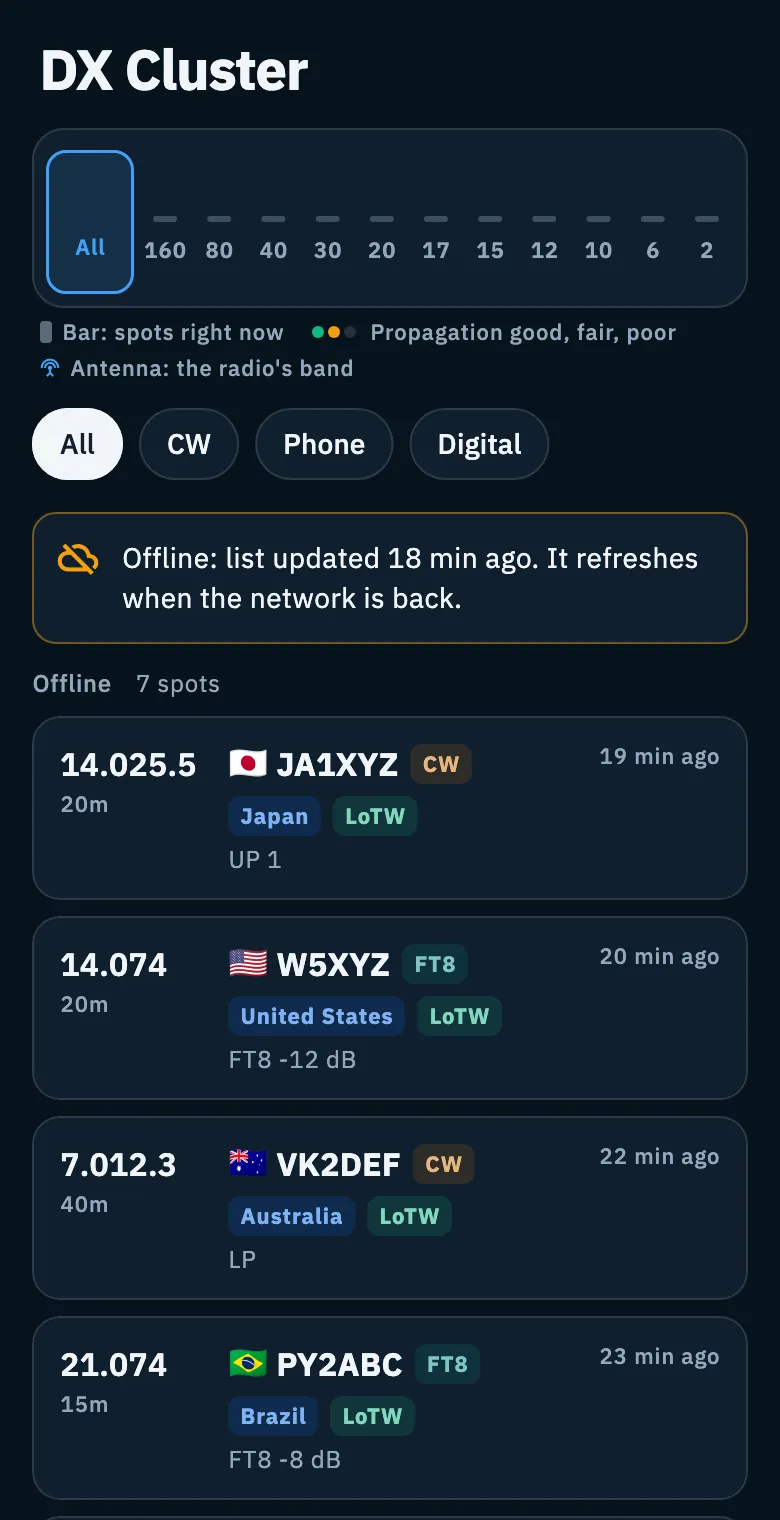
Spots in a saved list may be old: those stations may no longer be on the air. If you never opened a list online on that device, you see "No list on this device" with "The list is saved when you open it online. It loads by itself when the network is back.".
Waiting: what waits for the network
Everything you did offline that still has to go out is gathered in one place.
- Open Log.
- At the top, next to Operations, tap the cloud icon. A number on the icon says how many things are waiting.
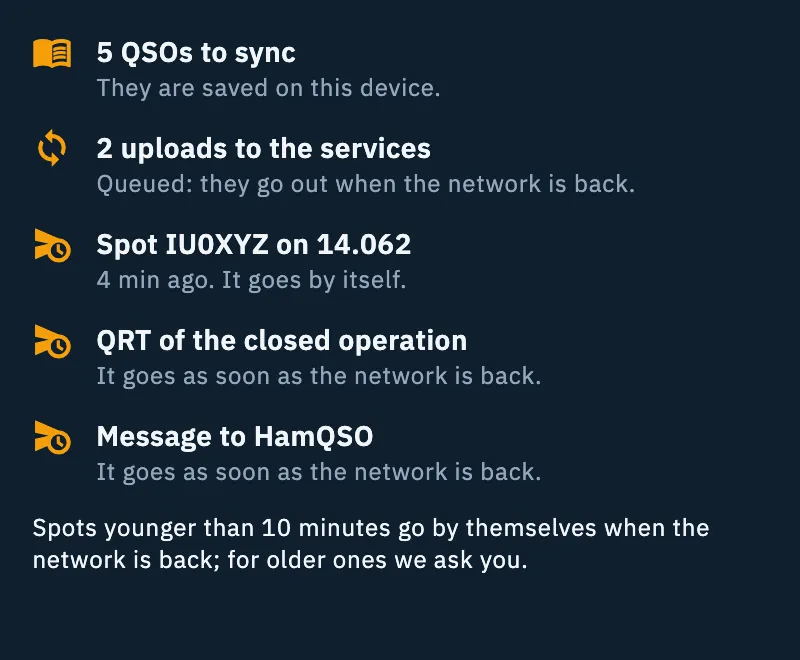
- In the Sync sheet, read the Waiting part.
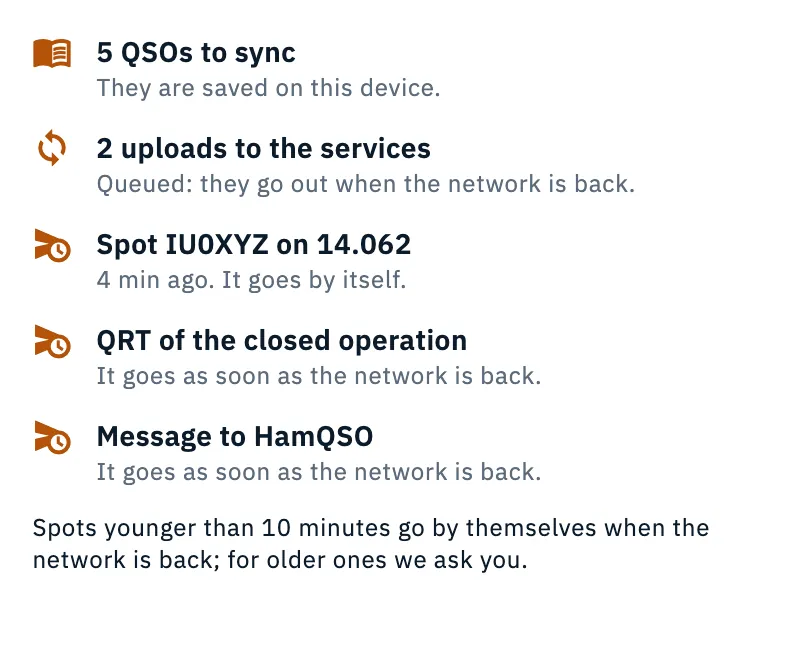
| Row | What is waiting |
|---|---|
| "5 QSOs to sync" | New or edited QSOs not on the cloud yet. "They are saved on this device." |
| "2 uploads to the services" | QSOs to upload to QRZ.com, eQSL.cc, HRDLog or LoTW. "Queued: they go out when the network is back." (see Automatic uploads and waiting QSOs) |
| "Spot JA1XYZ on 7.074" | A queued spot, with its age: "4 min ago. It goes by itself." when it is younger than 10 minutes, "25 min ago. Over 10 minutes: we will ask before sending it." when it is older. |
| "QRT of the closed operation" | The QRT spot of an operation you closed. "It goes as soon as the network is back." |
| "Message to HamQSO" | Feedback you wrote. "It goes as soon as the network is back." |
| "Sent at 11:42 on DX Cluster" or "Not sent: …" | The outcome of a spot sent from the queue, visible for one hour. |
When at least one spot is queued, under the rows you read "Spots younger than 10 minutes go by themselves when the network is back; for older ones we ask you.".
With nothing waiting and no recent outcome, the Waiting part does not appear. You do not need to do anything: rows go away as things go out. You cannot delete or edit a spot from this list.
The cloud icon also appears when you are not signed in, as long as something is queued.
Old queued spots
A spot queued for less than 10 minutes goes by itself when the network is back. For an older one the app asks first, because you may have left that frequency: "Spot from 25 min ago: send it?" with Send and Discard, or, for several spots, "2 old spots queued: which should I send?" with Send selected and Discard all. All the details are in Spots sent while offline.
On the web
Opening HamQSO on the web offline
HamQSO on the web opens without a network too, from the copy saved in the browser, if you opened it before while online in that same browser.
- Open app.hamqso.app in the browser you usually use.
- Above the operations in Log you read "Opened from the copy in your browser: QSOs saved here are available and new ones are saved. They reach the cloud when the network is back.".
- Log QSOs as usual.
The browser syncs only while HamQSO is open: when the network is back, keep the page open until the band says "Back online: everything sent.".
New version on the web
When a new version is out, a notice appears at the bottom and blocks nothing: "New version available. QSOs not synced yet stay in this browser and sync by themselves.".
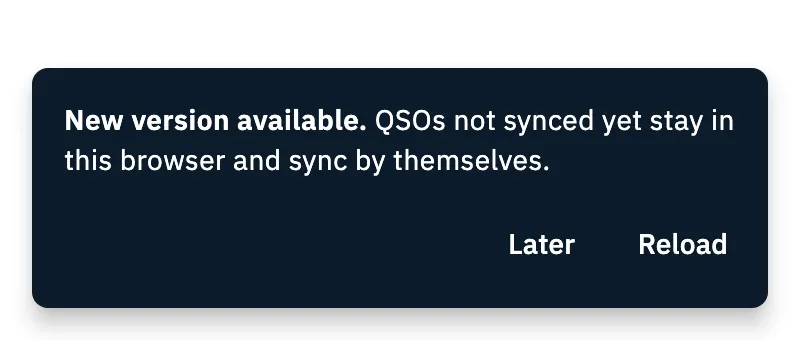
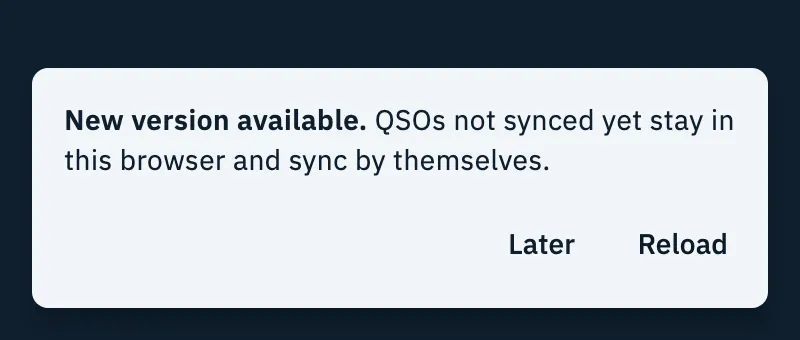
- Tap Reload when it suits you: the callsign you were typing is kept first, then "Reloading HamQSO…" appears and the new version opens.
- Or tap Later to close the notice and carry on.
On the web HamQSO never reloads by itself, so a QSO half typed is not lost. On iPhone, iPad and Android updates come from the stores.
Free and Pro
Everything on this page is free, for everyone.
Troubleshooting
"Connected without internet" although Wi-Fi is connected. That Wi-Fi does not reach internet, often a public Wi-Fi (hotel, train) waiting for you to sign in: open the browser, complete the sign-in and the app notices by itself within 30 seconds, or right away when you come back to the app.
"No list on this device". That list was never opened online on this device or browser. It loads by itself when the network is back.
The number on the cloud icon does not go down. Things go out only with a network; on the web, only with the page open. Open the Sync sheet to see what is waiting; a sync error, if any, is explained there (see Your log on all your devices).
"Needs a connection" under a button. That feature needs internet: try again when you are online.
HamQSO on the web does not open offline. You need to have opened it at least once online in that browser; if you deleted HamQSO's data from the browser, the copy is gone.