
All settings and where to find them
Where every setting of HamQSO lives, what it changes and its default: Settings, logbook settings, eQSL settings and the other pages.
Free and ProUpdated for HamQSO 0.1.19
On this page
HamQSO keeps its settings on three pages: Settings (the app on this device), Logbook settings (your log) and eQSL settings (your cards). A few other choices live next to what they control. This page tells you where each one is, what it changes and its default. None of these pages has a Save button: every choice applies right away.
Where each setting lives
| What you want to change | Where | Manual page |
|---|---|---|
| Reference catalog, When you get spotted, language, theme, units, screen always on | Profile › Settings | this page |
| Station profiles, default RST, starting band and mode, entry bar fields, dupe check, import choices | Profile › Logbook settings | Logbook settings |
| Automatic eQSL sending, QTH and station on the card, message, email, notification of a received card | eQSL HamQSO › gear | eQSL settings |
| Name, callsign, QTH locator, account | Profile › the card at the top with your callsign (Your profile) | Your profile |
| QRZ.com, LoTW, eQSL.cc and HRDLog accounts, Callsign lookup, Device name | Profile › Linked services | Linking services |
| Radios and antennas | Profile › My station | My station |
| Alerts on stations, countries and parks | the Alerts section | Creating an alert |
| Programs, bands and modes of the spot lists | the filter of each list | Filtering spots, Choosing programs |
| Dupe check of a single operation | the operation's settings | Creating an operation |
The Settings page
- Open Profile.
- In the App group, tap Settings.
On the web, in a wide window, you can also open the command palette and choose Go to: Settings.
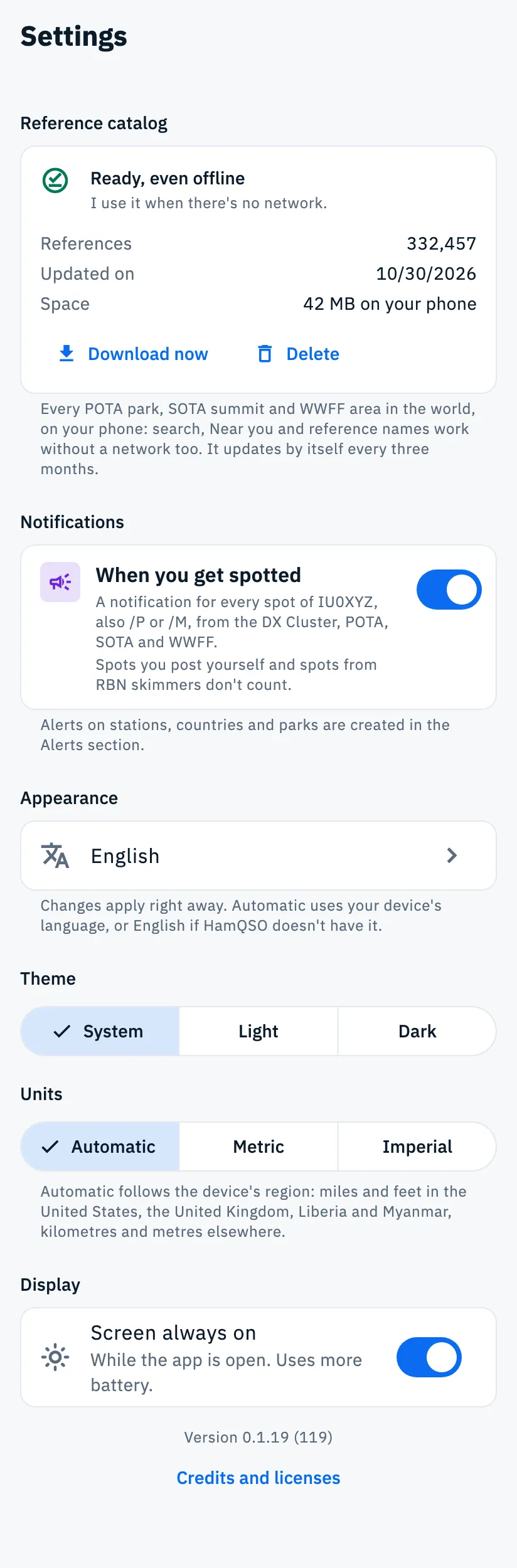
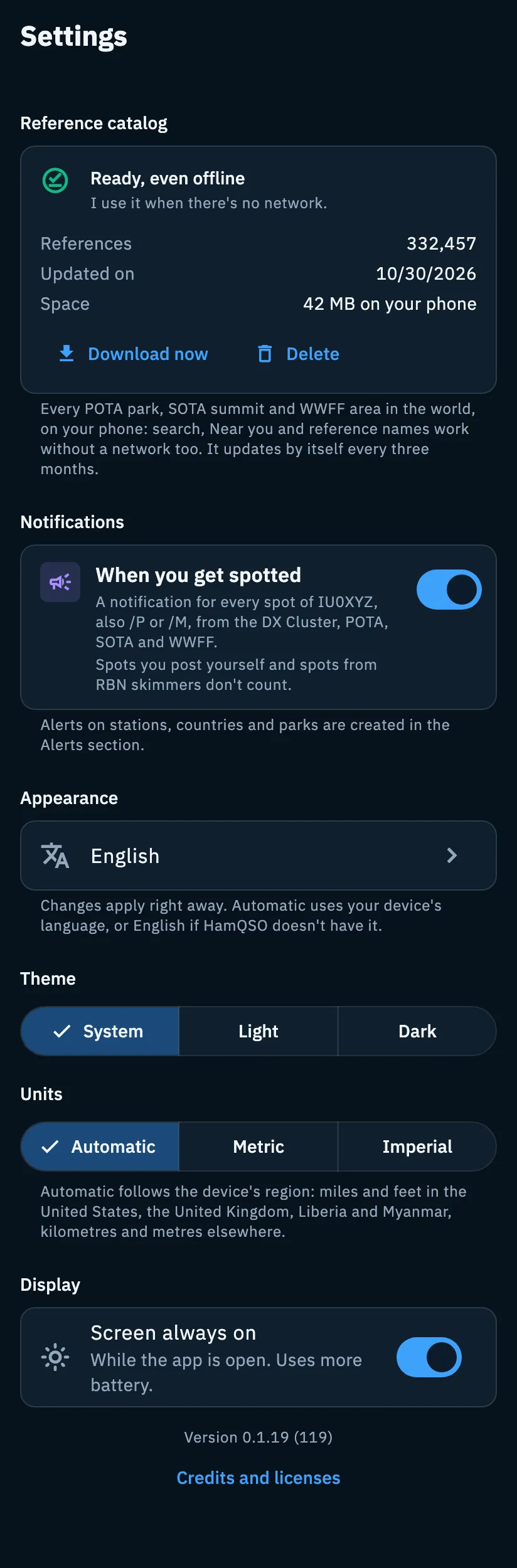
The sections, top to bottom:
| Section | What it changes | Default |
|---|---|---|
| Reference catalog | Every POTA park, SOTA summit and WWFF area in the world on your device, to search references without a network. Download now and Delete. | downloads by itself |
| Notifications › When you get spotted | A notification for every spot of your callsign (Pro). | off |
| Appearance › language | Automatic or one of the app's 16 languages. | Automatic |
| Theme | System, Light or Dark. | System |
| Units | Automatic, Metric or Imperial, for distances and heights. | Automatic |
| Display › Screen always on | The screen does not turn off while the app is open. | on |
| Keyboard shortcuts › All shortcuts | In place of Display, on the web in a wide window: opens the list of shortcuts. | - |
| Version and Credits and licenses | At the bottom, the app version (for example "Version 0.1.19 (119)") and the button that opens the credits. | - |
Language, theme, units and screen always on stay on that device: on another phone or browser you choose them again.
Reference catalog
The card tells you the state of the catalog:
- Not downloaded yet: "It downloads by itself as soon as you're online." If the download is over 10 MB, it waits for Wi-Fi and says so.
- Downloading the catalog…, then Getting search ready…: you can keep using the app meanwhile.
- Ready, even offline: with the number of References, the date it was updated (Updated on) and the Space it takes.
- Update failed: the app keeps the catalog you have and tries again by itself.
- Download failed: the first download did not work; until there is a catalog, reference search uses the network. The app tries again by itself.
- Deleted: it no longer downloads by itself until you tap Download now.
The catalog updates by itself every three months. Download now downloads it right away; without a network it is greyed out and says "Needs a connection" next to it. Delete asks first, "Delete the catalog?", with Keep it and Delete: afterwards, without a network, reference search, Near you and reference names won't work, and a message tells you how much space you freed. See also Finding and choosing references and Using HamQSO offline.
Notifications
The Notifications section holds the When you get spotted card: the same one as in the Alerts section, with the same value (changing it in one place changes it in the other). When it is on, you get a notification for every spot of your callsign, also /P or /M, from the DX Cluster, POTA, SOTA and WWFF. Spots you post yourself and spots from RBN skimmers don't count.
- In Settings › Notifications, turn on the When you get spotted switch.
- The first time, the device asks for permission to send notifications: allow it.
- Without a callsign in your profile the switch stays off and the card says "It needs your callsign.": tap Set your callsign to type it in Your profile.
- If the device's notifications are off, the card says so ("Notifications are off in the phone settings. Turn them back on, or they will not arrive.") and, where possible, offers Open the settings.
Under the card the app reminds you: "Alerts on stations, countries and parks are created in the Alerts section." Everything about this card is in Knowing when you are spotted; notifications in general in Getting notifications.
Appearance, theme and units
- Language: the row shows the language in use, or Automatic with the device language; tap it to choose another. With Automatic, if HamQSO doesn't have the device language, it uses English.
- Theme: System follows the device or browser and changes along with it; Light and Dark stay fixed. It applies right away across the app.
- Units: Automatic follows the device's region (miles and feet in the United States, the United Kingdom, Liberia and Myanmar, kilometres and metres elsewhere). It only changes how you see distances and heights: the log keeps them in kilometres and metres.
The details are in Language, theme and units.
Screen always on
Display › Screen always on keeps the screen from turning off: "While the app is open. Uses more battery." It is on by default. It works only while the app is in the foreground, and the app applies it again every time you come back.
Logbook settings
They apply to the whole log and, when you are signed in, they are the same on all your devices.
- Open Profile and tap Logbook settings ("Station profiles, defaults, dupes").
- Or open Log, tap ⋮ (Log menu) and choose Logbook settings.
| Section | What it holds | Default |
|---|---|---|
| Station profiles | How many profiles you have and which is the default; tap to open them. | - |
| Defaults | Default RST per mode (CW, SSB, FM, AM, FT8, FT4, RTTY); Starting band and Starting mode of the first QSO. | the mode's standard RST; No preference |
| Logging | Fields in the entry bar and More fields: which ones you see when you log. A hidden field stays in your QSOs and exports. | the standard fields |
| Logging › Dupe check in new operations | No check, Once across all bands, Once per band, Once per band and mode. | Once per band and mode |
| Import and export | QSOs already in the log: Complete, Keep the log as it is, The file wins; Recompute country and zones from the callsign. | Complete; off |
QSO dates and times are always UTC. Every item is explained in Logbook settings; profiles in Station profiles.
eQSL settings
They are stored on the server, so they are the same on all your devices.
- Open eQSL HamQSO from Profile.
- Tap the gear at the top (eQSL settings).
| Group | Setting | Default |
|---|---|---|
| Sending | Automatic sending: after every QSO the eQSL leaves by itself after 5 minutes, only one per callsign, band and mode in each operation. | on |
| The card | Take QTH and station from the log: QTH, radio, antenna and power come from the QSO. | on |
| The card | QTH, Radio, Antenna, Power, each with its own switch to put it on the card. | the QTH is the city of your default station profile, the others empty; all on the card |
| The card | Default message and Show my email. | empty; on |
| When you receive one | Notify me when I receive one: "With the card and the QSO confirmed." | on |
Text fields are saved when you leave the field or close the keyboard. The back of the card and the email are always in English. Everything is in eQSL settings.
Free and Pro
All the settings on this page are free, except When you get spotted.
Phone, tablet and computer
On phone and tablet, and on the web in a narrow window, Settings has the Display section. On the web, in a wide window, Keyboard shortcuts with the All shortcuts row takes the place of Display (see Keyboard shortcuts); the page has no back arrow, because you leave it from the side bar. On tablet and computer the page stays a single column of comfortable reading width.
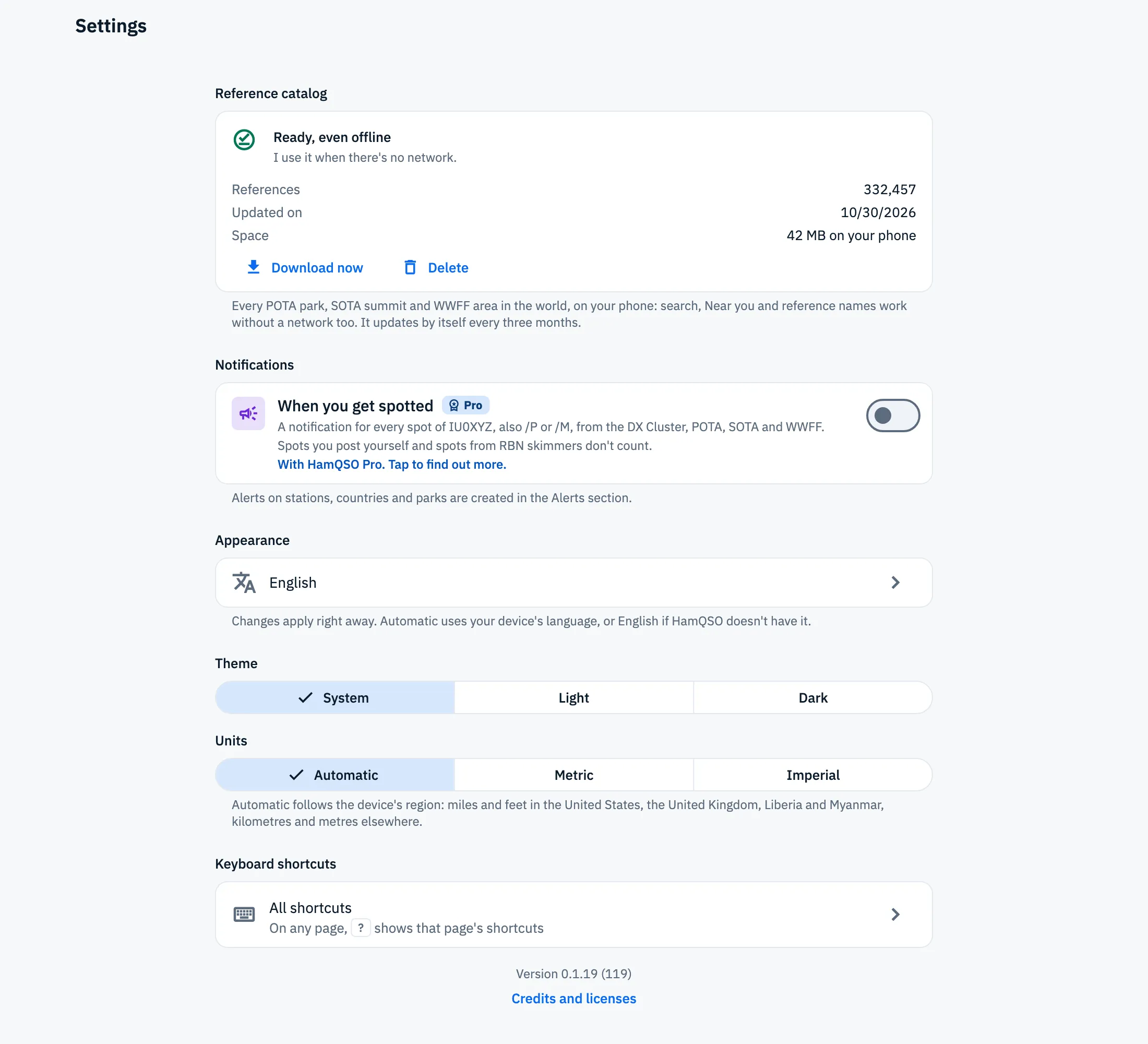
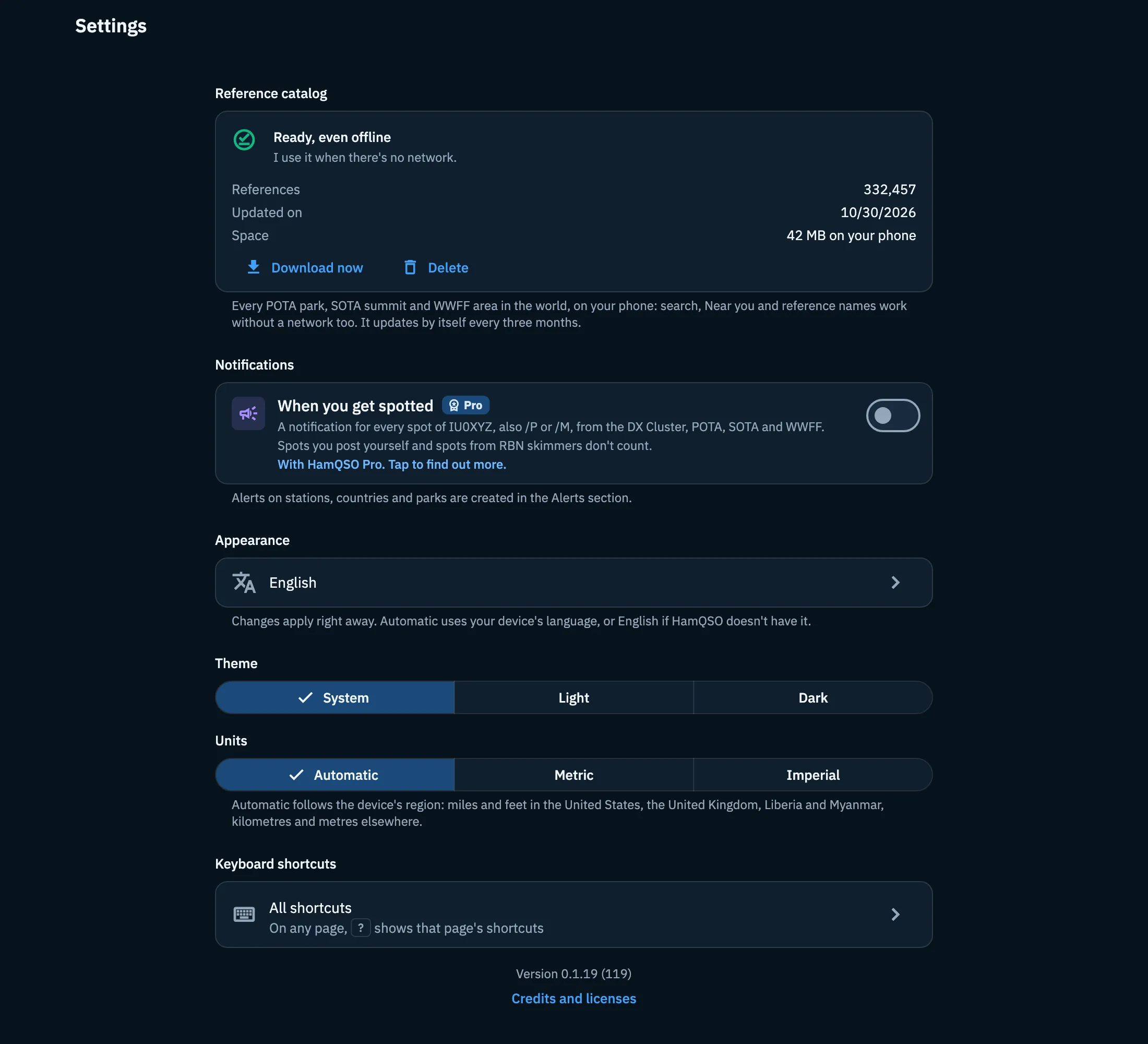
On the web there is also the theme button in the top bar: each click goes from System to Light, to Dark and back to System. It is the same setting as Theme. The text under the catalog says "in your browser" instead of "on your phone": the catalog is stored in the browser.
Troubleshooting
You can't find your callsign or locator in Settings. They are in Your profile: in Profile, tap the card at the top with your callsign.
The "When you get spotted" switch won't turn on. Without Pro, tapping it opens the paywall. With Pro it needs your callsign: tap Set your callsign.
"Can't reach the service. Check your connection." after tapping "When you get spotted". The choice is saved in your profile and did not get through: the switch goes back to what it was. Try again when you are online.
You turned on "When you get spotted" but no notifications arrive. If the card says notifications are off, turn them back on in the phone settings (or from the padlock next to the address, in the browser).
"Could not read the logbook settings". Tap Retry. If a change does not get through you read "Setting not saved. Try again." and the saved value comes back: make the change again.
"I can't load the settings." in eQSL. The eQSL settings live on the server: check your connection and tap Retry. If a save fails, "I can't save. Try again." appears in red at the top.
Language, theme or units are different on another device. These choices stay on the device where you make them: set them there too. Logbook and eQSL settings follow you instead.