
Activating a POTA park or a SOTA summit
Announce your activation on POTA, WWFF and to your followers with I'm on the air, log your QSOs and see when the activation is valid.
FreeUpdated for HamQSO 0.1.19
On this page
When you are in a park, a WWFF area or on a summit, I'm on the air tells everyone you are transmitting: one send spots you on POTA and WWFF, notifies the people who follow you on HamQSO and updates your live page. It then opens the activation's operation in the log, where the counters tell you when the activation is valid.
Opening I'm on the air
- Tap Spot:
- on a phone it is the button at the bottom right of the DX and xOTA sections, and the megaphone icon at the top of the Log pages (list of operations and page of an operation);
- on a tablet it is at the top of the side bar, in the DX, xOTA and Log sections;
- in the desktop window it is at the top of the side bar in every section, or press S.
- Choose I'm on the air ("Announce your activation on POTA and to your followers"). The other choice, Spot a station, is for other stations: see Spotting a station.
On a phone I'm on the air opens as a sheet from the bottom; on a tablet or computer as a window in the middle of the screen. You can also open it by tapping the text of the question that appears after a QSY on the operation page ("You moved to …"): the comment then starts with "QSY " (see Automatic re-spot and QSY).
Announcing the activation
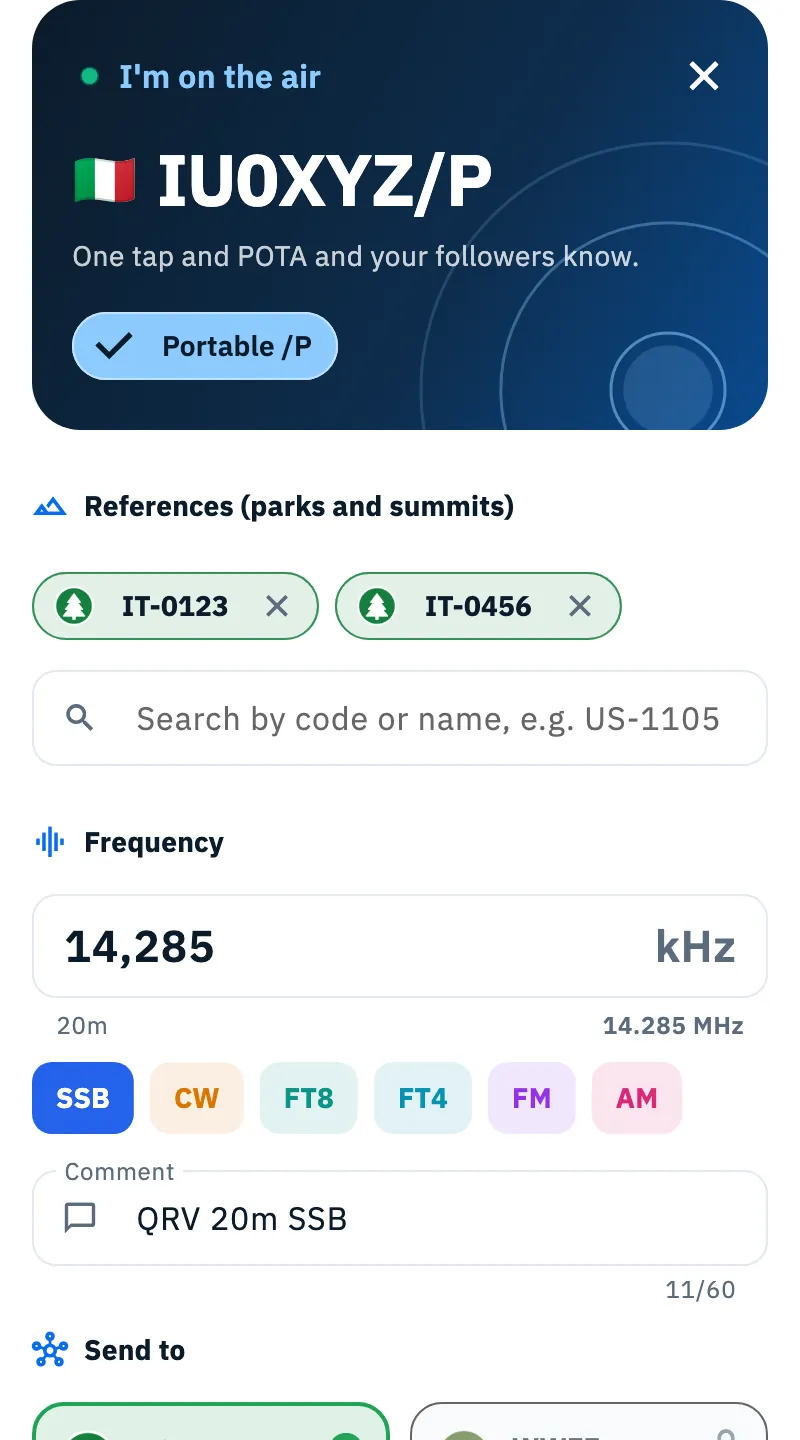
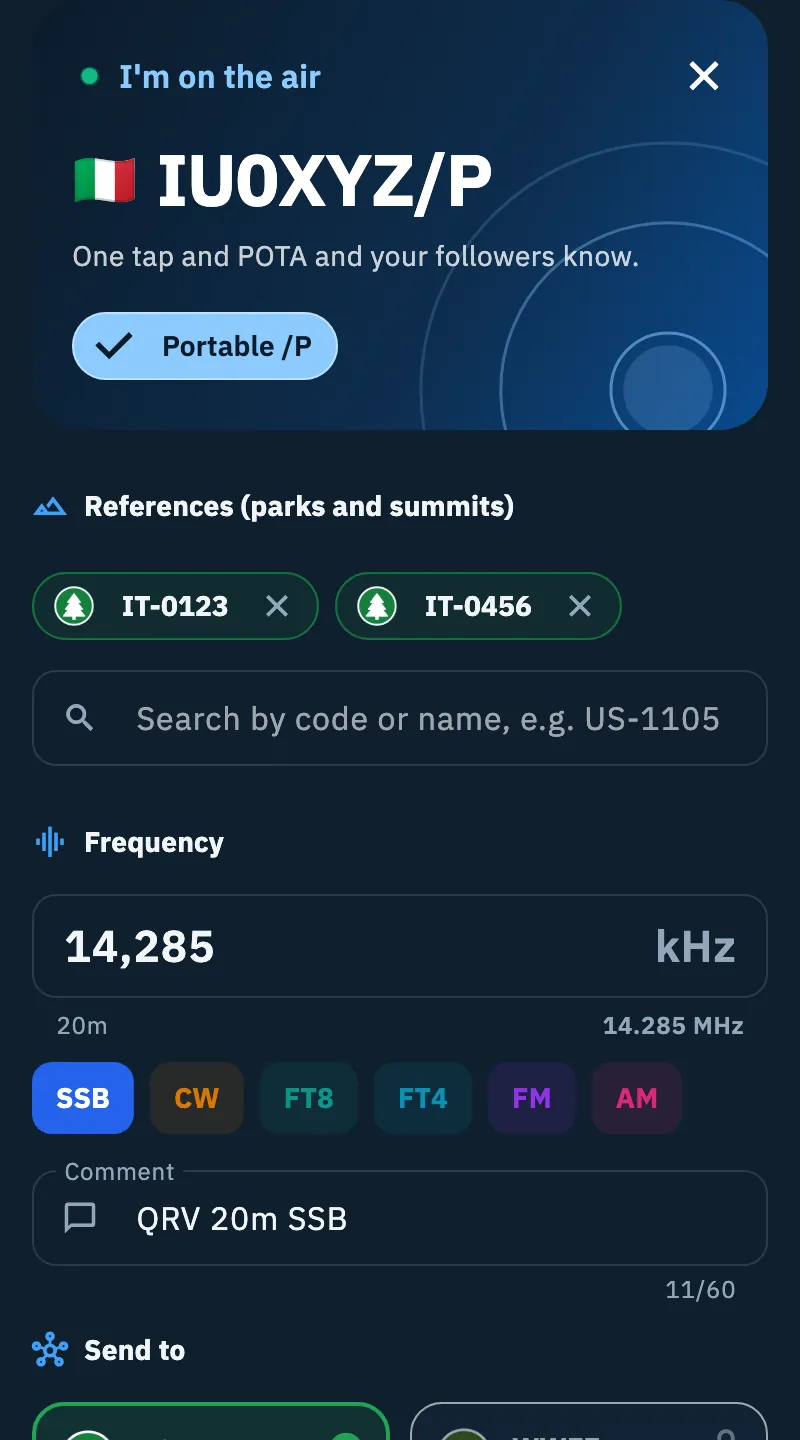
- At the top, check your callsign. Turn on Portable /P if you are operating portable: the app adds /P to the callsign of the spot.
- In References (parks and summits) tap the Search by code or name bar and choose the POTA park, WWFF area or SOTA summit you are transmitting from. You can choose more than one (up to 6), for a 2-fer or a park on a summit. Each reference becomes a chip with the program's mark; the chip's x removes it. For the search see Finding and choosing references.
- In Frequency type the frequency in kHz. The band appears under the field; when the field is empty you read "Type the frequency you are on". With a connected radio the frequency comes by itself, marked From the radio; if you changed it by hand, Use the radio reads it again (see Using the connected radio).
- Choose the mode: SSB, CW, FT8, FT4, FM or AM.
- If you like, type a Comment (for example "QRV 20m SSB, then 40m CW"), 60 characters at most.
- In Send to check which networks are on (see below).
- Leave Live page on or turn it off.
- Tap Announce on N networks: the button says how many networks the announcement goes to.
While it sends, a spinner takes the place of the button's icon. Without network the button says Queue spot: the spot waits on the phone and goes out as soon as the network is back, and the operation in the log opens anyway ("Operation opened. The spot goes out when the network is back."). See Spots sent while offline.
What is already filled in
The sheet opens at once, even without network, with what the phone already knows. Usually you only need to check it and tap Announce.
- References: those of the activation operation in progress in the log; without one, those of your activation still on the air; otherwise the last ones you used.
- Frequency and mode: when you open the sheet from the log, those typed in the QSO entry bar; otherwise those of the last QSO of the operation in progress, or of your activation still on the air. A connected radio wins over everything. Without any of these the mode is SSB.
- Portable /P, Live page and Comment: as you left them at your last announcement. At first Live page is on.
An activation counts as "still on the air" if it had a spot in the last 2 hours: yesterday's activation that was never closed is not offered again. If the server's answer about your activation arrives after the sheet has opened, the app updates only the fields you have not touched yet. Without network, or with a slow server, the sheet keeps the phone's data, with no error.
The networks: POTA, WWFF and HamQSO
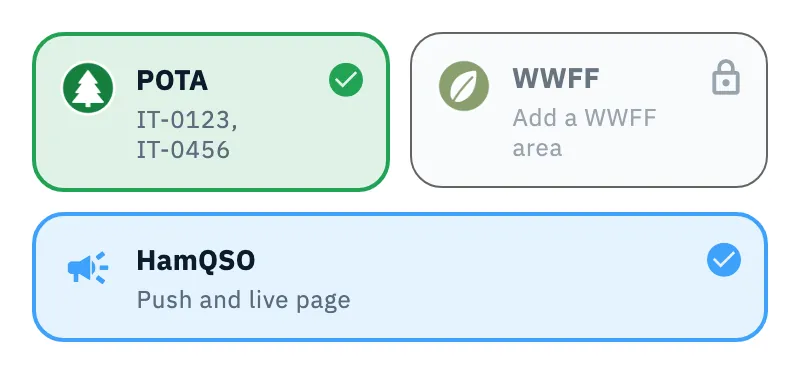
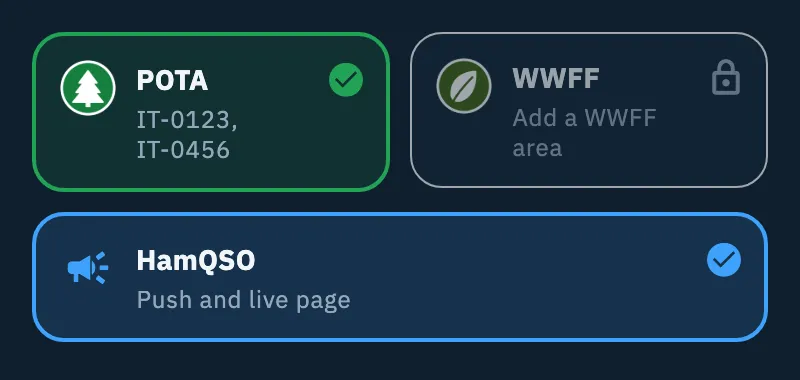
Send to has three tiles. A tile that is on takes the network's color and a check mark; tap an available tile to turn it on or off.
| Network | What it does | When it is available |
|---|---|---|
| POTA | Sends one spot to POTA for each park chosen. Under the name it shows the parks, or Add a park. | With at least one POTA park in the references. |
| WWFF | Sends one spot to WWFF for each area chosen. Under the name it shows the areas, or Add a WWFF area. | With at least one WWFF area in the references. |
| HamQSO | Push and live page: sends a notification to the people who follow you and updates your live page. | Always. |
A tile that is not available has a lock. Tap it to read what is missing: for POTA and WWFF there is an Add reference button that opens the reference search; the x closes the explanation. A WWFF code such as IFF-0123 never goes to POTA, even though it looks like a park.
Live page appears under the tiles when HamQSO is on: your activation live on hamqso.app/live/ followed by your callsign, with frequency, mode and references, no location. See The activation live page.
You're on the air!
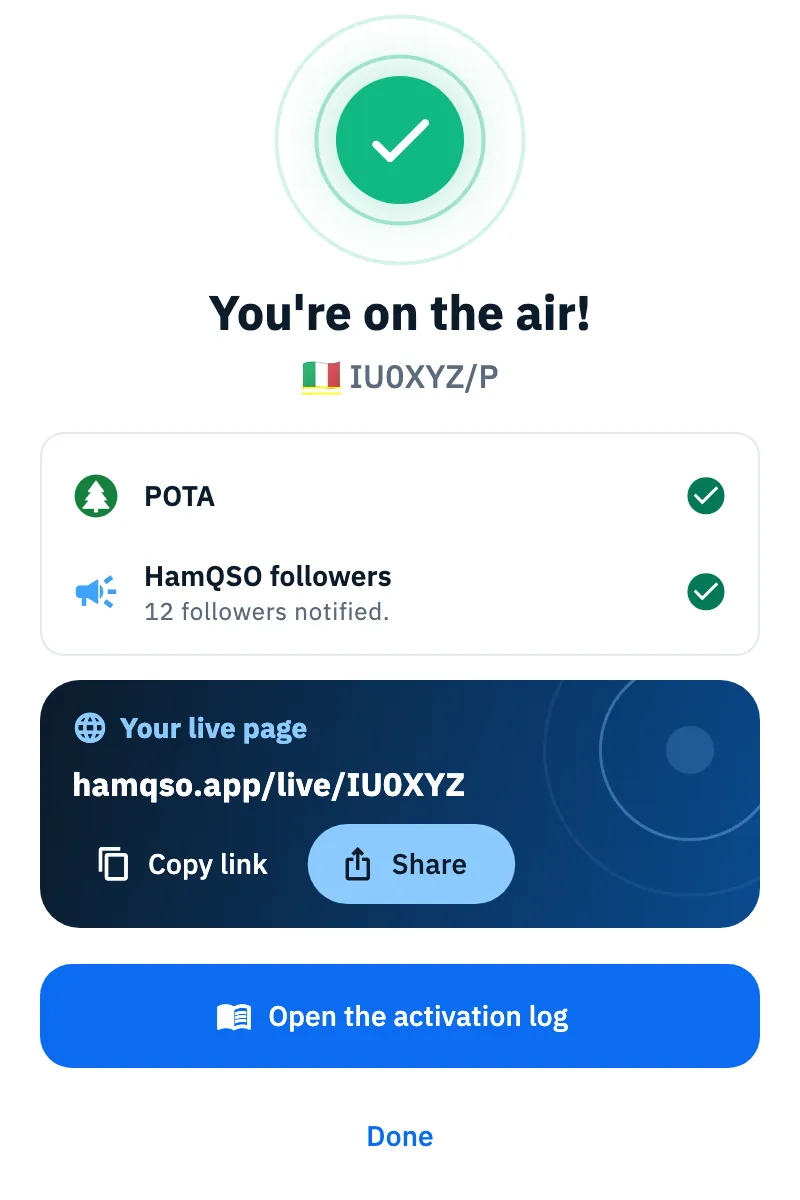
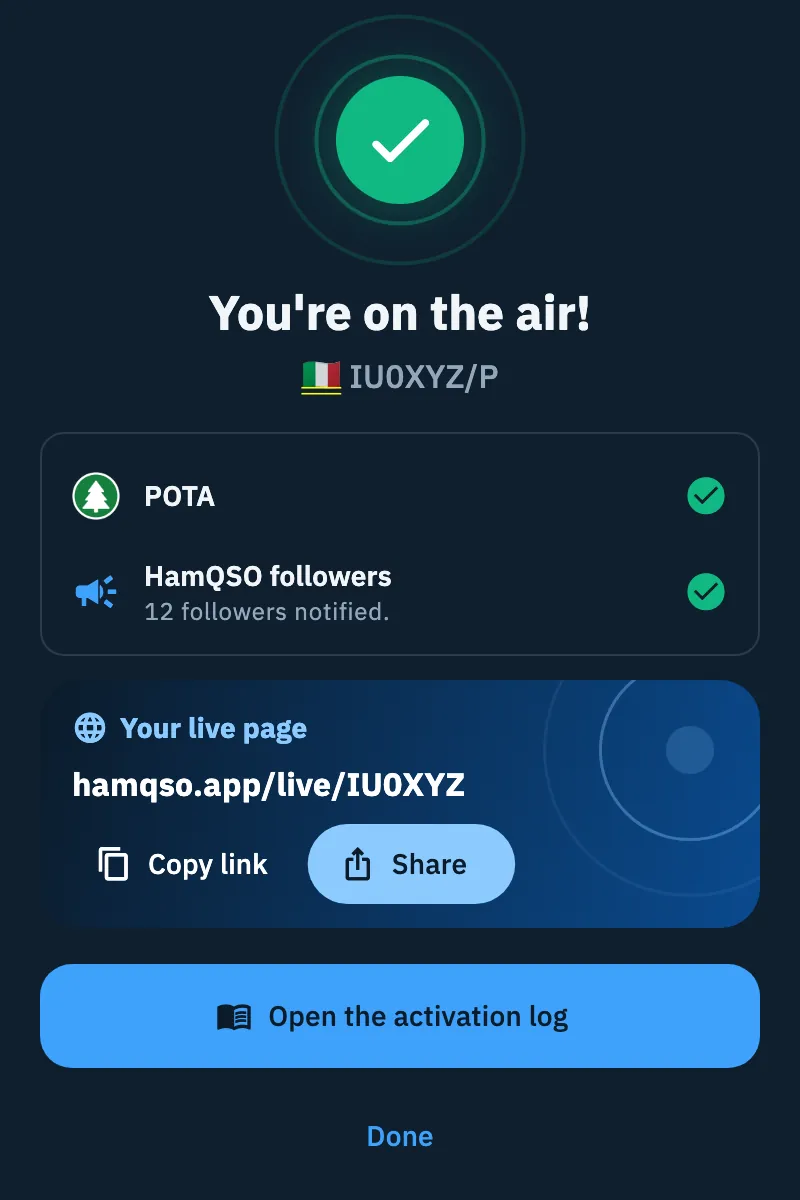
After sending, the sheet shows You're on the air! with your callsign and one row per network with its outcome:
- for HamQSO, how many followers were notified (for example "12 followers notified.", or "No followers to notify for now." if nobody follows you). If you read "Followers not alerted again this time: the live page is updated.", you had notified them shortly before: HamQSO sends the notification at most once every 5 minutes, and not while the same callsign is on the air from another account;
- for WWFF you may see Already spotted on WWFF: the spot was already there, nothing to do;
- a network that failed says Failed, try again shortly, or the reason WWFF gave.
With the live page on there is the Your live page card with the link, Copy link and Share. Then:
- Tap Open the activation log to go to the operation and log your QSOs.
- Or tap Done to close.
The operation in the log
After Announce (or Queue spot) the app opens the activation's operation in the log and makes it the current one, so you can log your QSOs right away. If there is already an operation with the same callsign and the same references, started or used today (UTC day), it takes that one, even if you had archived it; otherwise it creates a new xOTA activation with the references of the announcement, or a Portable operation if you announced without references. With the live page on it is an announced operation, linked to your announcement on the live page.
If the log cannot get ready, the spot goes out anyway: only the Open the activation log button is missing. To log your QSOs see Logging a QSO.
You can also prepare the operation before you leave: see Creating an operation. In the References step ("Where are you activating?") or in Operation settings, References section:
- Under Add reference choose the program: POTA, SOTA, WWFF or IOTA.
- Tap Search by name or code or Find near me: both open the POTA references search (or that of the program chosen), which shows the references near you before you type; then search by code or name.
- For IOTA, which has no catalog, type the code (for example EU-130) and tap +.
- Remove a reference with the x on its chip.
You can mix references of different programs in the same activation. Without references you read "No reference chosen". References can only be added to operations of type xOTA activation.
When the activation is valid
In the references step, For a valid activation shows the threshold of each program chosen. That threshold then becomes the counter at the top of the operation page, one per reference.
| Program | Threshold | What counts |
|---|---|---|
| POTA | 10 QSOs in the same UTC day | Different contacts (callsign, band and mode) in the UTC day. |
| SOTA | 4 different stations in the same UTC day | Different stations in the UTC day, without /P or prefixes. |
| WWFF | 44 QSOs in total, even over several outings | Different contacts (callsign, band and mode) over every activation of that area: the same station counts again on another UTC day. It does not restart each day. |
| IOTA | No threshold: every QSO counts | No counter. |


Each counter shows the number reached against the threshold (for example 7/10), today (UTC) or in total for WWFF, a bar in the program's color and what is left ("3 QSOs to go", "1 station to go"). At the threshold Valid activation appears in green. The counter counts the QSOs of that reference across your whole log, not only in this operation.
The activation day is the UTC day: at UTC midnight the POTA and SOTA counters restart from zero. So that it does not look like lost QSOs, the notice "New UTC day: 0/10" appears with Previous day and the result of the operation's last day with QSOs; tap Got it to close it. WWFF does not restart.
On a phone, once every threshold is reached, while you type a QSO or over the map and the statistics, the counters fold into a small pill at the end of the operation's type line; with more references the pills take the place of that line and scroll sideways. The new UTC day notice always stays in view. On a tablet or computer the counters of several references sit side by side. For the whole page see The operation page.
Closing the activation
If you open I'm on the air again while your activation is still on the air, at the top you read for example "On the air for 47 min on 14.285 SSB" with the Close operation button.
- Tap Close operation.
- The page of the activation's operation opens and asks you to close it: there you choose the QRT, the closing and the summary. See Closing, reopening and deleting an operation.
If the operation cannot be found in the log, the app only closes the activation on the live page and tells you: "Activation closed: the live page now shows you off the air."
Free and Pro
Everything on this page is free: announcing the activation, the networks, the live page, the operation in the log and the counters.
Troubleshooting
- "Your callsign is needed to spot." You have not set your callsign yet: tap Your profile next to the notice and type it. Until then the button stays off. See Your profile: name, callsign and locator.
- The Announce button is off. It needs a frequency in an amateur band and at least one network on. When no network is on the button only says Announce: turn on at least one tile in Send to, or add a park or an area.
- "The frequency is not in an amateur band." Check that you typed it in kHz (for example 14285 for 14.285 MHz).
- POTA or WWFF has the lock. The park or the area is missing: tap the tile, then Add reference.
- "Not in the POTA catalog: the spot goes out anyway" in the search. The reference is not in the app's catalog (for example a park added recently): you can use it anyway.
- "Your spot already went out at …" ("We won't send it again."). The same spot had already gone out, for example from the offline queue: nothing to do.
- "Sending failed. Check the connection and try again." Nothing went out: check the connection and tap the button again. With "Too many spots in a short time: try again in a few minutes." wait a few minutes.
- "Failed, try again shortly" on a network. That network did not take the spot: try again in a few minutes. The other rows with a check mark went out.
- The counter went back to zero. It is UTC midnight: for POTA and SOTA a new day starts. The earlier result stays under Previous day.