
Following activations on the air
See which POTA parks, SOTA summits and WWFF areas are on the air now, on which frequency, and read every card of the xOTA list.
FreeUpdated for HamQSO 0.1.19
On this page
The xOTA section shows you, in one live list, who is activating a POTA park, a SOTA summit or a WWFF area right now, on which frequency and in which mode. Here you find how to open it, how to switch between programs and what every card tells you.
Opening the list of activations
- Tap xOTA in the section bar: it is the second one, with the mountain icon (at the bottom on a phone, in the side bar on tablet and web).
- At the top, choose the All tab to see every program together, or the tab of one program (POTA, SOTA, WWFF).
- Look at the first row above the cards: when it says Live, new activations appear at the top as they arrive.
- Narrow the list with the band strip and the mode chips, as in the DX list: see Filtering spots by band and mode.
- Tap a card to open the detail of the park, summit or area: see Opening a park, summit or area.
The spots come from the HamQSO spots server, newest first. There is nothing to set up: you see the spots of the programs you follow, all three at the start. To turn one off, see Choosing the programs you follow.
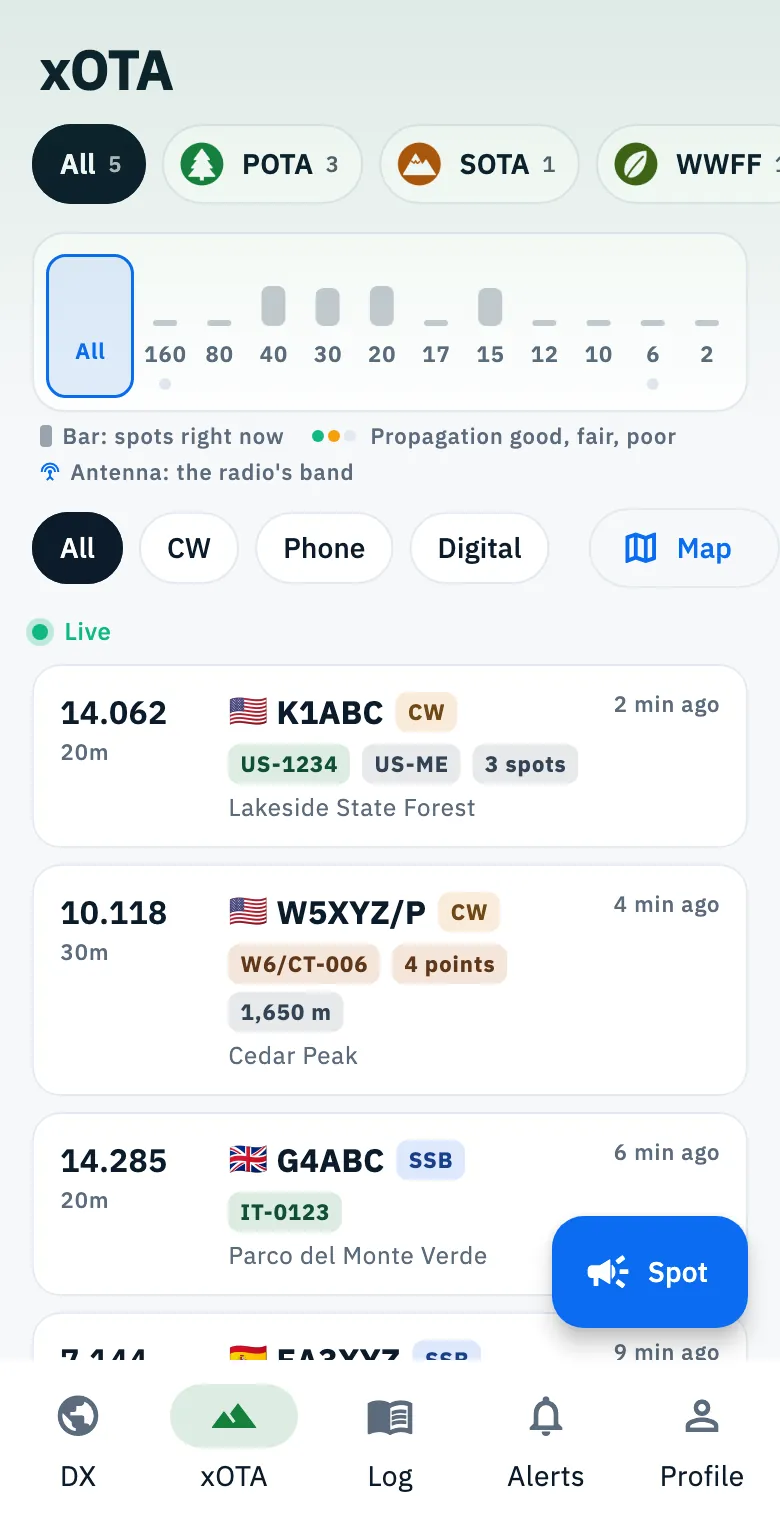
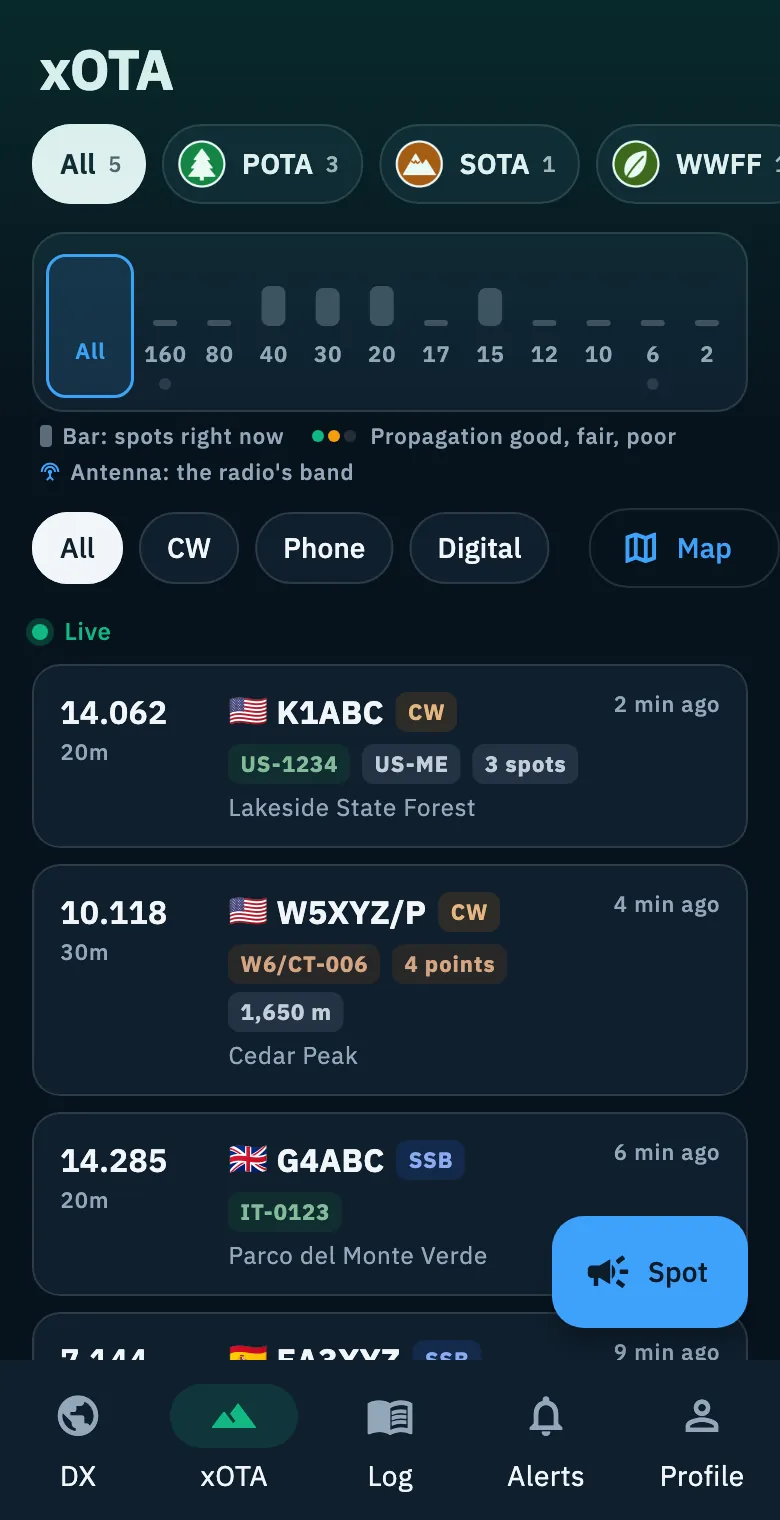
If you have a radio connected and tuning on tap turned on, tapping a card also tunes the radio to the frequency of the activation: see Tuning the radio from spots.
The program tabs
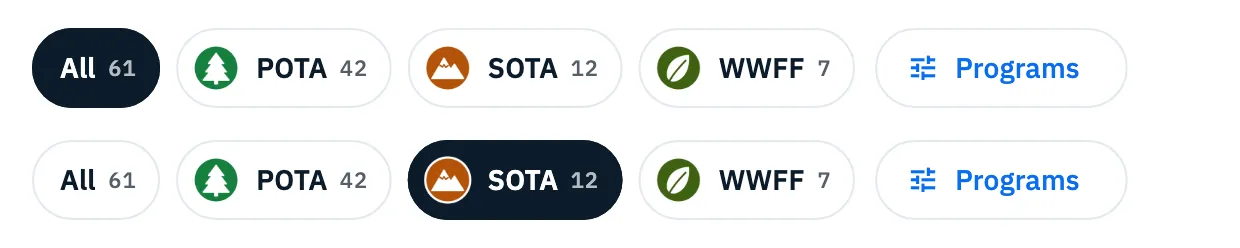
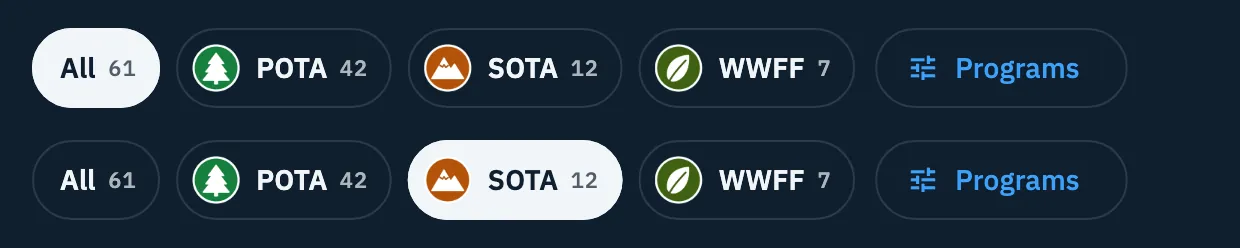
At the top there is a row of tabs:
- All: every program together. Its number is the sum of all programs.
- one tab for each program you follow, with its mark and the number of activations on the air. Tap it to see only that program: the band chosen in the band strip takes the color of the program.
- Programs, the last one, with the adjust icon: it opens the page where you turn programs on and off (see Choosing the programs you follow).
Programs are in order of activity: the one with the most activations right now comes first, and the order changes as the list updates. A program with no activations shows 0 and moves to the end. If the row does not fit on the screen, scroll it sideways.
The numbers count the activations on the air for the whole program, without the band and mode filters, and they leave out the ones that have ended (QRT). That is why, unlike the DX list, the first row does not repeat the number of spots when you have no filters: it is already on the tab.
The app remembers the tab you chose and opens it again next time. If you turn off the program of the chosen tab, the list goes back to All.
Which activations you see
The list keeps itself tidy, with these rules:
- One row per activation and band. An activation is a callsign at a reference. If the activator is spotted again on the same band, their row is updated with the frequency, time and comment of the latest spot; if they move to another band, a second row appears.
- Only the last 30 minutes. An activation spotted more than 30 minutes ago leaves the list by itself, even when nothing new arrives. This is the same for every program and cannot be changed. If an activator is still on the air but nobody has spotted them for half an hour, you do not see them.
- QRT. When an activator closes down (the program says so, or the comment of a spot contains the word "QRT", not "QRTX"), every row of that activation, on every band, stays visible but faded with a red QRT mark, and no longer counts in the tab numbers. If the same activator is spotted again after the QRT, the row is active again.
- A QRT spot without a frequency (common on SOTA) closes the other rows of the activation but does not become a row of its own.
What each card tells you
Every activation is a card with the frequency and band, the activator's callsign, the mode, the age of the spot, the reference code in the program color and, below, the name of the park, summit or area (or the comment, when there is no name). The frequency is written as the app shows it, never rounded (for example 14.062). The mode is the one the program reports.
Each program adds its own information:
| Program | What the card adds |
|---|---|
| POTA | The region of the park (for example US-ME; for a park in more regions, the first one) and the number of spots the activation has received, for example 3 spots, when there is more than one. |
| SOTA | The points of the summit (for example 4 points) and its height, in metres or feet depending on the units you chose (see Language, theme and units). They appear only when the spot carries them. |
| WWFF | The number of spots of the activation when there is more than one. WWFF areas have no region. |
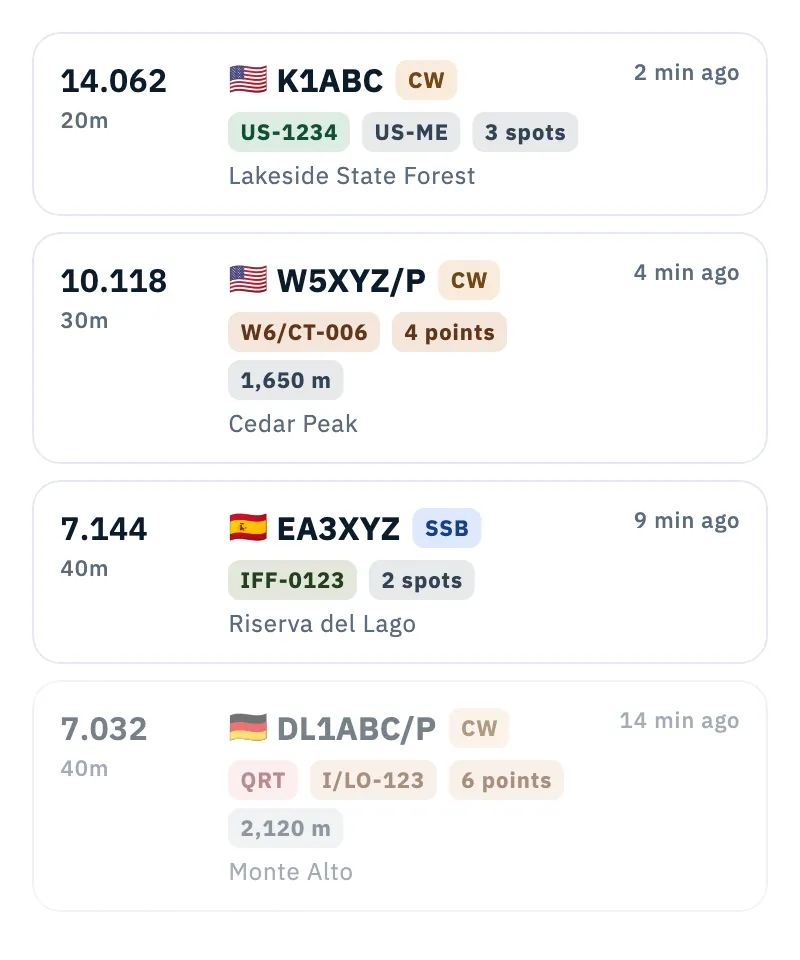
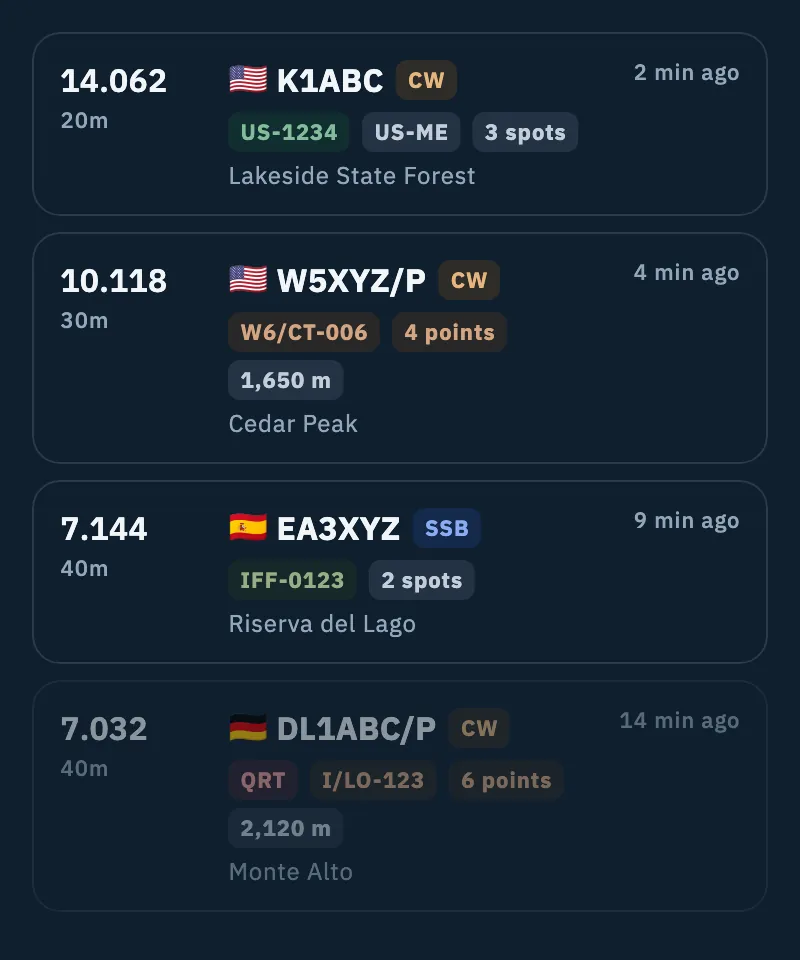
Other marks you can find on a card:
| Mark | What it means |
|---|---|
| QRT (red, faded card) | The activation has ended. |
| Done (grey, shorter card; on a computer, a faded row) | You have already done this reference today (UTC) on this band, in the operation in use. The card stays in the list but stands out less. The other marks from your log are in Spotting what you have already worked. |
| It's you (amber tint) | The spot is of your own callsign: see Knowing when you are spotted. |
| Blue dot and blue age | The spot arrived less than a minute ago. |
Recognizing the programs
Each program has its own color and mark:
- you see the color on the reference code of every card, on the chosen band when you are on that program's tab, and on the pins of the map;
- you see the mark (a stylized tree for POTA, peaks for SOTA, a leaf for WWFF) on the program tabs and on the other screens that list the programs. HamQSO draws them: they are not the official logos of the programs.
On the All tab you tell the program of a card by the color and the shape of its code. The app recognizes it the same way, also when you type a code by hand (in a QSO, in a spot, in the command palette):
| Program | Shape of the code | Example |
|---|---|---|
| POTA | prefix, dash and 4 or 5 digits | US-1234, IT-0123 |
| SOTA | association, slash, region, dash and 3 digits | W6/CT-006, I/LO-123 |
| WWFF | prefix ending in FF, dash and 4 digits | IFF-0123 |
A code like IFF-0123 also has the shape of a POTA park: the app reads it as WWFF first.
Phone, tablet and web
- Phone: the list fills the page and tapping a card opens the detail page. The map button (Map) at the end of the mode row opens the map of the activations on a page of its own.
- Tablet, and the web in a narrower window (from 840 px wide): list on the left, detail on the right. Until you choose a card, the right side reads "Select a spot to see its details here". Above the detail you can open the map or the globe.
- Web on a computer, in a window at least 1200 px wide: each activation is a single, denser row. Press 2 to open the xOTA section from any section. Press Space to hold the live list still and read it calmly: the first row says Paused and a pill counts the new spots ("3 new spots, press Space").
The view next to the list (Map, Globe or None) is remembered for the xOTA section, separately from the DX list. Everything about the map and the globe is in Activations on the map and globe.
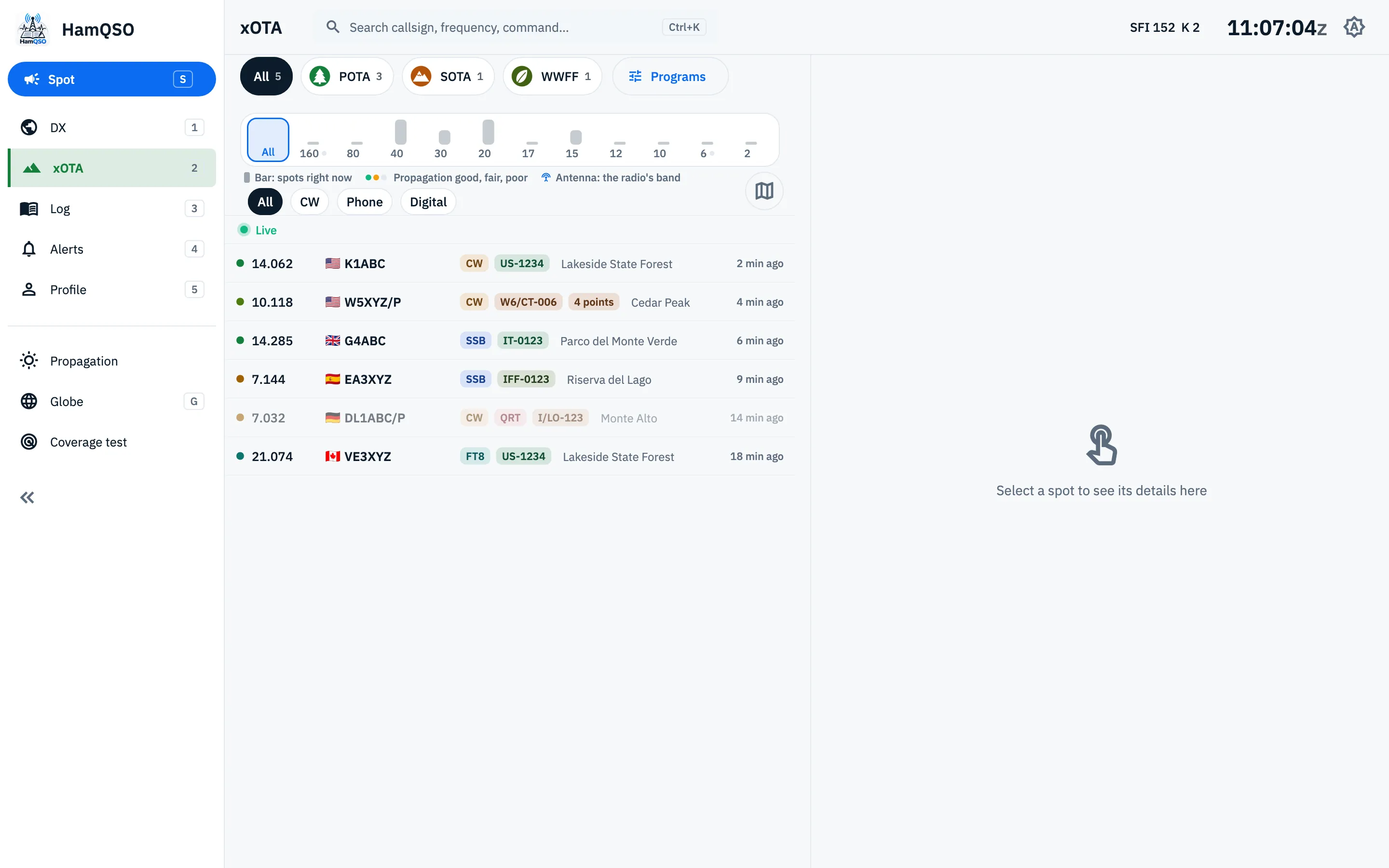
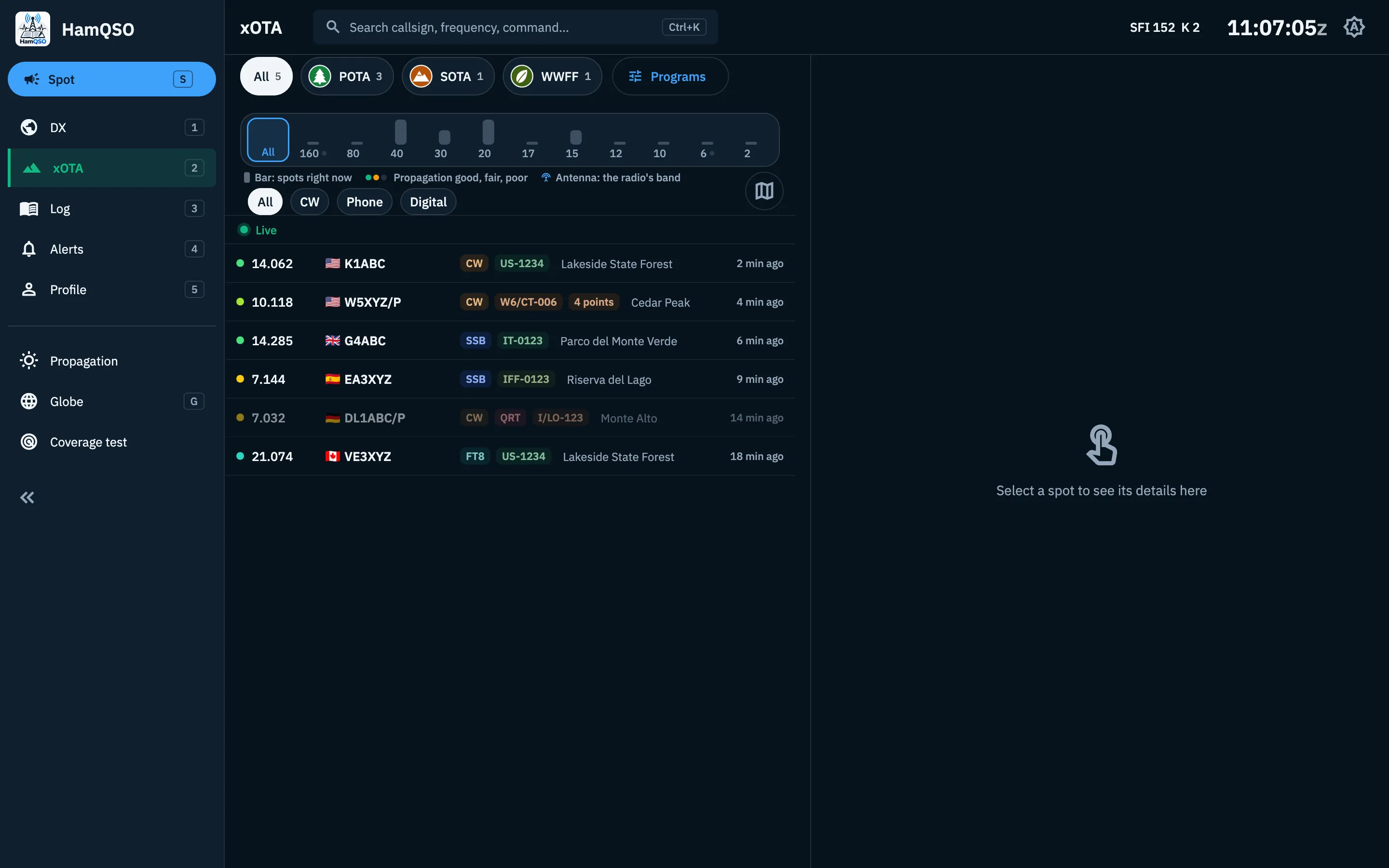
The list is connected to the server only while the xOTA section or its map is on screen and the app is in the foreground: when you come back, it updates by itself.
Troubleshooting
- The first row says "Connecting…". The app is connecting to the spots server: wait a moment. On the All tab it says Live only when every program is connected; on the tab of one program only that program counts. A program that does not answer never hides the others: its spots stay while it reconnects.
- "Server unreachable. Check your connection." The connection has been failing for a while. Check your network: the app keeps trying by itself.
- An error message with Retry instead of the cards. The list has never loaded: check your connection and tap Retry.
- "Refresh failed: showing the last downloaded data". An update did not go through, but the list stays. Tap Retry or pull the list down.
- "Offline" or "No internet". You see the last list saved on the device, with its age ("Offline: list updated 5 min ago. It refreshes when the network is back."). If you never opened it with a network, you read "No list on this device". See Using HamQSO offline.
- "No spots right now. Pull down to refresh." No activation of the programs you follow has been spotted in the last 30 minutes.
- "No spots match your filters". There are activations, but not on the bands or in the modes you chose: widen the filters or go to the All tab.
- An activator is on the air but I don't see them. If nobody has spotted them in the last 30 minutes, they have left the list. Also check that their program is on in Programs.
- The number on the tab is smaller than the cards I see. Activations that have ended (QRT) stay visible but are not counted.