
Logging in a contest with serials and exchanges
Set up a contest operation, send serials that advance by themselves, type the exchange received in one field and see duplicates at once.
FreeUpdated for HamQSO 0.1.19
On this page
In an operation of type Contest the entry bar offers the serial to send and moves it on at every QSO, has a field for the exchange received and tells you about duplicates while you type the callsign. All of it is free.
Setting up the contest operation
- Open Log and tap New operation (see Creating an operation).
- At the first step pick Contest ("Serials, exchanges and contest dupe checking").
- Fill in location and callsign and tap Continue until Last details.
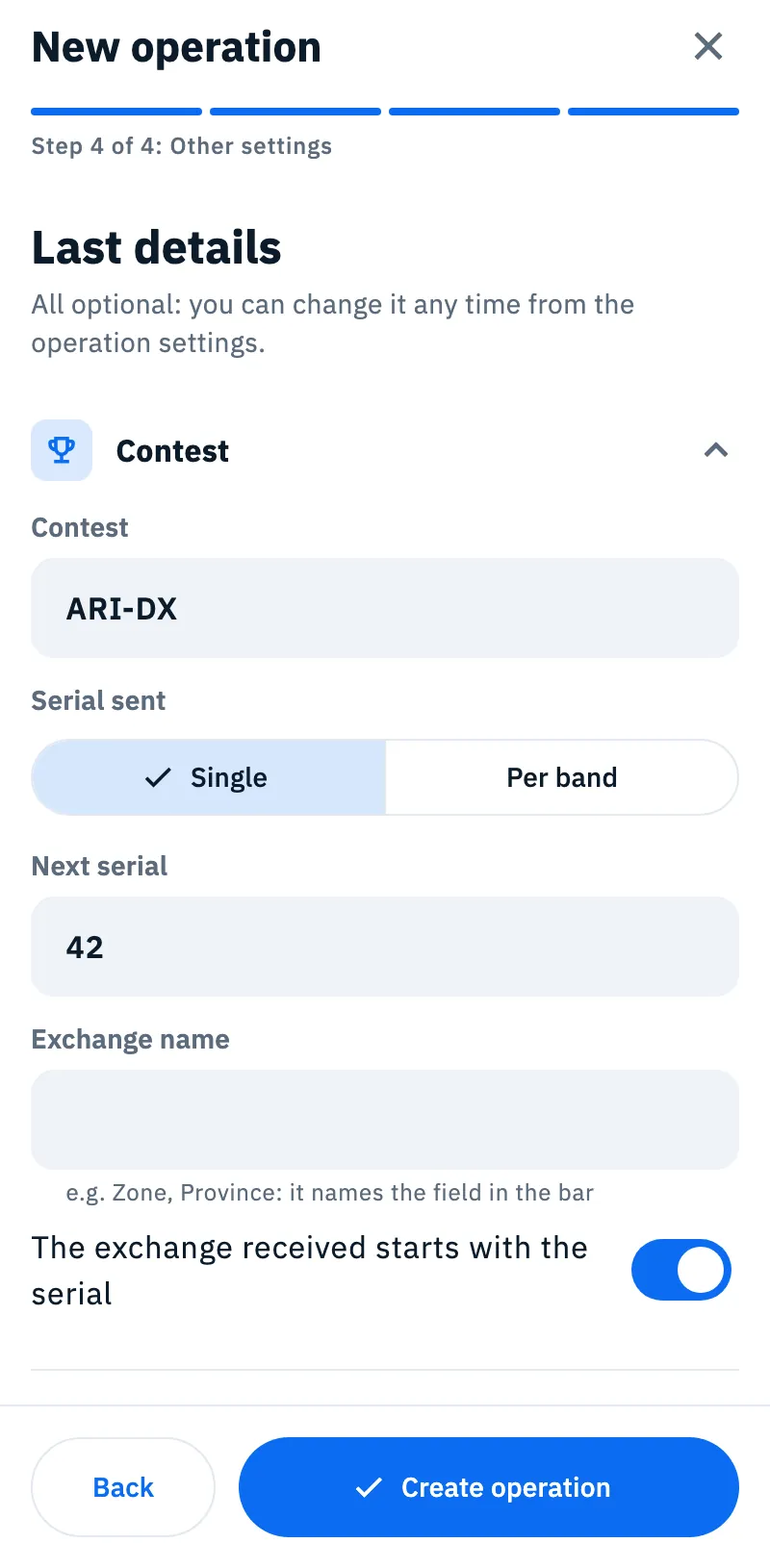
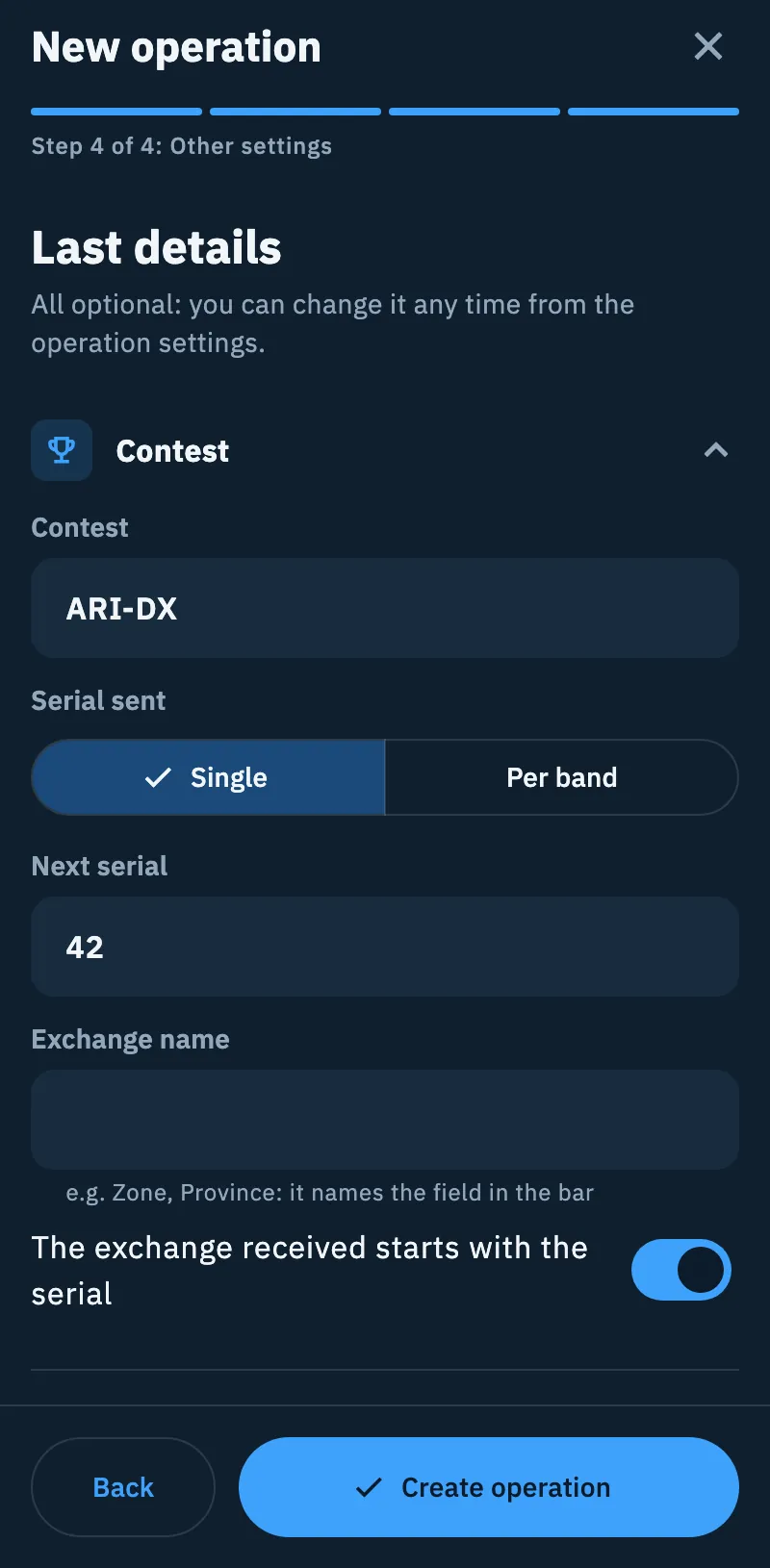
- Here the Contest section is already open. Fill in the fields (see the table below) and tap Create operation.
| Field | What it does | Default |
|---|---|---|
| Contest | The contest's name (e.g. ARI-DX). It is for you: it is the section's summary and does not go into the QSOs | Empty |
| Serial sent | Single: one numbering for the whole contest. Per band: one numbering for each band, starting from 1 | Single |
| Next serial | Only with Single: the number of the next QSO. It takes only numbers from 1 up | 1 |
| Exchange name | "e.g. Zone, Province: it names the field in the bar". Left empty, the field is called Exchange | Empty |
| The exchange received starts with the serial | On: the number at the start of what you type is the serial received ("123 MI"). Off: the whole text is the exchange, for example the CQ zone | On |
You can change the same fields later: open the operation, tap ⋮, choose Operation settings, open the Contest section and tap Save. The section is there for operations of type Contest, and the entry bar starts again with the new settings.
Logging a QSO in a contest
- Open the contest operation: the entry bar is ready.
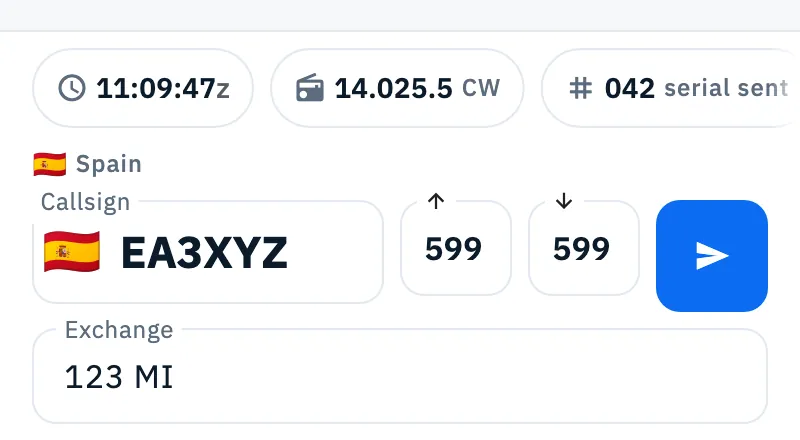
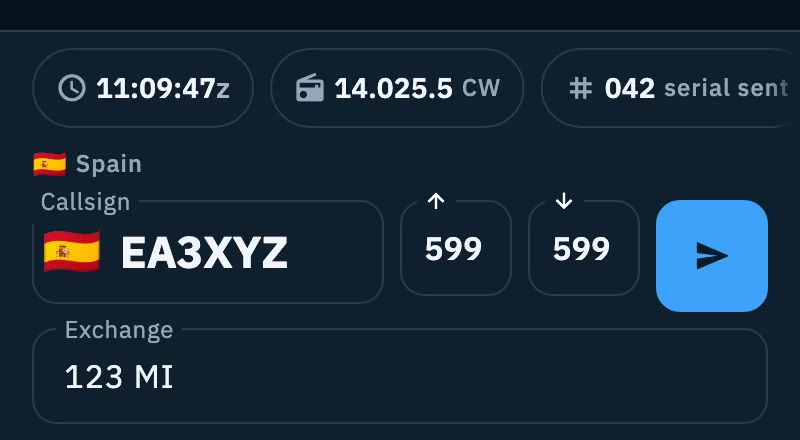
- In the chip row read the chip with the hash, for example 042 with "serial sent": that is the number to give.
- Type the callsign. Reports start from the mode as usual (see Logging a QSO).
- In the exchange field type what you receive, for example "123 MI" (the example in the field is "Serial and exchange, e.g. 123 MI"; with the serial switch off the field has no example). Letters become uppercase.
- Tap Save QSO (the paper plane button) or press Enter. The QSO is saved and the chip moves to the next number.
What the text in the exchange field becomes:
| Typed | With the switch on | With the switch off |
|---|---|---|
| 123 MI | Serial received 123, exchange received MI | Exchange received 123 MI |
| 059 | Serial received 59, no exchange | Exchange received 059 |
| MI | Exchange received MI | Exchange received MI |
- The chip always shows at least three digits (042); the QSO stores the number (42).
- Per band: the chip follows the band of the bar. Without a band there is no serial to offer and the chip does not show.
- The QSO and the counter's step are saved together: if the save fails, the serial does not move on.
- On a phone the exchange field sits on a second line under the callsign, always open. On a tablet and a computer it is on the same line as the callsign and the reports.
Correcting serials and exchanges
Tap the serial chip (or More fields) to open the full form. In a contest the Contest section starts open and has four fields:
| Field | What it holds |
|---|---|
| Serial sent | In grey, the number the chip offers. Type another one to send a different number: the typed one counts |
| Serial received | Typed here, it wins over the number typed in the exchange field |
| Exchange sent | What you give, if the contest asks for it (e.g. your province). It is for this QSO: for the next QSO you type it again |
| Exchange received | Typed here, it wins over the text of the exchange field |
Exchanges are written in uppercase. With the section closed, if you typed something in these fields the summary says for example "Serial 42, MI"; otherwise "Contest serials and exchanges".
After saving, you change serials and exchanges in the QSO details, section Contest (see Opening and editing a QSO). In the ADIF export they go into the STX, SRX, STX_STRING and SRX_STRING fields (see Exporting your log as ADIF).
Duplicates in a contest
While you type a callsign already worked in the operation, the bar tells you above the fields:
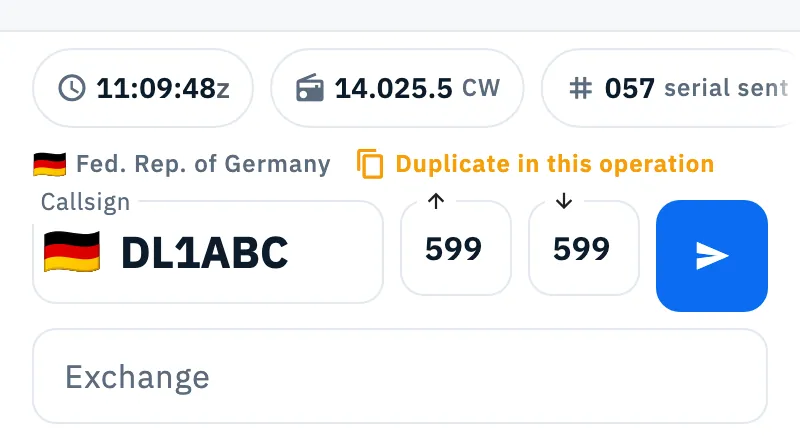
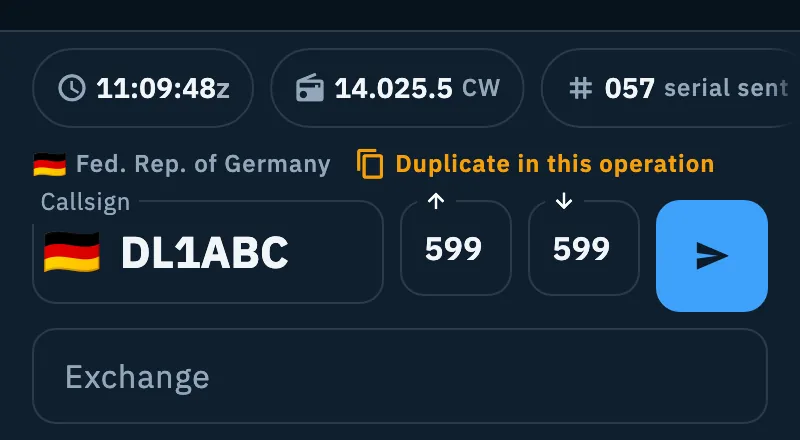
- on a phone, where the bar has two lines in a contest, the station line shows Duplicate in this operation with an orange icon, after the country;
- on a tablet and a computer an orange band Duplicate in this operation shows with the earlier QSO, for example "already worked at 14:02z on 20m CW" (UTC time).
It only tells you: you can still save the QSO. Tap the station line to see who it is and the earlier QSOs.
What counts as a duplicate is chosen in Operation settings → Duplicate check:
| Rule | When the QSO is a duplicate |
|---|---|
| No check | Never |
| Once across all bands | Same callsign, on any band and mode |
| Once per band | Same callsign on the same band |
| Once per band and mode (default) | Same callsign on the same band and in the same mode |
In a contest the check looks only at the QSOs of the operation, not at the whole log. USB and LSB both count as SSB, and the callsign is compared exactly (EA3XYZ/P is not EA3XYZ). The rule for new operations is chosen in Logbook settings, section Logging, option Dupe check in new operations. For all the details see Who you are working, and duplicates.
Hidden fields and the desktop window
- In Logbook settings → Fields in the entry bar you can hide Context field (exchange, reference) and the Contest section of the full form. A hidden field stays in your QSOs and exports, and the serial sent is saved anyway. See Logbook settings.
- In the desktop window the log table drops columns when space is short, but in a contest the No. column always stays. It is the QSO's order number in the operation; the serial sent is in the QSO details.
Troubleshooting
There is no serial chip. Check that the operation is of type Contest: the contest settings count only there. With Per band a band is needed: if the frequency chip says Pick band, tap it and pick one.
I lowered "Next serial" but the chip does not change. After the first QSO with a serial the counter does not go back. To send a different number in one QSO, type it in More fields → Serial sent.
The serial received ended up in the exchange. The switch The exchange received starts with the serial is off: turn it on in the operation settings, or type the number in More fields → Serial received. The number must come first: "MI 123" is all exchange.
I don't see the exchange field. The operation is not of type Contest, or Context field (exchange, reference) is hidden in Fields in the entry bar.
I don't see the duplicate warning. With No check it never shows; with Once per band and mode the same callsign in another mode is not a duplicate. The check looks only at the operation in use.