
Importing an ADIF file
Bring the log of another program into HamQSO: preview the file, choose the operation and what to do with QSOs you already have.
FreeUpdated for HamQSO 0.1.19
On this page
- Opening the import
- Choosing the file
- Reading the preview
- Choosing where the QSOs go
- QSOs already in the log
- Recompute country and zones from the callsign
- Already uploaded to
- Importing
- Resuming an interrupted import
- The summary
- Sending the eQSL HamQSO to the imported QSOs
- Records left out
- Sharing an ADIF to HamQSO (iOS and Android)
- Dropping files on the window (web)
- What HamQSO reads
- Free and Pro
- Troubleshooting
If you keep your log in another program, or in LoTW, eQSL.cc or Club Log, you can bring it into HamQSO with an ADIF file. Before writing anything HamQSO shows you what the file holds, then asks which operation the QSOs go into and what to do with the ones you already have: QSOs already in the log are recognized, so there are no duplicates. The import also works without the network.
Opening the import
- Open Log.
- Tap ⋮ (Log menu) next to the Operations title.
- Choose Import ADIF.
While the log is still empty you also find Import an existing log below the welcome message. You can also reach the import by sharing a file from another app (iOS and Android) or by dropping it on the window (web): see below.
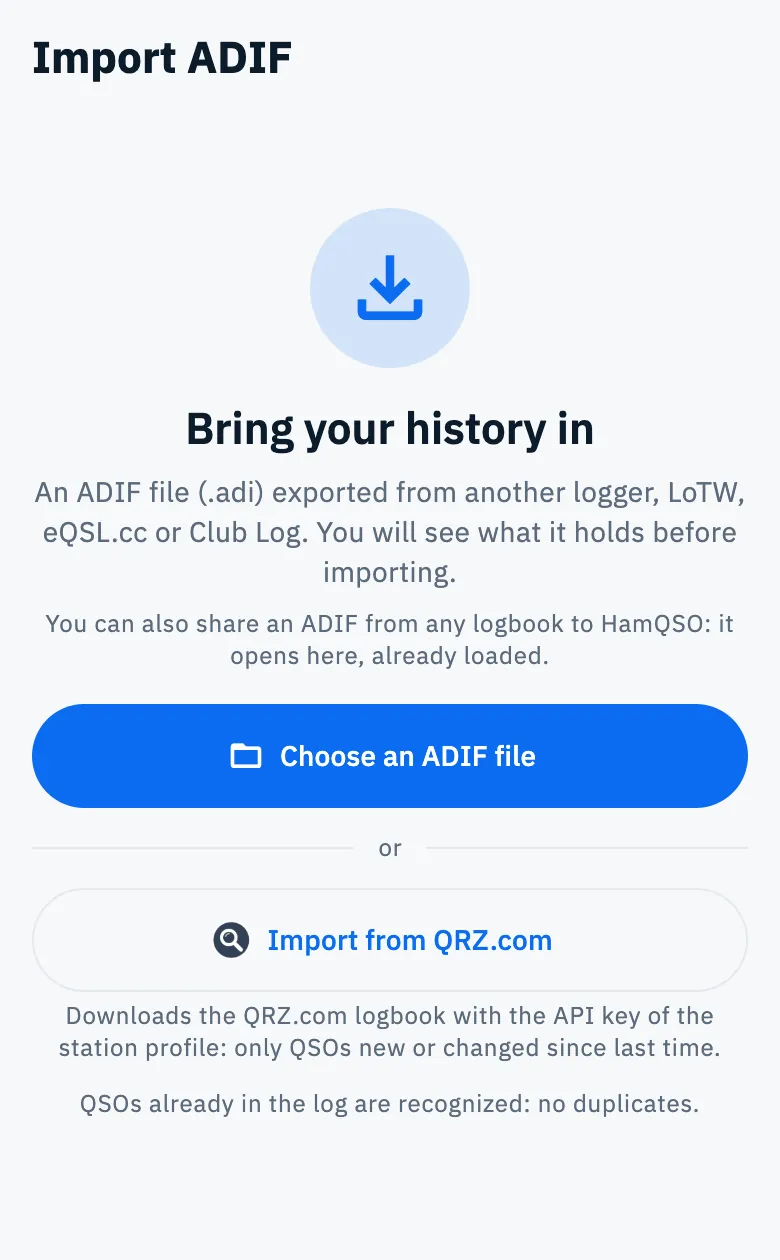
Choosing the file
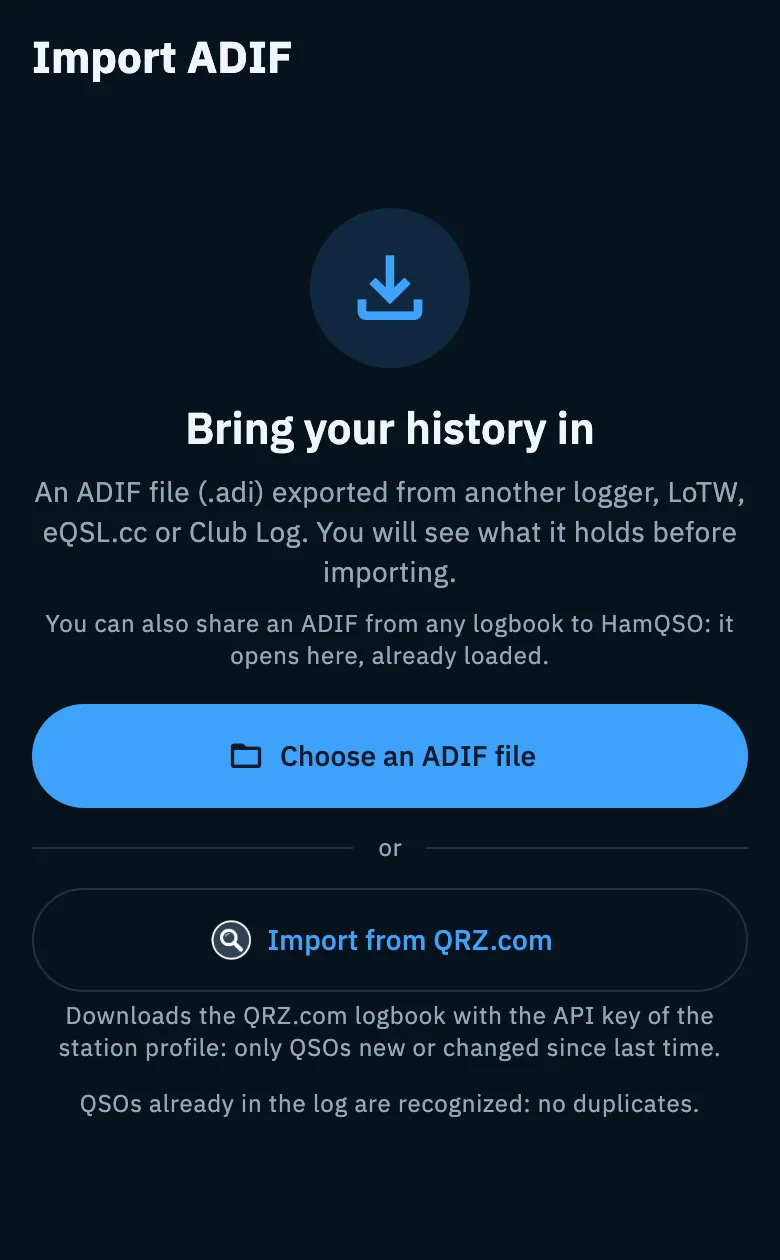
- On the Bring your history in screen tap Choose an ADIF file.
- In the picker of your phone, tablet or browser choose the
.adior.adiffile. You can also choose several at once. - While HamQSO reads you see «Reading the file…», then the preview appears.
The picker shows every file, because iOS knows no .adi type: the content tells whether a file is ADIF, not its name. A file that is not ADIF is left out and named.
Several files chosen together become one import, with one preview. When the same QSO is in more than one file (for example the normal file and the «Full» file some loggers export for an activation), HamQSO imports it once and keeps the references of every copy: a QSO with a hunter who was in two parks stays one QSO. When two copies have different values for the same field, the first one wins.
Reading the preview
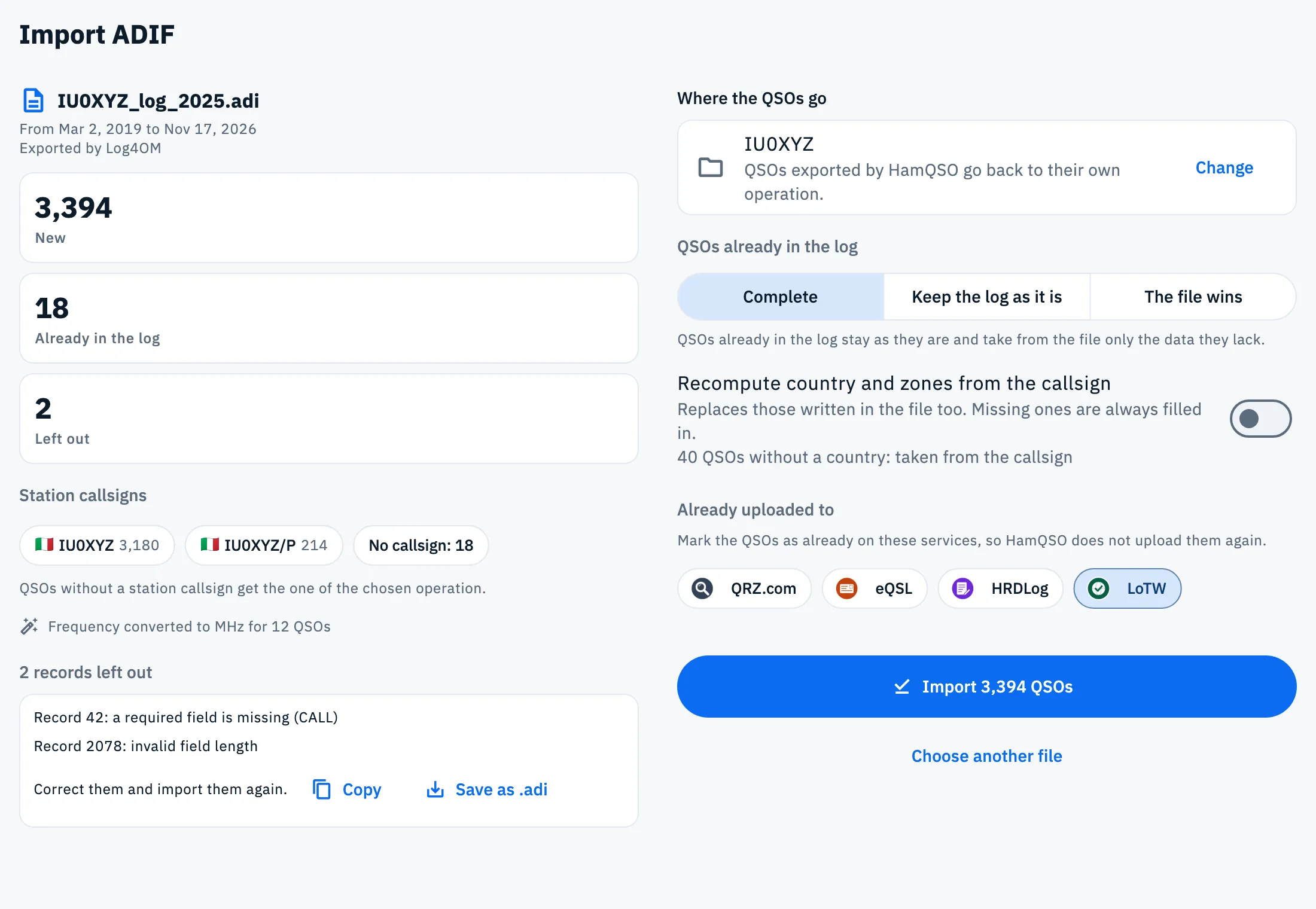
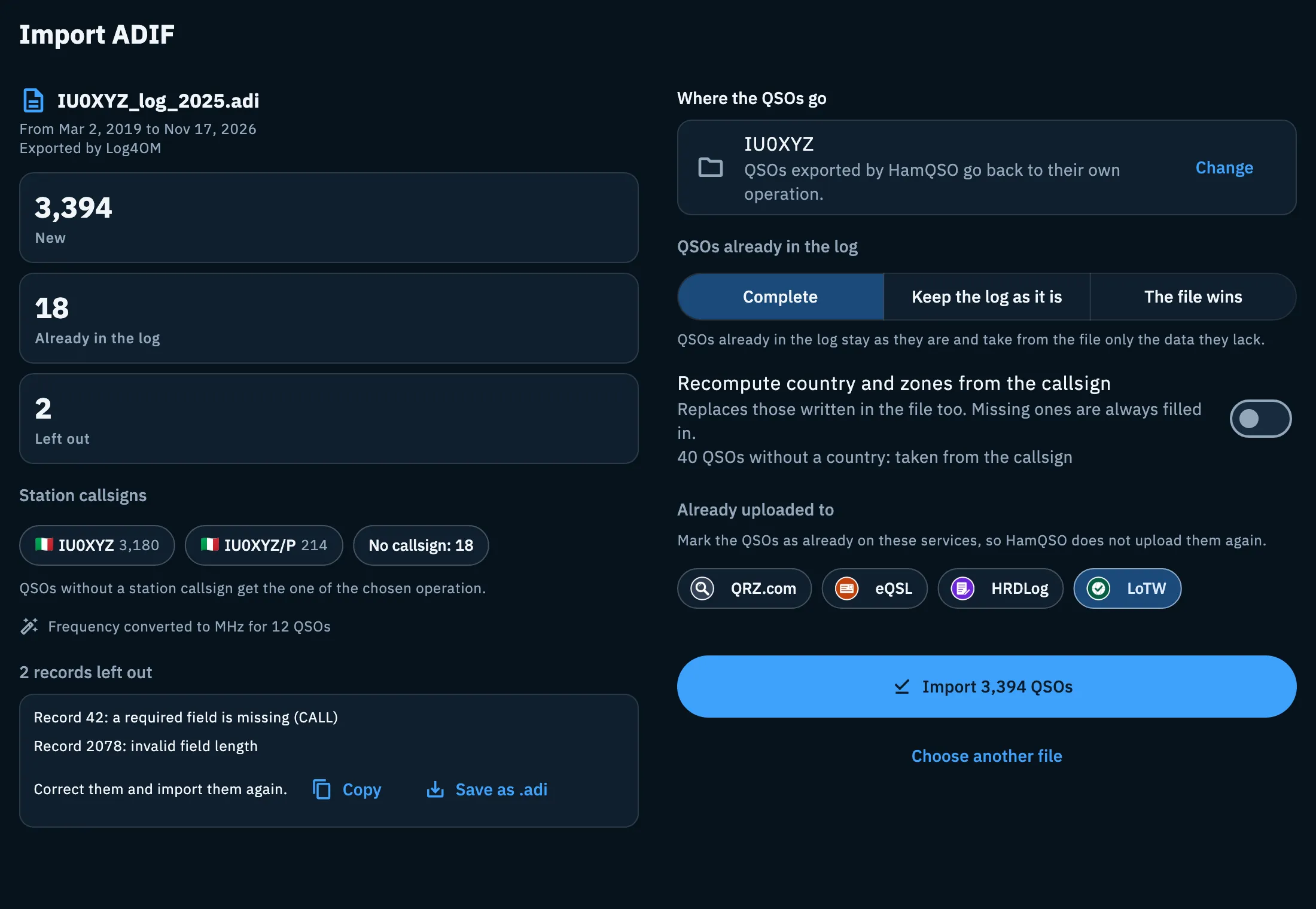
The preview tells you what will happen before you confirm. On a phone the choices are below the preview; on a tablet and in a wide browser window they are on the right, the preview on the left.
| Item | What it says |
|---|---|
| File name | The chosen file; with several files their names, Unnamed file for a file without a name. |
| From … to … | Date of the first and last QSO, in UTC. |
| Exported by … | The program that created the file, when the file says so. |
| New | The QSOs that will be added. |
| Already in the log | QSOs of the file you already have (see «QSOs already in the log»). |
| Repeated in the file / Repeated in the chosen files | The same QSO more than once in the file or in several files: imported only once. Shown only when there are some, never added to Already in the log. |
| Left out | Records that cannot become a QSO (see «Records left out»). |
| Station callsigns | Every station callsign found in the file, with how many QSOs; No callsign: N for QSOs without one. Those get the callsign of the chosen operation. |
| Frequency converted to MHz for N QSOs | The file had frequencies in kHz or Hz: HamQSO turned them into MHz. |
| Left out because it is not an ADIF file | Among several files, the ones that are not ADIF, by name. |
If it is the wrong file, tap Choose another file at the bottom.
Choosing where the QSOs go
The Where the QSOs go box shows the operation the new QSOs will go into. At first it is the operation you are logging in; when there is none, the box says Choose an operation.
- Tap Change (or the box).
- Search by name, callsign, reference or tag, or scroll the list: without a search you see the pinned operations and the 10 most recent ones in use, each with its number of QSOs. Archived operations appear only when you search.
- Tap an operation, or New operation to create one on the spot: it becomes the destination as soon as you save it.
On a phone the choice opens from the bottom, on a tablet and desktop in a dialog. QSOs exported by HamQSO go back to their own operation instead, when it still exists on this device, as the line below the box reminds you. Operations are explained in Organizing your operations.
QSOs already in the log
The QSOs already in the log choice appears only when the file has QSOs you already have. A QSO of the file is the same as one in the log when station callsign, callsign, band and main mode match (the submode does not count) and the start is within ±10 minutes. A file without a station callsign matches any station callsign; a QSO exported by HamQSO matches only itself.
| Choice | What it does |
|---|---|
| Complete (default) | QSOs already in the log stay as they are and take from the file only the data they lack. |
| Keep the log as it is | QSOs already there stay as they are. |
| The file wins | For QSOs already there the file wins: operation and services stay, the rest comes from the file. The confirm button counts these QSOs too. |
The choice every import starts with is set in Logbook settings, Import and export section; here you change it for this import only.
Recompute country and zones from the callsign
QSOs of the file without a country or zones always get them from the callsign: below the switch you read how many there are («N QSOs without a country: taken from the callsign»). When you turn on Recompute country and zones from the callsign, the country, CQ and ITU zones and continent worked out from the callsign replace those written in the file too: useful when a logger gets the country wrong. It is off, unless you turned it on in Logbook settings.
Already uploaded to
If the file comes from a program that already uploaded the QSOs to a service, tap that service's chip: QRZ.com, eQSL (eQSL.cc), HRDLog, LoTW. The QSOs are marked as already there, so HamQSO does not upload them again. No chip is on at first. The upload and confirmation fields the file already holds are read anyway. Uploads are explained in Automatic uploads and waiting QSOs.
Importing
- Tap Import N QSOs. The button is off until you choose the operation in Where the QSOs go. When every QSO of the file is already in the log it says Confirm: no new QSO: tap it anyway to apply the choice to the QSOs already there.
- During the import you see «Importing the QSOs…» and «N of N QSOs».
- You can leave the page or tap Pause: the import stops at the end of the current block. To go on, tap Resume on the Import interrupted card (see below).
HamQSO writes the QSOs in blocks of 2,000, each all or nothing: a block is either written in full or not at all. The choices cannot be changed during the import.
Resuming an interrupted import
When an import was left halfway, opening Import ADIF again shows the Import interrupted card at the top, with «file name: N of N QSOs done.».
- Tap Resume: the import goes on from the next block, with the same choices and into the same operation.
- If the app was closed meanwhile, after Resume the card says «To resume, choose the file … again.»: tap Choose an ADIF file and choose the same file. HamQSO recognizes it by its content, not its name; with several files it needs the same files, in any order.
- To drop it tap Give it up: you read «Import cancelled. QSOs already written stay in the log.».
The interrupted import is remembered only on this device: you cannot resume it from another one.
The summary
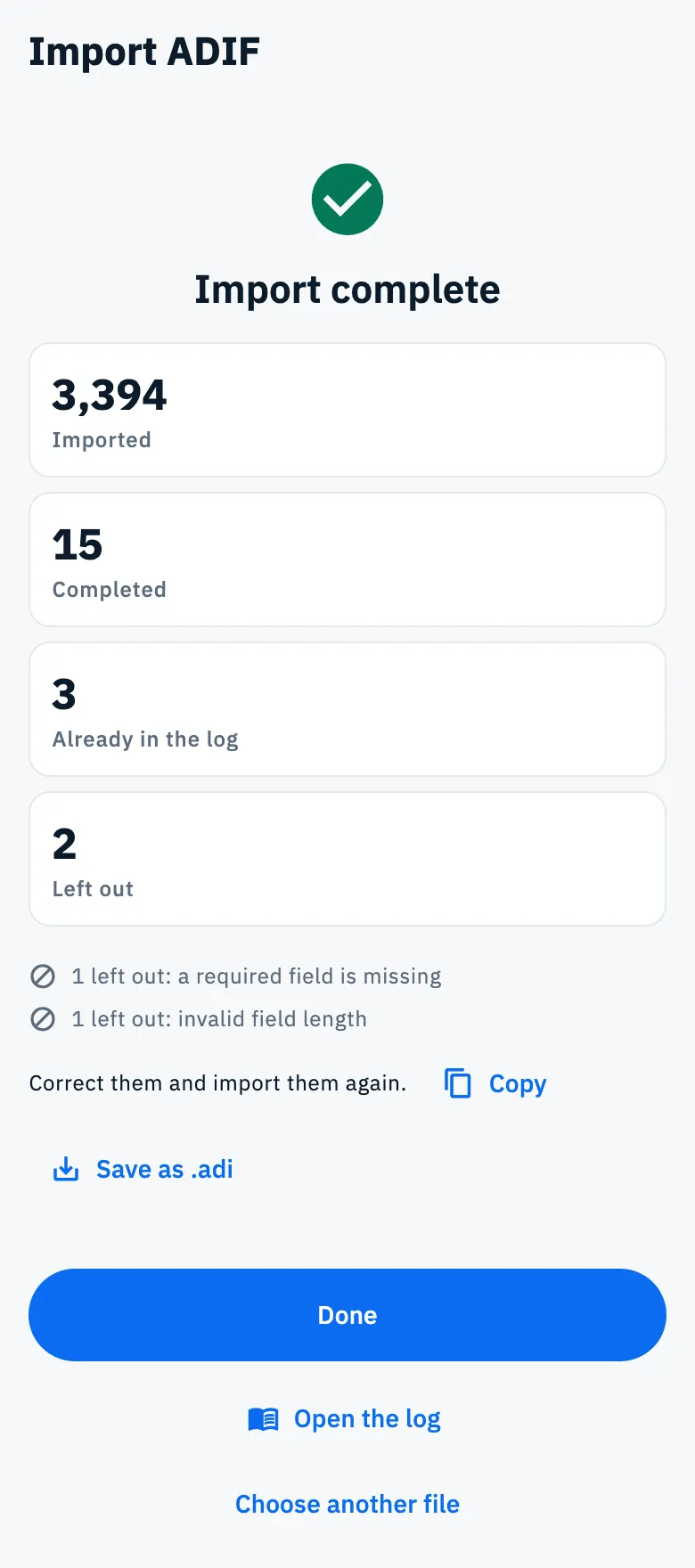
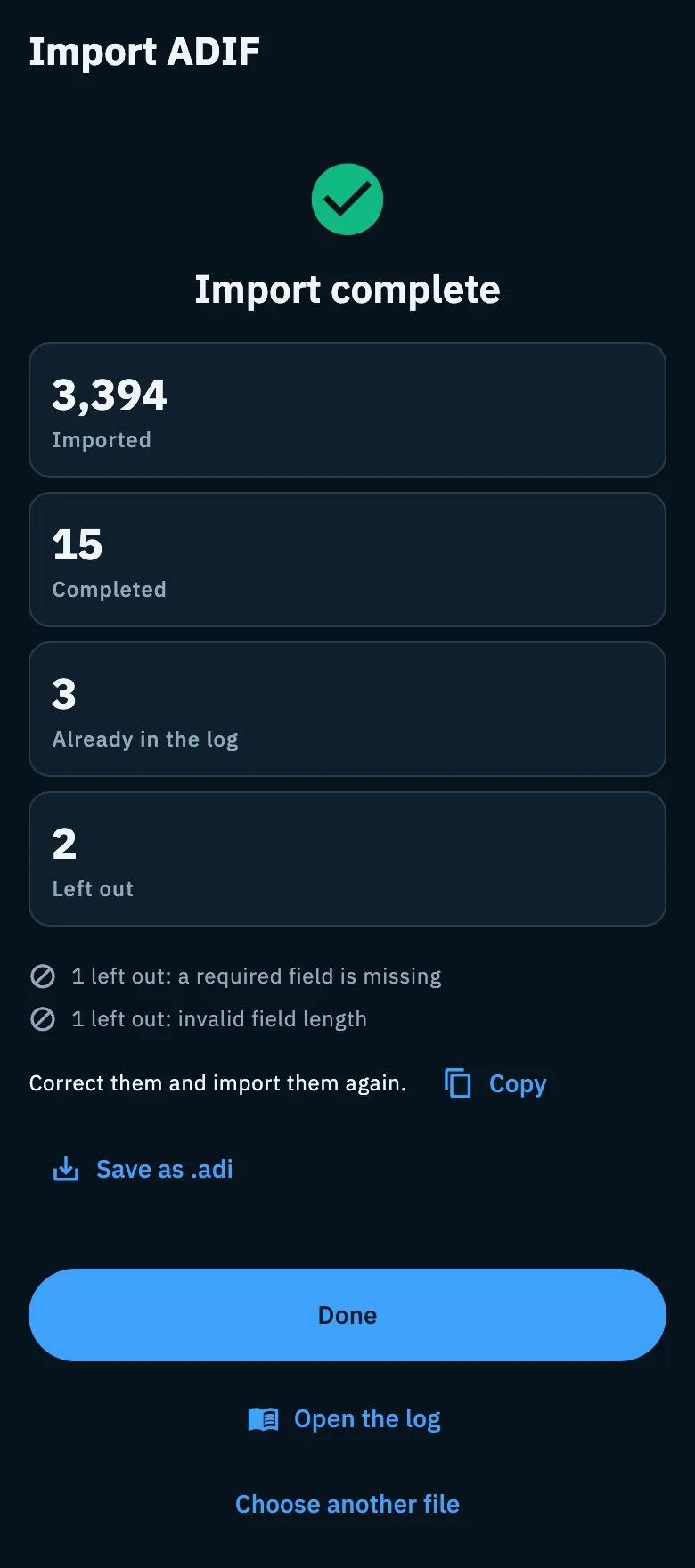
At the end you read Import complete with the counts:
- Imported: the new QSOs written to the log.
- Completed or Overwritten: QSOs of the log changed by the file, as the choice for QSOs already in the log says (only when there are some).
- Already in the log, Repeated in the file and Left out, as in the preview, with the reason of those left out («N left out: reason»).
Then:
- Tap Done to go back to where you opened the import.
- Or Open the log to see the operation the QSOs went into.
- Or Choose another file for another import.
Sending the eQSL HamQSO to the imported QSOs
The summary can show the question «Send the eQSL HamQSO to the N imported QSO?». The eQSLs of imported QSOs never go out on their own: only if you choose to send them here or from the log.
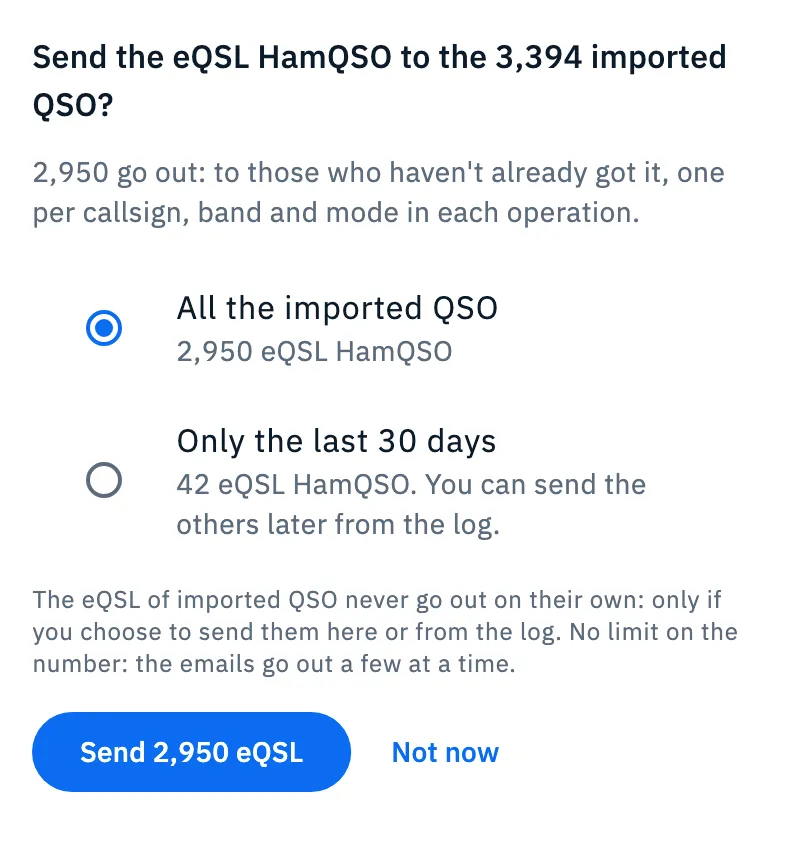
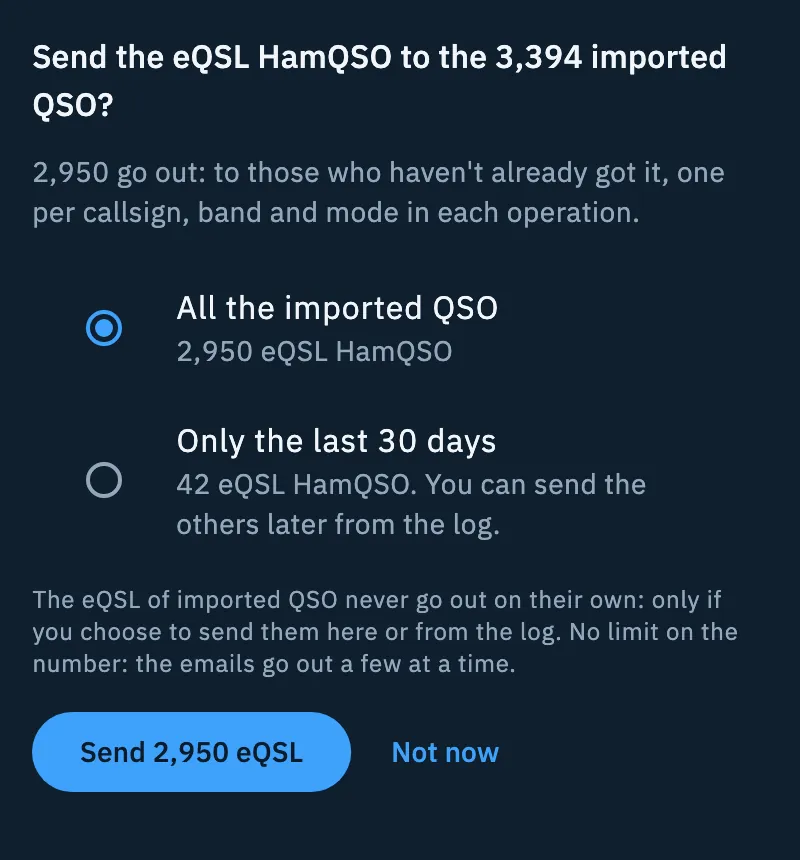
- Choose All the imported QSO or Only the last 30 days. Below each choice you see how many eQSLs would go out: one per callsign, band and mode in each operation, only to those who have not already got it.
- Tap Send N eQSL and confirm the send in the panel that opens, or tap Not now. You can send the others later from the log.
When there is no eQSL to send, or the server does not answer, the question does not appear. Sending is explained in Sending eQSLs.
Records left out
A record of the file that cannot become a QSO is left out, and the others are imported anyway. In the preview, under N records left out, each line gives the record number and the reason («Record 42: a required field is missing (CALL)»); with several files also the file name. You see the first 50, then «and N more».
| Reason | What it means |
|---|---|
| tag not closed | A tag without its closing >. |
| invalid field length | The length after the field name is not a number. |
| value cut off by the end of the file | The file ends in the middle of a value. |
the record has no end (<EOR>) | The last record is not closed. |
| a required field is missing | One of CALL, QSO_DATE, TIME_ON, BAND (or a FREQ to work it out from), MODE (when it cannot be estimated from the frequency) is missing or unreadable; the field is in brackets. |
To get them back:
- Tap Copy to copy the ADIF text of the records left out (you read «Records left out copied»), or Save as .adi to save or share them as the file
hamqso-skipped-records.adi. - Correct them in a text editor and import them again.
The same buttons are in the final summary.
Sharing an ADIF to HamQSO (iOS and Android)
From another app (a logger, your files, mail) you can send the file straight to HamQSO:
- In the other app export or select the ADIF file.
- Tap Share (or Open with) and choose HamQSO.
- HamQSO opens Import ADIF over the screen you are on, with the preview already loaded: go on as for a chosen file.
The file is recognized by its content, even when it is called log.txt or has no name. If HamQSO is not set up yet, the import opens as soon as you finish the first setup; if you close the app before, share the file again.
Dropping files on the window (web)
In the browser, in a wide computer window, you can drag one or more .adi files from a folder onto the HamQSO window. While dragging you see «Drop to import into the log» and «ADIF files only (.adi, .adif)» with the file names; when you drop them the import preview opens. It is not available on phones and tablets.
What HamQSO reads
There is nothing to do: these rules apply by themselves.
- It reads ADI files (text ADIF,
.adiand.adif) from the various loggers tolerantly: free header, field names in upper or lower case, text outside the tags ignored. It does not read ADX (XML), CSV or Cabrillo. - Frequencies written in kHz or Hz are converted to MHz. A QSO on a frequency outside every amateur band is imported anyway, without a band.
- Modes such as FT4, JS8, FST4 or Q65 are read as submodes of MFSK, USB and LSB as SSB; an unknown mode stays as it is.
- When a QSO has no mode, HamQSO estimates it from the frequency (when the band plan gives only one) and marks it as estimated; otherwise the record is left out.
- The upload and confirmation fields of QRZ.com, eQSL.cc, LoTW and HRDLog are read and written back on export.
- No data of the file is lost: fields HamQSO does not show are kept and written back when you export (see Exporting your log as ADIF), and a field written twice with different values is kept apart.
Free and Pro
Importing an ADIF file is free, with every option on this page, on phone, tablet and web.
Troubleshooting
| Message | What to do |
|---|---|
| «The chosen file could not be read.» | The picker did not hand over the file: try again, or copy the file to a folder on the device and choose it from there. |
| «This file does not look like a readable ADIF.» | Export the log again from your program as ADIF (ADI) and tap Choose another file. |
| «… is not an ADIF file (.adi or .adif).» | The file is of another type (ADX, CSV, an image…). Export as ADI. |
| «The file has no QSO to import.» | The file is empty or every record was left out: the list with the reasons is below. |
| «Choose the operation the QSOs go to.» | The import has no destination operation: tap Choose another file, then in Where the QSOs go tap Change and choose or create an operation. |
| «The chosen operation was deleted. …» | The operation of an interrupted import is gone: tap Give it up and start again with another one. |
| «To resume, choose the file … again.» | The app was closed during the import: tap Choose an ADIF file and choose the same file. |
| «This is not the file of the import. Choose …» | The chosen file is not the one of the interrupted import: choose the file named, with the same content. |
| «Writing stopped. The blocks already written stay: you can resume.» | Tap Resume on the Import interrupted card. |
| «This import is gone or already finished.» | Tap Choose another file and start again. |
| «Could not open … Try sharing it again.» | The shared or dropped file did not open: share or drop it again. |