
Uploading your QSOs to LoTW
Import your TQSL certificate so HamQSO signs and uploads your QSOs to LoTW and gets the confirmations, or sign them yourself with TQSL.
FreeUpdated for HamQSO 0.1.19
On this page
LoTW in HamQSO works with your TQSL certificate. You import it once: from then on the HamQSO service signs and uploads your QSOs in place of TQSL, from any of your devices and with the app closed too, and LoTW confirmations reach your log by themselves. If you would rather not give the certificate to HamQSO, there is the manual mode with TQSL.
To use LoTW you need to be signed in to HamQSO and online: the certificate lives on the HamQSO service (see Signing in and saving your log).
The LoTW page
- Open Profile.
- Tap Linked services.
- Tap LoTW.
At the top is the status of the service: Not linked until there is a certificate, Certificate active when at least one certificate is valid, Certificate to renew when none is valid any more. Below are two sections:
- LoTW certificates: how many certificates you have ("No certificate", "1 certificate"…) and one line for each valid certificate, for example "IU0XYZ, valid until …". The button is Import the certificate if you have none, Manage certificates if you already have one: both open the LoTW certificate page.
- Manual mode with TQSL: to sign the QSOs yourself, on your computer (see below).
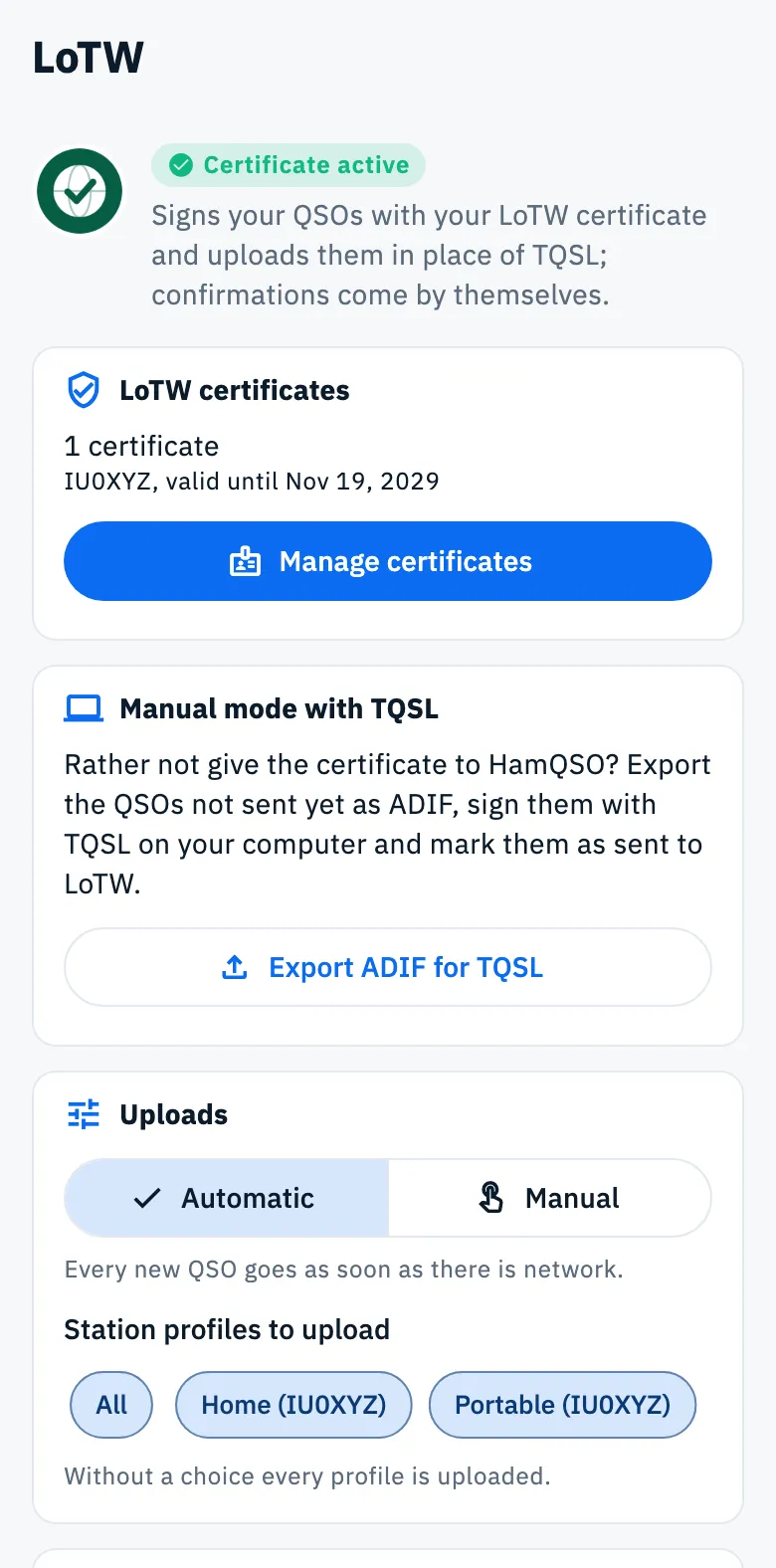
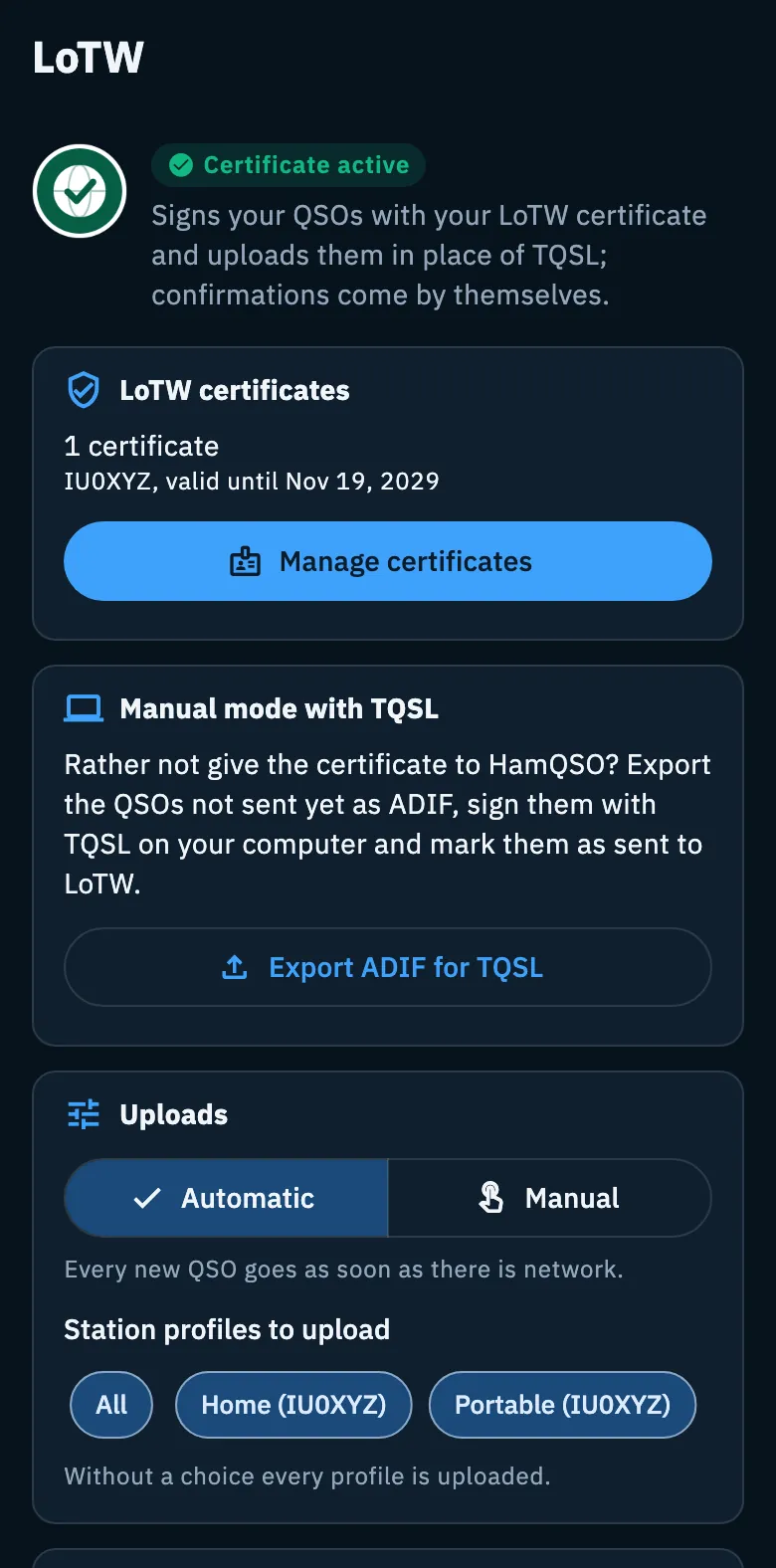
Once you have at least one certificate, on the same page you also choose whether to upload automatically and for which station profiles (see Automatic uploads and waiting QSOs). LoTW confirmations are downloaded by the HamQSO service: for LoTW there is no Download confirmations now button, only the Counts as confirmed switch.
Before you start: the .p12 file from TQSL
The LoTW certificate page explains, under What you need, what you need:
- the certificate exported from TQSL: in TQSL pick the callsign and "Save Callsign Certificate File". You get a .p12 file, with its password if you set one;
- the LoTW website user name and password, to download the confirmations.
The HamQSO service keeps the certificate encrypted and uses it only to sign your QSOs in place of TQSL. It is never given back to any device. You can remove it any time from this page; it is also deleted when you unlink LoTW or delete your account.
Importing the certificate
- On the LoTW page tap Import the certificate (or Manage certificates).
- In the Import the certificate section tap Choose the .p12 file and pick the file exported from TQSL. The button turns into "File: …" with the file name.
- If the certificate has a password, type it in Certificate password (if any).
- In Station profiles to sign choose the profiles the certificate signs for. The profiles that have no valid certificate yet are already chosen. The callsign and DXCC of the profile must be those of the certificate: the service checks them.
- Type your LoTW website user name and LoTW website password. The import works without them, but without them no confirmations arrive.
- Tap Import.
When it works you read "Certificate of IU0XYZ imported." and the certificate shows up in the list. Import stays off until you have chosen a file and at least one station profile; if you have no station profiles the page says "Create a station profile first." (see Station profiles).
Uploading the QSOs you already have
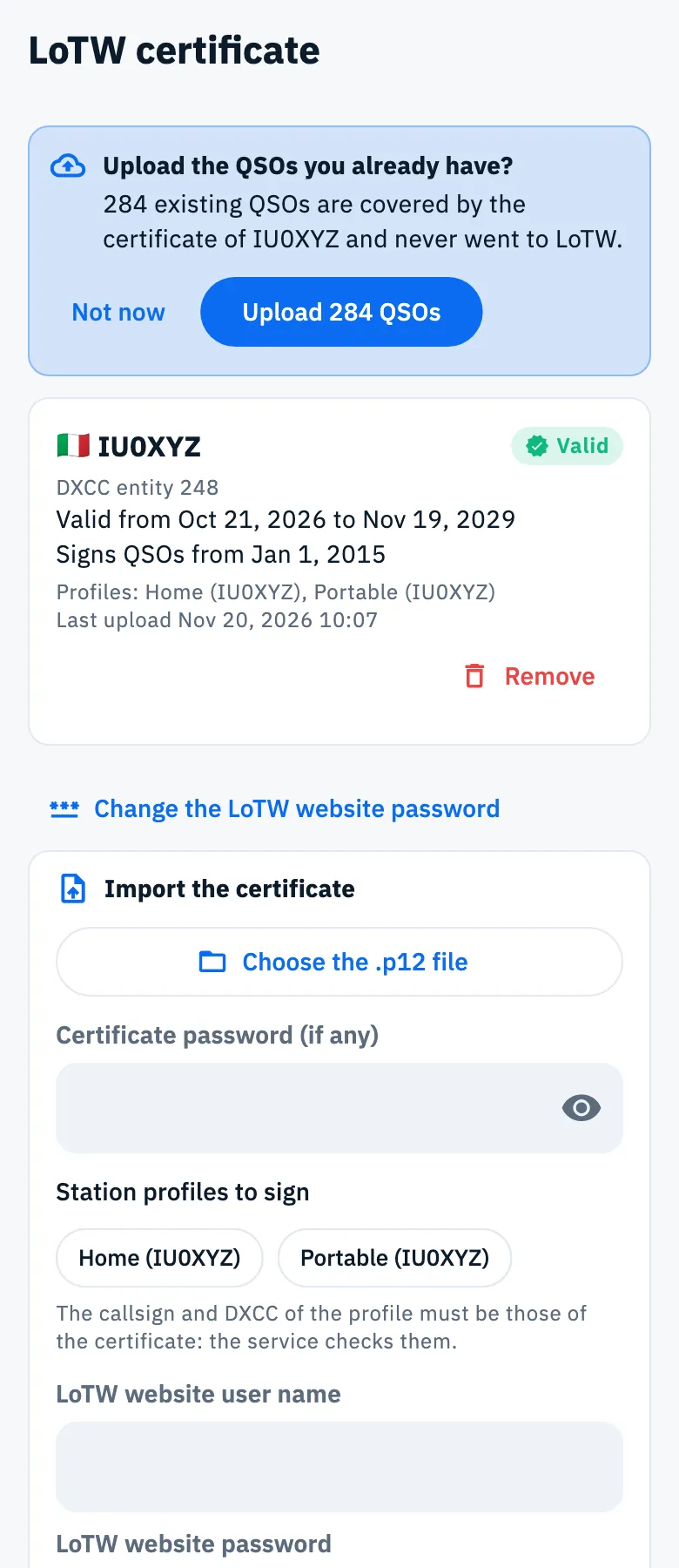
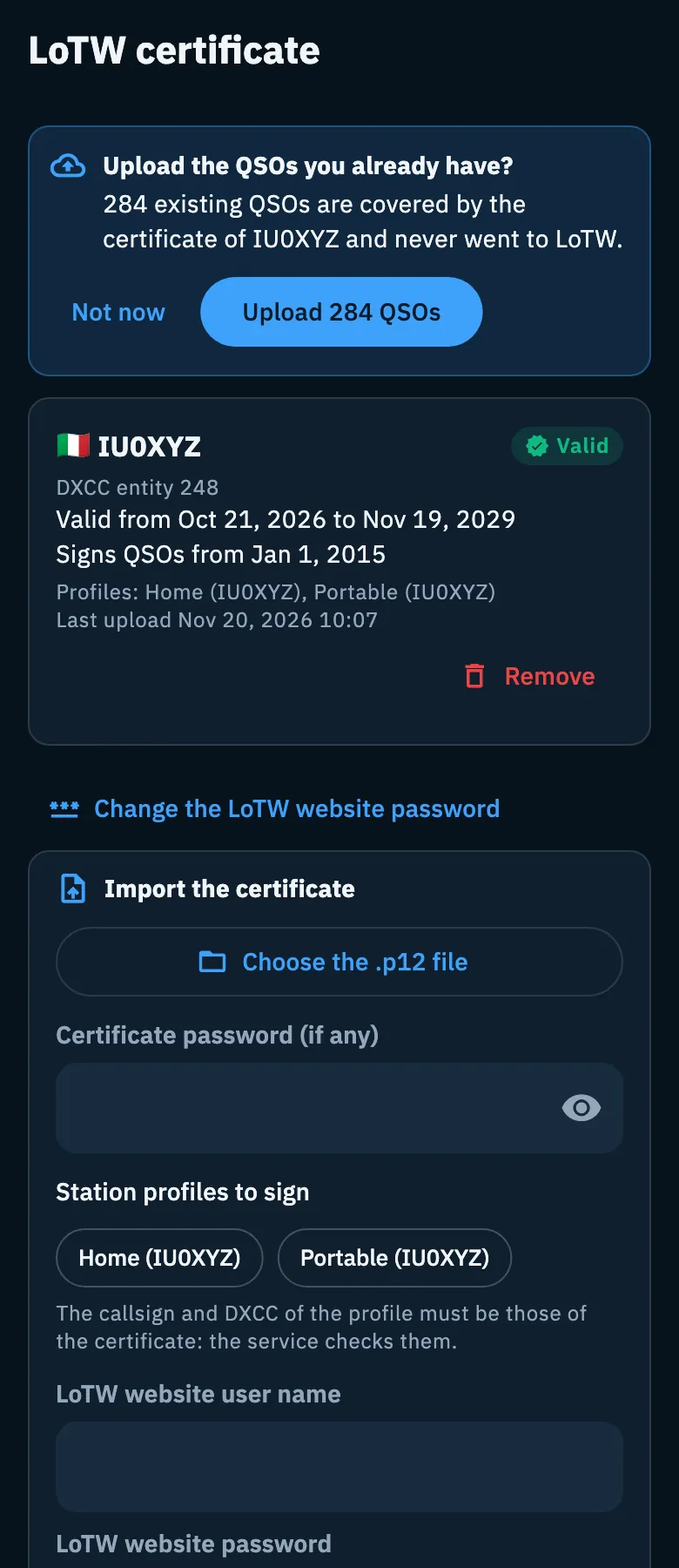
Right after the import HamQSO counts the QSOs of your log that the new certificate can sign and that never went to LoTW, and offers them in the Upload the QSOs you already have? box, for example "284 existing QSOs are covered by the certificate of IU0XYZ and never went to LoTW."
- Tap Upload 284 QSOs to queue them: you read "284 QSOs queued for LoTW".
- Tap Not now to queue nothing. You can upload them later with Bulk upload (see Automatic uploads and waiting QSOs).
Only QSOs that are not deleted, have no estimated values, fall in the period the certificate can sign, belong to its station profiles and have the callsign and DXCC of the certificate are counted.
Reading a certificate
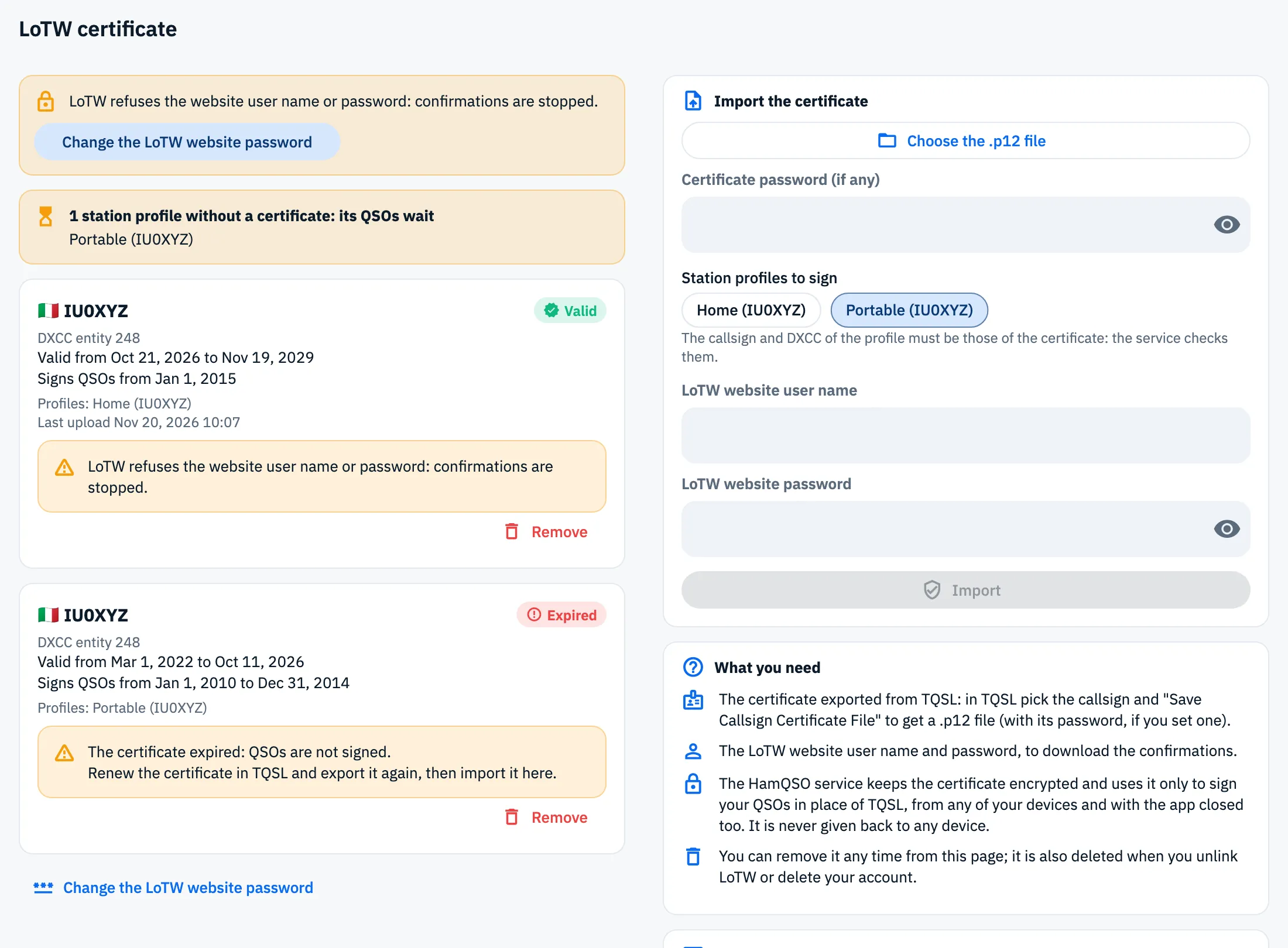
Each imported certificate has its own card:
| Line | What it says |
|---|---|
| Callsign and status | Valid, Expired, Superseded or Revoked. Only a valid certificate signs QSOs. |
| DXCC entity | The DXCC entity number of the certificate. |
| Valid from … to … | The validity dates of the certificate. |
| Signs QSOs from … to … | The period of the QSOs the certificate can sign ("Signs QSOs from …" when it has no end). |
| Profiles | The station profiles it signs for, or "No station profile". |
| Last upload | Date and time of the last upload to LoTW. |
When LoTW reported a problem, the card shows it in a yellow box with what to do (see Troubleshooting). When a station profile is covered by no valid certificate, at the top you read for example "1 station profile without a certificate: its QSOs wait", with the name of the profile.
The status of the certificates is read again by itself once a day; it is also read when you open the page, and you can pull down to refresh it.
Changing the LoTW website password
The LoTW website user name and password are only for the confirmations. If you change the password on the LoTW website, update it here too:
- On the LoTW certificate page tap Change the LoTW website password, below the certificates.
- In the LoTW website credentials window type the LoTW website user name and LoTW website password.
- Tap Save.
LoTW checks them before they are saved: if it accepts them you read "LoTW website credentials saved.", if it refuses them you read "LoTW refused the website user name or password." in red at the top of the page, and nothing is saved. The new credentials apply to all your certificates.
Removing a certificate
- On the card of the certificate tap Remove.
- When asked "Remove the certificate of IU0XYZ?" tap Remove.
The certificate is deleted from the HamQSO service. QSOs already uploaded stay on LoTW; new ones will wait for another certificate.
Manual mode with TQSL
If you would rather not give the certificate to HamQSO, you export the QSOs and sign them yourself with TQSL on your computer:
- On the LoTW page, in the Manual mode with TQSL section, tap Export ADIF for TQSL.
- The export opens with the QSOs not sent to LoTW yet, the ADIF for LoTW (TQSL) format (ASCII only; QSOs with values to confirm are left out) and Once shared, mark as sent to LoTW already chosen.
- Share or save the file and sign it with TQSL.
Once shared, those QSOs count as sent to LoTW and HamQSO will not upload them again. All the details of the export are in Exporting your log as ADIF. The same section is also at the bottom of the LoTW certificate page.
Free and Pro
Uploading to LoTW, importing certificates and the manual mode are free: HamQSO Pro is not needed.
Phone, tablet and computer
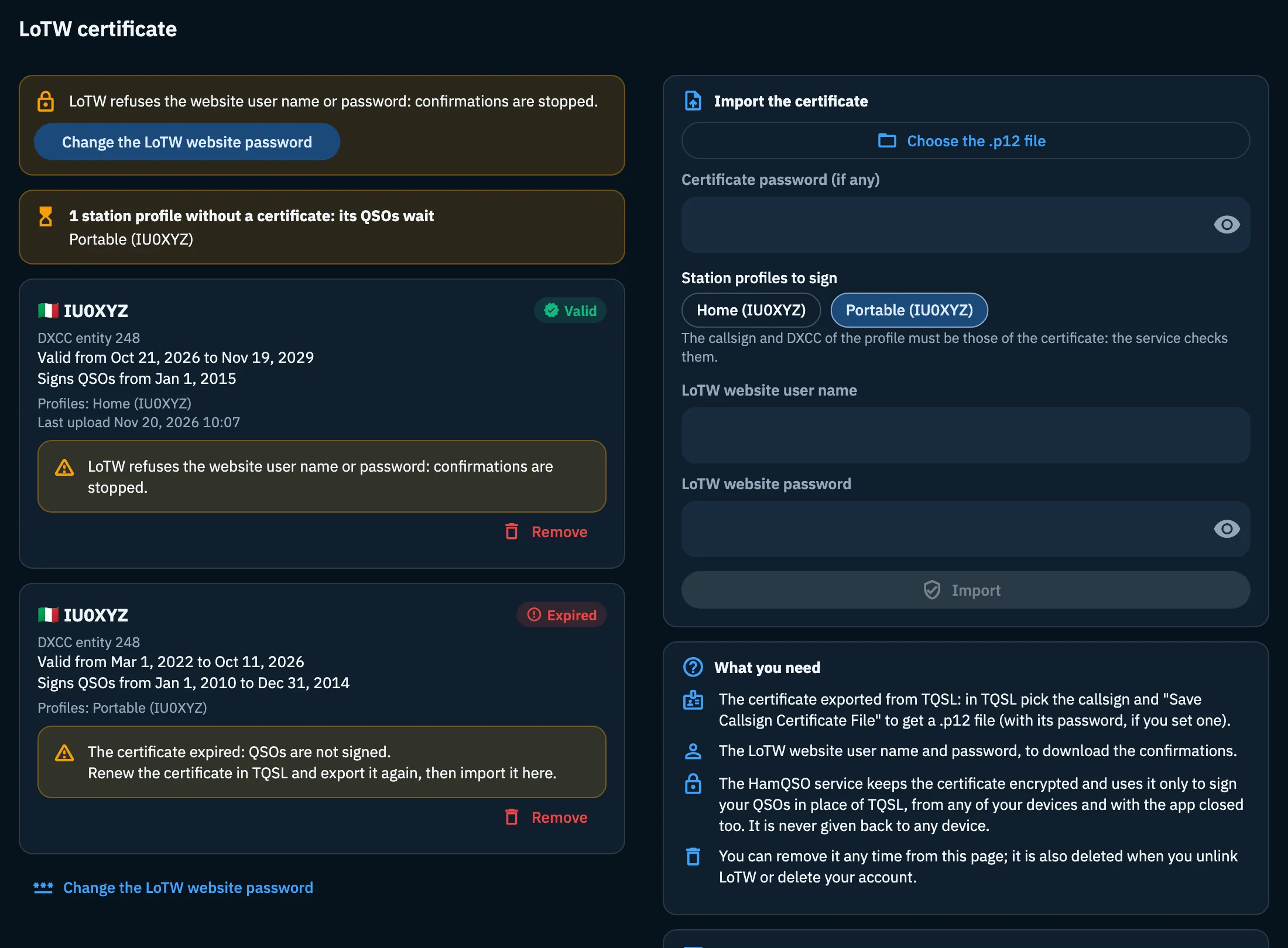
It works the same on phone, tablet, computer and web: signing happens on the HamQSO service, not on the device. On a phone the LoTW certificate page is a single column; on tablet, computer and web it has two columns: the certificates on the left, the import, What you need and the manual mode on the right.
Troubleshooting
Import errors. The message shows in red at the top of the page:
| Message | What to do |
|---|---|
| "The certificate is protected: type its password." | Type the password in Certificate password (if any) and tap Import again. |
| "Wrong certificate password." | Check the password you set in TQSL when you saved the file. |
| "The file holds only the certificate request: LoTW has not approved it yet. …" | Wait for the certificate from LoTW, load it in TQSL and export it again. |
| "The certificate expired: renew it in TQSL and export it again." | Renew in TQSL and export a new .p12 file. |
| "The file holds no certificate with a callsign." / "The file is not a TQSL .p12 certificate." | Export from TQSL with "Save Callsign Certificate File" and pick that file. |
| "The DXCC of the certificate is not that of the chosen station profile." | Choose only station profiles with the DXCC of the certificate, or fix the profile. |
| "A station profile is not synced yet: try again shortly." | Wait for the profile you just created to sync and try again. |
| "Too many tries: try again in N minutes." | 10 tries an hour are allowed: wait for the time shown. |
| "LoTW or the HamQSO service do not answer. Try again shortly." | Try again later. |
| "LoTW signing needs the HamQSO service: check the connection and try again." | Check that you are online and signed in. |
| "Certificate not found: maybe it was already removed." | The certificate is no longer on the service: pull down to refresh the page. |
When the chosen file does not open, you read "The file could not be read." in red below Choose the .p12 file: pick the .p12 file again.
Problems of an imported certificate. They show on its card:
- "The certificate expired: QSOs are not signed.", "LoTW replaced this certificate with a new one: import that one.", "LoTW revoked this certificate.": together with them you read "Renew the certificate in TQSL and export it again, then import it here."
- "The key of the certificate is not available: import it again.": import the same .p12 file again.
- "LoTW refuses the website user name or password: confirmations are stopped.": tap Change the LoTW website password in the box at the top.
- "LoTW refused an upload: "…"": the words in quotes are LoTW's.
Other cases.
- "You need a connection for the LoTW certificate.": the LoTW certificate page opens only when online and loads again by itself when the connection is back.
- "No certificate imported: QSOs for LoTW wait until you import one." and "Waiting: import a valid LoTW certificate.": the QSOs wait for a valid certificate for their station profile.
- "No band: this service does not accept it": LoTW refuses QSOs without a band. Add the band to the QSO (see Opening and editing a QSO).
- "N QSOs changed after the upload: fix them on LoTW too.": fix those QSOs on the LoTW website too.
- "N QSOs in the trash are still on LoTW: delete them by hand on the website.": HamQSO does not delete them from LoTW: delete them by hand on the LoTW website.
The LoTW status of each QSO is explained in A QSO on your services.