
Getting notifications
Allow notifications on each device, choose the summaries, see what a tap opens and what to do when notifications are off.
Free and ProUpdated for HamQSO 0.1.19
On this page
Your alerts, “When you get spotted”, the summaries and other parts of the app reach you with a notification on your phone or in your browser. This page shows how to allow them, which devices get them, what opens when you tap one and what to do when they do not arrive.
Allowing notifications
HamQSO does not ask for the permission at launch: it asks only when it is needed, that is when you:
- save an alert (see Creating an alert);
- turn on When you get spotted (see Knowing when you are spotted);
- turn Summaries back on (below);
- tap Take part on a contest (see Taking part in a contest);
- tap Turn on notifications on the invite page (see Inviting friends and discounts);
- close an operation with QSOs by hand: after the finale, “Want to know when a summary is ready?” appears; Continue leads to the system prompt, Not now leaves it for the next closing. This screen appears at most twice, and never when notifications are already allowed or after you refused them.
- Do one of these things.
- When the system (or the browser) asks whether to allow notifications from HamQSO, allow them.
- Done: the device registers by itself, there is nothing else to set.
The system prompt usually appears only once. If you refuse, the alert is saved anyway and what it finds shows up in Latest alerts in the Alerts section, but no notification arrives: to change your mind you have to go through the settings of your phone or browser (see “Notifications off”, below).
Which devices get them
Every device where you use HamQSO with your account and with notifications allowed gets the notifications, each on its own: phone, tablet and browser together.
- Registration is automatic, with no screen of its own: it happens when you sign in or open the app, and when you allow notifications.
- With the registration the app sends the time zone of the device, so summaries arrive at the right time for you, and the language to write the notifications in.
- Without a network the registration does not go through and the app shows no error: it tries again by itself when the network comes back or when you return to HamQSO.
- When you sign out, that device stops getting notifications; your other devices keep getting them (see Account: email, signing out and deleting).
What arrives
| Notification | When it arrives | Example |
|---|---|---|
| Alert | A spot matches an active rule | Title “JA1XYZ is on the air”, or “K1ABC is activating US-1234” for an activation; text with frequency in MHz, mode and alert name, such as “14.025 CW, DX Asia” |
| You got spotted | A spot of your callsign, with When you get spotted on | See Knowing when you are spotted |
| Callsign protection | A suspicious use of your callsign, or the weekly summary without Pro | See Protecting your callsign |
| Operation summary | An operation left open closes by itself | Title “Your summary is ready”, text with the name of the operation (or the station callsign, if it has no name) |
| Week and month | Start of the week or month, if you made QSOs | Title “Your week on the air” or “Your month on the air”, text with the number of QSOs, such as “42 QSO” |
They arrive even when HamQSO is closed. So that you are not flooded, for the same alert and the same station at most one arrives every 30 minutes, unless the station changes band or mode. Latest alerts shows the last 50 alerts that arrived, for 30 days (see Managing your alerts).
Other notifications come from the contests you take part in, from received eQSLs, from completed series and from invites that paid off: their own pages explain them.
What a tap opens
Tap the notification: HamQSO opens (or comes back to the front) right on the screen you need, even if it was closed.
| Notification | What opens |
|---|---|
| Alert | The Alerts section, with Latest alerts: tap the row there to open the spot |
| You got spotted | The spot detail, over the Alerts section (see Opening a spot) |
| Suspicious use (Pro) | The Suspicious use page of that alert, over the Alerts section |
| Weekly protection (without Pro) | The Callsign protection page |
| Operation summary | The operation in the Log, on its Summary (see Operation summary, milestones and photos) |
| Week or month | Your week on the air or Your month on the air in the Log (see Log summaries and statistics) |
| Contest | The contest detail, over Profile (see Taking part in a contest) |
| eQSL received or series completed | The eQSL Collection, over Profile (see Received cards, collection and series) |
| Invite that paid off | The invite page (see Inviting friends and discounts) |
If a “you got spotted” notification arrives without all the data of the spot, only the Alerts section opens.
Summaries
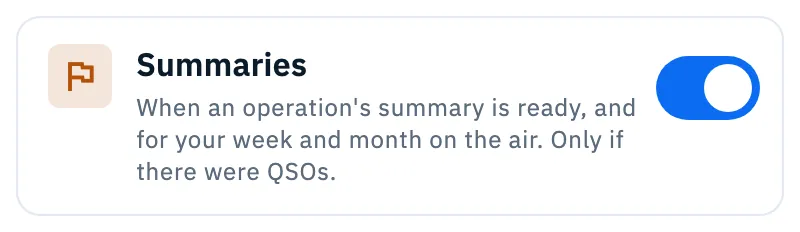
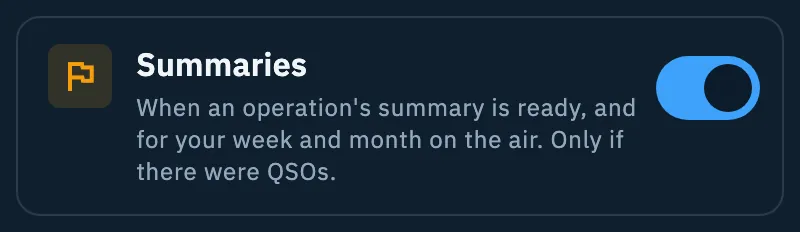
The Summaries card is in the Alerts section, under When you get spotted and the callsign protection. Its switch decides whether you get the summary notification:
- when an operation you left open closes by itself: once its UTC day is over and after 12 hours without QSOs. If you close it yourself, you see the summary right away in the app and no notification arrives. The Station log is always open and never sends one;
- every week, on Monday at 9 local time, for the week that just ended;
- every month, on the first of the month at 9 local time (at 18 if the first of the month is a Monday, so it does not overlap the week), for the month that just ended.
- Open the Alerts section.
- Find the Summaries card.
- Leave the switch on (it is on from the start) or turn it off to stop getting summaries.
If you turn it back on and notifications are not allowed, the system asks for the permission (only if it has not asked already). The choice belongs to your account, on all your devices.
The notification arrives only if there were QSOs: nothing for a week or month without QSOs, for an empty operation, or for an operation whose last QSO is more than 3 days old (for example an old log imported from a file). For each operation it arrives only once, even if you reopen it and it closes again. Summaries do not arrive at night: if they are ready between 22 and 8 in your local time, they wait until 8.
Notifications off
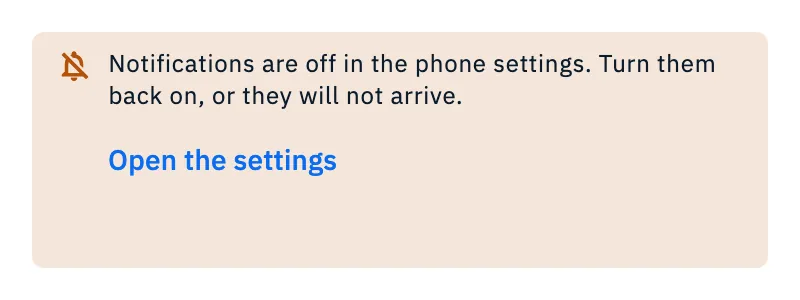
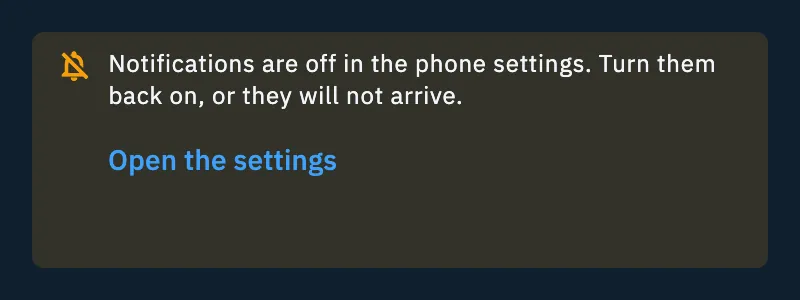
If HamQSO's notifications are off in the settings of the phone or the browser, nothing arrives. So that you do not wait for notifications that cannot come, a note appears on top of the Alerts section, just one, when notifications are off and at least one of these needs them:
- an active alert;
- Summaries on;
- When you get spotted on, with Pro and with your callsign set.
On a phone:
- Tap Open the settings in the note: the notifications of HamQSO open in the system settings.
- Turn notifications on.
- Go back to HamQSO: the note goes away by itself.
On the web the note says “Notifications are off in the browser settings. Turn them back on from the padlock next to the address, or they will not arrive.” and has no button:
- Click the padlock next to the address of the page.
- Allow notifications for HamQSO.
- Go back to the page.
The same note also appears under Take part, on the page of a contest.
Settings › Notifications
The When you get spotted switch is also in the settings, with the same value as the card in Alerts: changing it in one place changes it in the other.
- Open Profile.
- Tap Settings.
- In the Notifications section use the When you get spotted card as in Alerts. If you have no callsign yet, Set your callsign takes you to the callsign field of your profile.
Here, when notifications are off, the note appears inside the card itself (when the switch is on, with Pro and a callsign). Under the card a text reminds you that alerts on stations, countries and parks are created in the Alerts section. See also All settings.
Free and Pro
Phone, tablet and web
- iPhone, iPad and Android: system notifications; the permission is changed in the device settings, and the note has the Open the settings button.
- Web: browser notifications; the permission is changed from the padlock next to the address. If the browser blocks the site's notifications, nothing arrives.
- What a tap opens is the same everywhere.
Troubleshooting
No notification arrives. Look at the top of the Alerts section: if it says “Notifications are off in the phone settings. Turn them back on, or they will not arrive.” (or the browser version), turn them back on as explained in “Notifications off”, above. Then check that the alert is active and not paused (see Managing your alerts).
The permission prompt does not come back. The system shows it only once: after a refusal, notifications come back on only from the phone settings or the browser padlock.
A station is spotted often but I get only one notification. That is on purpose: for the same alert and the same station at most one notification arrives every 30 minutes, if band and mode do not change. The spots stay in the DX Cluster.
“Can't reach the service. Check your connection.” after tapping Summaries. The choice was not saved and the switch went back. Try again when you are online (see Using HamQSO offline).
Notifications no longer arrive on a device. If you signed out on that device, it no longer gets them: sign in again (see Signing in and saving your log).
The weekly summary does not arrive. It arrives only with Summaries on and if you made at least one QSO in the week, on Monday at 9 in your device's time.
I closed an operation but no summary arrived. That is on purpose: the notification arrives only when an operation left open closes by itself. One you close by hand shows its Summary in the app right away.