
Using your services on several devices
Link your accounts on each device with Link here too, see which devices upload, name this device: every QSO goes up only once.
FreeUpdated for HamQSO 0.1.19
On this page
- Why you type the passwords on every device
- The "Link your accounts here too" notice
- Linking the accounts with "Link here too"
- "Linked on": where an account is linked
- Several devices, no double uploads
- Devices that can upload
- Naming this device
- Callsign lookup
- Free and Pro
- Phone, tablet and computer
- Troubleshooting
If you use HamQSO on several devices (phone, tablet, computer, browser) you can link the same services on each of them. HamQSO tells you where an account is missing, helps you link it here too and makes sure each QSO is uploaded to a service by one device only.
Why you type the passwords on every device
The passwords, API keys and codes of the services stay only on the device where you type them: HamQSO does not save them on its servers. The server only knows which service is linked on which of your devices and in what state, never the user name nor the password. That is why, when you move to another device, the app asks for them again.
This applies to these accounts:
- QRZ.com, callbook (callsign lookup);
- HamQTH, callbook;
- QRZ.com, logbook (the API keys);
- eQSL.cc;
- HRDLog.
LoTW is the exception: the HamQSO service signs the QSOs with your certificate, so the certificate already works for all your devices and does not need to be linked again (see Uploading to LoTW).
The "Link your accounts here too" notice
When you sign in on a device and another of your devices has accounts linked that are not linked here, the notice Link your accounts here too appears over the home screen. It does not appear over the first setup of the app.
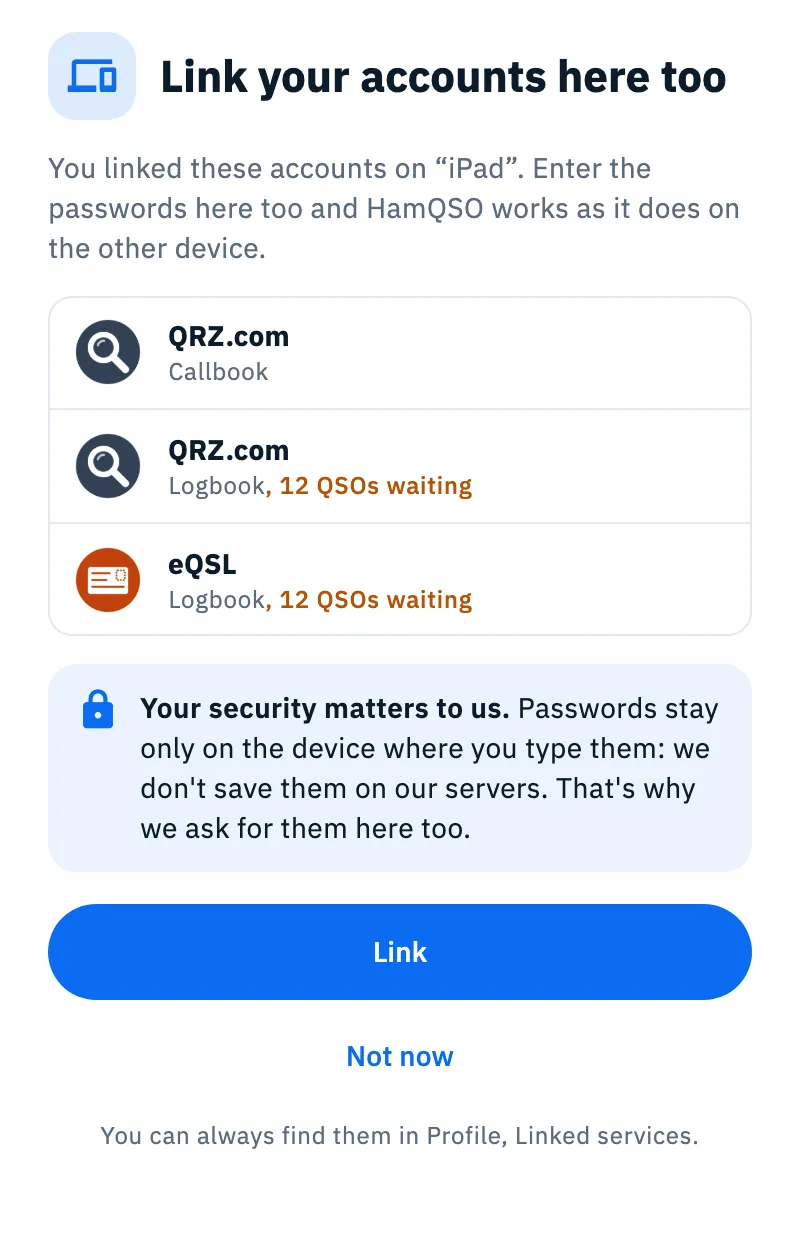
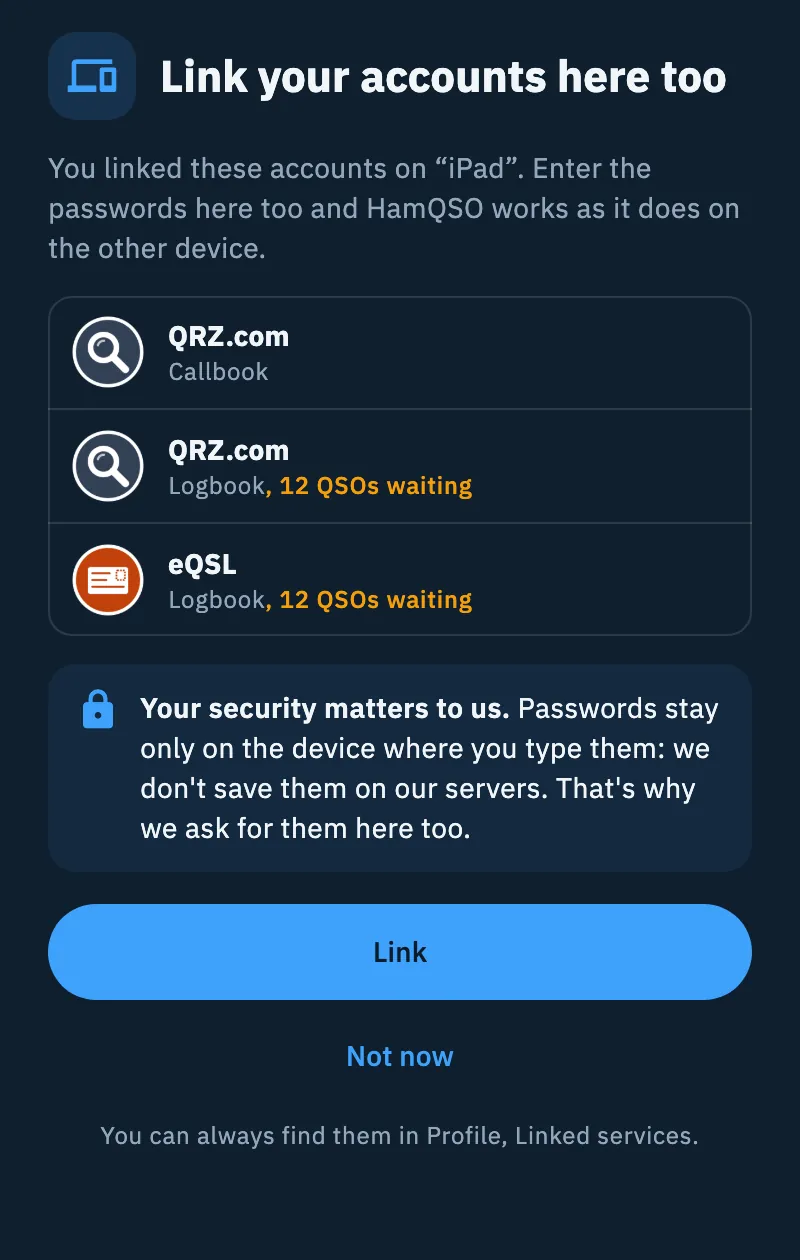
The notice holds:
- a sentence that says where the accounts are linked: "You linked these accounts on “iPad”.", "You linked these accounts on another of your devices." (when that device has no name) or "You linked these accounts on your other devices.";
- the list of the accounts to link: the mark, the name, whether it is a Callbook or a Logbook, on which devices (when there is more than one) and, in yellow, the QSOs waiting for that logbook, for example "12 QSOs waiting";
- the box "Your security matters to us.", which explains why the passwords are asked here too;
- without network, the box "No network: you can link them when the connection is back. You'll find them in Linked services.";
- at the bottom, "You can always find them in Profile, Linked services.".
- Tap Link to open the Link here too page.
- Or tap Not now: the bar at the bottom says "All right. Link them whenever you like from Profile, Linked services.".
The notice appears only once per device, whatever you choose. After that, the logbooks to link stay marked on their cards in Linked services, with the Link here too button; a callbook (QRZ.com or HamQTH) you link from its page in Linked services.
On a phone the notice is a sheet from the bottom; on a tablet or in a large window (computer, browser) it is a dialog in the middle of the screen.
Linking the accounts with "Link here too"
Link here too gathers in one page all the accounts linked on another of your devices, so you link them one after the other.
You get there from:
- Link in the notice;
- the Link here too button on the card of a logbook (QRZ.com, eQSL.cc, HRDLog) in Linked services;
- the Link here too button of the yellow box in Linked services, for example "12 QSOs are waiting for eQSL: it's linked on “iPad”. Link it here too to upload them now.".
From the buttons of a service the page opens with that service's card; from the notice, with the first card still to link.
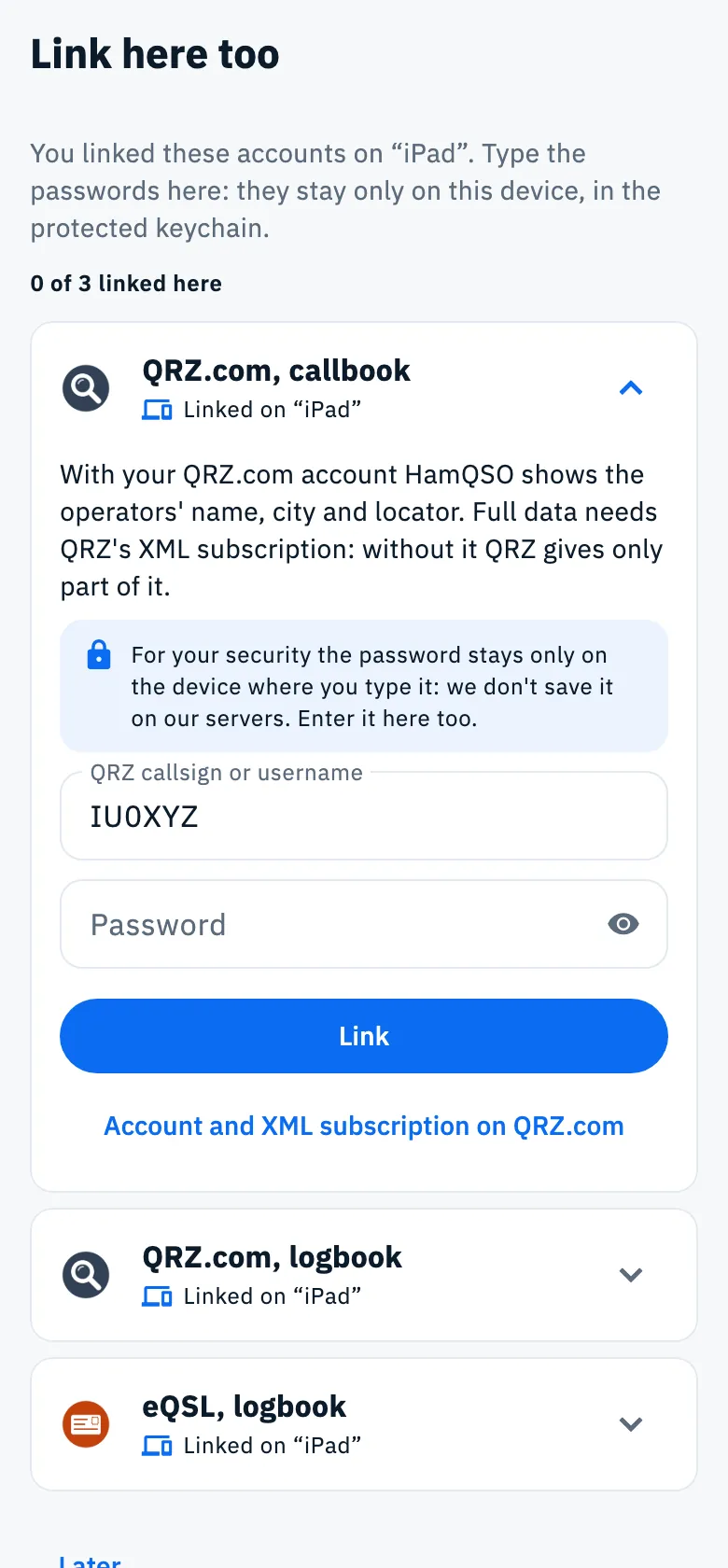
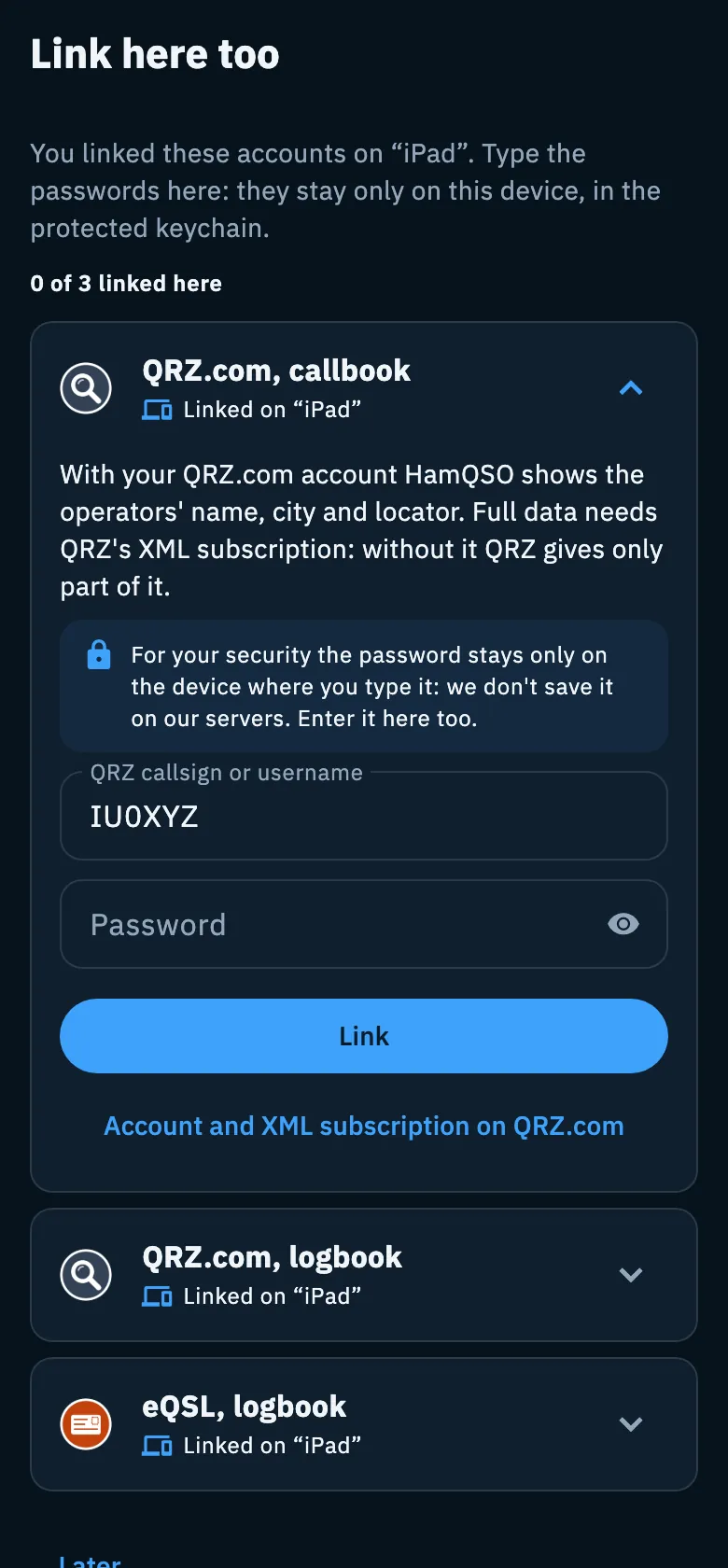
- At the top, read which device the accounts come from and where the passwords go: "Type the passwords here: they stay only on this device, in the protected keychain." (on the web: "… encrypted in this browser.").
- Below, read where you are: "0 of 3 linked here".
- In the open card, type what the service asks for (see the table) and tap Link.
- If the service accepts, the bar at the bottom says "Linked: QRZ.com accepted the credentials." and the next card still to link opens by itself.
- When you are done tap Done (it appears when they are all linked, with "All linked here too."), or Later to leave and go on another time.
One card is open at a time: tapping the title of another card closes the open one. Each card has a title such as "QRZ.com, callbook" or "eQSL, logbook", the state "Linked on “iPad”" and, until the account is linked here, the note "For your security the password stays only on the device where you type it: we don't save it on our servers. Enter it here too." (for the QRZ.com logbook and HRDLog it says "the key").
| Account | What you type |
|---|---|
| QRZ.com, callbook | QRZ.com user name and password; the user name is already filled with your callsign |
| HamQTH, callbook | HamQTH callsign and password; the callsign is already filled with yours |
| QRZ.com, logbook | the logbook API key of each station profile |
| eQSL.cc | user and password, plus the QTH nickname if you have more than one |
| HRDLog | callsign and upload code (not the HRDLog password) |
If a service refuses the data, the card shows the error as on the service page: the messages are in Linking QRZ.com, LoTW, eQSL.cc and HRDLog. The details of each service are in QRZ.com and callsign lookup and eQSL.cc and HRDLog.
Without network you cannot link: on the callbook cards Link is off and the logbook fields cannot be touched. Come back here when you are connected.
If your other devices have no linked account, the page says "Your other devices have no linked accounts.".
"Linked on": where an account is linked
An account linked on another of your devices does not say "Not linked": it says where it is linked. You read it on the cards of Link here too and, for the logbooks (QRZ.com, eQSL.cc, HRDLog), on the cards of Linked services.
| Text | Meaning |
|---|---|
| "Linked on “iPad”" (blue) | linked on another of your devices, not on this one; Link here too is below |
| "Linked here and on “iPad”" | linked here and on another of your devices |
| "Linked here, on “iPad” and “Pixel 7”" | linked here and on several devices |
| "Linked on another of your devices" | the device has no name |
| "Linked on 2 other devices of yours" | several devices without a name |
The names are the ones each device gives itself in This device (see below).
Several devices, no double uploads
If the same service is linked on several of your devices, you do not have to choose which one uploads: HamQSO takes care of it.
- Link the service on the devices you want.
- Log your QSOs as usual.
Before uploading, each device reserves the QSOs on the HamQSO service: a QSO reserved by one device is not sent by the others, so it goes up only once. Uploads are done by a device where the service is linked: while the app is open and, on Android and iOS, also with the app closed when the system allows it.
You see it in several places:
- on the service card, in Linked services: "Uploads from: this device, iPad", or "No linked device";
- in the Bulk upload summary: "8 left to another of your devices", the QSOs another device was already uploading;
- in the QSO detail, under the state of a service: "Sent by iPad" (see A QSO on your services).
If the HamQSO service cannot be reached, the reservation cannot be made and the upload stops: the bulk upload summary says "Stopped: the HamQSO service cannot be reached" and "Queued: they go out when the network is back.". The QSOs stay queued and go out later by themselves.
The automatic import from QRZ.com is also done by one device per station profile: the others read "Active on “iPad”" (see Importing from QRZ.com). How uploads work is explained in Automatic uploads and waiting QSOs.
Devices that can upload
On the page of each service, the Devices that can upload section lists your devices that know that service.
- Open Profile and tap Linked services.
- Tap the service card.
- Scroll to Devices that can upload (in a wide window it is in the right column).
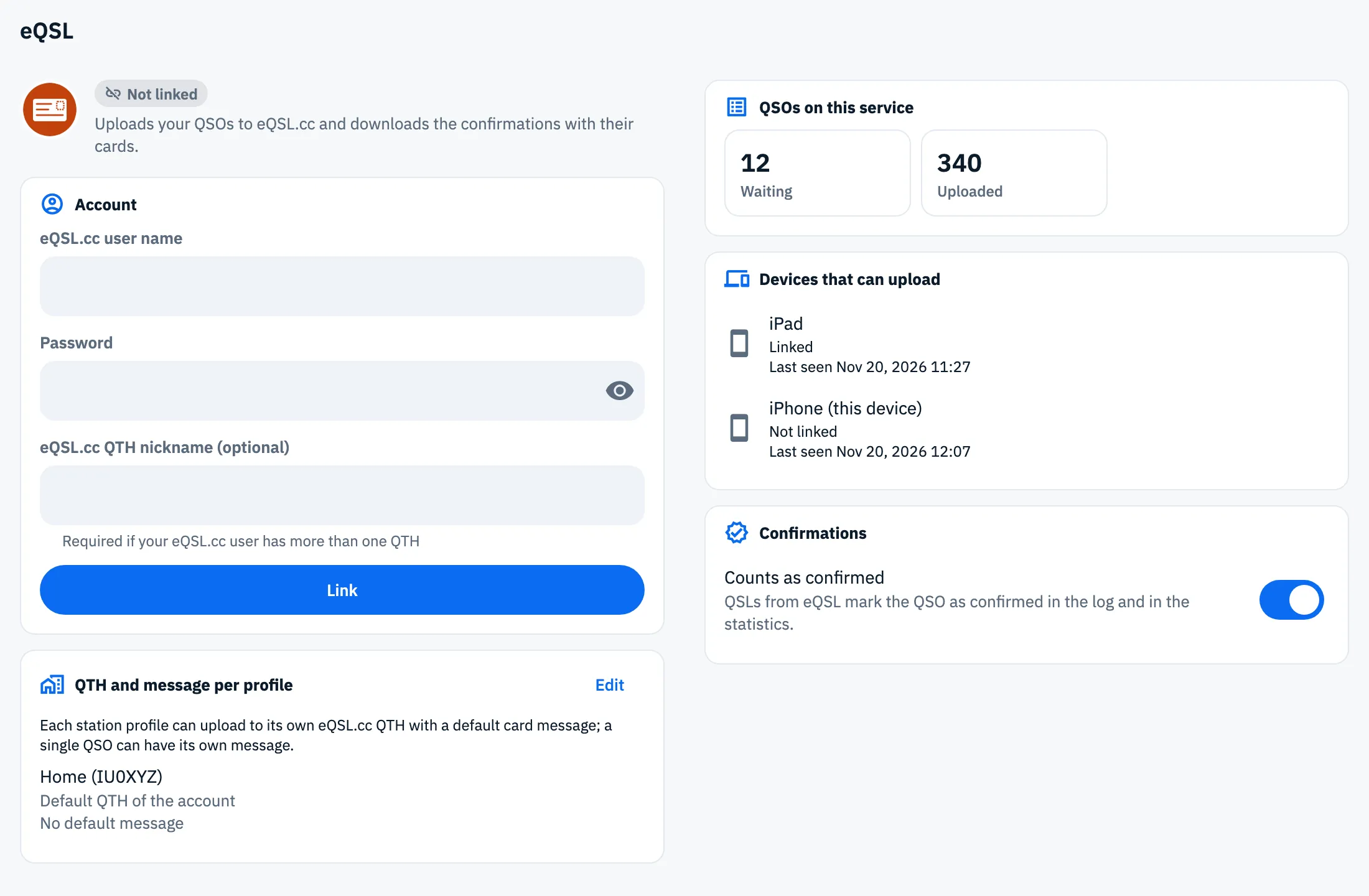
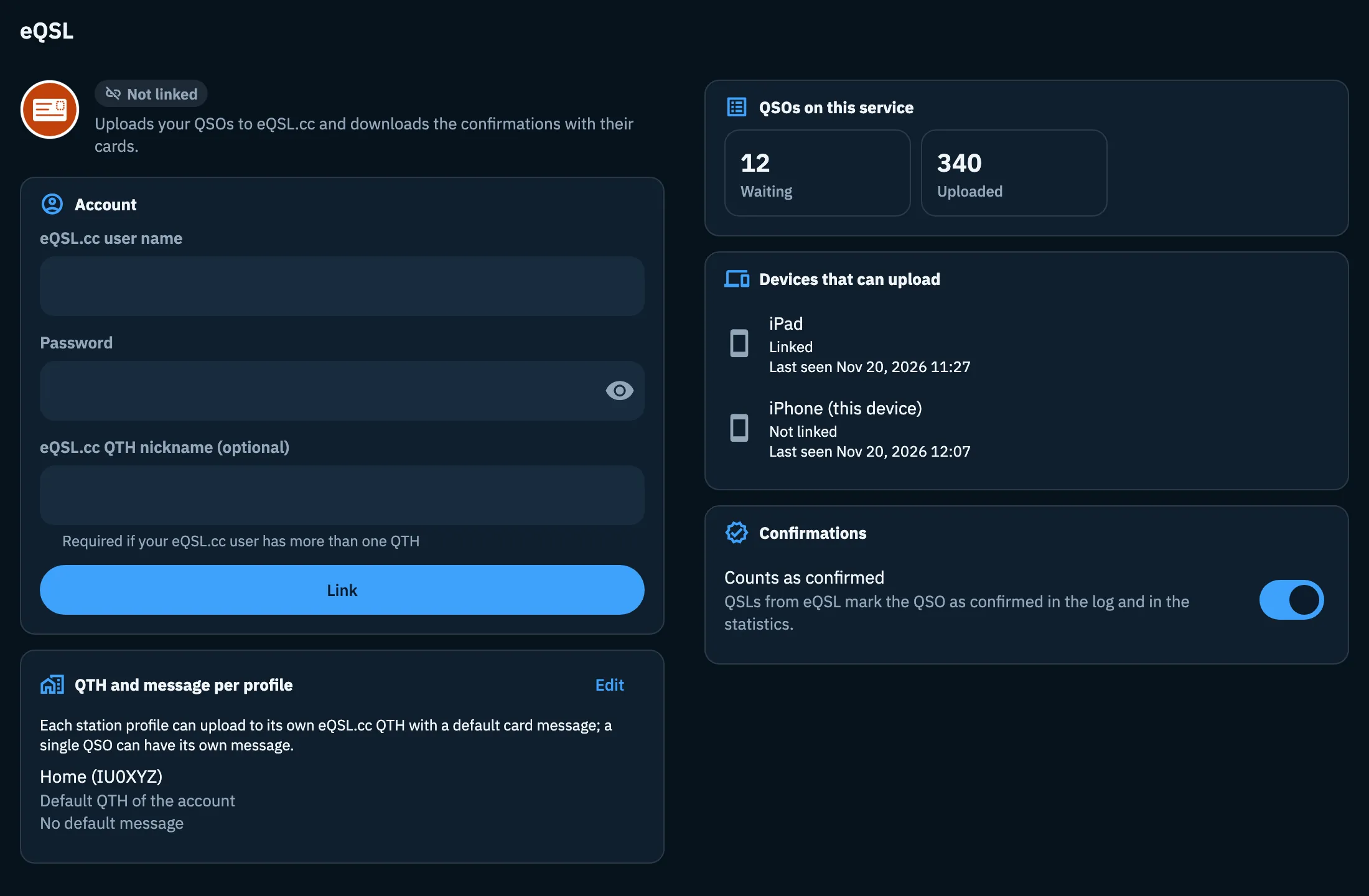
For each device you read:
- the icon: phone (iOS and Android), computer (the others) or cloud (the HamQSO service);
- the name: "iPhone (this device)" for the one you are using, the name you gave the others, HamQSO service for LoTW;
- below, the state of the account on that device (for example Linked or Not linked) and "Last seen" with date and time.
If QSOs are waiting and no device can upload them, the top of the section (and Linked services) says "Waiting: open HamQSO on a device linked to eQSL."; for LoTW, "Waiting: import a valid LoTW certificate.".
Naming this device
The name of this device is what you see on your other devices ("Linked on “iPad”", "Uploads from", "Sent by").
- Open Profile and tap Linked services.
- Scroll to the bottom, to the This device section.
- Type the Device name (60 characters at most).
- Confirm from the keyboard or tap outside the field: the name is saved.
At first the name is the one the system gives the device; on the web it is the browser and the system, for example "Chrome on Mac". An empty name is not saved. The section appears once the app has read the name.
Callsign lookup
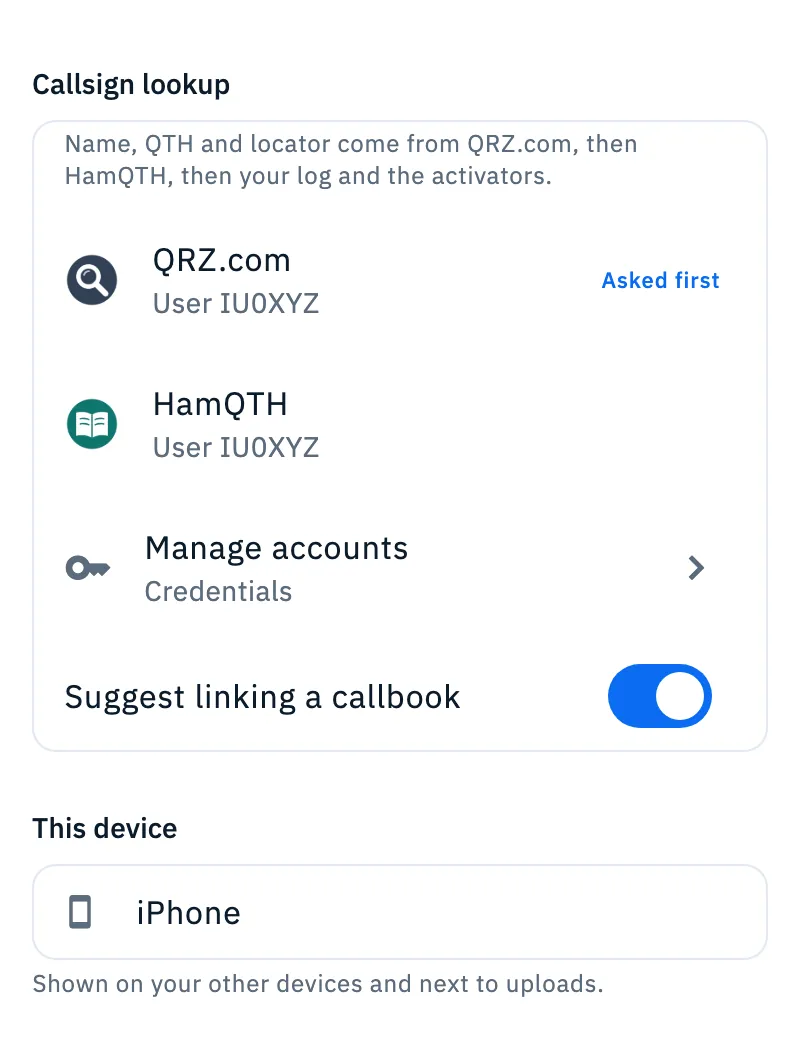
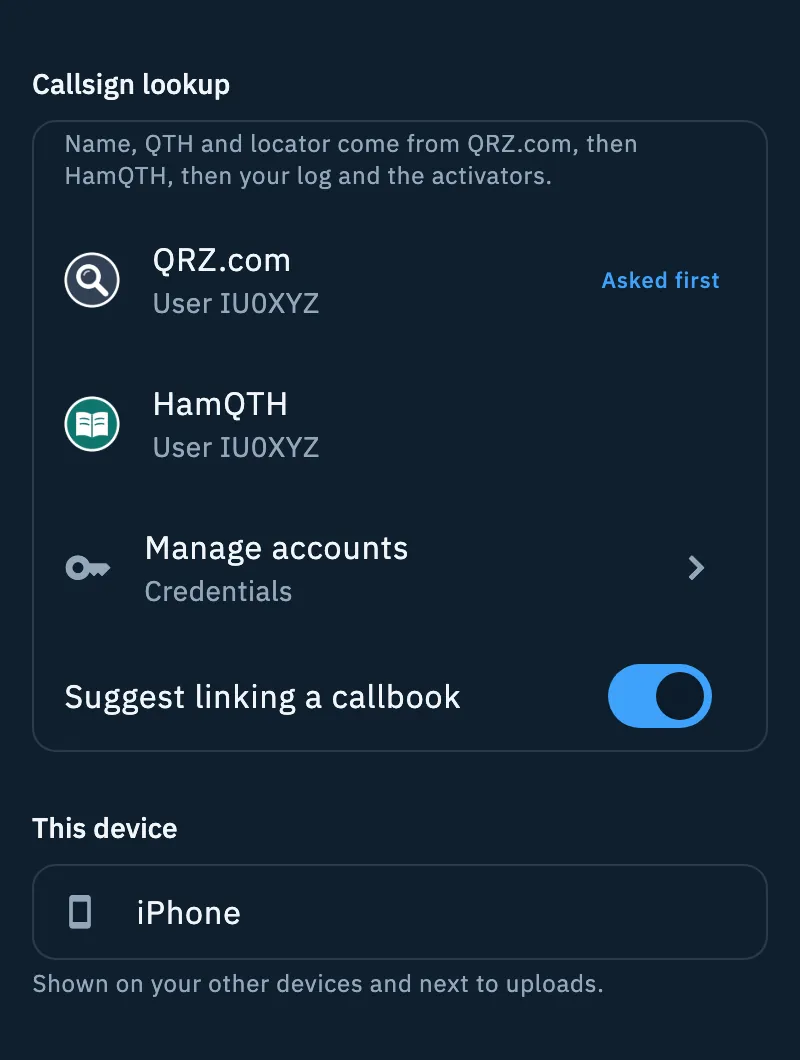
Above This device, the Callsign lookup section sums up which callbooks the callsign lookups use on this device. Callbook passwords, like the others, stay on each device: a callbook linked on the tablet does not look anything up from the phone until you link it there too.
- At the top: "Name, QTH and locator come from QRZ.com, then HamQTH, then your log and the activators.".
- One row for each linked callbook, with "User IU0XYZ". If both are linked, the one the lookups ask first is marked Asked first.
- If a callbook refused the password, its row has a yellow triangle and says "IU0XYZ: password refused. Link it again in Linked services to resume the lookups.".
- If there is none: "No callbook linked: names come only from the log and the spots.".
- Tap Manage accounts (or Link a callbook if you have none): it opens the page of the callbook whose password was refused, otherwise the one asked first; if you have none, the QRZ.com page.
- Turn Suggest linking a callbook on or off: when on (the default) the app offers to link a callbook while you log QSOs, with the "Names, automatically" box. This choice is part of the logbook settings and follows your account.
Callsign lookup is explained in QRZ.com and callsign lookup.
Free and Pro
Everything on this page is free: linking services on several devices, seeing which device uploads and naming the device do not need HamQSO Pro.
Phone, tablet and computer
It works the same on iOS, Android, computers and the web; uploads with the app closed happen only on Android and iOS. On the web the passwords stay encrypted in the browser: another browser, even on the same computer, counts as another device. In Linked services, from 840 points wide, Callsign lookup and This device are in the right column; on a service page, so is Devices that can upload.
Your log, instead, is the same on all your devices by itself: see Your log on all your devices.
Troubleshooting
| What you see | What to do |
|---|---|
| "Linked on “iPad”" and the QSOs do not go out from here | Tap Link here too and type the password: the credentials of the other device do not come here. |
| "12 QSOs are waiting for eQSL: it's linked on “iPad”. …" | Link the service here too, or open HamQSO on the iPad: it uploads them. |
| "Waiting: open HamQSO on a device linked to eQSL." | No device has the service linked: link it on this one or open the app where it is linked. |
| "No network: you can link them when the connection is back. …" | Without network the accounts cannot be linked: once connected, tap Link here too on the service card in Linked services, or open the callbook page. |
| "Stopped: the HamQSO service cannot be reached" | The QSOs could not be reserved: they stay queued and go out when the network is back. |
| "Linked on another of your devices" without a name | On that device open Linked services and type the Device name. |
| The notice no longer appears | It appears only once per device: tap Link here too on the logbook card in Linked services; link a callbook from its page. |