
Alerts from a spot or a link
Create an alert in one tap from a spot, a hamqso.app link or the command palette, and log the station an alert found with "I worked it".
FreeUpdated for HamQSO 0.1.19
On this page
You don't have to build every alert from scratch. When you are looking at a station, Notify me opens the editor already filled in with its callsign; a hamqso.app link does the same with a callsign, a reference or a country, and the command palette with a callsign or a reference. And when an alert has led you to a station, you can log the QSO and tell your friends in one tap.
Notify me from a spot
- Open the DX or xOTA section and tap a spot (DX Cluster, POTA, SOTA or WWFF).
- In the detail, tap Notify me, next to Re-spot.
- Build the alert opens with the Name and the Callsigns criterion already filled in with the station's base callsign: K1ABC/P becomes K1ABC, so the alert also fires when it transmits as /P or /M.
- If you like, add more criteria: see Creating an alert. On the free plan you can pick one band and one mode; more bands or modes, US states and Maximum distance are Pro.
- Tap Save alert.
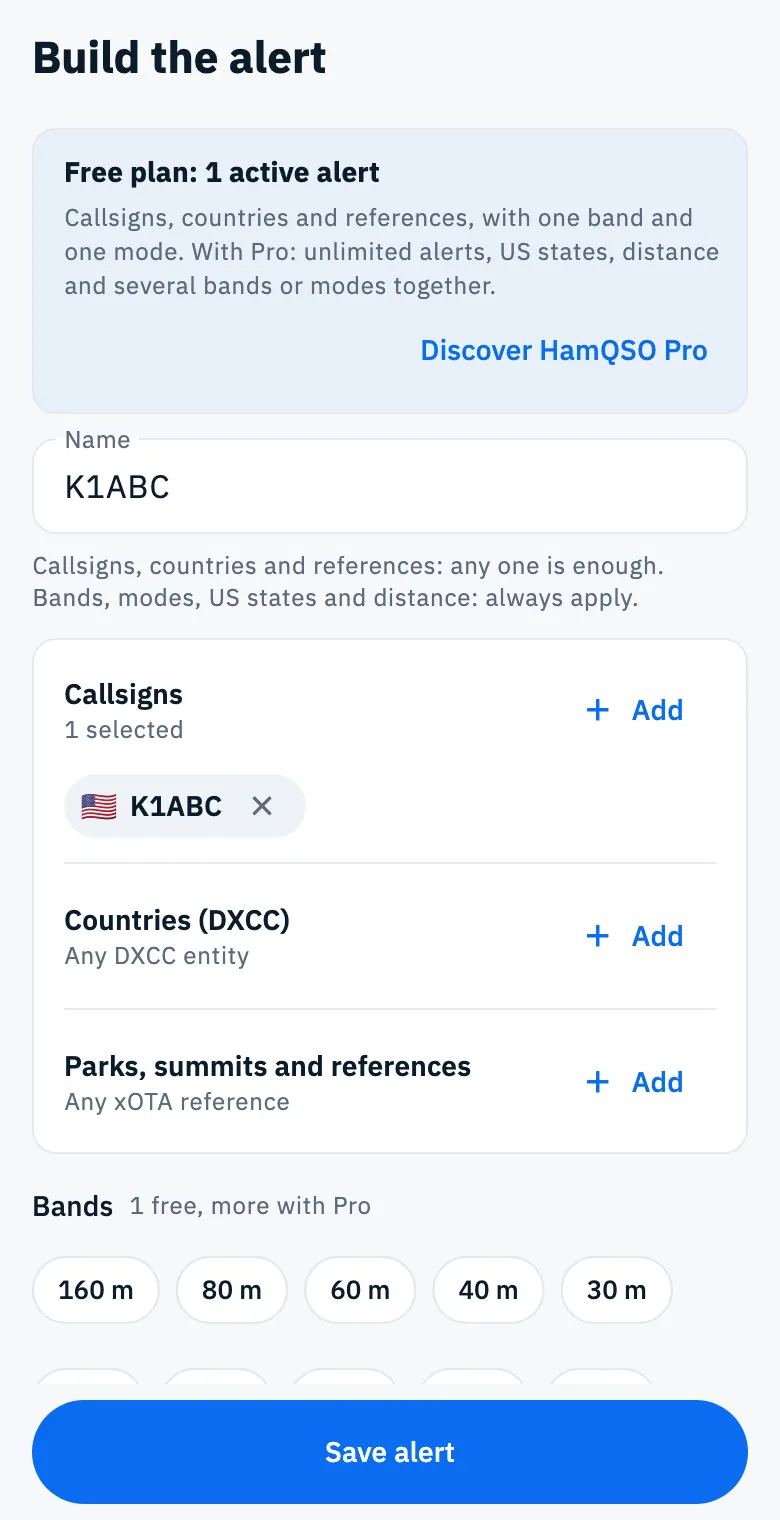
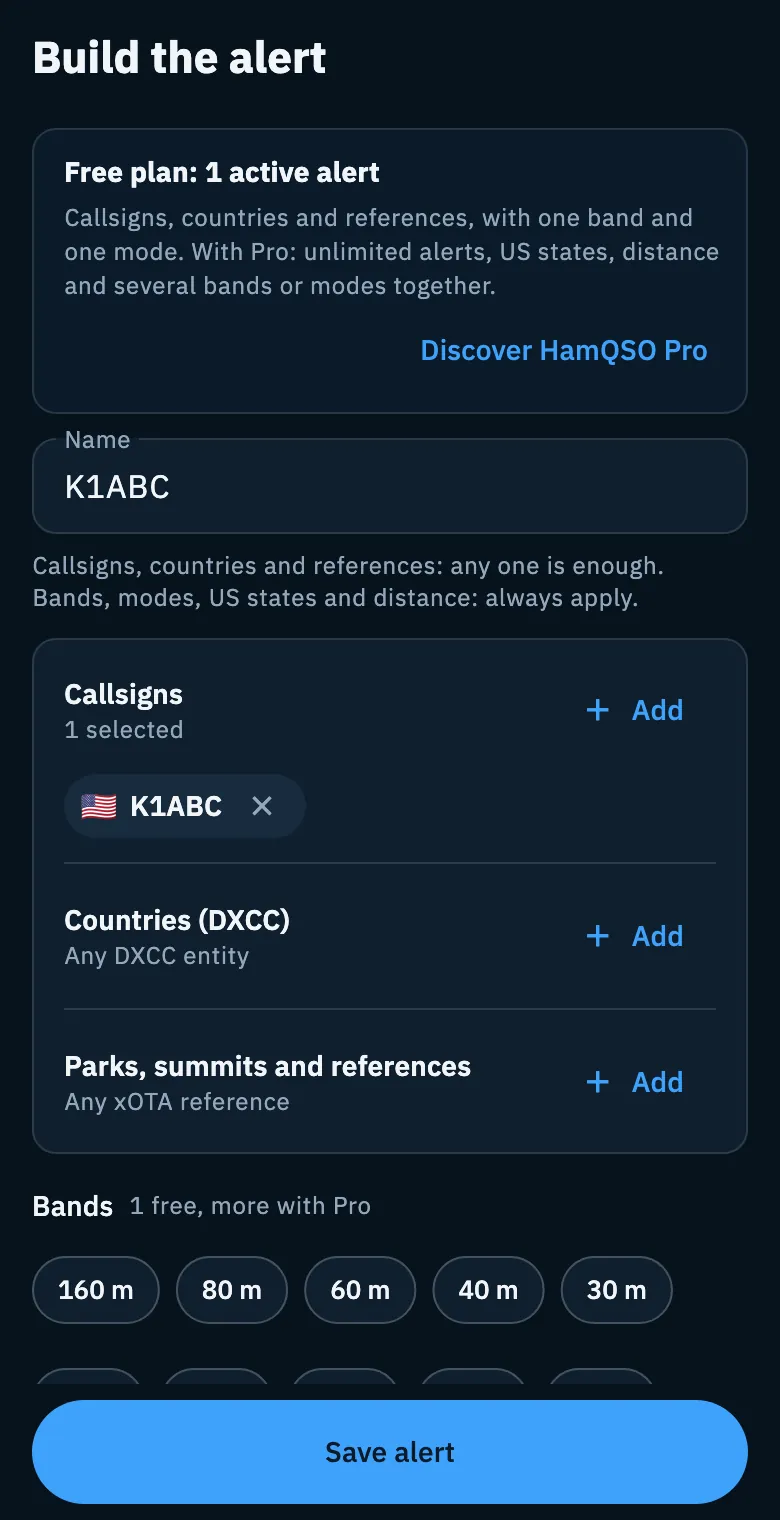
Notify me is not shown on spots of your own callsign (the ones marked It's you): to know when you get spotted, see Knowing when you are spotted.
From the command palette
In the app's desktop window and on the web on a computer, the command palette creates an alert from what you type. There is no palette on phones and tablets.
- Press Ctrl + K (⌘ + K on a Mac), or click the Search callsign, frequency, command… field at the top (in a narrow window it is the magnifier icon).
- Type a callsign (for example JA1XYZ) or a POTA, SOTA or WWFF reference (for example US-1234, W6/CT-006 or IFF-0123).
- Click Create an alert for …, or select it with ↑ ↓ and press Enter. With a callsign the first command is Find … in the log: Enter alone opens that one.
- In the editor, check the criteria and tap Save alert.
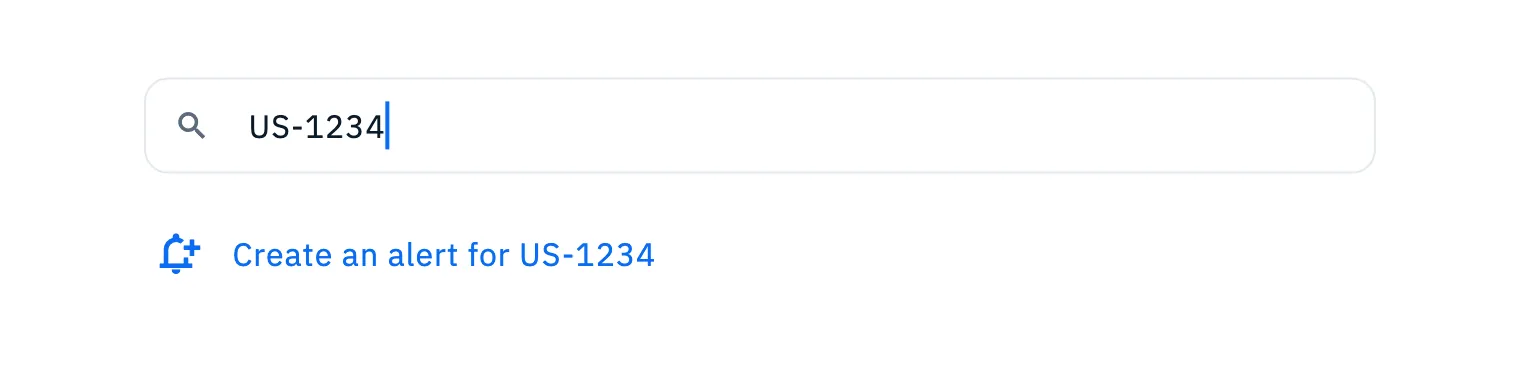
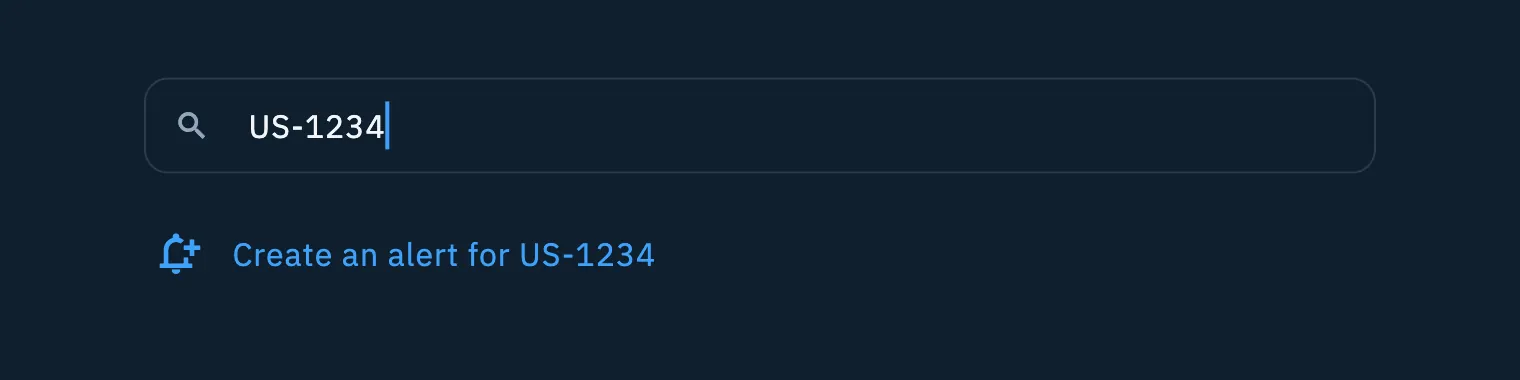
With a callsign the palette also offers Find … in the log and Open … on QRZ.com. All the palette commands are in Finding anything with the command palette.
From a hamqso.app link
The website uses links like https://hamqso.app/app/alerts/new?call=K1ABC to suggest an alert. If HamQSO is installed, the link opens the app, otherwise HamQSO on the web, in the Alerts section, with Build the alert already filled in.
| Parameter | What it fills in | When it counts |
|---|---|---|
call | A callsign in Callsigns, reduced to the base callsign | It must be a valid callsign with at least one digit |
ref | A reference in Parks, summits and references | It must have the shape of a reference (US-1234, W6/CT-006) |
dxcc | A country in Countries (DXCC), by its ADIF number | The number must exist in the DXCC table |
Each parameter is checked on its own: an invalid one is dropped and the others stay. The Name is left empty: when you save, the app takes it from the criteria (for a country, its name). If no parameter is valid, the empty editor still opens, on top of the Alerts section.
Worked it or heard it?
When one of your alerts finds a station, the notification opens the Alerts section; in Latest alerts, tap the row to open the spot. Under the buttons of the detail you find the Worked it or heard it? card: "This spot came from one of your alerts: let your ham friends know."
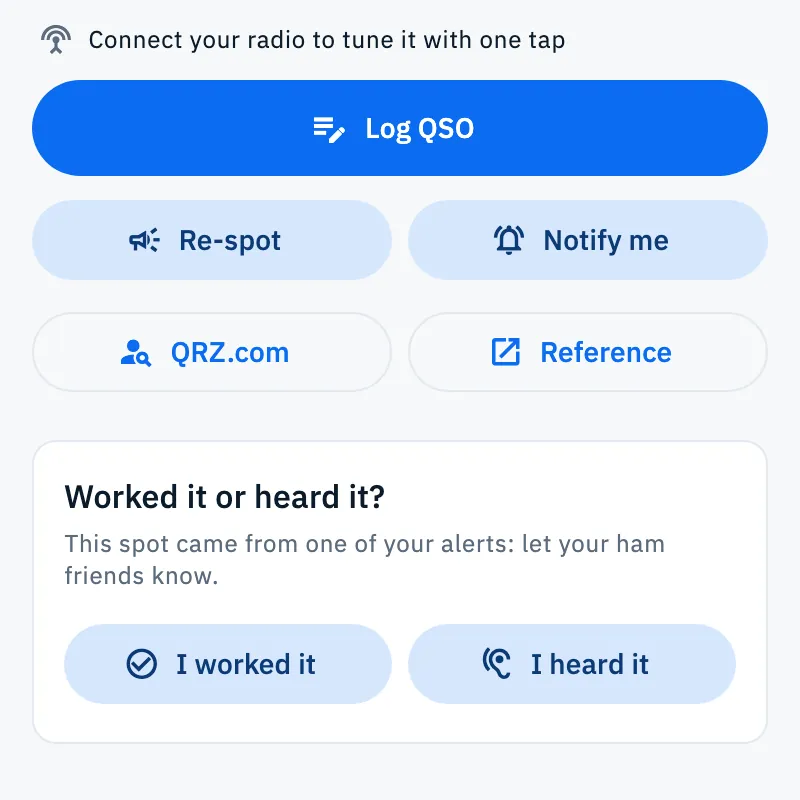
- I worked it logs the QSO, then opens sharing.
- I heard it only opens sharing, without touching the log.
The shared text says who you worked or heard, on which frequency, the reference if there is one, and ends with a link to hamqso.app. The mode is included only when the spot states it: an estimated mode is never shared. The system share sheet opens; a browser without sharing opens an e-mail.
What "I worked it" logs
- Tap I worked it.
- The QSO goes into the operation in use (the one of your last QSO or the last one created, unless you closed it); if there is none, into your latest Station log, which the app creates with the name "Main station" if it does not exist yet. It takes the current time in UTC, the spot's callsign, frequency, mode and reference, and the operator's name if the detail knows it.
- "QSO with K1ABC logged" appears: tap Open to see it.
- Then sharing opens.
The mode can end up in the QSO as estimated, to be confirmed: check it before exporting or uploading your log (see Frequency, band and mode of a QSO).
If in the last two hours you already have the same station in the log on the same band and mode, nothing is saved: "K1ABC is already in your log" appears, again with Open. This way a second tap does not create a dupe.
The card is not shown on spots opened from the list, nor on spots of your own callsign.
Free and Pro
Creating an alert from a spot, the palette or a link is free, with the usual rules:
- the free plan includes one active alert: if you already have one, the HamQSO Pro paywall opens when you save;
- the Pro criteria (more than one band or mode, US states, Maximum distance) stay visible, and tapping one opens the paywall.
See What HamQSO Pro includes. I worked it and I heard it are free.
Troubleshooting
- "The free plan includes one active alert. Pro has no limit." You already have an active alert and closed the paywall. Pause the other alert (see Managing your alerts) or upgrade to Pro.
- "You reached the limit of 20 alerts." Delete an alert you no longer use.
- "Can't reach the service. Check your connection." Alerts are saved on the server: try again when you are back online.
- The link opens an empty editor. None of the link's parameters was valid (for example a callsign without digits, or a DXCC number that does not exist): add the criteria by hand.
- The palette does not offer "Create an alert for …". What you typed is not recognized as a callsign or a reference: check there are no spaces and that the reference has the right shape.
- "I worked it" shows no confirmation. The QSO could not be logged (for example a frequency outside every band): sharing goes on anyway. Log the QSO by hand with Log QSO in the same detail.