
Opening and editing a QSO
Open a QSO, read its path and details, fix any field, confirm the estimated values and see what a QSO confirmed in HamQSO keeps locked.
FreeUpdated for HamQSO 0.1.19
On this page
Every QSO in your log has its own page: the path on the map, who you worked, frequency, time and reports, and every other field. From there you can fix any value, confirm the values the app only estimated, and see whether the QSO is confirmed in HamQSO, which locks it.
Opening a QSO
- Open the log of an operation in the Log section (see The Log section), or All QSOs (see Browsing and searching your log).
- Tap the QSO's row.
The detail also opens when you tap a QSO on the map of an operation or of the log summary, and from the earlier QSOs with the same station shown in a spot's detail.
- Phone: the QSO opens as a page; go back with the arrow.
- Tablet: the QSO opens to the right of the list, in an operation's log and in All QSOs; in an operation's log the X (Close the QSO) closes it. When the detail has room (840 points wide or more) its sections go in two columns.
- Computer: the QSO opens beside the log table. At the top, the Previous QSO and Next QSO arrows move through the QSOs without going back to the table, «3 of 42» tells you where you are, and the X (Close the QSO) closes the detail.
What the detail shows
The path on the map
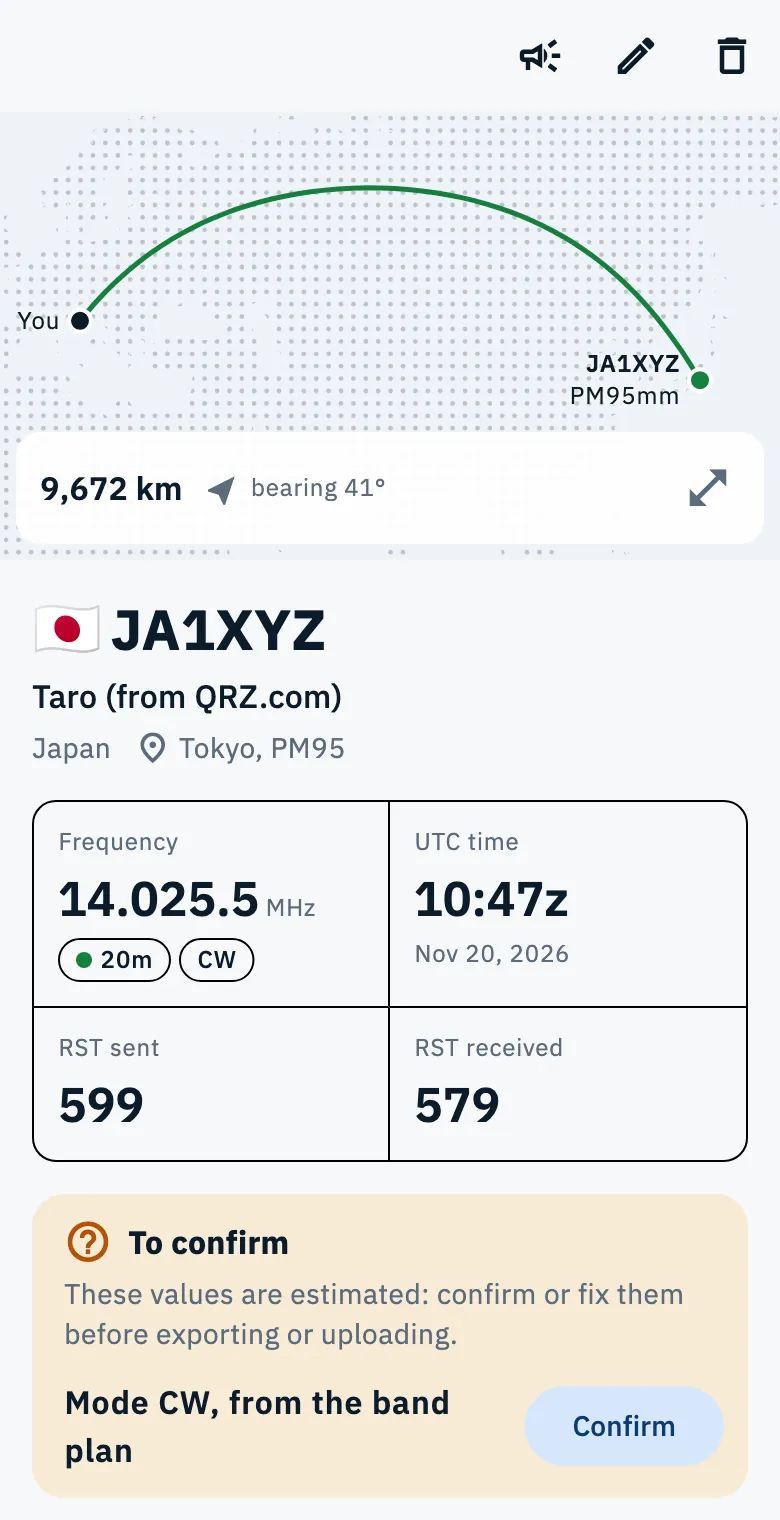
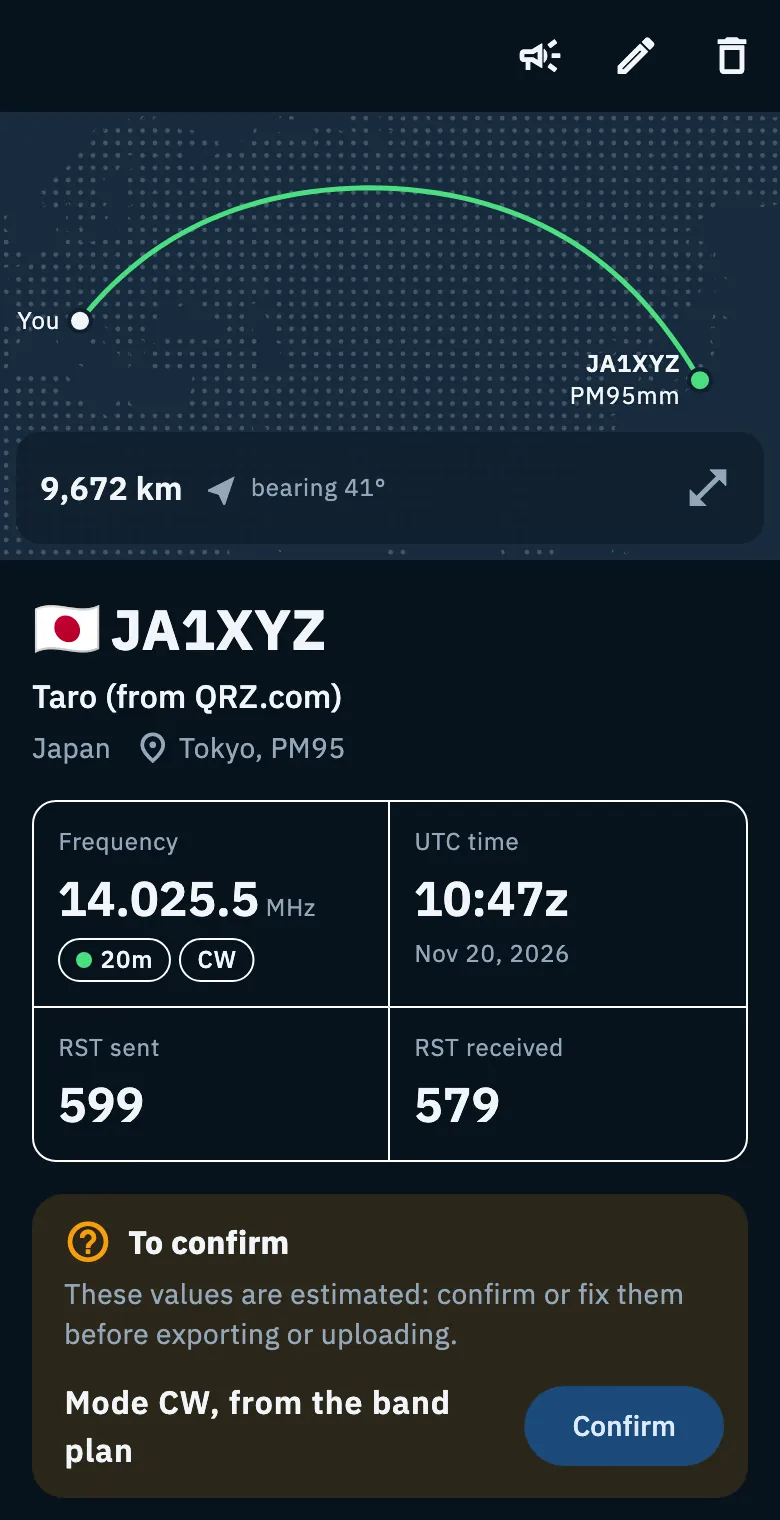
At the top a small map draws the line from your station (You) to the other station, with the distance and the bearing («bearing 41°») below it: what you need to point the antenna. The Open on the globe icon opens the path on the globe, full screen.
When the other station's position does not come from its locator or its reference, its place is an area with a dotted line: distance and bearing are estimates, rounded to 100 km and 5°, and the distance reads «about …». Tap Approximate location to see where the position comes from:
| Where it comes from | What it means |
|---|---|
| Home from the callbook | The station's home, from the callbook: during the QSO it may have been elsewhere |
| Center of the state | The center of the station's state, not where it was |
| Center of the country | The center of the country, worked out from the callsign |
Without a linked callbook the explanation adds «Link QRZ.com or HamQTH to see where the station is.» with the Link an account button (see QRZ.com and callsign lookup). When the operation has no locator, the map says «Add the operation's locator to see lines from your station.». A QSO with no place at all has no map.
Who you worked and the four values
Below the map:
- the callsign with the country flag;
- the name, with its source in brackets (for example «from QRZ.com» or «entered by you»). A long name opens with Show all and folds again with Show less. Without a name you read Name not found with Add;
- the country, the QTH and the locator;
- the other station's references (POTA, SOTA, WWFF…), as tags;
- four big values: Frequency (in MHz, with band and mode), UTC time (with the date), RST sent and RST received.
A missing value says Not recorded and has Add: tap it and the edit form opens.
When you scroll and the header leaves the screen, the callsign moves into the title at the top.
The sections
Under the four values comes the To confirm box, when the QSO has estimated values (see below), then the sections, folded: each one shows the first values it holds, and opens with a tap. A section with no values is not shown, except Uploads and confirmations, which is always there.
| Section | What it holds |
|---|---|
| eQSL HamQSO | The card of the QSO (see Sending eQSLs) |
| Other station | Name (with its source), QTH, Locator, Country (DXCC), Zones («CQ 25, ITU 45»), State or province, County, Distance with the bearing |
| Time and frequency | Start (UTC), End (UTC), RX frequency (split), Power (W) |
| Contest | Serial sent and received, Exchange sent and received (only when present) |
| Notes | Comment, Personal notes, eQSL.cc message |
| My station | Station callsign, Operator, My locator, My references |
| Uploads and confirmations | The status of the QSO on QRZ.com, eQSL.cc, HRDLog and LoTW and the confirmations received (see A QSO on your services) |
| Other ADIF fields | Imported ADIF fields the app does not handle: it keeps them and writes them back when you export (only when present) |
| Logged from | Where the QSO came from and the Last change |
Where it came from is one of: Typed in, A spot, The radio, ADIF import, Import from QRZ.com, Recovered from HamQSO.
The actions at the top
| Icon | What it does |
|---|---|
| Re-spot | Sends the QSO again as a spot (see Re-spotting a spot or a QSO). Only there when the QSO has a real frequency, not an estimated one |
| Edit | Opens the form with every field |
| Delete QSO | Moves the QSO to the trash, with Undo (see Deleting QSOs and the trash) |
The detail stays up to date: if you change the QSO on another device, the change arrives here by itself, as long as you are not editing the QSO at that moment.
Estimated values to confirm
Sometimes the app does not know a value and works it out. This happens mostly with the mode:
- you log a QSO from a spot that does not say the mode: the app takes it from the band plan of the frequency or from recent spots of the same station;
- you import an ADIF file with a QSO without a mode: the app works it out from the frequency.
Band and frequency can be estimated too. An estimated value is never treated as real: the app marks it, and a QSO with estimated values is not uploaded to your services and is left out of exports until you confirm or fix them.
Where you see it:
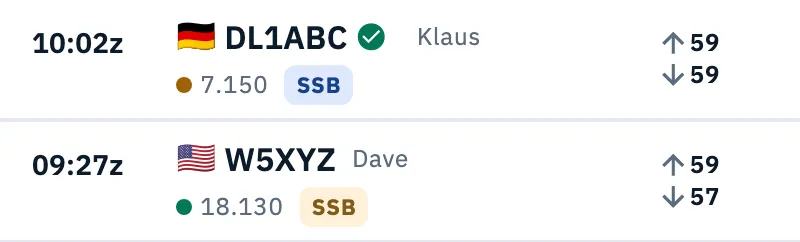
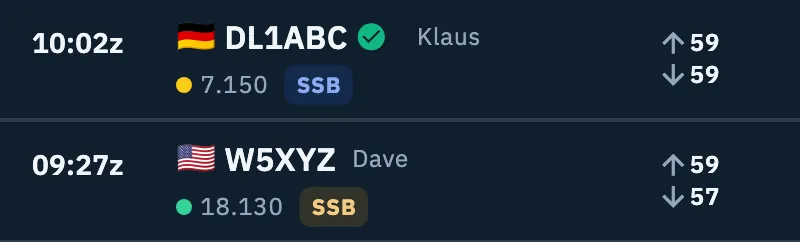
- in the log row, the mode tag is in the warning color (the screen reader says «Mode to confirm»);
- in the detail, the To confirm box: «These values are estimated: confirm or fix them before exporting or uploading.», with one line per value, for example «Mode CW, from the band plan», «Band 20m, estimated» or «Frequency 14.025.5 MHz, estimated»;
- in the edit form, the field carries the To confirm tag.
To confirm:
- Open the QSO.
- If the value is right, tap Confirm on its line. With more than one value to confirm there is also a Confirm at the top of the box, which confirms them all at once.
- If the value is wrong, tap Edit and fix it: changing an estimated value confirms it.
After confirming you read «Changes saved» and the box goes away.
Editing a QSO
- Open the QSO and tap Edit (the pencil). The title becomes «Edit» and the page turns into the form of every field.
- Change the fields you need.
- Tap Save. The button turns on only after a change.
You read «Changes saved» and the detail goes back to reading.
To leave without saving, tap the X (Leave without saving). If you changed something the app asks «Leave without saving?» («Unsaved changes will be lost.»): Keep editing takes you back to the form, Leave without saving drops the changes. The same happens when you go back with the arrow.
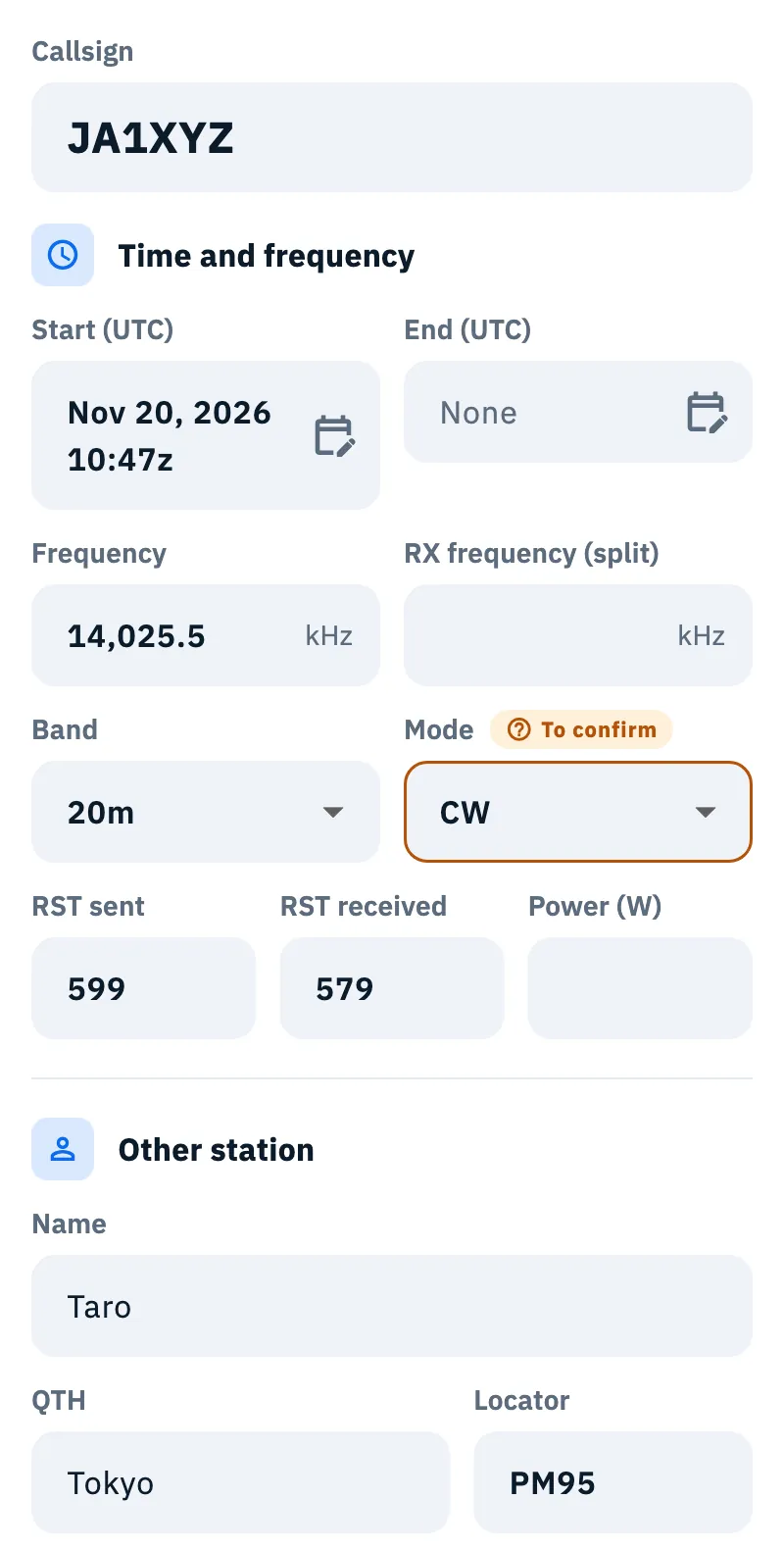
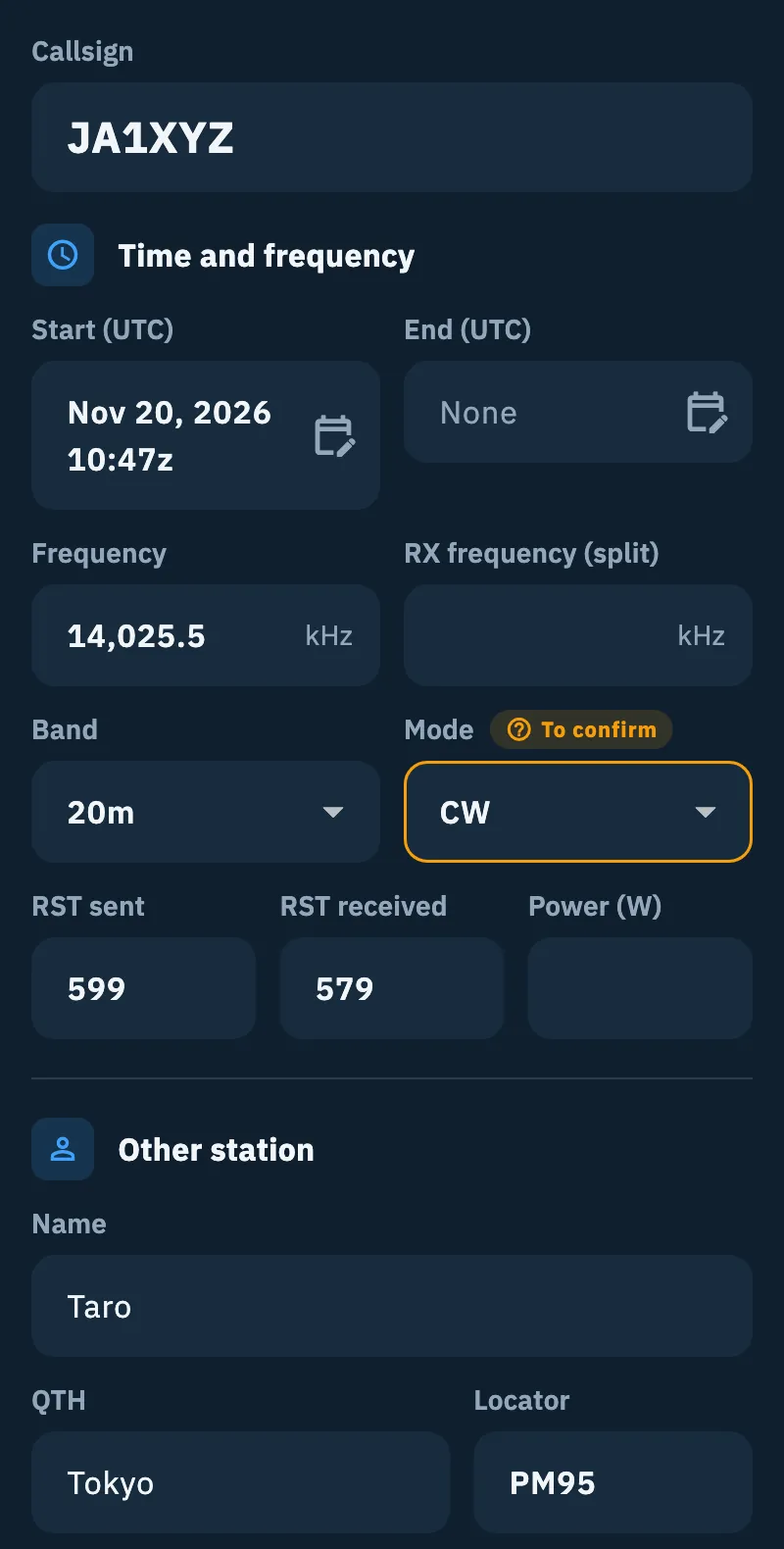
The fields of the form
| Group | Fields |
|---|---|
| At the top | Callsign, in large type |
| Time and frequency | Start (UTC) and End (UTC) (picked with a calendar and a clock, in UTC; the end is removed with Clear), Frequency and RX frequency (split) in kHz, Band, Mode, RST sent, RST received, Power (W) |
| Other station | Name, QTH, Locator, State or province, County. Country and zones are «Worked out from» the callsign: tap Edit to type them yourself (Country, DXCC entity, CQ zone, ITU zone) |
| Other station's reference | The other station's POTA, SOTA, WWFF… references (see Finding and choosing references) |
| Contest | Serial and exchange, sent and received. Folded while empty |
| Notes | Comment («Goes into the exported log and uploads»), Personal notes («Only for you: they stay in your log»), eQSL.cc message. Folded while empty |
The values of your own station (station callsign, operator, your locator and your references) stay as they were logged and are not changed here.
What updates by itself when you save
- A new callsign brings its country, DXCC entity and zones, unless you changed the DXCC entity by hand as well.
- A new frequency brings its band, unless you changed the band as well.
- A new locator of the other station works out distance and bearing again.
- A name you type becomes «entered by you».
- Start and end times stay in UTC.
A QSO already uploaded to your services
If the QSO had already been uploaded, the change marks it as modified on your services:
- QRZ.com and HRDLog get the correction at the next upload;
- eQSL.cc and LoTW take no corrections from the app: after saving you read for 10 seconds «Changes saved. Fix the QSO on … too: it does not update by itself.», with the name of the service. Fix it on the service's website.
See Automatic uploads and waiting QSOs.
A QSO confirmed in HamQSO
When the other station also uses HamQSO and logs the same QSO, the QSO is confirmed in both logs. You see it from the green check beside the callsign in the log rows (press and hold, or hover with the mouse, to read «Confirmed in HamQSO»).
From then on some values are locked:
- callsign, date, time, band and mode cannot change: in the detail they carry a small padlock, and Uploads and confirmations is already open, with its first row saying «Confirmed in HamQSO» and «… logged it too with HamQSO: it's confirmed in both logs.»;
- the frequency can only change within the same band;
- the QSO cannot be deleted: the Delete QSO icon is off and explains «It can't be deleted: the QSO is confirmed in HamQSO.».
Reports, name, locator, notes and everything else can be edited as usual. In the edit form the locked values are at the top, read only, in the Locked by the confirmation group. The server refuses changes to the locked values too, from any device.
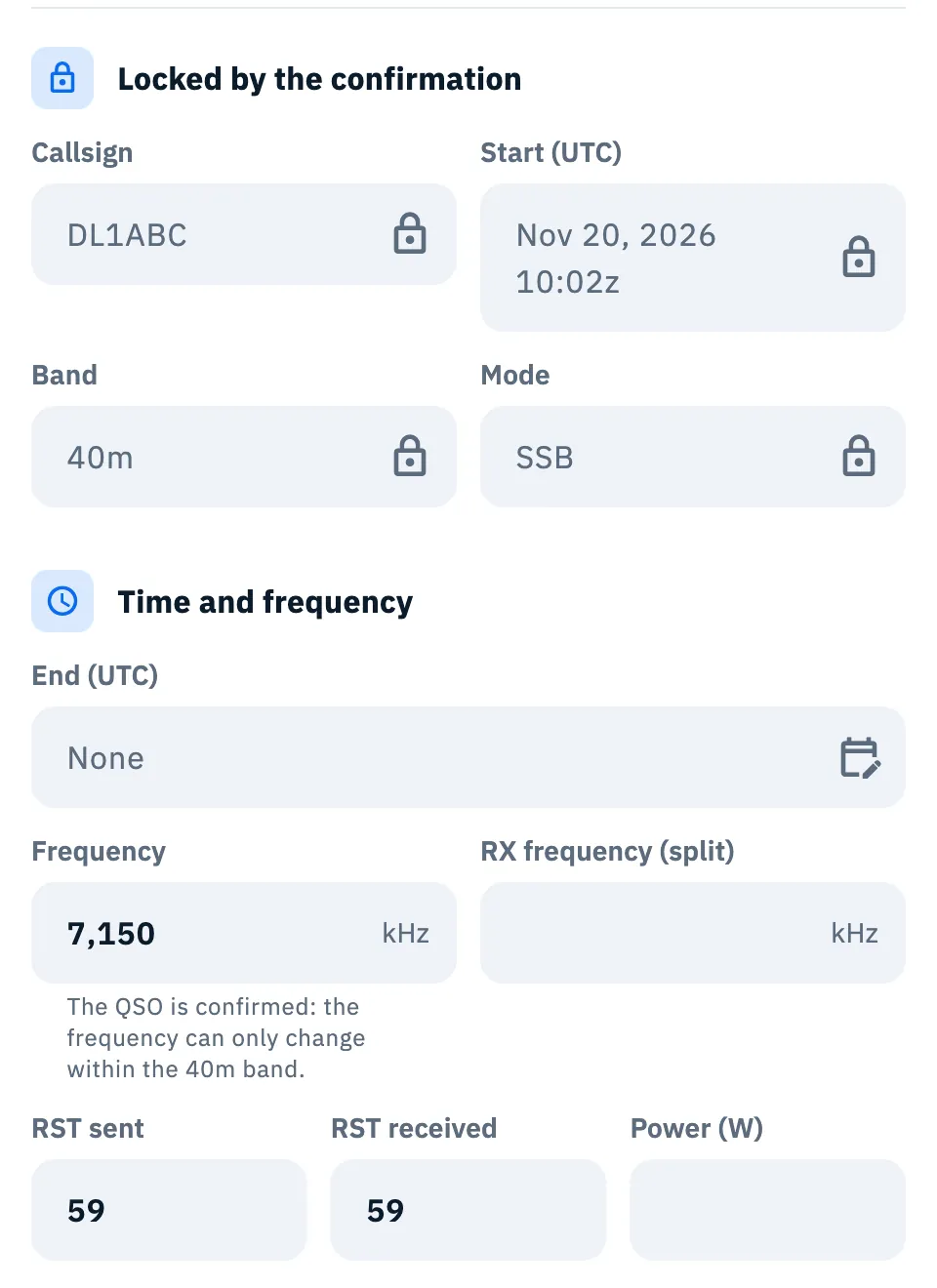
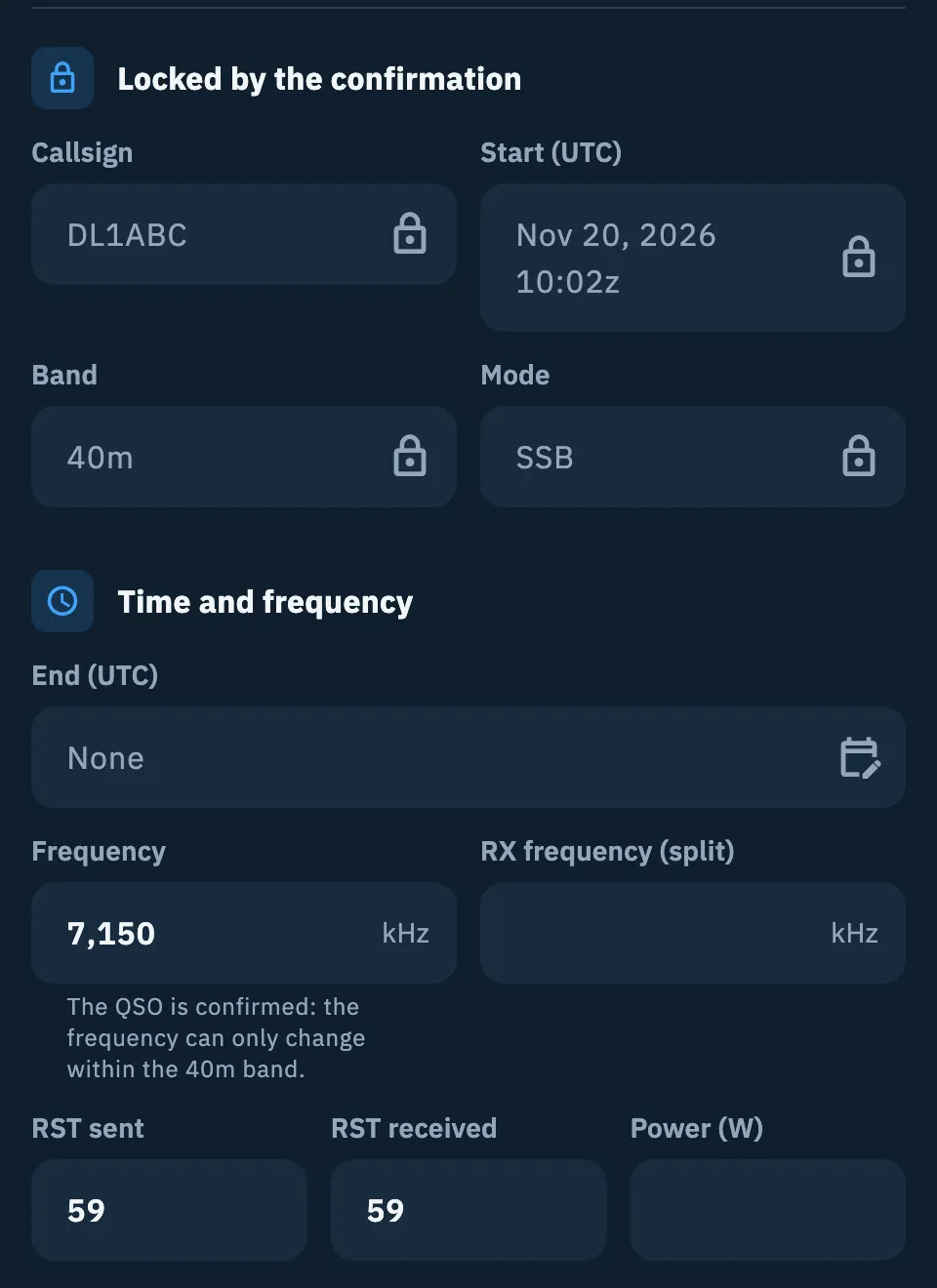
For QSOs other HamQSO users logged with your callsign, see Recovering QSOs waiting for you.
Free and Pro
Opening, editing and confirming a QSO is free, with no limits.
Troubleshooting
| Message | What to do |
|---|---|
| «Could not open this QSO.» | The QSO did not load from the device. Go back and open it again |
| «This QSO is no longer in the log.» | The QSO was deleted, maybe from another device. If it is still in the trash you can restore it (see Deleting QSOs and the trash) |
| «Type the callsign» | The callsign is empty: type it before saving |
| «This callsign doesn't look valid» | Check that you typed the callsign correctly |
| «The band is missing: enter the frequency or pick the band» | The QSO has neither frequency nor band: type the frequency or pick the band |
| «Not a valid locator (e.g. JN55)» | Type the locator with 4, 6, 8 or 10 characters, for example JN63 or JN63AB |
| «The QSO is confirmed: the frequency can only change within the 40m band.» | The QSO is confirmed in HamQSO: pick a frequency in the same band |
| «Could not save the changes. Try again.» | Tap Save again. Your changes stay in the form until you leave |
| The Delete QSO icon is off | The QSO is confirmed in HamQSO and cannot be deleted |
| No Re-spot | The QSO has no frequency, or the frequency is estimated: confirm or fix it |