
Finding your way around
The five sections of HamQSO, what each one holds, what the marks on their icons mean, where the Spot button is and how to go back.
FreeUpdated for HamQSO 0.1.19
On this page
HamQSO is split into five sections, always in the same order on phone, tablet and web. This page shows what each one holds, what the marks on their icons mean, where the Spot button is and how to go back from any page.
The five sections
| Section | What you find |
|---|---|
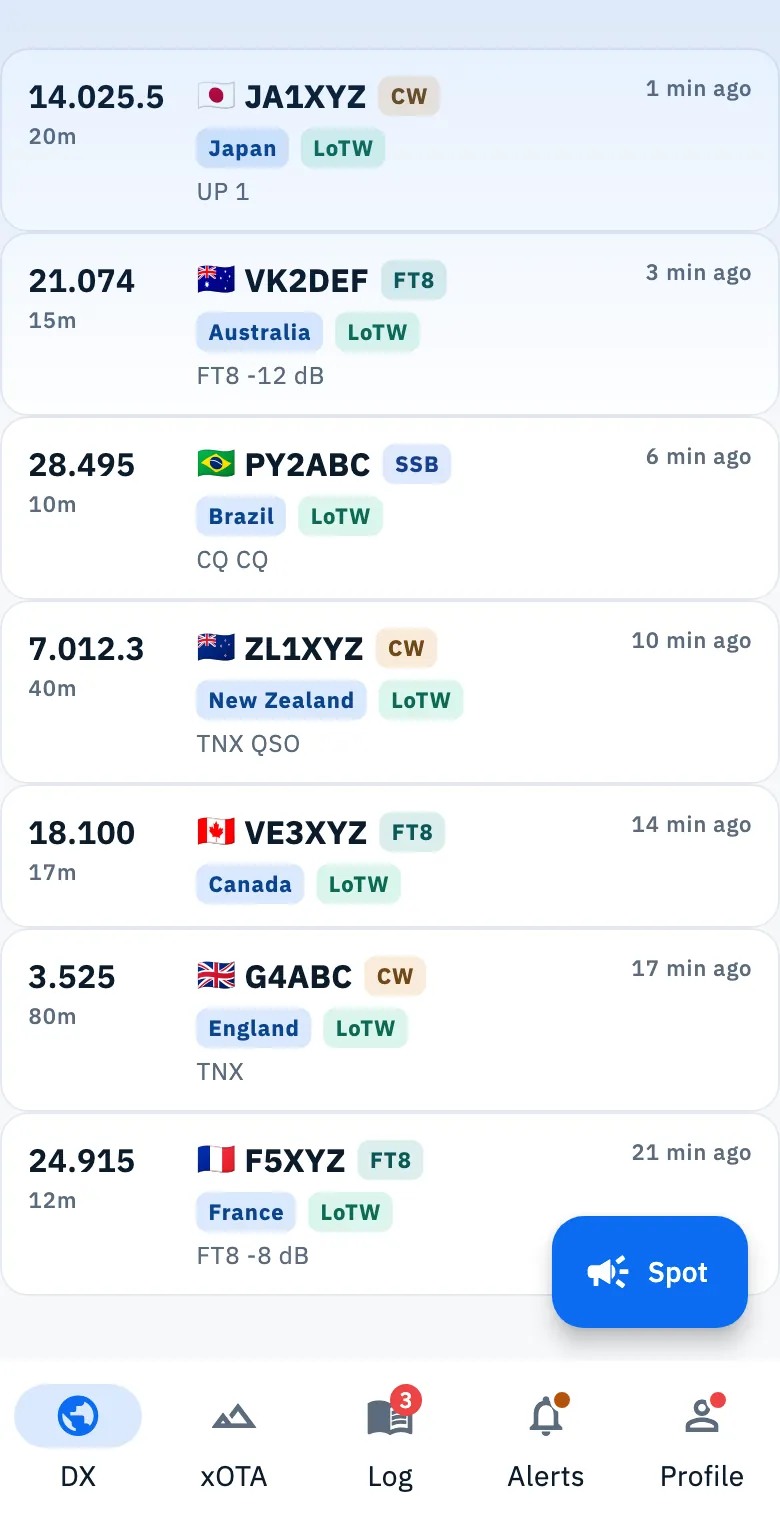
| DX | The DX Cluster spots. Spot details and Propagation open from here too. It is the section you see when the app opens. |
| xOTA | POTA, SOTA and WWFF spots, the map of activations and the choice of the programs you follow. |
| Log | Your operations and QSOs, the trash, import and export, the log overview, logbook settings, station profiles and linked services. |
| Alerts | Your alerts, with the editor to create them, and Callsign protection. |
| Profile | Account, Settings, My station, Coverage test, the contest calendar, eQSL, feedback and What's new. |
To change section:
- On a phone, tap an icon of the bottom bar.
- On a tablet, tap an icon of the side bar on the left.
- On the web, click an entry of the side bar, or press the keys 1 to 5 (outside a text field) to open DX, xOTA, Log, Alerts and Profile. In a narrow browser window the app has the bar of a phone or a tablet, and the keys do not apply.
When you go back to a section you find it as you left it. The sections are fixed: you cannot reorder or hide them.
The color of each section
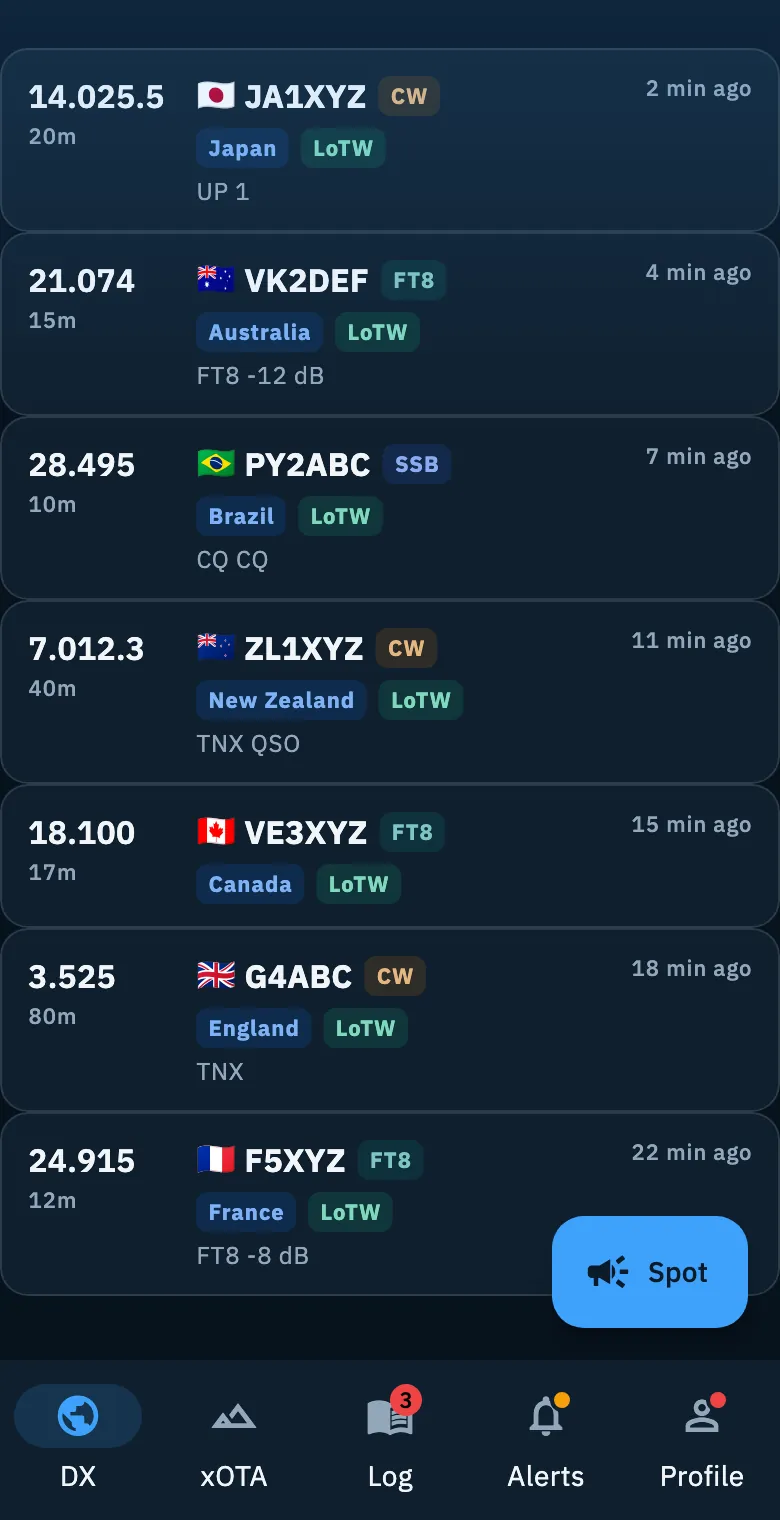
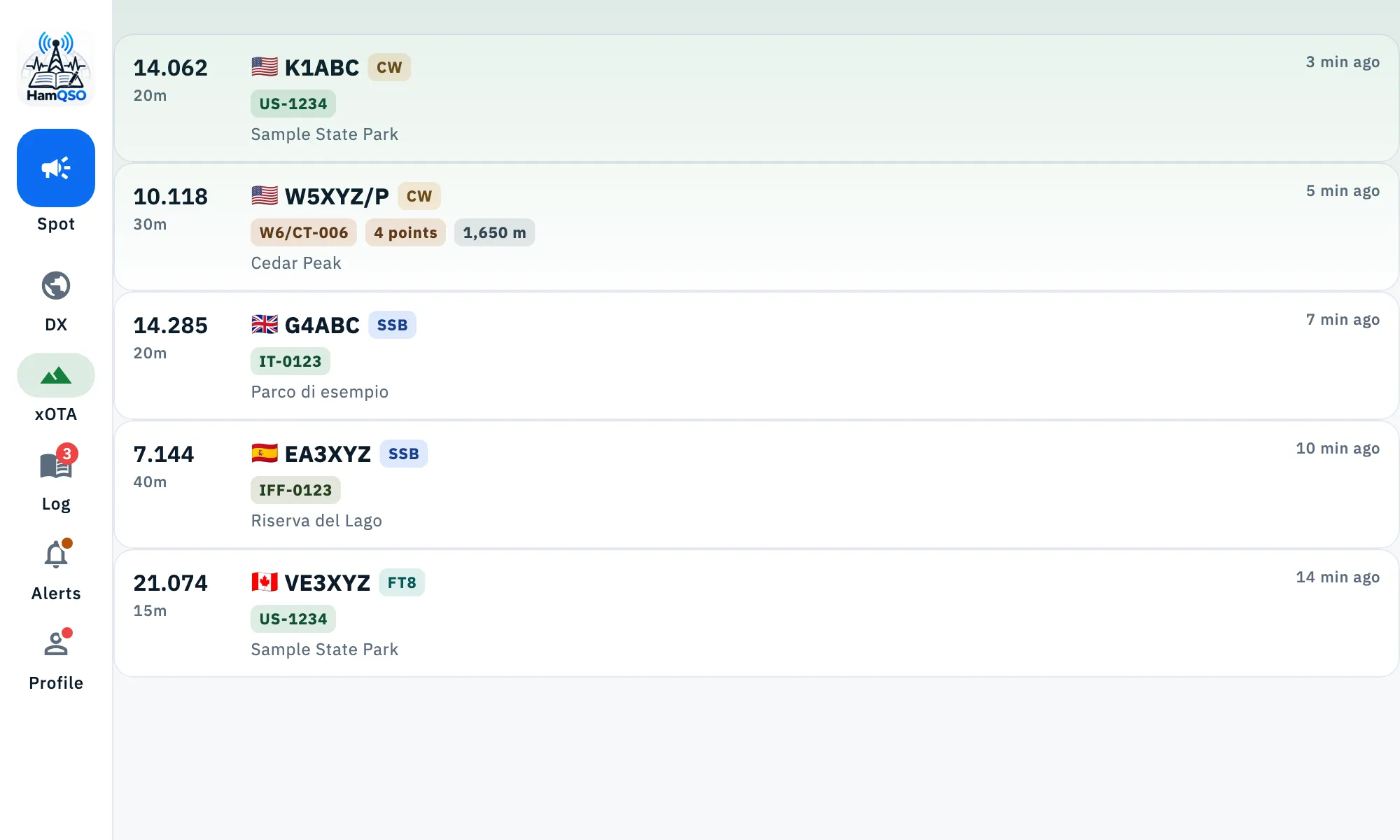
Each section has a light color, so you see at a glance where you are: DX blue, xOTA green, Alerts amber; Log and Profile stay neutral. The color shows as a veil fading from the top of the page and on the indicator of the selected section in the bar. Buttons and chips keep the app's blue.
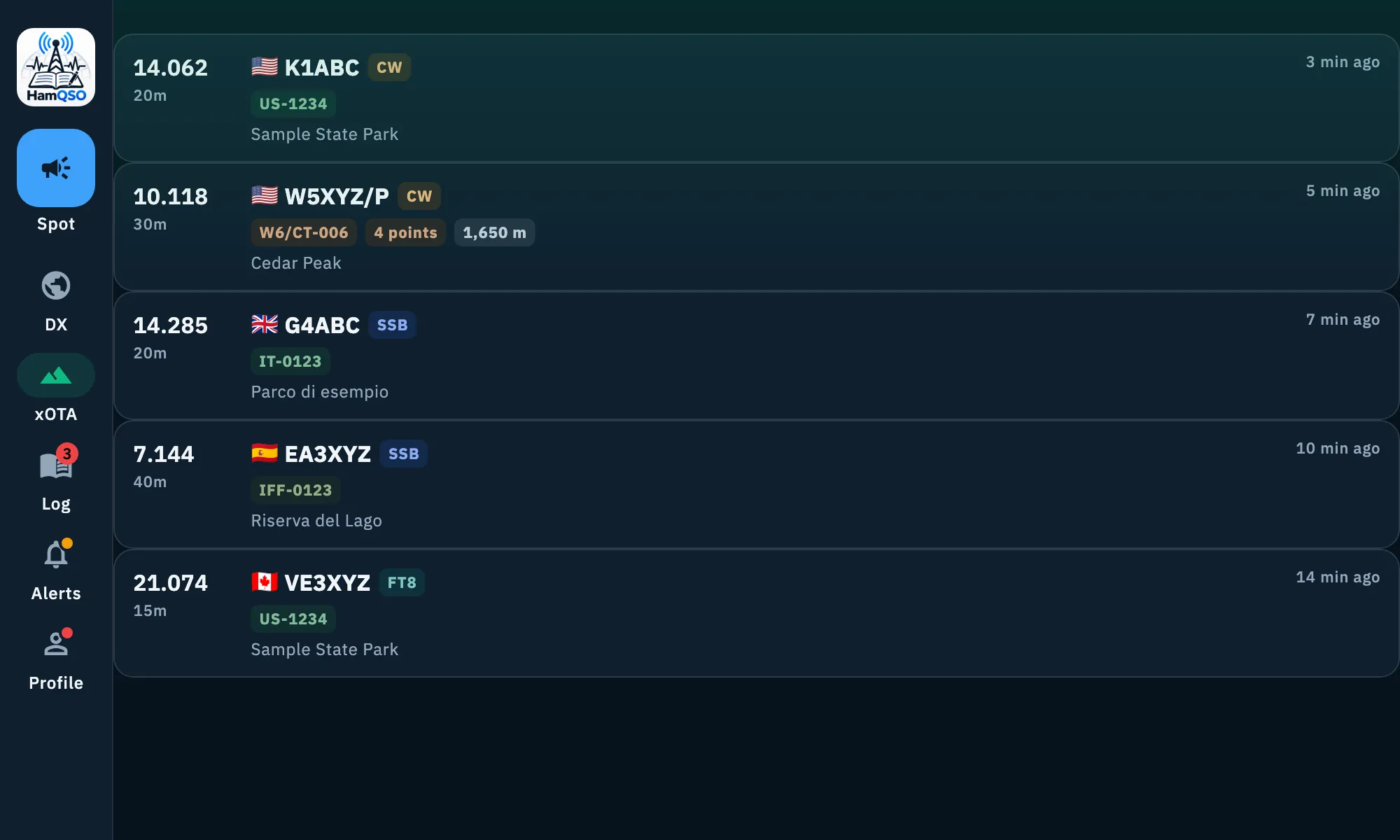
There is nothing to do: the color follows the open section, with shades suited to the light and the dark theme, and it cannot be turned off. In the web side bar the selected entry also has a vertical line in its color (the app's blue for Log and Profile).
The marks on the icons
The icons of three sections tell you when there is something to look at:
| Icon | Mark | What it means | When it goes away |
|---|---|---|---|
| Log | A number | How many QSOs are waiting for you: QSOs that other HamQSO users logged with your callsign and that you can import. | When you have decided what to do with those QSOs. See Recovering QSOs waiting for you. |
| Alerts | An amber dot | Callsign protection found something new. It works without Pro too. | When you open Callsign protection. |
| Profile | A red dot | There is news to read in What's new. | When you open What's new. |
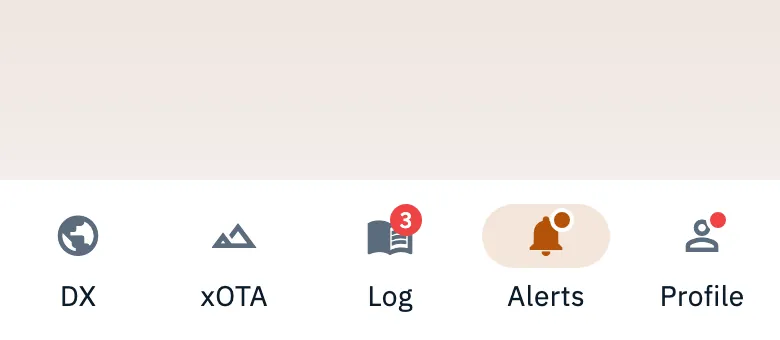
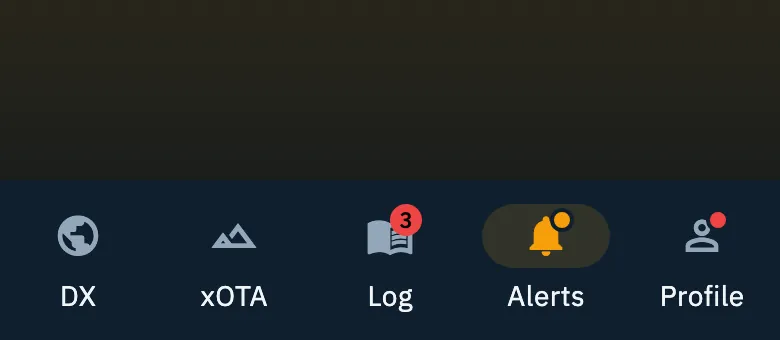
The Alerts dot is updated when the app comes back to the foreground and when a protection notification arrives with the app open; signing out or switching account clears it. It is only about callsign protection, not your alerts nor When you get spotted: for that see Protecting your callsign.
The number on Log counts only the QSOs to import, not the QSOs waiting to be uploaded to linked services (for those see Automatic uploads and waiting QSOs).
Where the Spot button is
The Spot button opens the choice between I'm on the air (you announce your activation) and Spot a station. It is always in the same place for each kind of device, and only where it is useful:
| Device | Where it is | In which sections |
|---|---|---|
| Phone | Floating button at the bottom right. In Log it is an icon in the header, so it does not cover New operation. | DX, xOTA, Log |
| Tablet | Under the logo, at the top of the side bar. | DX, xOTA, Log |
| Web | First button of the side bar, or the S key outside a text field. With the side bar collapsed only the icon stays. | All |
On phone and tablet the button does not show in Alerts and Profile, where there is no spot list. For how to send a spot see Spotting a station.
Pages and going back
Every page you open from a section (a detail, the settings, the radio, a contest…) belongs to that section.
- On phone and tablet the page covers the section and has its own bar at the top: tap the back arrow, or use the system back gesture or button.
- On the web the page opens inside the app window, with the side bar always visible. The top bar shows the path, for example "Profile › Settings": click a step to go back to it, or use the browser's back button.
- On the web Esc closes dialogs, sheets and panels.
If you open a page from a link or reload the browser, the page opens over its section, so the back arrow always leads somewhere. Pages that the address alone cannot rebuild (for example the map of activations) open their section instead.
On the web, choosing a section in the side bar closes the pages open over it and brings you back to the section as you left it. The pages you open from the side bar below the sections (Propagation, My station, Coverage test, eQSL HamQSO) are places of their own: the path starts from them, not from a section.
Phone, tablet and web
- Phone: bottom bar with the five sections; with a radio connected, its bar sits right above it.
- Tablet (and a large phone on its side): side bar on the left with the logo, Spot and the sections with their names; when the window is short the bar scrolls. The radio bar sits at the foot of the content.
- Web with mouse and keyboard, in a wide window: side bar with the sections and the app's pages, top bar with the path and the radio bar at the bottom.
All the details are in Phone, tablet and web, and the shortcuts in Keyboard shortcuts.
Troubleshooting
- I can't see the Spot button. On phone and tablet it is only in DX, xOTA and Log: switch to one of these sections.
- The dot on Alerts does not go away. Open Callsign protection from the Alerts section: the dot goes away as soon as you see it.
- The number on Log stays. It goes away only when you have decided what to do with the QSOs waiting for you; opening the Log is not enough.
- Keys 1–5 or S do nothing on the web. They work only outside a text field: click an empty spot of the page and try again.