
Exporting your log as ADIF
Create an ADIF file of the whole log, one operation or a filtered part, for another program, for TQSL and LoTW, or for POTA, WWFF and SOTA.
FreeUpdated for HamQSO 0.1.19
On this page
The export creates an ADIF file of your log: all of it, one operation, or only the QSOs you pick with filters. Use the file to keep a copy, to import the QSOs into another program, or to sign them with TQSL and upload them to LoTW. For a POTA, WWFF, SOTA or IOTA activation HamQSO also prepares the files the program sites expect. The export works offline and removes nothing from the log.
Opening the export
- Open Log.
- Tap ⋮ (Log menu) next to the Operations title.
- Choose Export ADIF.
The Export the log page opens. You also get there from Linked services > LoTW (see "Only the QSOs not yet sent") and from the first step of Delete account. A single operation can also be exported from its own menu, explained below in "Exporting an operation".
Choosing what to export
Under What to export pick one of three:
| Choice | What goes into the file |
|---|---|
| The whole log | Every QSO in the log. This is the starting choice. |
| One operation | The list of operations opens: pick one. Under the choice you see the operation's name (or Choose the operation until you have picked one) and the Change pencil to pick another. |
| Filtered | Only the QSOs matching every filter you choose (see below). |
QSOs in the trash are never exported.
Exporting with filters
With Filtered the filters appear under the choice, one chip each. Until you choose one, the whole log is exported: "No filter: the whole log. Tap a filter to narrow it down."
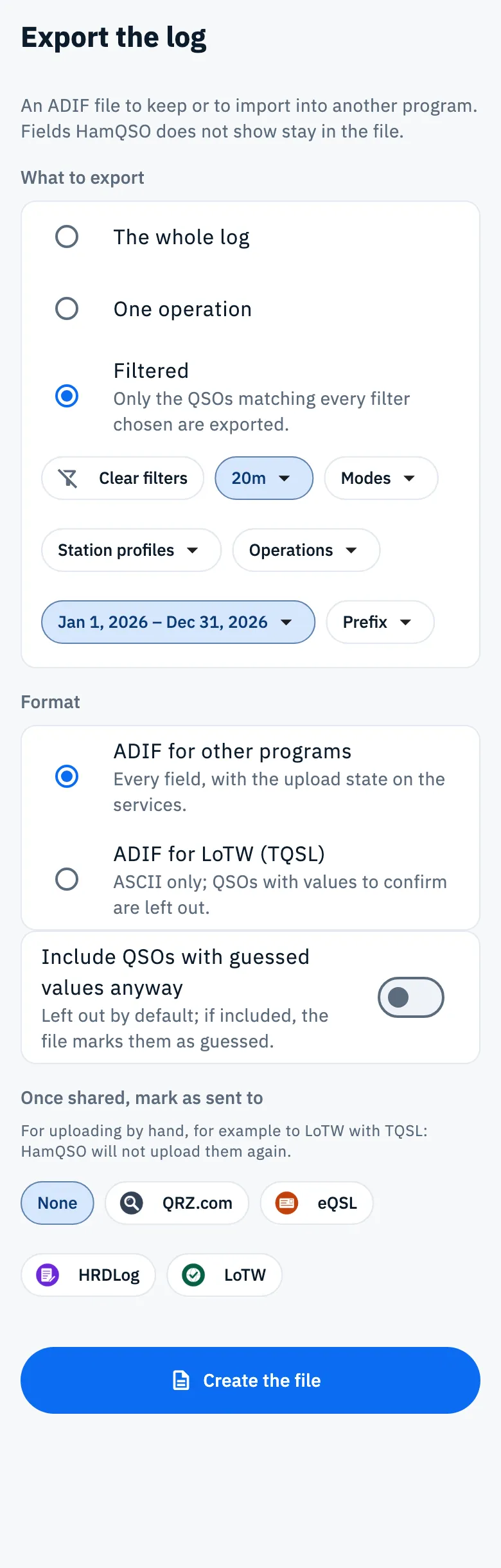
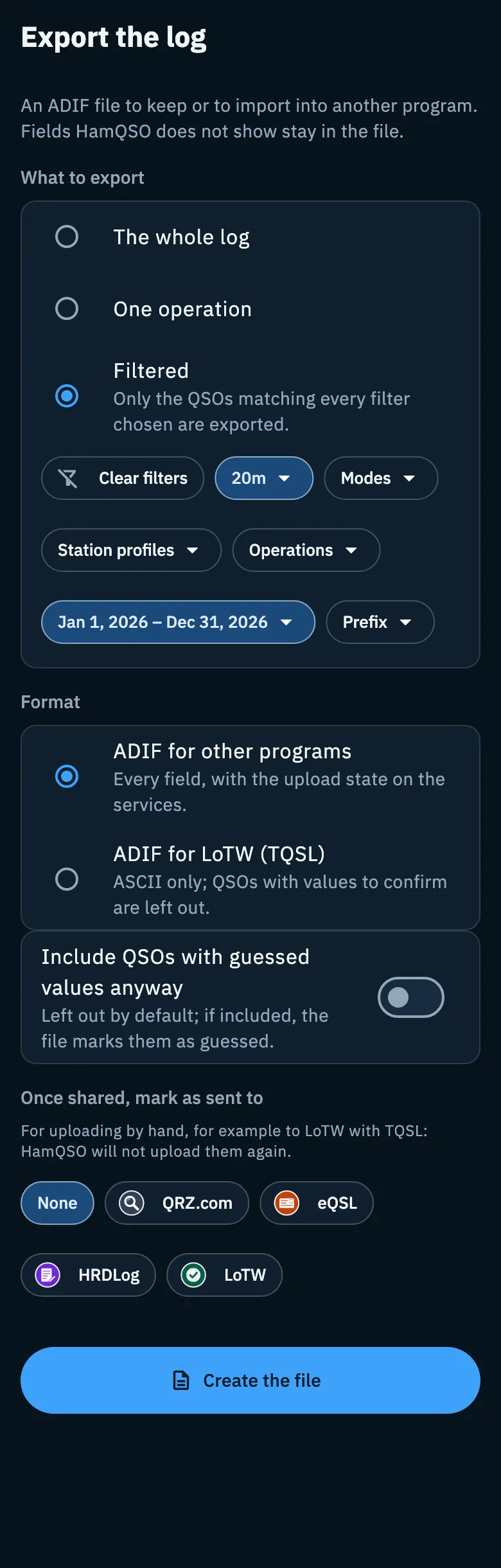
- Tap a chip, for example Bands.
- Tick one or more values. Any clears them and removes that filter.
- Close the list: the chip shows what you chose (with more than two values, the first one and "+N").
- Repeat for the other filters. Clear filters, the first chip once a filter is set, removes them all at once.
| Filter | What it picks |
|---|---|
| Bands | One or more bands. |
| Modes | One or more modes, the same ones you log QSOs with. FT4 and JS8 are submodes of MFSK and show together as MFSK (FT4, JS8); PSK31 shows as PSK (PSK31). |
| Station profiles | One or more station profiles. The chip is there only when you have more than one profile. |
| Operations | One or more operations, with Search to find them. |
| Period | A date range picked in the calendar (Pick dates). Dates are UTC days, first and last included. With a period already set, the chip asks whether to change it or go back to Any. |
| Prefix | The start of the worked callsign, for example IU2 or EA8. |
The filters apply together: a QSO goes into the file only if it matches all of them. The station profiles list gets Search when you have more than eight profiles.
Choosing the format
Under Format pick who the file is for:
| Format | What it holds |
|---|---|
| ADIF for other programs | Every field and the upload state on the services, in UTF-8. HamQSO's own fields and the fields HamQSO does not show stay in the file too: a file imported back into HamQSO loses nothing. This is the starting choice. |
| ADIF for LoTW (TQSL) | Only what TQSL signs (station location, propagation, satellite), in ASCII characters. QSOs with guessed values are always left out. |
When you choose ADIF for LoTW (TQSL) and "Once shared, mark as sent to" is set to None, HamQSO picks LoTW for you. You can change it.
QSOs with guessed values
Some QSOs hold a value HamQSO guessed and that is still to confirm, for example a mode or a place worked out by the app. So they are not passed off as real, the export leaves them out.
With ADIF for other programs, under the format there is the Include QSOs with guessed values anyway switch (off at first):
- off: guessed QSOs stay out of the file. The result says, for example, "2 QSOs left out: they have guessed values to confirm".
- on: they go into the file, still marked as guessed. The result says "N QSOs with guessed values included, marked as guessed".
With ADIF for LoTW (TQSL) the switch is not there: guessed QSOs are always left out. To export them as real, confirm the values in the QSO first (see Opening and editing a QSO).
Marking the QSOs as sent
If you upload QSOs to a service by hand, for example to LoTW with TQSL, you can tell HamQSO that the QSOs in the file have been sent there, so it will not upload them again.
- Under Once shared, mark as sent to tap the service: QRZ.com, eQSL, HRDLog or LoTW. None marks nothing.
- Create the file: the file card says "Once shared, the QSOs count as sent to LoTW."
- Share or save the file: the card then reads, for example, "148 QSOs marked as sent to LoTW".
You can pick one service at a time. The QSOs are marked only when you share or save the file, not when you create it.
When you create the file, HamQSO remembers the format and the "mark as sent" service: the next export starts from the same choices, on your other devices too, because they are kept in the log settings.
Creating and sharing the file
- Tap Create the file. While it works HamQSO shows "Preparing the file…".
- The File ready card shows the file name and how many QSOs it holds, plus the notices about guessed QSOs and "mark as sent".
- Tap Share the file and pick where to send it: an app, mail, AirDrop. On iOS Save to Files is in the share sheet.
- On Android there is also Save: the system window opens to choose the folder. Once saved you see "Files saved".
On the web the browser downloads the file.
The file is named HamQSO-YYYYMMDD-HHMMSS.adi, with the UTC date and time it was created; with the LoTW format it is HamQSO-LoTW-YYYYMMDD-HHMMSS.adi.
If you change what to export, the format, a filter or the guessed QSOs switch, the file card goes away: tap Create the file again.
Only the QSOs not yet sent
To sign only the new QSOs with TQSL, open the export from LoTW:
- Open Log, tap ⋮ (Log menu) and choose Linked services.
- Open LoTW.
- In the Manual mode with TQSL box tap Export ADIF for TQSL.
The Export the log page opens already set up: format ADIF for LoTW (TQSL), "mark as sent to" LoTW, and the Not yet sent to LoTW chip under What to export. The chip keeps in the file only the QSOs never uploaded to LoTW, waiting, changed after the upload or in error; it leaves out the ones already sent, the ones you excluded from LoTW and the refused ones. It works together with The whole log, one operation or the filters. To export everything, tap the chip's x.
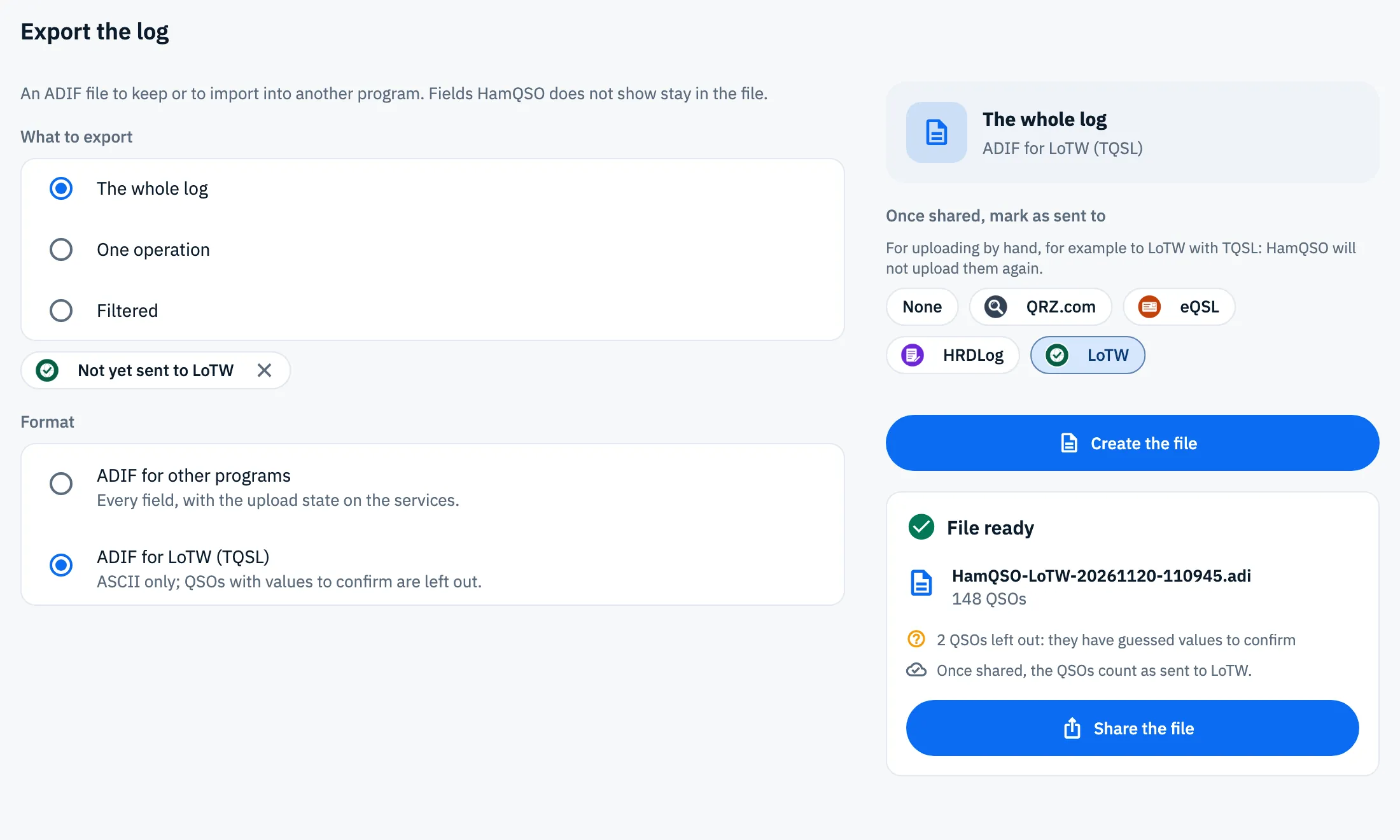
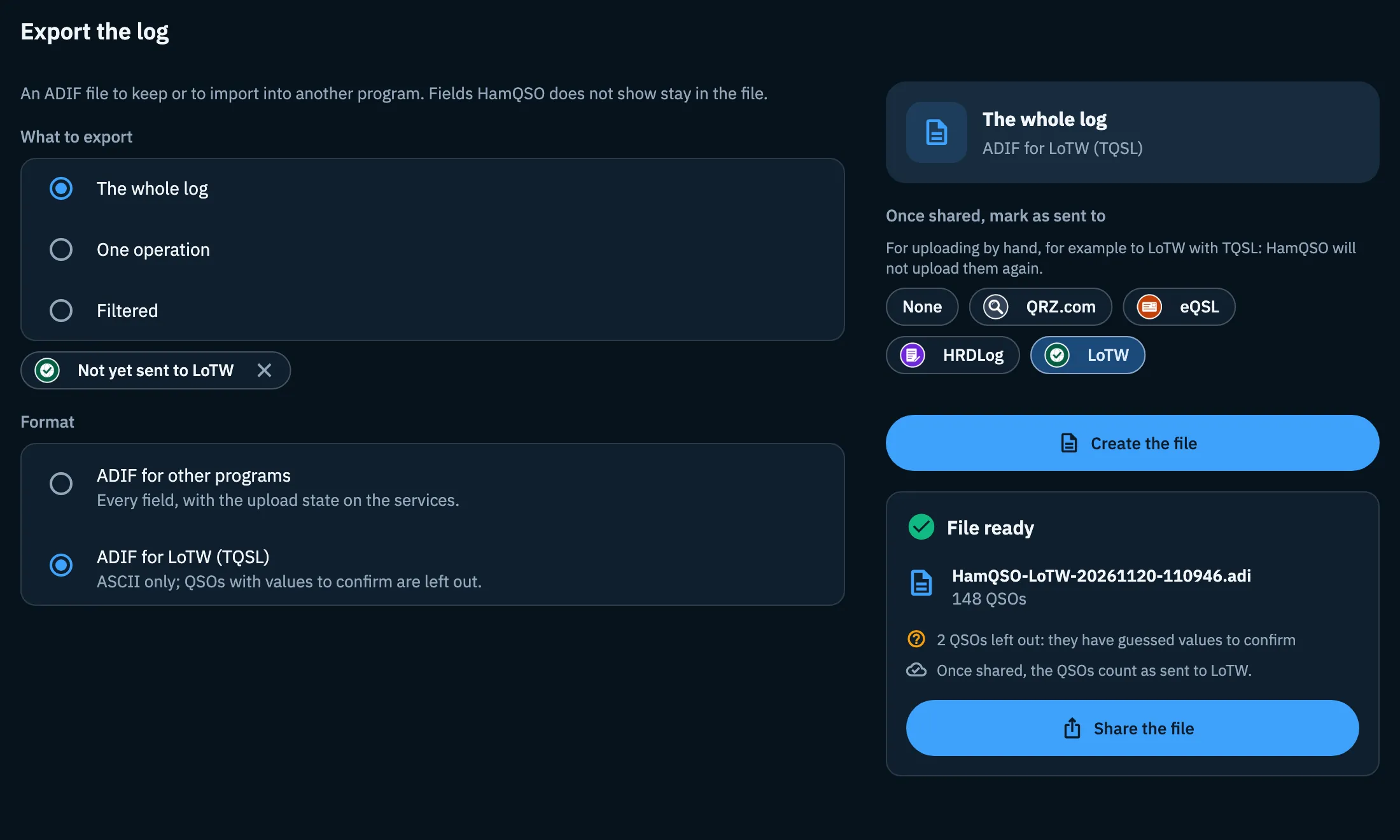
- Tap Create the file, then Share the file (or Save).
- On your computer sign the file with TQSL and upload it to LoTW.
For automatic uploads to LoTW and the certificate see Uploading to LoTW.
Exporting an operation
From an operation you can export its QSOs without going through the export page.
- Open the ⋮ menu of the operation's card in the Operations section, or the ⋮ menu on the operation page.
- Tap Export if the operation has its own references (park, area, summit, island), otherwise Export ADIF.
The menu item is disabled, with "No QSOs yet", when the operation has no QSOs. The same export opens from an operation's Summary, under What's next: Send the log to POTA (or to the program of the first reference) and Share ADIF.
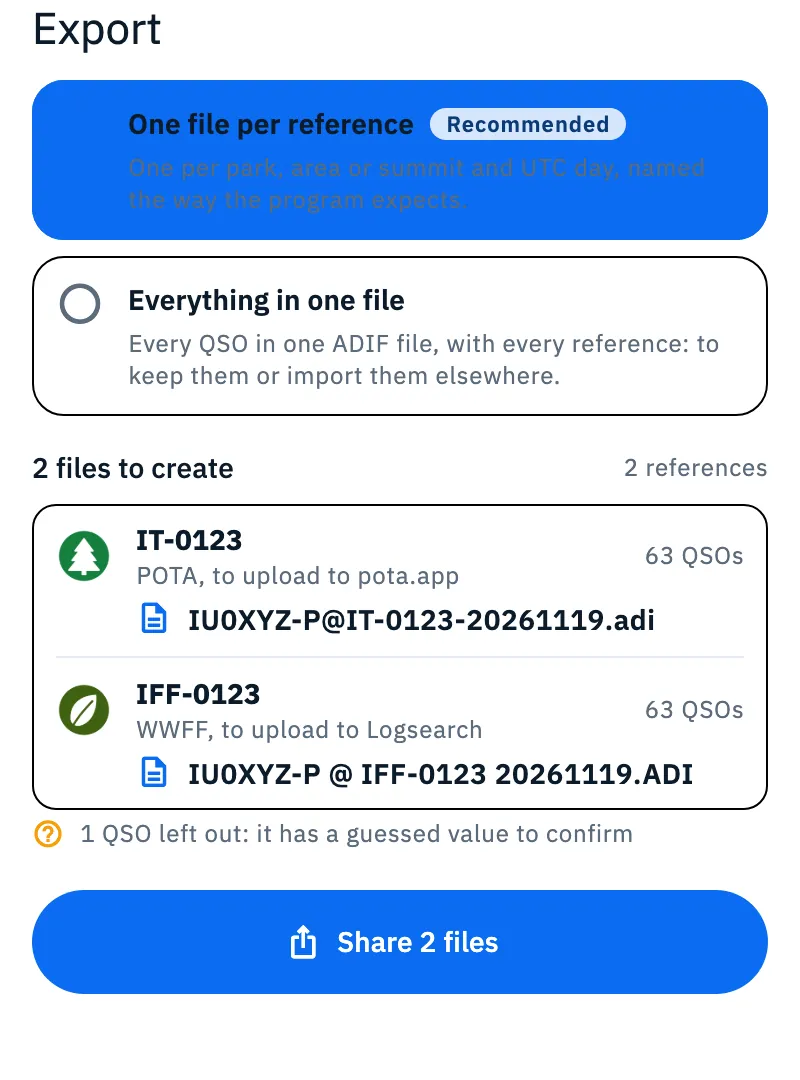
A sheet opens (a window on tablet and desktop). For an operation without references there is one ADIF file with all its QSOs. For an operation with references choose one of two ways:
| Way | What it creates |
|---|---|
| One file per reference (Recommended) | One file per park, area or summit (for POTA and SOTA also one per UTC day), named the way the program expects. Each row shows the program, where to upload it and how many QSOs it holds. |
| Everything in one file | One ADIF with every QSO and every reference, to keep them or import them elsewhere. |
| Program | File | Where to upload |
|---|---|---|
| POTA | CALLSIGN@PARK-YYYYMMDD.adi, one per park and UTC day (for an activation from several parks, one per park) | pota.app |
| WWFF | CALLSIGN @ REFERENCE YYYYMMDD.ADI, one per reference, with the date of the first day | Logsearch |
| SOTA | CALLSIGN@SUMMIT-YYYYMMDD.csv (CSV for SOTAdata) plus the same name as .adi, per summit and UTC day | SOTAdata |
| IOTA | CALLSIGN@REFERENCE-YYYYMMDD.adi, one per reference, with the date of the first day |
In file names / becomes -: IU0XYZ/P becomes IU0XYZ-P. When the other station was at a reference of the same program (P2P, S2S), its reference goes into the program's fields.
- Check how many files will be created and, for one file per reference, how many references they cover.
- Tap Share the file (or Share N files), or Save on Android.
- Upload the files to the program's site: HamQSO does not upload them for you.
Guessed QSOs never go into the per-reference files. With Everything in one file (and for an operation without references), if there are guessed QSOs, Include QSOs with guessed values anyway appears under the notice: the file is built again with those QSOs, marked as guessed. QSOs without an own reference end up in no per-reference file: the notice says "N QSOs without a reference are in no file".
Before deleting your account
Deleting your account also erases your log, from the cloud and from the device. That is why the first step is Save your log first:
- Open Profile and tap the top row with your callsign: Your profile opens.
- Tap Delete account.
- In the Save your log first box tap Export the log (ADIF): the dialog closes without deleting anything and the Export the log page opens.
- Create the file and share or save it.
- Go back to Your profile and tap Delete account again, then Delete to finish.
See also Account: email, signing out and deleting.
Phone, tablet, desktop and web
- Phone: one column, with the file under the choices.
- Tablet and desktop: the choices on the left; on the right a summary of the file (what it covers and the format), "mark as sent", Create the file and the finished file.
- iOS: Save to Files is in the share sheet.
- Android: besides Share the file there is Save.
- Web: the browser downloads the file.
The export is free.
Troubleshooting
"No QSO to export with these choices." No QSO matches your choices: widen the filters, remove the Not yet sent to … chip, or check whether all the QSOs have guessed values.
"No QSO with a reference to export in this operation." In an operation's export no QSO has an own reference. Tap Export everything in one file to get a single ADIF.
"The file could not be created. Try again." Tap Retry.
"The share sheet could not open." Try again, or on Android use Save.
"Couldn't save the file" Saving on Android failed: choose another folder or use Share the file.
"File shared, but the QSOs could not be marked as sent." The file is fine, but the QSOs do not count as sent: share it again from the same card to retry.
Create the file is disabled. You chose One operation but have not picked which one yet: tap the Change pencil.
Some QSOs are missing from the file. QSOs in the trash are never exported; guessed QSOs stay out unless you turn on Include QSOs with guessed values anyway (only with ADIF for other programs); with the Not yet sent to … chip the QSOs already sent to that service stay out.