
My station: your radios and antennas
Keep the list of your radios and antennas, the same on all your devices: search, filter, reorder, duplicate and delete them.
Free and ProUpdated for HamQSO 0.1.19
On this page
My station is the page with your radios and antennas. You save them once and find them the same on your phone, tablet and the web; then you pick them in your operations, and the radio's name, model and power go into your QSOs by themselves.
Opening My station
- Open Profile.
- Tap the My station card ("Manage your radios and antennas").
You can also get there from other places in the app:
- from the panel of the connected radio, with Radio settings (see The radio panel);
- on the web, from the My station item in the side bar, which shows only in browsers that can reach a radio.
The Radios and Antennas tabs
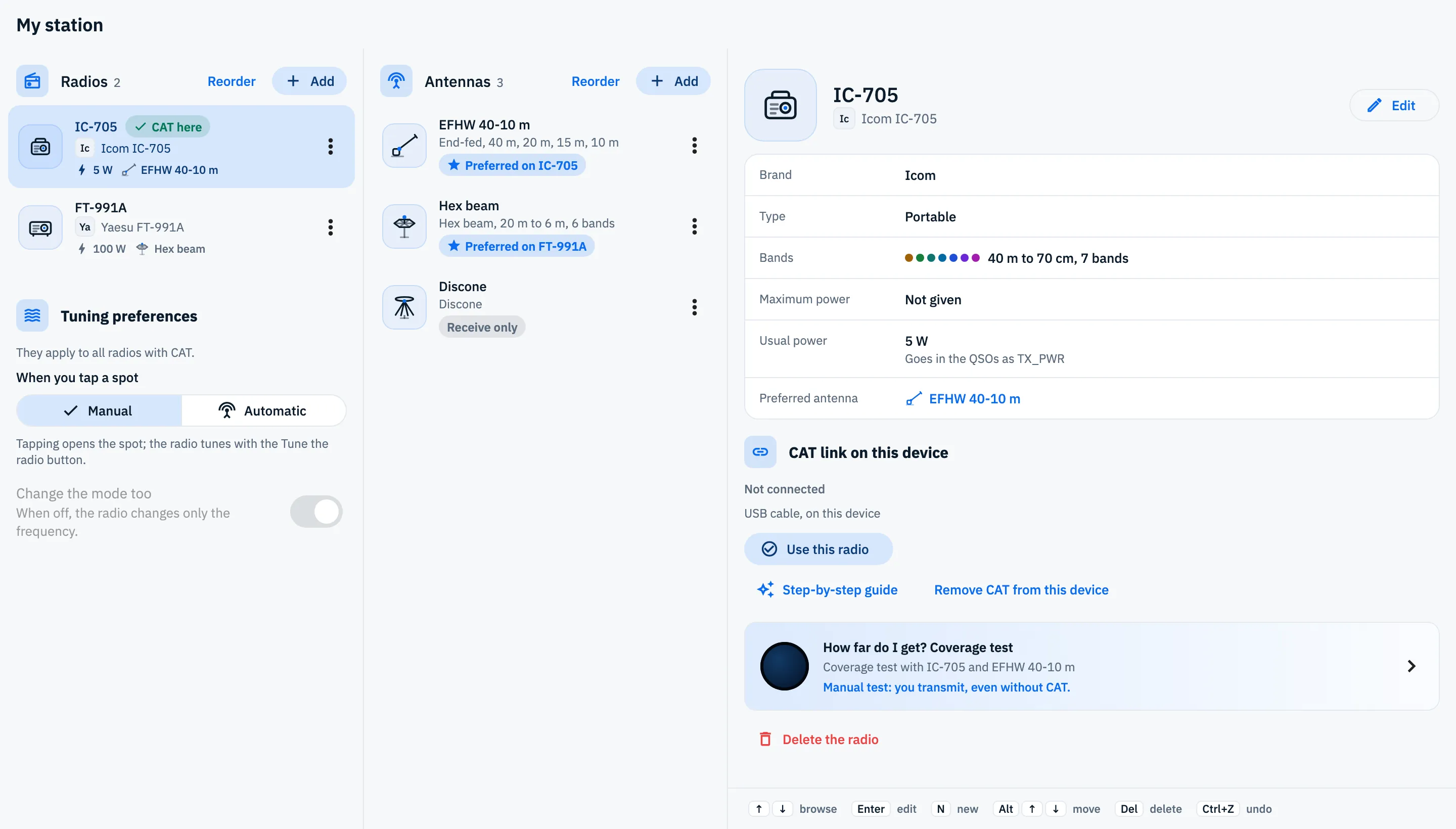
The page has two lists, Radios and Antennas, each with its number of items next to the name.
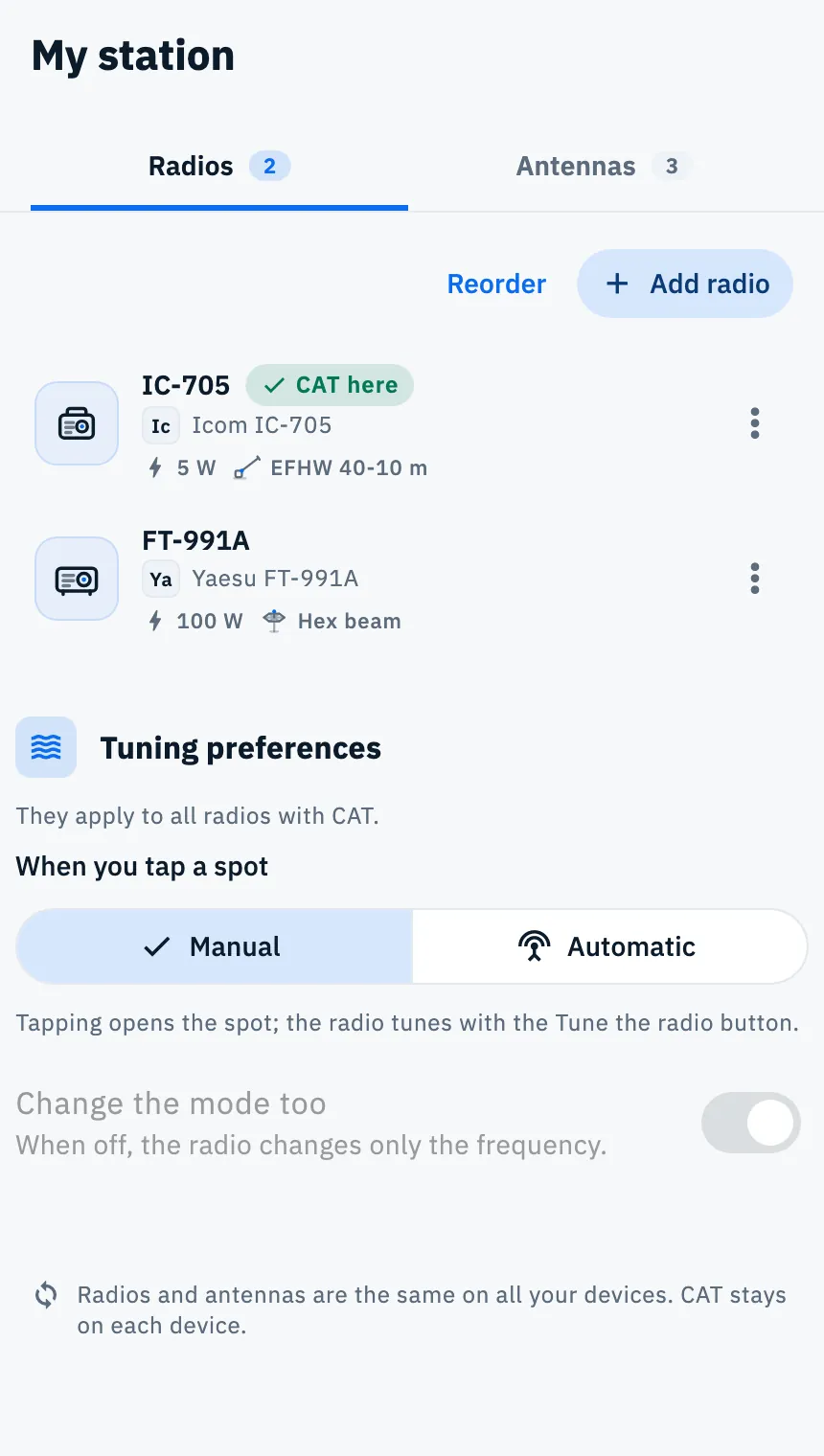
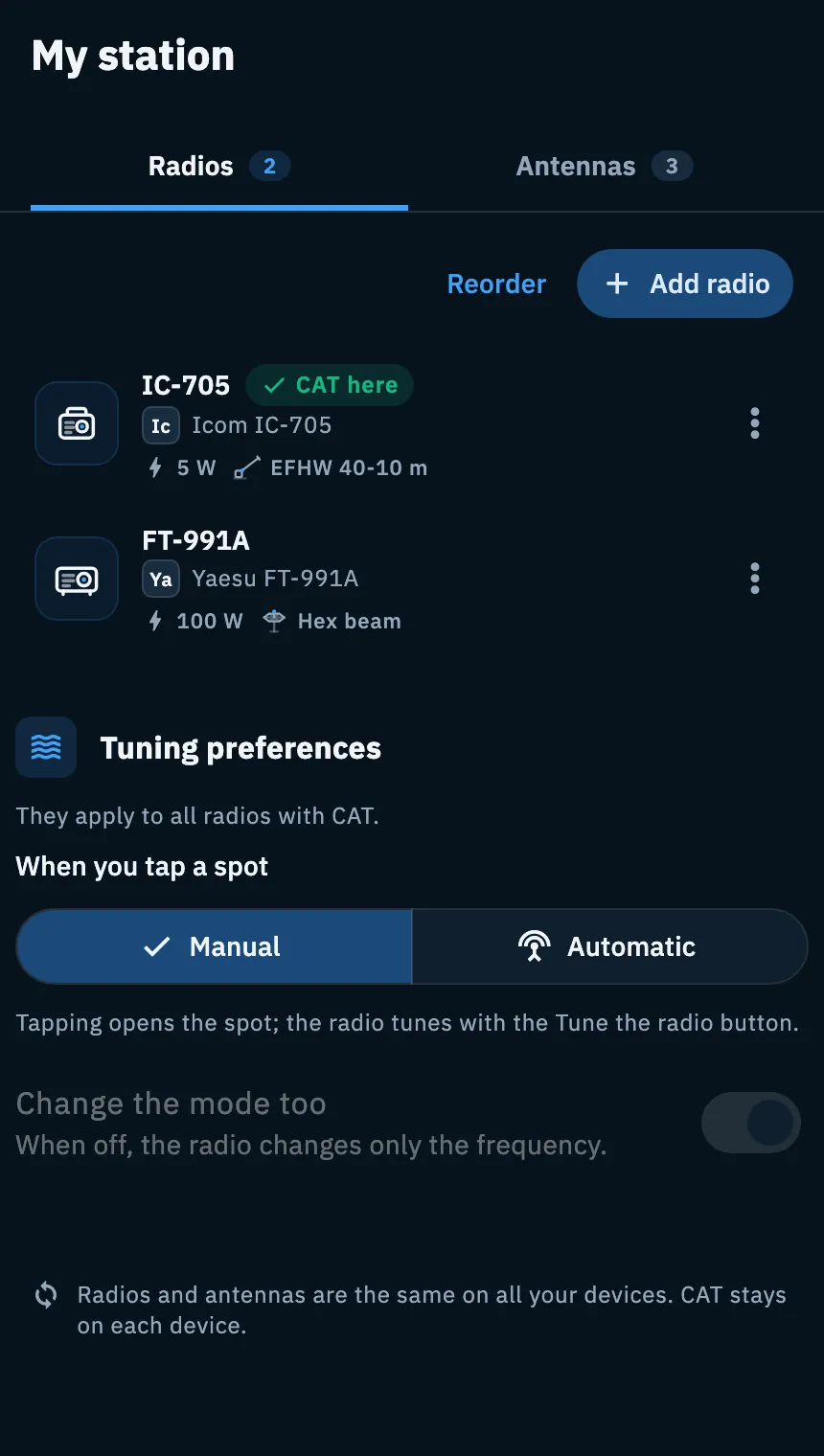
- Tap Radios or Antennas to switch between the two lists.
- Tap Add radio or Add antenna to save a new one (see Adding a radio and Adding an antenna).
- Tap a radio to see its details and the CAT link of this device: on a phone its page opens, on a tablet and on the web the detail at the side.
- Tap an antenna: on a phone its editor opens, on a tablet and on the web the detail at the side.
Each row tells you at a glance what you saved:
| Row | What it shows |
|---|---|
| Radio | The icon of its type, the name, the green CAT here pill if the radio has CAT on this device, brand and model (or "Model not given"), the usual power in W and the preferred antenna (or "No preferred antenna"). |
| Antenna | The icon of its type, the name, the type and the bands (for example "End-fed, 40 m, 20 m, 15 m, 10 m"; with more than 4 bands "20 m to 6 m, 6 bands"), the "Preferred on IC-705" pill (or "Preferred on 2 radios") and the Receive only pill for antennas made only for receiving. |
Under the list of radios you find the Tuning preferences, which apply to every radio (see Tuning the radio from spots). On a phone and a tablet, at the bottom of the page, a note reminds you: "Radios and antennas are the same on all your devices. CAT stays on each device."
When a list is empty, the page says "No radio saved" or "No antenna saved" and offers Add your first radio or Add your first antenna.
Searching and filtering
When a list has 8 items or more, a search field and filters appear under its header.
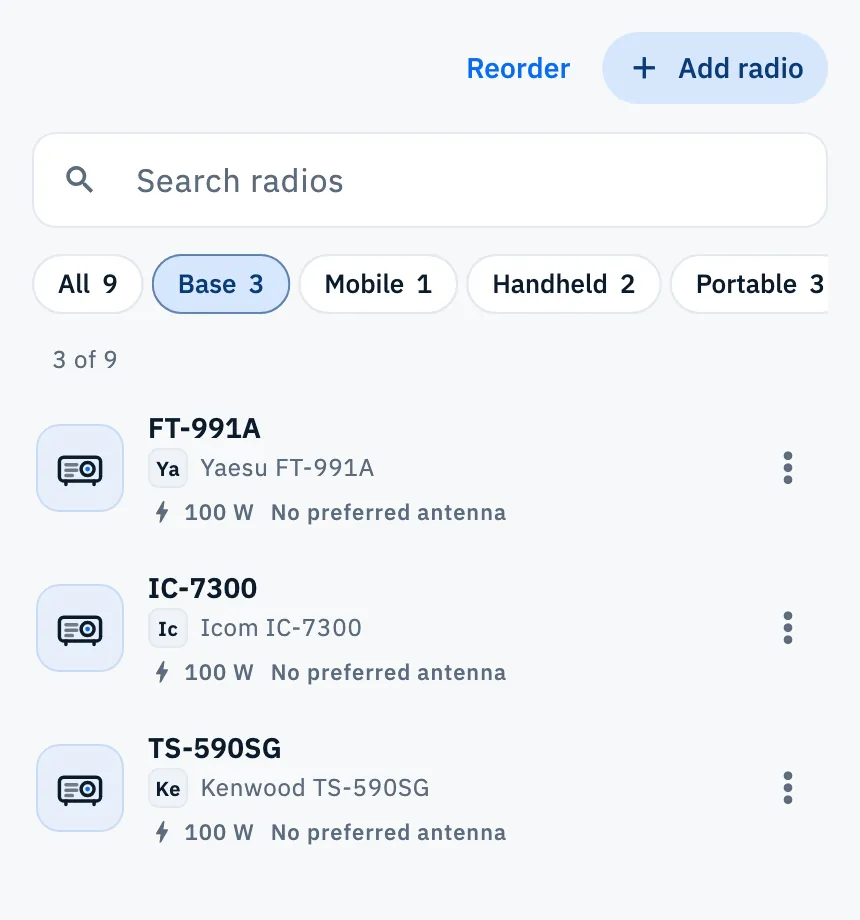
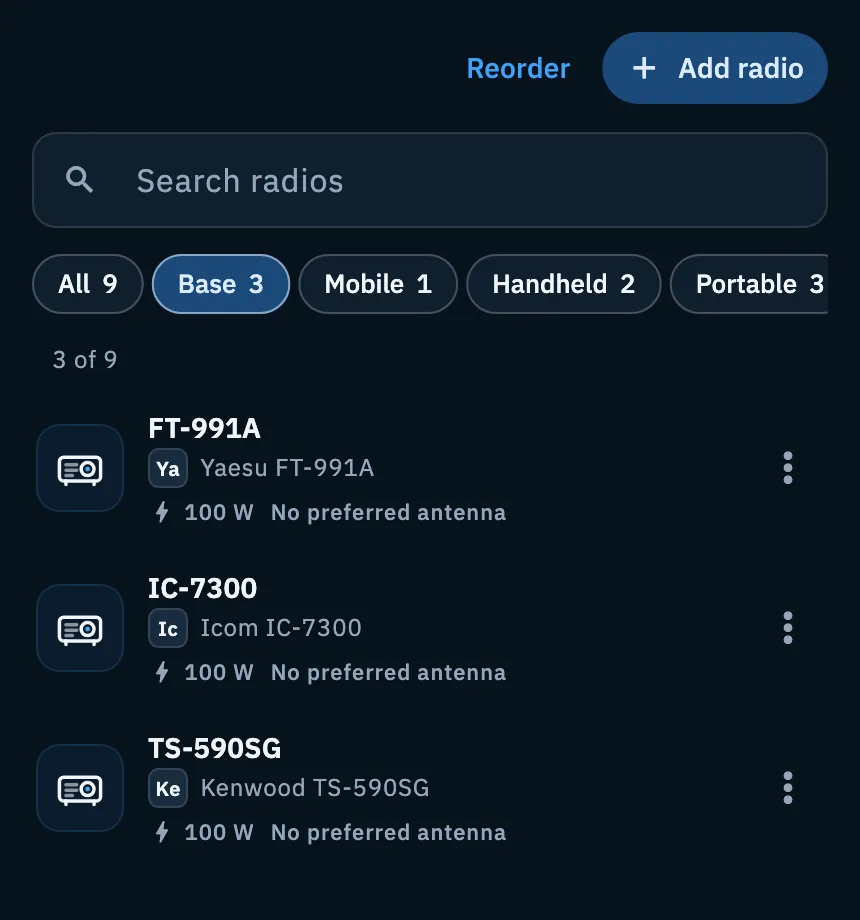
- Type one or more words in Search radios or Search antennas: the rows that contain all the words stay. For radios the search looks at name, model, brand and type; for antennas at name, type and bands.
- Tap a filter to see only one type of radio (Base, Mobile, Handheld, Portable, SDR) or one family of antennas (Wire, Verticals, Directional, Loops, Receive only, Mobile and portable, Other). All shows everything again.
- Tap the ✕ (Clear search) or press Esc to empty the field.
Each filter carries its number of items, and only the types or families you actually have show up (at least two different ones). With a search or a filter on, the line above the list tells you how many rows you see, for example "3 of 9". If nothing is left you read "No radio found" or "No antenna found": tap Show all to clear search and filter.
Search and filter do not change the order you chose and are not saved: the next time you open the page the list is whole again. A radio or antenna you have just added also clears search and filter, so you see it at once.
Reordering radios and antennas
The order is yours, and it is the same on all your devices.
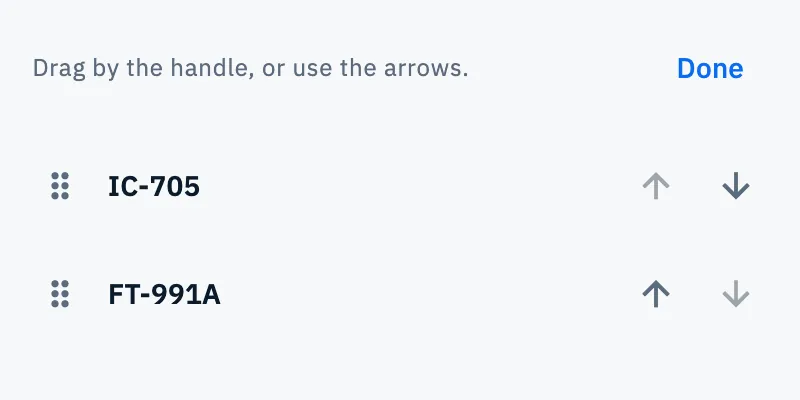
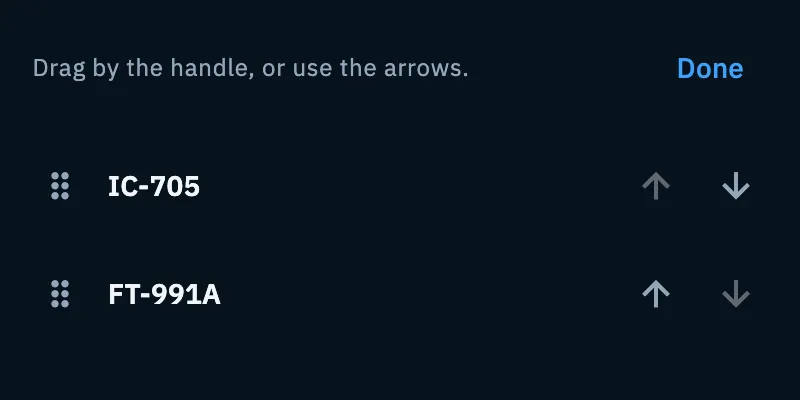
- Tap Reorder in the header of the list (it is there when the list has at least 2 items).
- Drag a row by its handle, or use the arrows of each row (move up, move down and, with 8 items or more, move to top).
- Tap Done to go back to the normal list.
While you reorder, rows show only the name, and search, filters and tuning preferences go away: the order is changed on the whole list. To move a single row by one place you can also use Move up and Move down from the row's menu.
Editing, duplicating and deleting
Each row has a ⋮ button (More actions for and the name). On a phone it opens a panel from the bottom with the name at the top; on a tablet and on the web, a menu.
| Action | What it does |
|---|---|
| Edit | Opens the editor of the radio or antenna. After saving you read "IC-705 updated on all your devices." |
| Duplicate | Creates a copy right under the original, with "(copy)" after the name, and you read "IC-705 (copy) created". The copy of a radio has no CAT. |
| Move up, Move down | Moves the row by one place; they show only when the row can move that way. |
| Delete | Removes the radio or antenna at once from all your devices. |
You also find Delete the radio at the bottom of a radio's page, and Delete the antenna at the bottom of an antenna's detail on a tablet and on the web.
When you delete:
- The bar at the bottom confirms it, for example "IC-705 deleted from all your devices. The CAT of the other radios stays on each one." If the radio was connected, it disconnects.
- For an antenna that was the preferred one of a radio, the bar says so: "EFHW 40-10 m deleted from all devices. It was the preferred antenna of IC-705."
- If it was a mistake, tap Undo in the bar: the radio or antenna comes back in its place, and an antenna is also preferred again on its radios ("EFHW 40-10 m is back.").
On all your devices
Radios, antennas, their order and the radio suggested for each type of operation belong to your account: with the same account you find them on your phone, tablet and the web (see Your log on all your devices). These stay on each device instead:
- the CAT link of each radio: on another device the radio arrives without CAT, and you connect it there with Connect via CAT (see Connecting your radio);
- the radio in use and the tuning preferences.
If you delete, on another device, the radio you are using here, it disconnects here too. QSOs already logged do not change when you edit or delete a radio or an antenna: the radio editor reminds you with "It changes on all your devices. QSOs already saved stay as they are.", the antenna editor with "It changes on all your devices. QSOs already saved keep the name they had."
The page works without a network too. At the top you read "No network: this is the list from last time. Changes go out when the network is back; CAT works without a network too." After you save a radio, the bar says "IC-705 saved here. It reaches your other devices when the network is back.", and rows with changes not sent yet show To sync (see Using HamQSO offline).
Free and Pro
Phone, tablet and web
- Phone: two tabs, Radios and Antennas. While you scroll, the title and the tabs stay at the top (in Reorder also the row with Done); each tab remembers where you were. Filters scroll sideways.
- Tablet (840 points wide or more): on the left the tabs, the search and the list, on the right the detail of the row you tap. Filters wrap onto more lines.
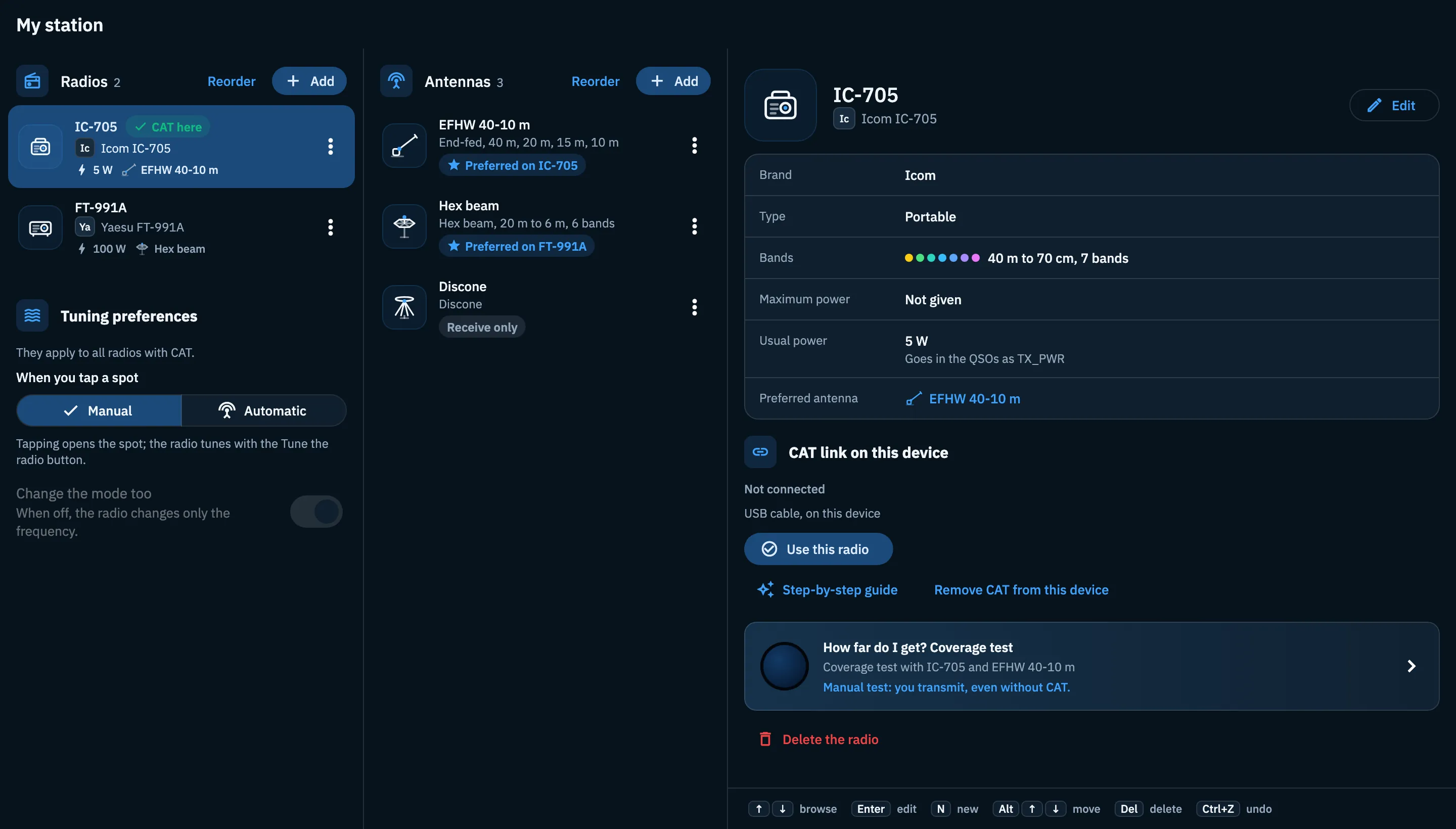
- Web (a window at least 1200 points wide): Radios, Antennas and the detail side by side in three columns, without tabs; the add button is called Add. At the foot of the detail a legend lists the keys. In a narrower window the web uses the tablet or phone layout.
See also Phone, tablet and web.
Keyboard shortcuts
On the web, in the three-column view, you can manage radios and antennas from the keyboard too. Keys do nothing while you type in a field or with an editor open.
| Keys | What they do |
|---|---|
| ↑ ↓ or K J | Previous or next row |
| ← → | Column of the radios or of the antennas |
| Alt + ↑ ↓ | Move the row up or down, without entering Reorder |
| Enter | Edit |
| Del or Backspace | Delete |
| N | New radio or antenna |
| ⌘ Z or Ctrl Z | Undo the last deletion, even after the bar has gone |
| ↓ in the search field | Go to the first result |
In the editor of a radio or an antenna, on any device with a keyboard, ⌘ Enter or Ctrl Enter saves the changes. On the tabs (phone and tablet with a keyboard) ← → go to the other tab, Home and End go to Radios or Antennas. All keys are also in Keyboard shortcuts.
Troubleshooting
- I do not see search or filters. They show from 8 items up, and go away in Reorder. Filters show only if you have at least two different types (or families).
- I do not see "Reorder". The list needs at least a second item.
- "No radio found". Search or filter hide everything: tap Show all.
- The radio reached my other device but without CAT. That is normal: CAT stays on each device. Open the radio and tap Connect via CAT.
- A row says "To sync". The change is saved here and goes out when the network is back; you do not need to do anything.
- I deleted the wrong radio. Tap Undo in the bar; on the web you can also use ⌘ Z or Ctrl Z later.
- On the web there is no My station in the side bar. The browser cannot reach a radio (for example Safari or Firefox): open it from the card in Profile. A radio over USB needs Chrome or Edge on a computer.