
Creating an alert
Build an alert on callsigns, countries, references, bands, modes, US states or distance, and see which spots it would catch before saving it.
Free and ProUpdated for HamQSO 0.1.19
On this page
An alert is a filter you build: a station, a country, a reference, perhaps only on some bands and modes. Once you save it, the server compares every new spot with the alert and sends you a notification as soon as something matches, even with the app closed.
Opening the editor
- Open the Alerts section, the fourth in the bar (bell icon). On the web, in a wide window, you can also press 4.
- Tap New at the top right. If you have no alerts yet, you can also tap Build the alert in the Create your first alert card.
- The Build the alert page opens, with every criterion on one screen.
At the top of the Alerts section you read how many alerts are active: on the free plan "0 of 1 free alert active", with Pro for example "3 active alerts of 4". Offline the section says "Alerts can't be shown offline. Active ones keep working: the server checks them." and comes back by itself when the network does.
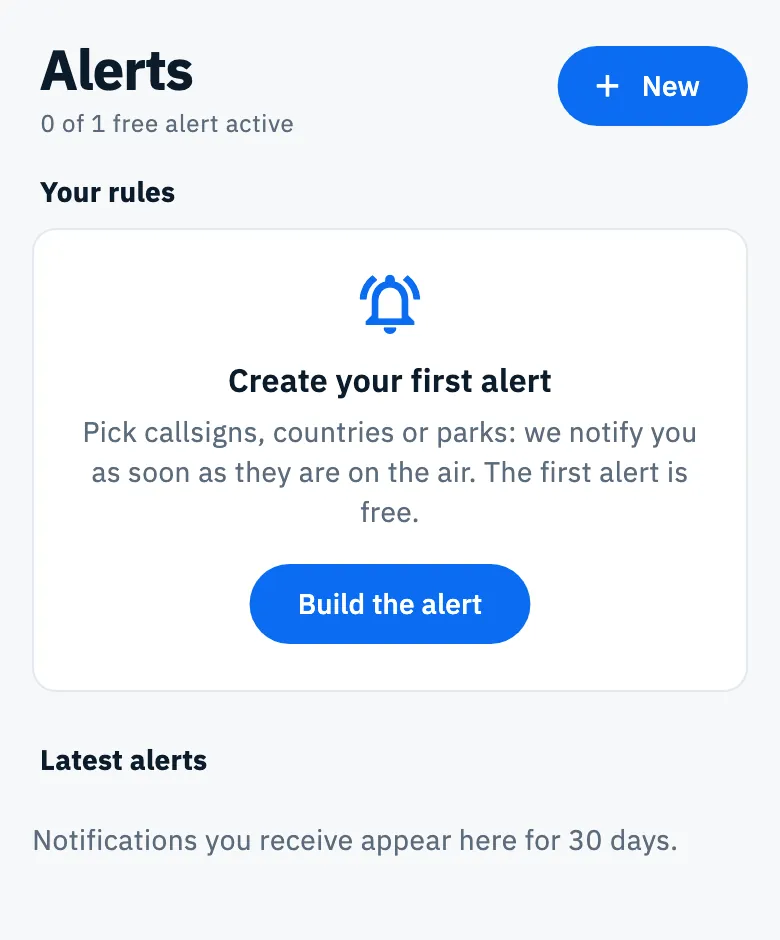
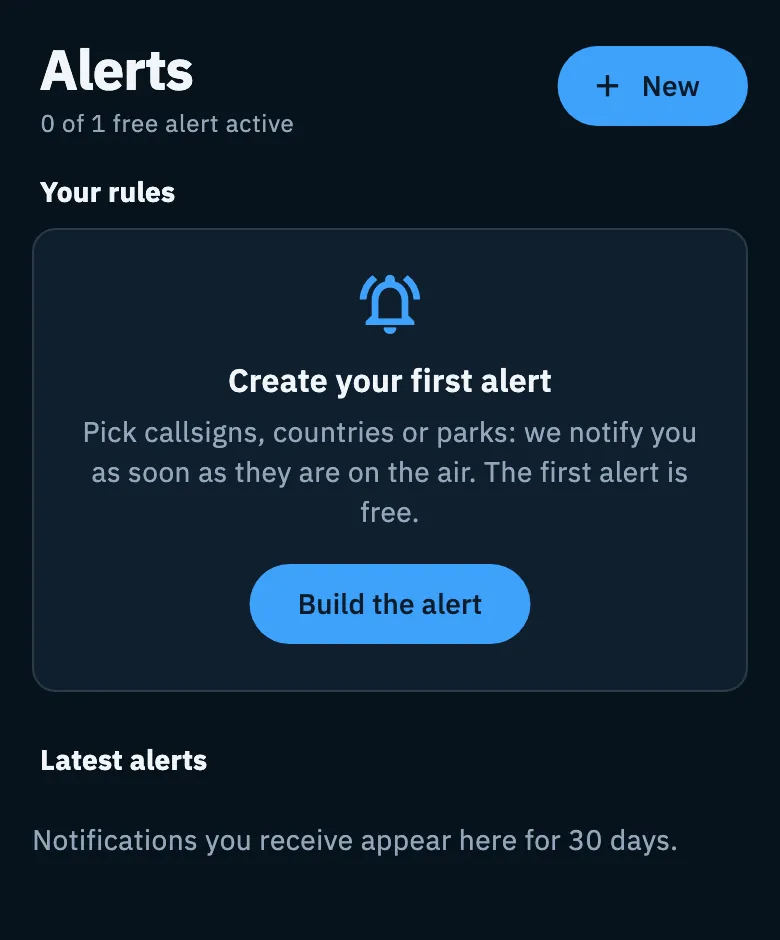
The same editor also opens already filled in:
- from Notify me in the detail of a spot or from a link on the website: see Alerts from a spot or a link;
- from the command palette: type a callsign or a reference and choose Create an alert for … (see Finding anything with the command palette).
How criteria combine
Under the name the app reminds you: "Callsigns, countries and references: any one is enough. Bands, modes, US states and distance: always apply."
- Who (callsigns, countries, references): the spot only needs to match any one value, across groups too. An alert with JA1XYZ and the country Australia fires for JA1XYZ or for an Australian station.
- Filters (bands, modes, US states, distance): they always narrow. With 20 m and CW, the spot must be on 20 m and in CW.
- A criterion left empty means "any" (Any callsign, Any band and mode, Any state, Any distance).
- At least one criterion is needed. With none, the summary sentence says "Add at least one criterion: without filters you would get every spot." and Save alert stays disabled.
The name
- Type a name in the Name field (for example "Asian DX in CW"), up to 60 characters.
- Or leave it empty: when you save, the alert takes a name from its criteria, the first three among callsigns, countries and references (for example "JA1XYZ, VK2DEF"), or the bands and modes when there are none (for example "On 20 m, in CW").
The name tells the alert apart in the Your rules list and in the Latest alerts history.
Who: callsigns, countries and references
The three groups share one card. Each has an Add button, says under its title how many values you chose ("2 selected") and shows the values as chips: tap the X on a chip to remove it.
Callsigns
- Tap Add on the Callsigns row: a sheet opens with the field "Callsign, e.g. 3Y0J or IU4VRB/P".
- Type the callsign: letters turn uppercase by themselves.
- Tap Add followed by the callsign, or press Enter. You can add more one after the other.
- Tap Done: each callsign appears as a chip with its country flag.
A base callsign also matches its portable variants (/P, /M, EA8/…): with VK2DEF you also get VK2DEF/P. A variant typed in full, for example VK2DEF/P, matches only that variant. If the text is not a callsign, or is already in the list, the row says "That does not look like a valid callsign" and it can't be added.
Countries (DXCC)
- Tap Add on the Countries (DXCC) row.
- Search by name or prefix ("Search by name or prefix"). Each row shows flag, name, and prefix, continent and CQ zone, for example "JA, AS, CQ zone 25".
- Tick one or more entities. With the field empty, the ones already chosen sit at the top of the list.
- Tap Done: the entities appear as chips with their flags.
The country of a spot comes from the callsign through the DXCC table: an unusual prefix can end up in the wrong country.
Parks, summits and references
- Tap Add on the Parks, summits and references row.
- Pick from the references Near you and those On the air now (the references of the spots on the air), or search by code or name ("Code or name: IT-1271, Stelvio").
- Tap a reference to choose it; you can choose more than one. Then tap Done.
A code the catalog doesn't know is added anyway, with the note "Not in the POTA catalog: the alert works anyway". In the alert the reference shows as a chip with the program logo and, when the catalog knows it, its name. The match is on the exact reference code. The picker is explained in Finding and choosing references.
Bands and modes
- Under Bands tap the bands you want: 160, 80, 60, 40, 30, 20, 17, 15, 12, 10, 6, 4 and 2 m, 70 cm and 23 cm.
- Under Modes tap CW, Phone or Digital.
- Tap a chip again to remove it.
The band comes from the spot's frequency: a spot outside the bands doesn't match an alert with bands. A spot's mode can be estimated from the frequency when the spot doesn't state it (see Reading the DX Cluster list).
On the free plan you read "1 free, more with Pro" next to both titles: one band and one mode are free; tapping a second band or a second mode opens the paywall. If you become Pro the chip turns on, otherwise it stays as it was.
US states
The US states card notifies you only for stations or activations in some states, useful for Worked All States or for the parks of one state.
- Tap Add in the US states card.
- Search a state or its code ("Search a state or its code (CA, OH…)").
- Tick the states and tap Done: they appear as chips with the state flag.
The sheet explains where the state comes from: "POTA: the park state. SOTA: the summit state. DX Cluster: the state of the station FCC license." A spot whose state is unknown doesn't match. See also Countries and US states worked.
Maximum distance
The Maximum distance card limits the alert to stations within a radius of your QTH, for example nearby activations to work on VHF.
- Turn on the card's switch.
- Move the slider to the radius you want. The subtitle says for example "Within 3,000 km of JN63".
- Turn the switch off to go back to Any distance.
| Units | Radius | Step | Proposed when turned on |
|---|---|---|---|
| Metric | 250 to 15,000 km | 250 km | 3,000 km |
| Imperial | 150 to 9,300 mi | 150 mi | 1,800 mi |
Units follow your setting (see Language, theme and units); the server always keeps the radius in km.
The distance is measured from the locator set in the app (see Your profile: name, callsign and locator). If it is missing, "Your QTH is needed for the distance." appears in red with Use my location: tap it and the app works out the locator from the device's location (it asks for location permission) and sets it as your locator.
For DX Cluster spots the station's location is estimated: it is the center of its DXCC country, not the real station. A spot without a location doesn't match.
Summary and preview of spots on the air
Under the form, or in the right column when the screen is wide, a card tells you what the alert will catch before you save it.
- The summary sentence puts the criteria in plain words, for example "We notify you for JA1XYZ, on 20 m, in CW.". It updates with every change.
- The count: "No spot matches right now", "1 spot matches now" or "5 spots match now". While loading you read "Looking for spots on the air now…".
- The first five matching spots, with frequency, callsign, mode (an estimated mode is marked as such), reference and distance from your locator.
The preview looks at the spots on the air now on the DX Cluster, on every band, and in the programs you follow among POTA, SOTA and WWFF (see Choosing the programs you follow), leaving out those in QRT. It uses the same rules as the server, but it doesn't predict future spots: it helps you see whether the alert is too broad or too narrow. If a source doesn't answer, the preview simply shows fewer spots.
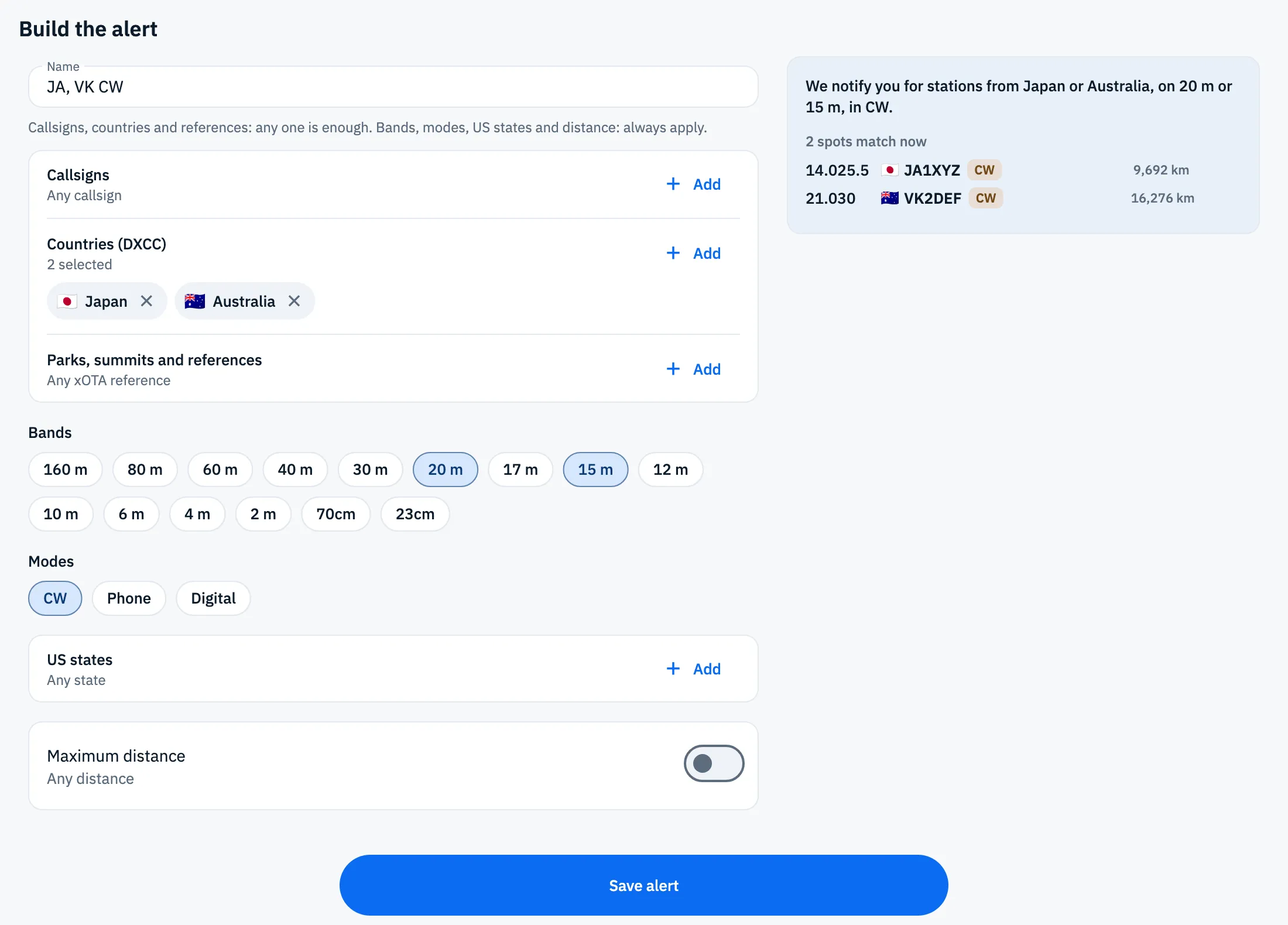
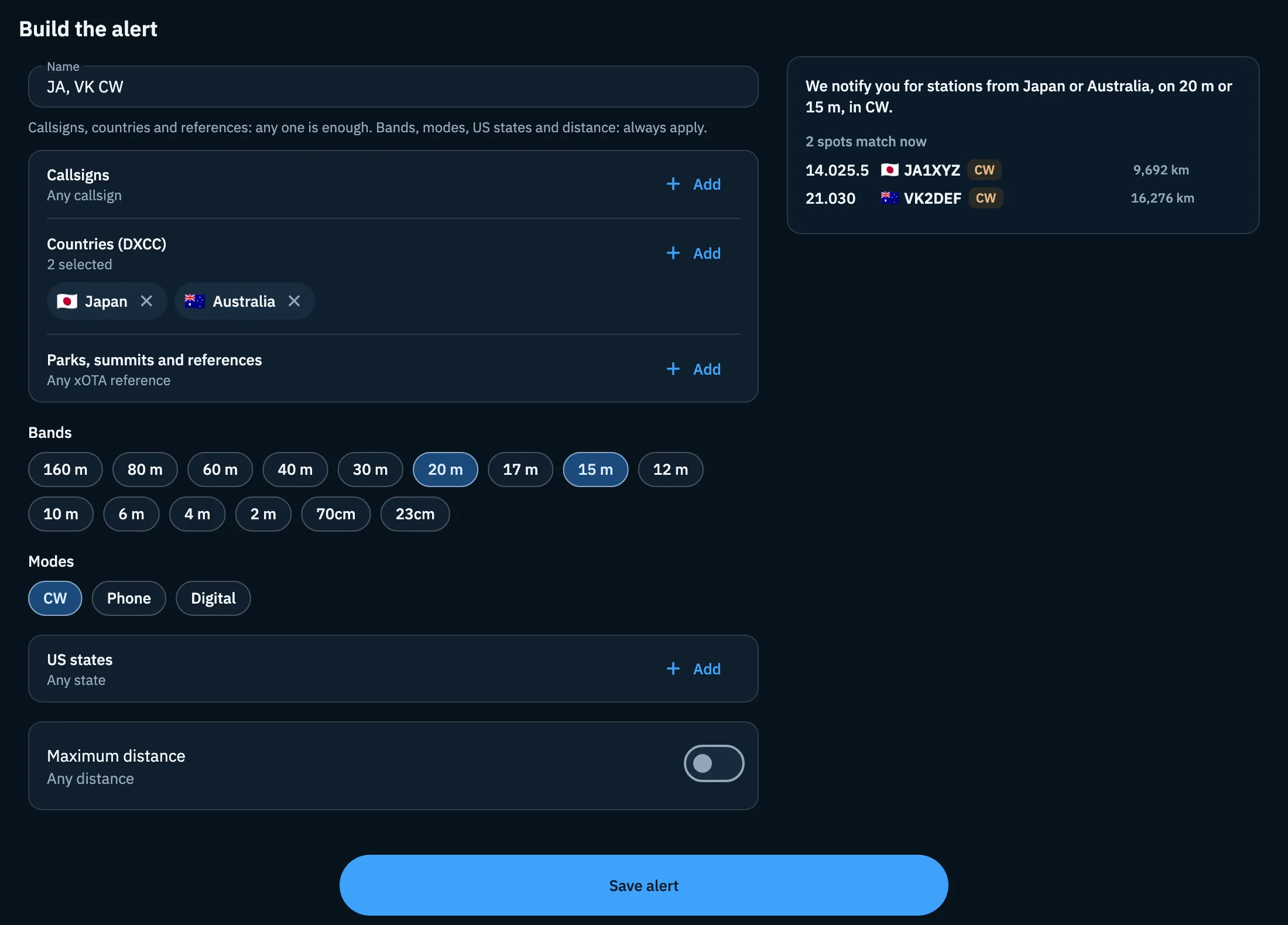
Saving the alert
- Tap Save alert at the bottom of the page. While saving, the button shows a spinner.
- Once the alert is saved, the app asks for permission to send you notifications: allow them, since that is how alerts reach you. The system or browser shows its prompt only the first time; if you refuse, the alert stays saved and the Latest alerts history works anyway.
- The editor closes and the new alert appears in Your rules, in the Alerts section.
To turn notifications back on and choose the devices that get them, read Getting notifications. If a friend invited you, your first alert saved with notifications on can unlock the welcome reward (see Inviting friends and discounts).
Free and Pro
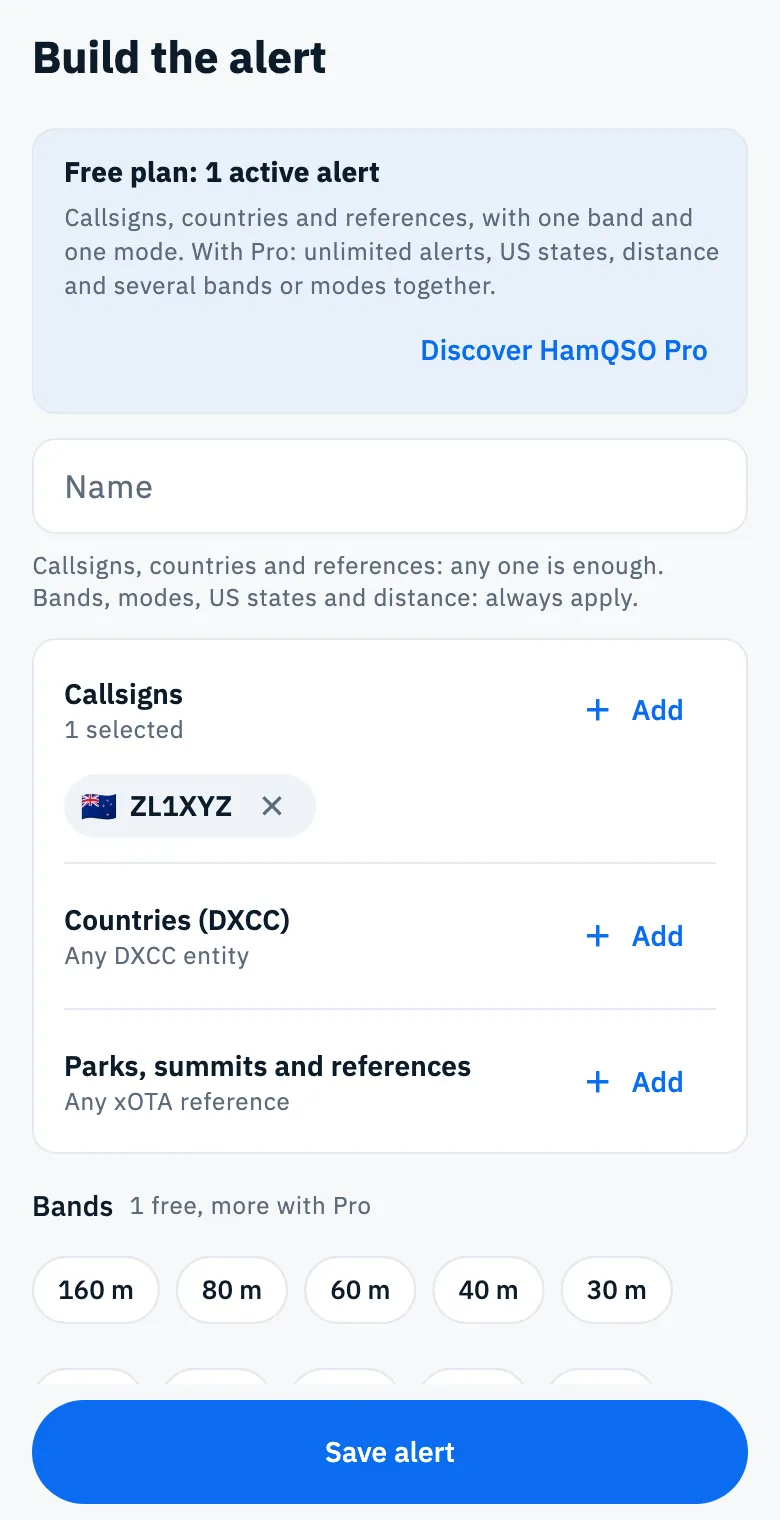
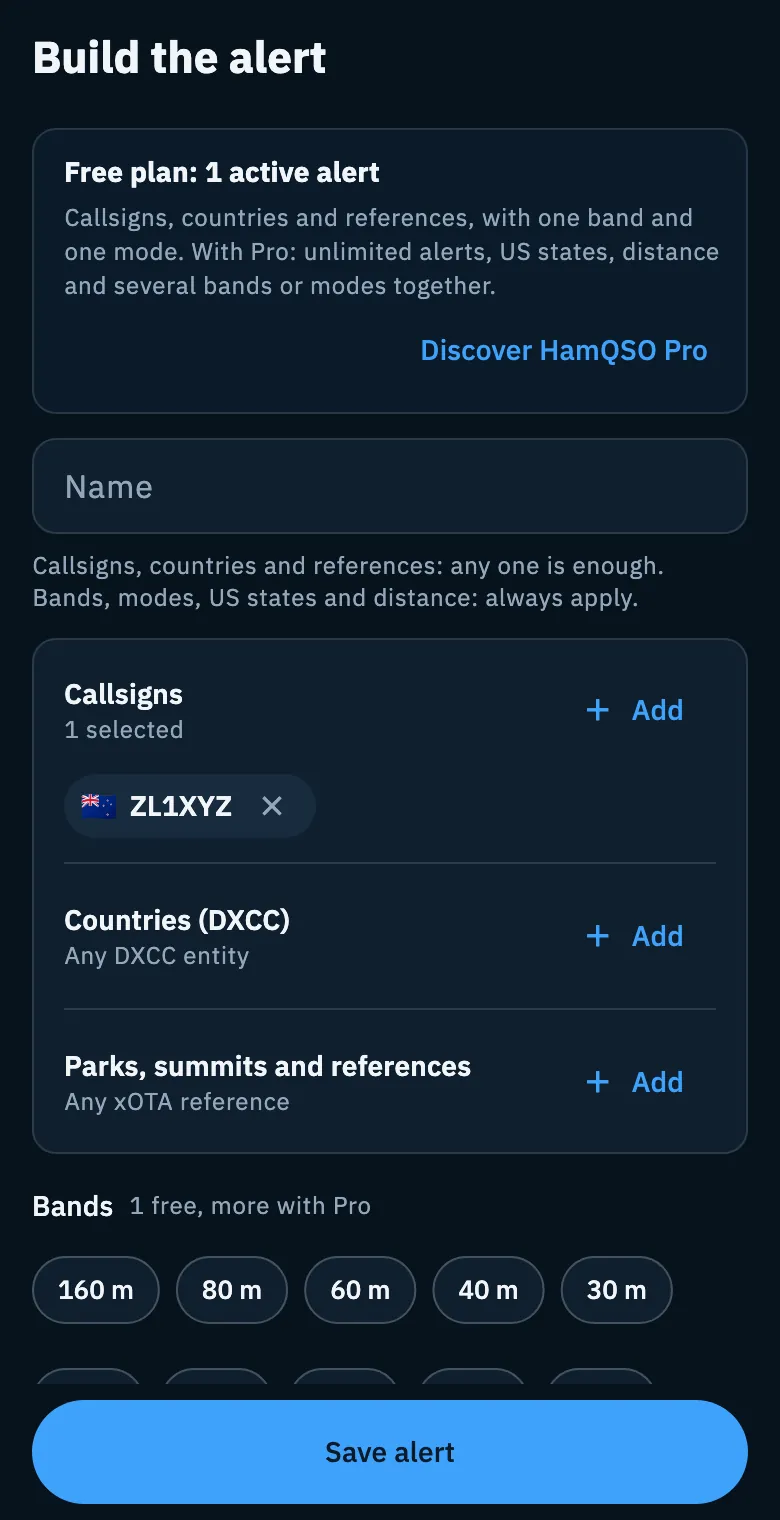
On the free plan the editor starts with the Free plan: 1 active alert note: "Callsigns, countries and references, with one band and one mode. With Pro: unlimited alerts, US states, distance and several bands or modes together." The Discover HamQSO Pro button opens the paywall. Even with Pro you can save at most 20 alerts.
| What | Free | Pro |
|---|---|---|
| Active alerts | 1 | all the saved ones |
| Alerts saved in all, active or paused | up to 20 | up to 20 |
| Callsigns, countries, references | as many as you like | as many as you like |
| Bands | 1 | several together |
| Modes | 1 | several together |
| US states | no | yes |
| Maximum distance | no | yes |
Phone, tablet and web
- Phone (or a narrow window): the form and, below it, the summary and preview card, to scroll to.
- Tablet and wide web windows: two columns, the form on the left and the summary with the preview on the right, in view while you change the criteria.
In every case Save alert stays fixed at the bottom.
Troubleshooting
| Message | What to do |
|---|---|
| "Add at least one criterion: without filters you would get every spot." | Add a callsign, a country, a reference or a filter: Save alert turns on. |
| "That does not look like a valid callsign" | Check the callsign in the sheet; if it is already in the list there is no need to add it again. |
| "The free plan includes one active alert. Pro has no limit." | Pause the active alert (Managing your alerts) or move to Pro. |
| "These criteria are a HamQSO Pro feature." | Remove US states, distance and the extra bands or modes, or move to Pro. |
| "You reached the limit of 20 alerts." | Delete an alert you no longer use: the limit also counts paused ones. |
| "One of the callsigns is not valid." | Remove the wrong callsign and save again. |
| "Check the alert criteria." | The server did not accept the criteria: check them and try again. |
| "Can't reach the service. Check your connection." | Without a network the alert isn't saved: try again when you are back online. Alerts already active keep working on the server. |
| "Your QTH is needed for the distance." | Tap Use my location or set the locator in your profile. |
| The preview says "No spot matches right now" | It is not an error: no spot on the air now matches. Widen the criteria if you expected something, or save and wait. |
If the alert is saved but notifications don't arrive, see Getting notifications.