
Knowing when you are spotted
Get a notification every time someone spots your callsign on the DX Cluster, POTA, SOTA or WWFF, with who, where and on which frequency.
ProUpdated for HamQSO 0.1.19
On this page
With When you get spotted, HamQSO sends you a notification every time someone spots your callsign, also as /P or /M, on the DX Cluster, POTA, SOTA or WWFF. There is no rule to build: one switch, and you know right away who spotted you, where and on which frequency.
Turning the notifications on
- Open the Alerts section.
- At the top, above Your rules, you find the When you get spotted card.
- Turn on the card's switch.
- The first time, the system asks for permission to send notifications: allow it, or notifications will not arrive.
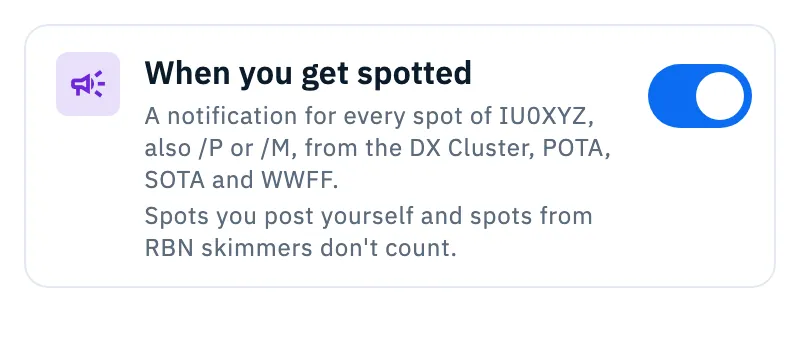
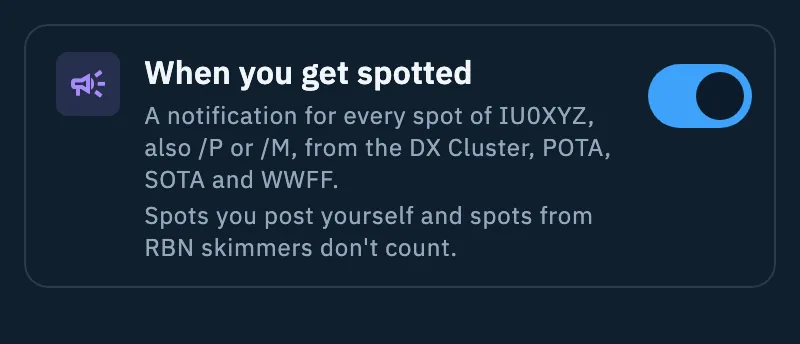
The same card is also in Profile › Settings, in the Notifications section. It is the same switch, with a single value saved in your profile: turn it on or off in one place and it changes in the other one and on all your devices.
If the change cannot be saved (for example without a connection), the switch goes back to where it was and the message "Can't reach the service. Check your connection." appears.
What you receive
Each notification says who spotted you, in the language of your device:
| Title | When |
|---|---|
| "DL1ABC spotted you" | A spot of your callsign as it is in your profile. |
| "K1ABC spotted you on IT-0123" | The spot has a POTA, SOTA or WWFF reference. |
| "DL1ABC spotted you as IU0XYZ/P" | The spot is of a variant of your callsign, for example /P or /M. |
Under the title you find the frequency as the app shows it (never rounded), the mode when there is one, where the spot comes from (DX Cluster, POTA, SOTA or WWFF) and the comment, for example "14.074.5 FT8, DX Cluster: CQ EU".
Tap the notification: HamQSO opens the Alerts section with the spot detail on top of it, rebuilt from the notification's data. From there you can do everything you do with any spot, see Opening a spot.
Finding the spots again in "Latest alerts"
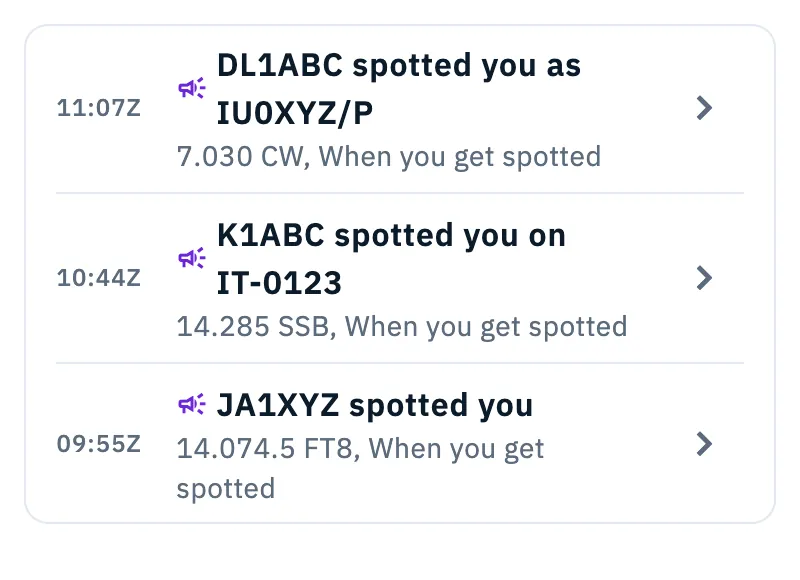
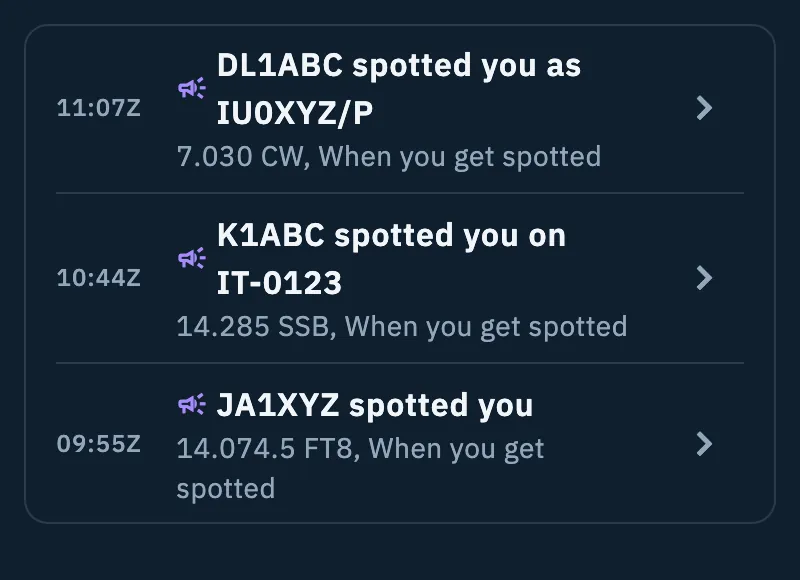
Each notification also stays in the Alerts section, under Latest alerts, for 30 days, together with the alerts of your rules. In the When you get spotted rows you find the time in UTC on the left, then the megaphone icon with who spotted you and, below, frequency, mode and "When you get spotted". Tap a row to open the spot again.
Which spots count
- Every spot of your base callsign: IU0XYZ, IU0XYZ/P, IU0XYZ/M and the other variants.
- From the DX Cluster, POTA, SOTA and WWFF.
- One notification for each station that spots you: if three different stations spot you on the same frequency, you get three notifications. The same station posting the same spot again does not send another one.
- There is no anti-spam pause like the one of your alert rules: every new station that spots you is a notification.
These do not count:
- spots you post yourself, from any variant of your callsign (for example a spot you post of yourself as IU0XYZ/P);
- spots from RBN skimmers;
- spots without the callsign of the spotter.
The app follows the callsign in Your profile: if you change it, notifications follow the new one, without touching the switch.
Without a callsign in your profile
If your profile has no callsign, the switch is off and cannot be used, and the card says "It needs your callsign.".
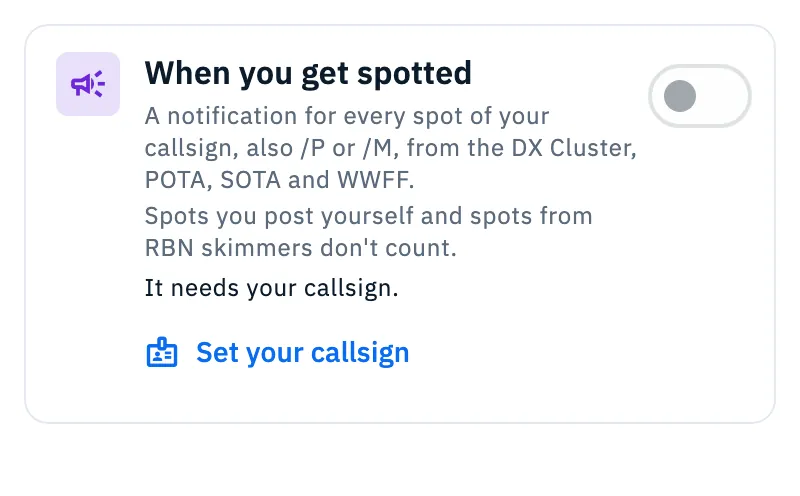
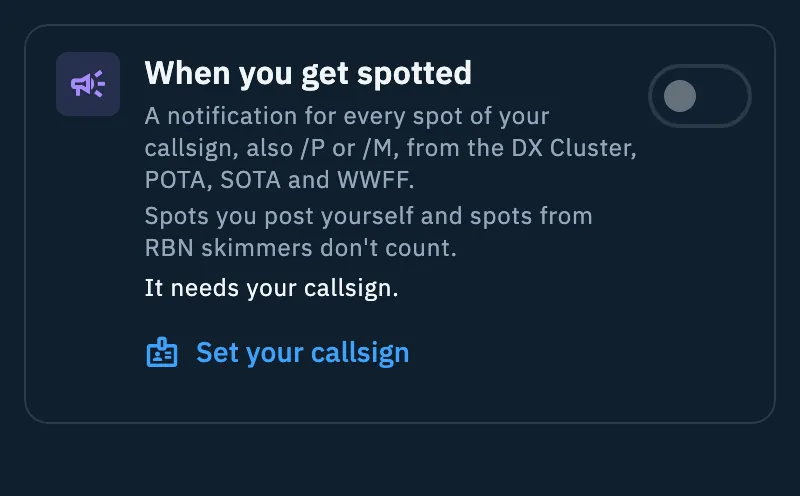
- Tap Set your callsign on the card.
- Your profile opens with the callsign field ready.
- Type your callsign and save.
- Go back to the card and turn the switch on.
Free plan and Pro
Without Pro the card is still visible, with the Pro badge and the line "With HamQSO Pro. Tap to find out more.". Tapping the card or the switch opens the HamQSO Pro page, see Subscribing to HamQSO Pro.
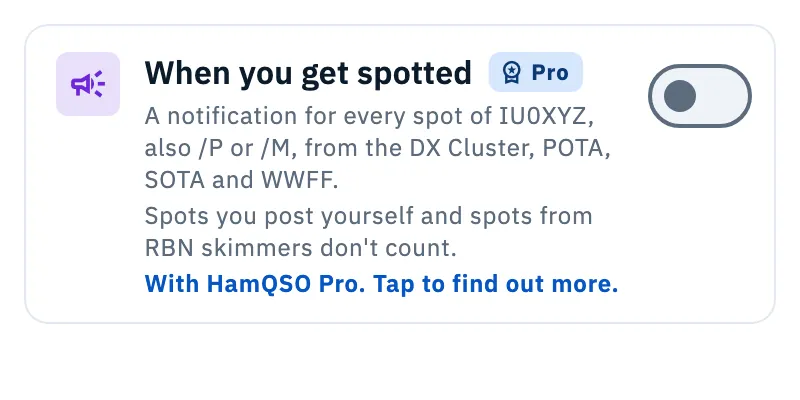
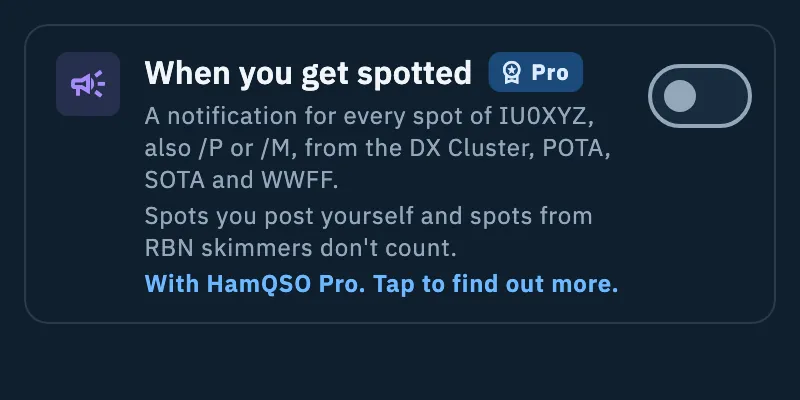
If your subscription ends, notifications stop and the card shows the Pro badge again. The value of the switch stays saved: when you are back on Pro, notifications resume as you left them.
Phone, tablet, desktop and web
The card is the same everywhere. Only what to do when notifications are off on the device changes:
- in the installed app the note has the Open the settings button, which opens the system's notification settings;
- on the web there is no button: notifications come back on from the padlock next to the address, in the browser.
For notifications in general see Getting notifications.
Troubleshooting
The switch is on but nothing arrives. Notifications are off on the device. In Alerts a single note appears at the top; in Settings the note is inside the card:
- "Notifications are off in the phone settings. Turn them back on, or they will not arrive.": tap Open the settings and allow HamQSO's notifications.
- "Notifications are off in the browser settings. Turn them back on from the padlock next to the address, or they will not arrive.": turn them back on from the browser's padlock.
The switch stays on: when you come back to the app with notifications allowed, the note goes away.
I don't get a notification for a spot I posted myself. That is intended: spots you post yourself, also as /P or /M, do not count.
A skimmer heard me but nothing arrived. Spots from RBN skimmers do not count. To find out who hears you, see Running a coverage test.
"Can't reach the service. Check your connection." The switch was not saved and went back to where it was. Check your connection and try again.