
Recovering QSOs waiting for you
Add to your log the QSOs other HamQSO users logged with your callsign: tick the ones that are yours, import them and they become confirmed.
FreeUpdated for HamQSO 0.1.19
On this page
If other HamQSO users logged a QSO with your callsign and that QSO isn't in your log, HamQSO shows it to you: if it's yours, you import it, no file needed. The QSOs you import become Confirmed in HamQSO, in your log and in the log of whoever logged them.
Which QSOs are waiting for you
- You need an account: if you use the app without signing in, no QSOs wait for you (see Signing in and saving your log).
- Only QSOs logged with the callsign of your profile wait for you, from users who also have an account and logged the QSO with the callsign of their own profile.
- A QSO you already have in your log doesn't wait for you: it's matched on its own and becomes Confirmed in HamQSO without you doing anything. Two QSOs are the same contact when the callsigns cross, band and mode are the same and the UTC times are at most 30 minutes apart.
- For each QSO you only see callsign, date, time (UTC), band, mode and RST. The notes of whoever logged them stay private.
- If in the meantime the other user deletes the QSO, it disappears from the list; if they change it, you see it updated.
The feature is free, on phone, tablet, desktop and web.
The first recovery
The first time, as soon as you're signed in and on the main screen, the «N QSOs are waiting for you» window opens by itself (for example «3 QSOs are waiting for you»). It opens at most once each time you start the app. The window explains three things:
- you only see callsign, date, time, band, mode and RST;
- the ones you import become Confirmed in HamQSO, in the other log too, and from then on they're locked;
- if one isn't yours, untick it: when you import, unticked QSOs never come back.
At the first recovery the QSOs go into a new station log, Recovered QSOs, apart from yours: you'll find it in Operations, under Station logs (see Organizing your operations). The log has the callsign of the QSOs, which can't change, and doesn't become the log in use. If you decline all the QSOs, no log is created.
1 to 3 QSOs: everything in the window
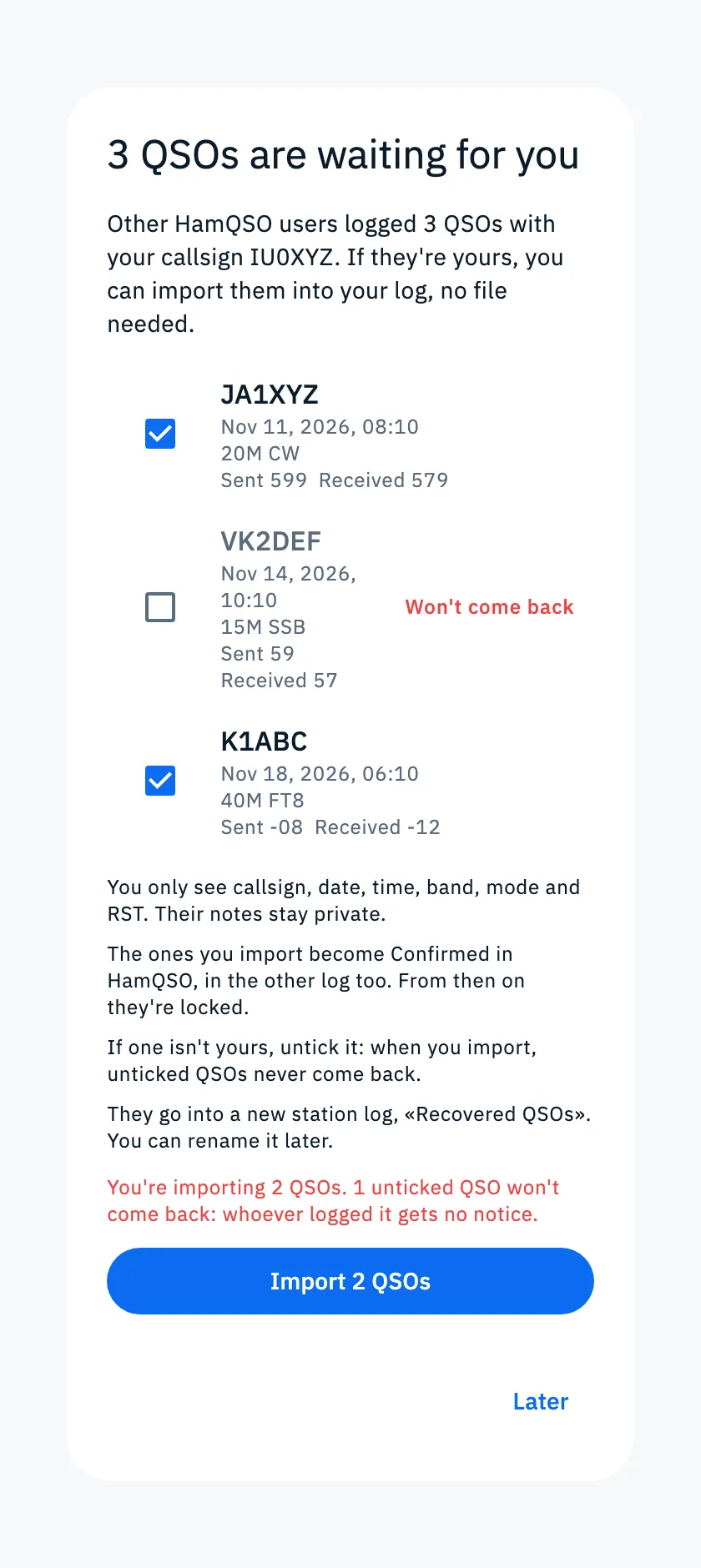
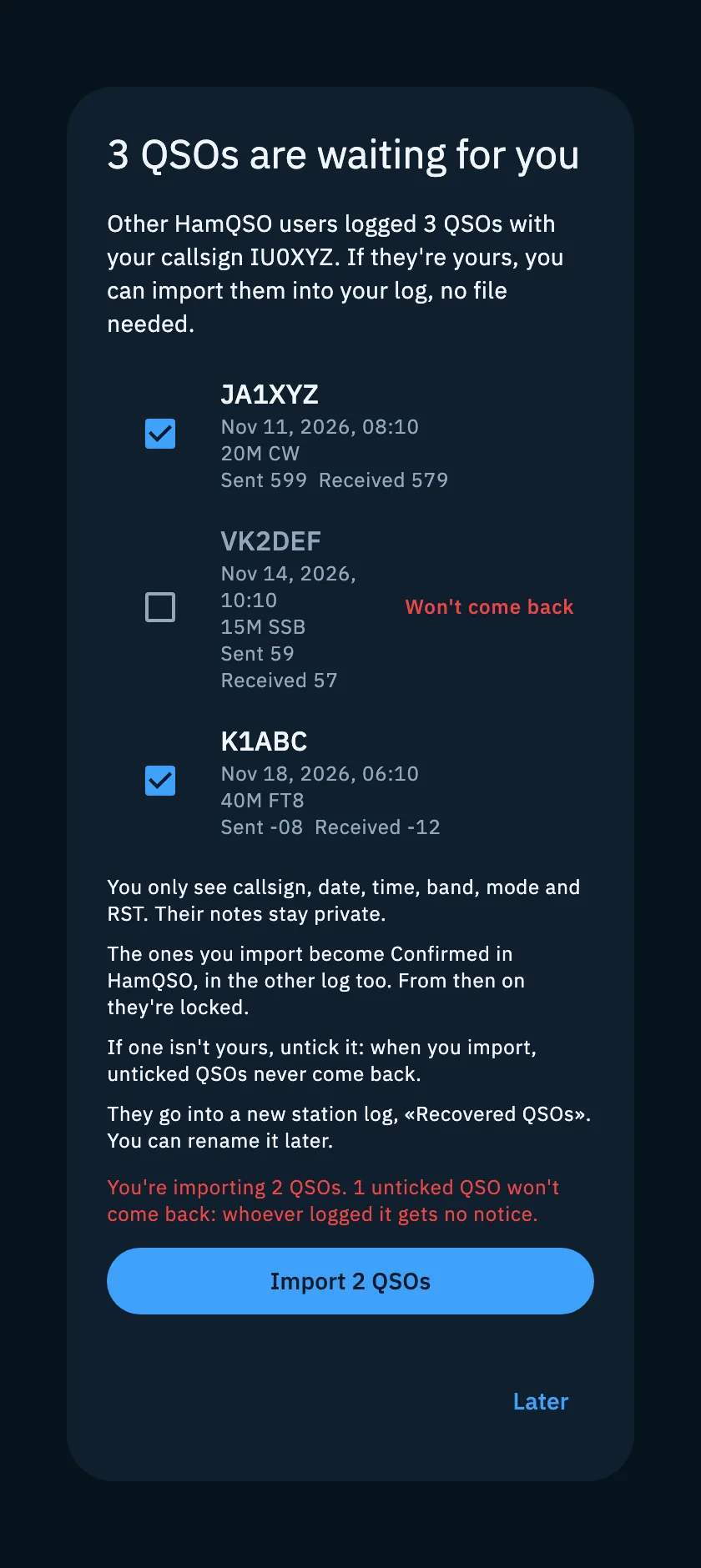
- Check the QSOs listed: they're all ticked already.
- Untick the ones that aren't yours: Won't come back appears next to them.
- Tap Import N QSOs. The QSOs go into the Recovered QSOs log; you can rename it later.
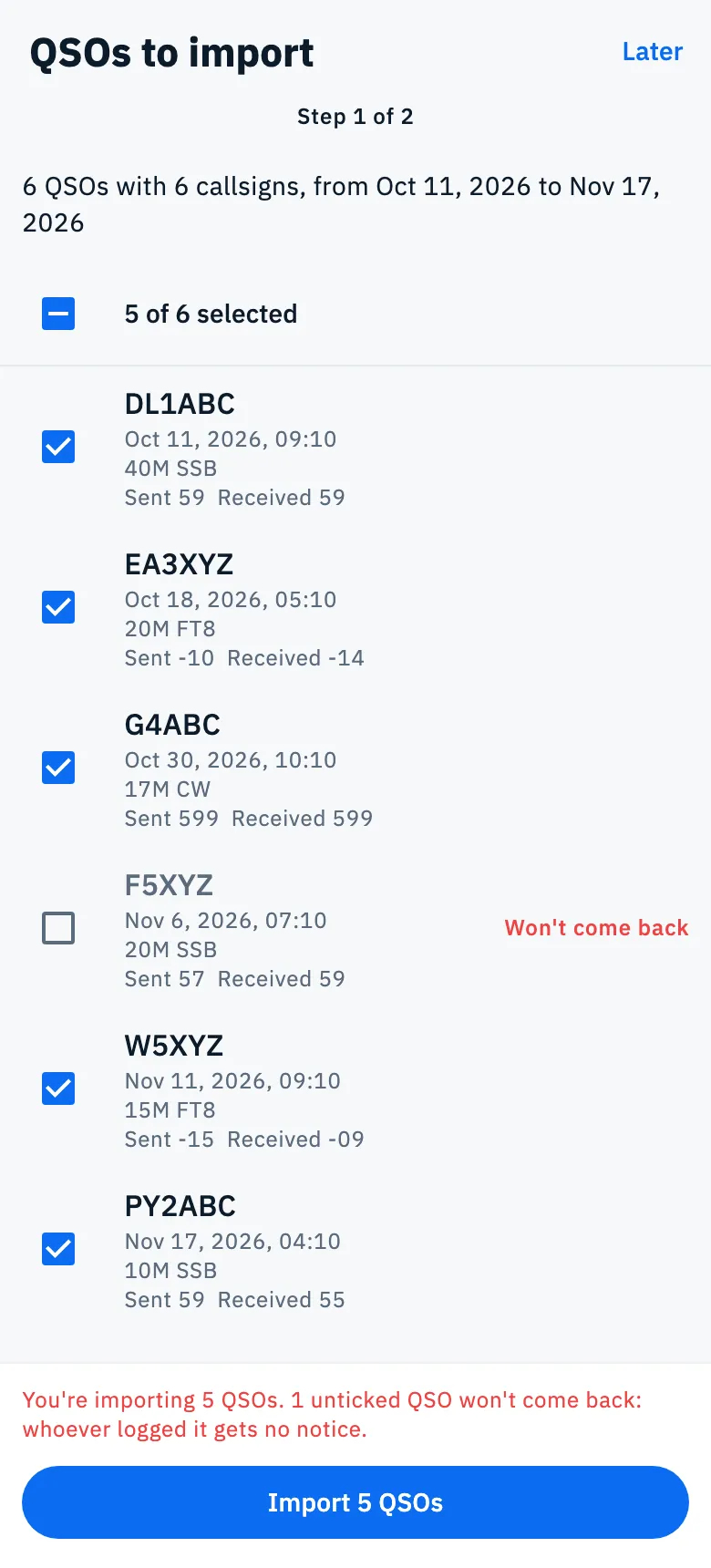
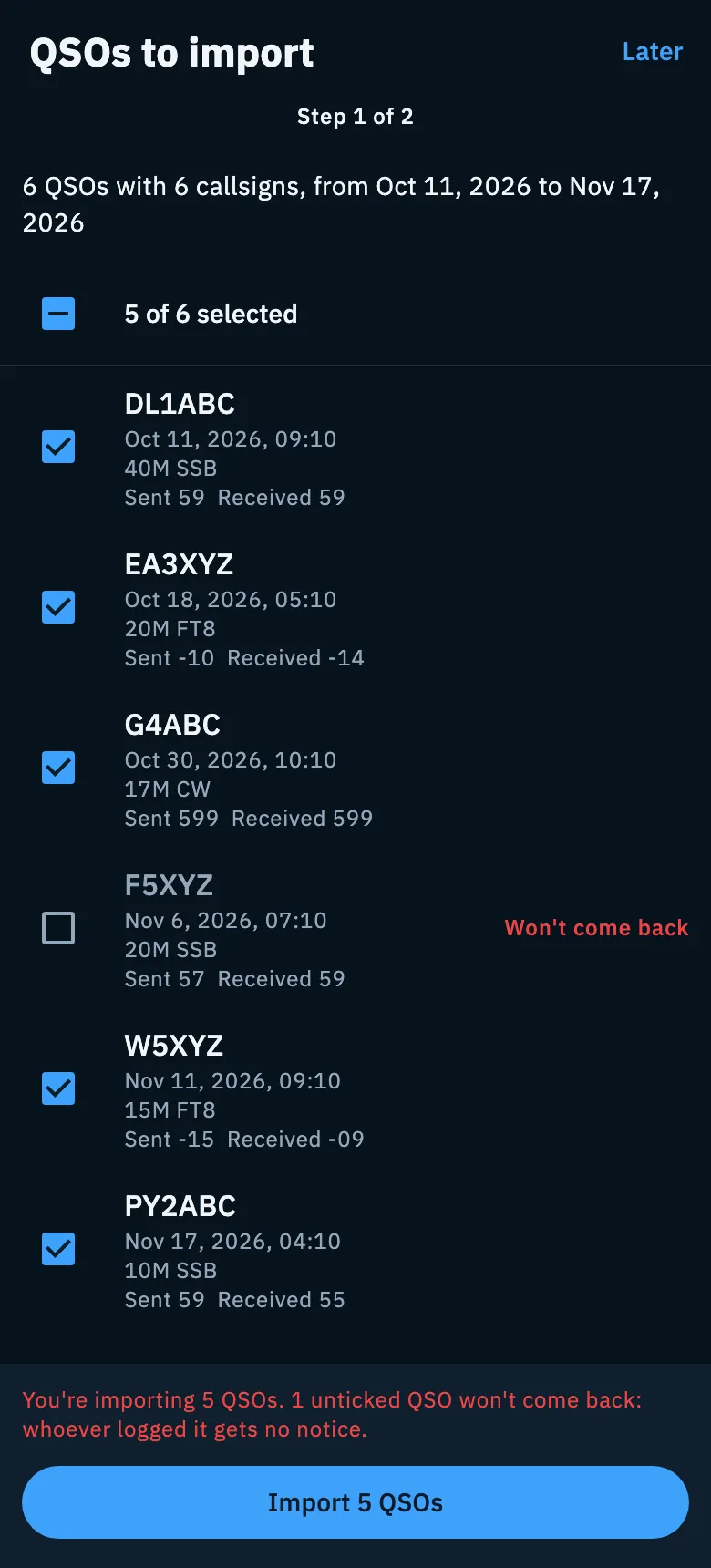
More than 3 QSOs: two steps
- The window shows the first three QSOs and how many more there are. Tap See the N QSOs.
- Step 1 of 2, QSOs to import: at the top you read how many QSOs, with how many callsigns and on which days. They're all ticked; untick the ones that aren't yours. The All selected (N) box (or N of M selected) ticks or unticks them all at once.
- Tap Import N QSOs.
- Step 2 of 2, A log just for them: in the Log name field keep Recovered QSOs or type another name. The name can't be empty. The back arrow takes you back to the list, and your ticks stay.
- Tap Create log and import.
If you untick everything in step 1, the button becomes Decline all N QSOs and there's no step 2.
The outcome
At the end you see the title «N QSOs in your log», the sentence «They're in the log «Recovered QSOs» and all confirmed in HamQSO.» and the counts «N confirmed in HamQSO» and «N declined, won't come back». Tap Open the log to see them, or Close. If you imported none, the title is «No QSOs imported» with «We won't suggest them again.».
Recovered QSOs have the origin Recovered from HamQSO, which you'll also find in the Origin filter of the log (see Browsing and searching your log).
Ticks: import or decline
Every QSO in the list has a tick, and the choice is final:
| State | What happens |
|---|---|
| Ticked | The QSO is imported and becomes Confirmed in HamQSO. |
| Unticked | The QSO is declined and never comes back (Won't come back). Whoever logged it gets no notice. |
The line above the button sums up your choice: «You're importing all N QSOs.», or «You're importing N QSOs.» followed, in red, by «N unticked QSOs won't come back: whoever logged them gets no notice.». For new QSOs the line says «You're confirming all N QSOs.» or «You're confirming N QSOs.». If you untick everything the line says «Nothing ticked: the N QSOs won't come back. Whoever logged them gets no notice.» and the button turns red and becomes Decline all N QSOs.
While your choice is being sent the button says «Importing N QSOs…» and the ticks are locked.
Deciding later
Later closes without deciding anything:
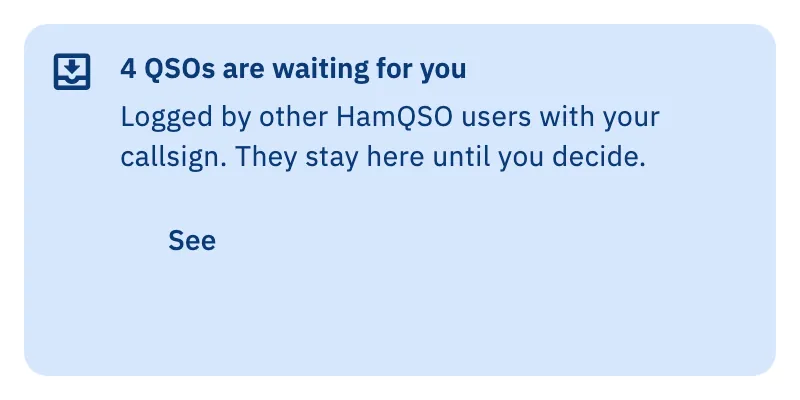
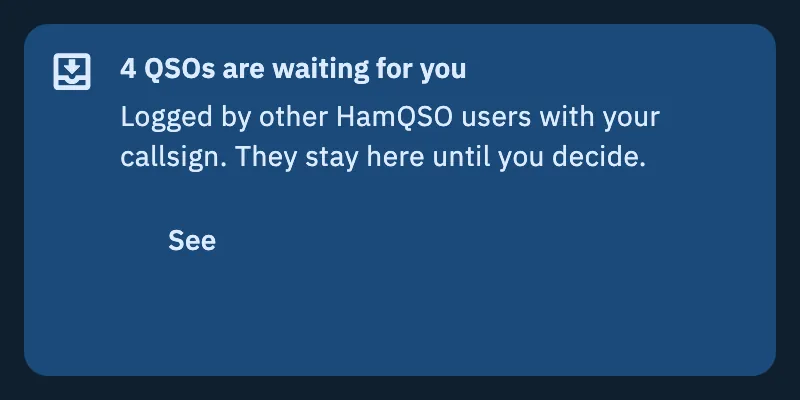
- the QSOs keep waiting, and at the top of the Log the card «N QSOs are waiting for you» appears with See;
- the Log tab icon shows the number of QSOs waiting for you;
- the window opens again by itself the next time you start the app or sign in.
Tap See on the card to decide: the recovery starts again from the beginning, with all QSOs ticked.
New QSOs that arrive later
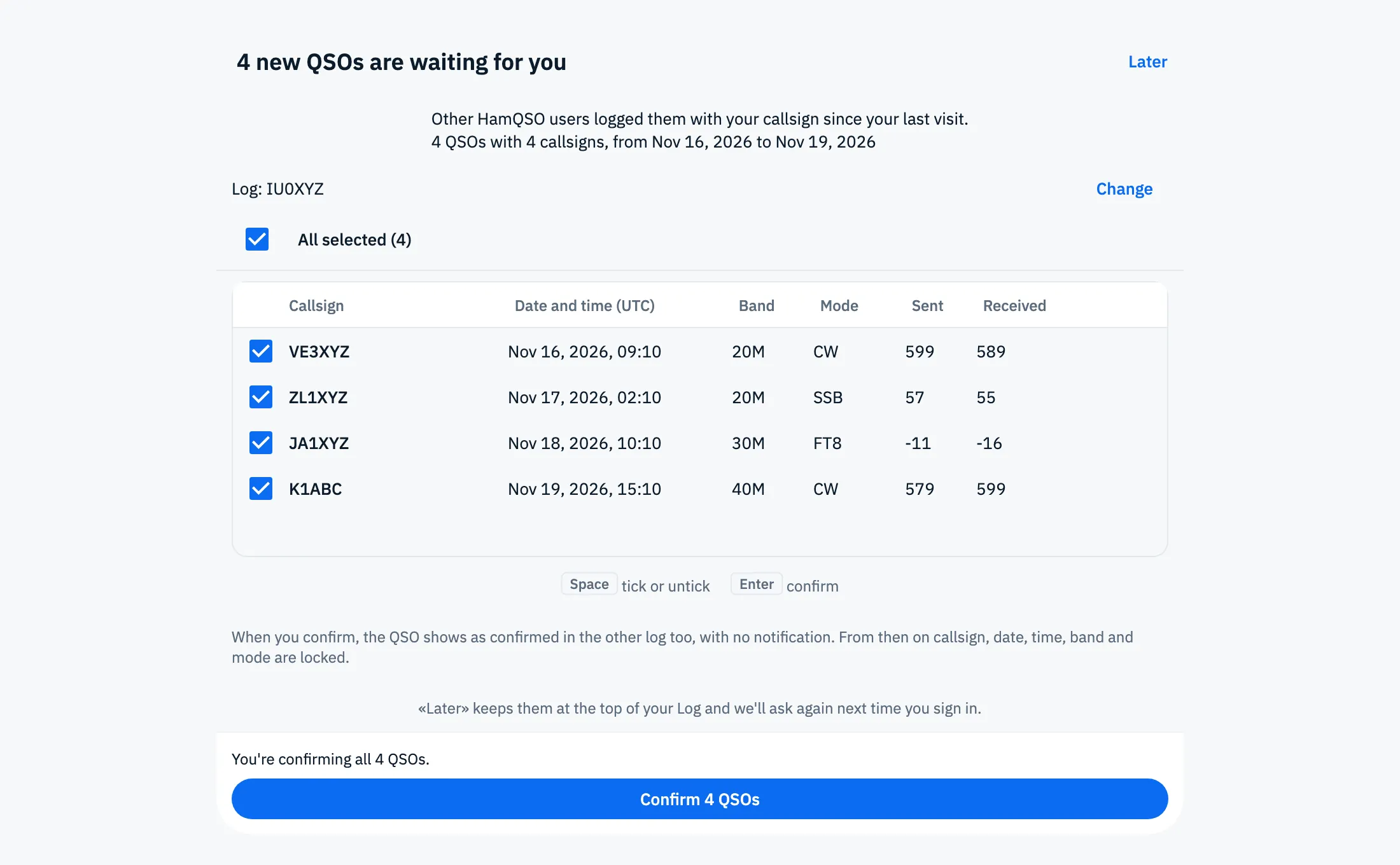
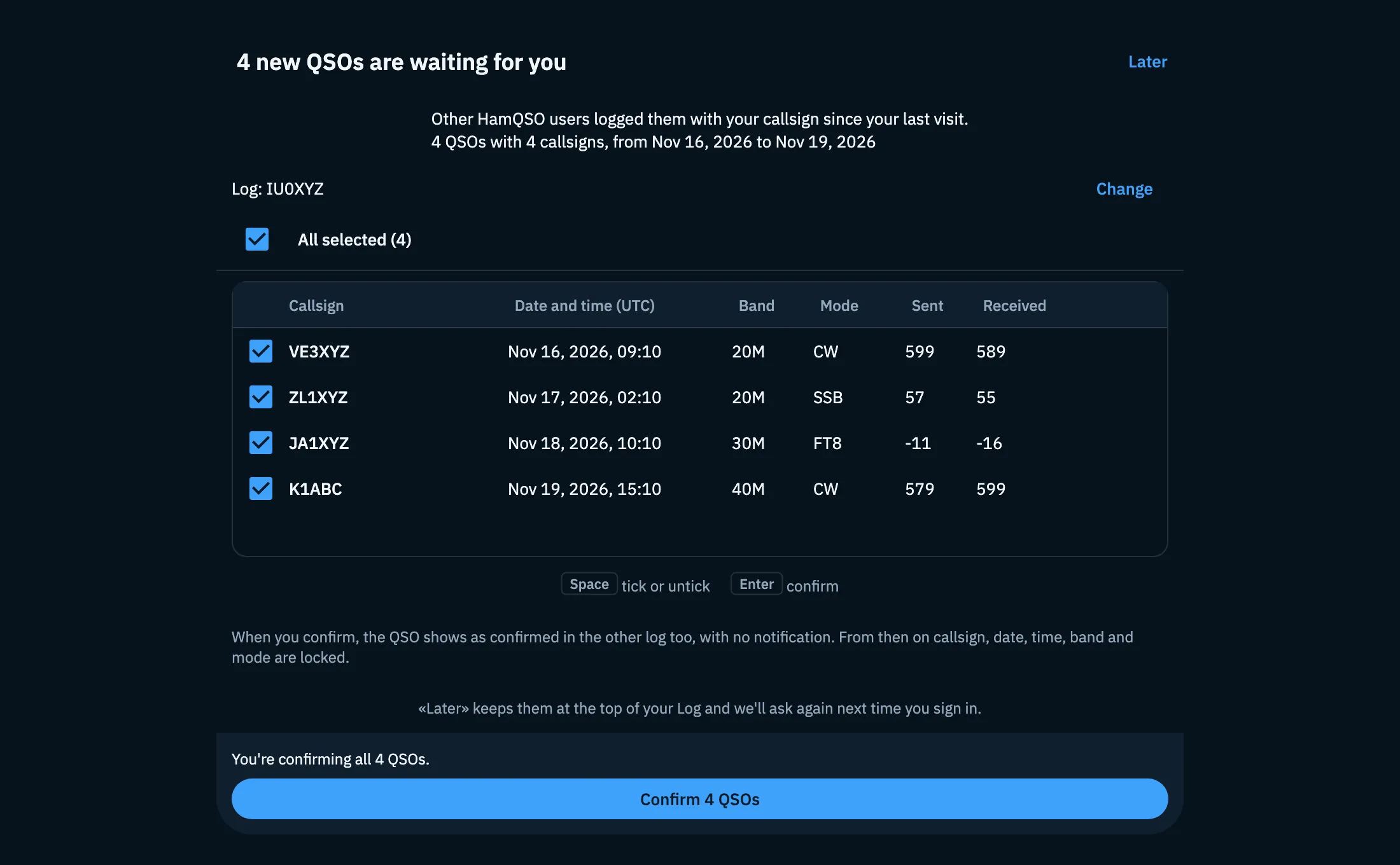
After the first recovery, QSOs that other users log with you since your last visit arrive in the «N new QSOs are waiting for you» list. This time there's no new log: you choose where they go.
- The list opens by itself after you sign in; if you closed it, tap See on the card at the top of the Log.
- Check the Log: … row: it starts with the log in use. Tap Change to pick another one. Without a log you can't confirm (declining always works).
- Untick the QSOs that aren't yours.
- Tap Confirm N QSOs, or Decline all N QSOs if you ticked none.
Under the list the app reminds you that when you confirm, the QSO shows as confirmed in the other log too, with no notification, and that from then on callsign, date, time, band and mode are locked. There's also the reminder: «Later» keeps them at the top of your Log and we'll ask again next time you sign in.
What changes for a confirmed QSO
A QSO Confirmed in HamQSO is the same contact in two logs, so:
- callsign, date, time, band and mode can't change any more; notes, RST and the other fields stay editable (see Opening and editing a QSO);
- the QSO can't be deleted: the app says «It can't be deleted: the QSO is confirmed in HamQSO.»;
- a log holding confirmed QSOs can't be deleted: the app says «It can't be deleted: N QSOs are confirmed in HamQSO.» (see Deleting QSOs and the trash).
The Confirmed in HamQSO mark appears in the row and in the detail of the QSO, with the other confirmations (see A QSO on your services).
Phone, tablet, desktop and web
| Where | First recovery | New QSOs |
|---|---|---|
| Phone (and a narrow browser window) | Window, then the full-page list | Bottom sheet |
| Tablet | Window, then the list in a window with the table | Window with the table |
| Desktop and web | As on tablet, with the keys under the table | As on tablet, with the keys under the table |
The table columns are callsign, Date and time (UTC), band, mode and RST Sent and Received; clicking a row ticks or unticks it. With the keyboard:
- ↑ ↓ move to the previous or next QSO;
- Space ticks or unticks;
- Enter imports (at the first recovery) or confirms the ticked QSOs.
They're also in Keyboard shortcuts.
The window and the list don't close when you tap outside them: to leave without deciding, use Later.
Troubleshooting
| Message | What to do |
|---|---|
| «Looking for QSOs with your callsign» | The list is loading: wait a few seconds. |
| «We can't load the QSOs» | Check your connection and tap Retry. The QSOs stay waiting, nothing is lost. |
| «The QSOs weren't imported» | The server isn't responding. Your choices are kept: check your connection and tap Retry. |
| The Confirm N QSOs button is greyed out | There's no destination log: tap Change and pick one. |
| The Create log and import button is greyed out | The Log name field is empty: type a name. |
| The window doesn't open | You need an account, and the window opens by itself only once per app start. If you chose Later, use the card at the top of the Log. |